
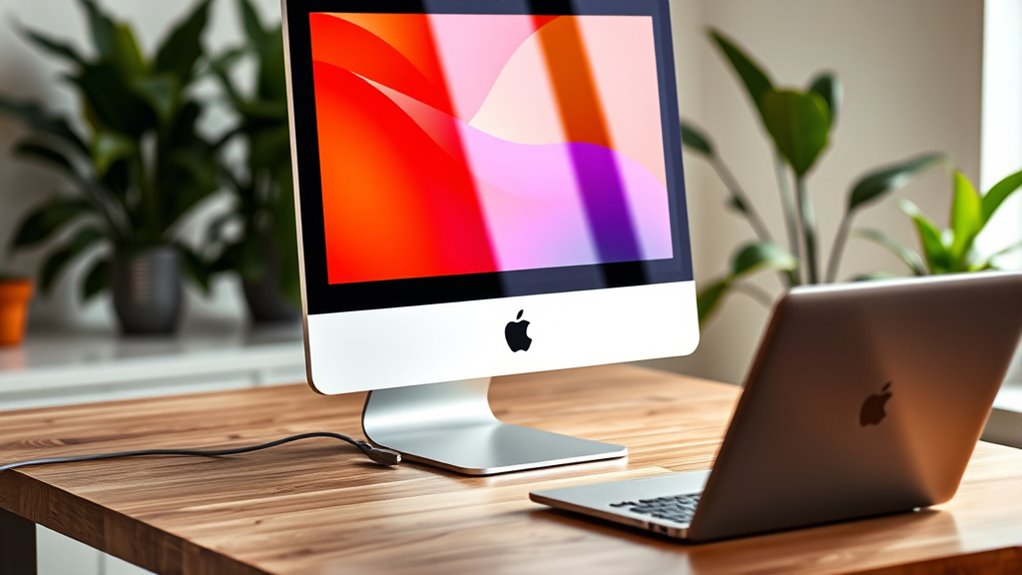

Yes, you can use an iMac as a monitor through Target Display Mode, but only certain models from 2009 to 2014 support this feature. You’ll need a Thunderbolt or Mini DisplayPort cable for the connection. Simply connect your external device and press Command + F2 on the iMac’s keyboard. Keep in mind there are limitations, and compatible setups can vary. If you’re curious about specific models and alternative display methods, there’s more to explore.
Understanding Target Display Mode
Have you ever wondered how to use your iMac as a monitor for another device? The key lies in understanding Target Display Mode functionality. This feature allows your iMac to act as a secondary display, enhancing your workspace flexibility. To activate it, you’ll typically connect your iMac to another Mac via a Thunderbolt or Mini DisplayPort cable. Once connected, simply press Command + F2 on the iMac’s keyboard, and voilà! Your iMac transforms into a monitor, displaying the other device’s interface. Keep in mind, Target Display Mode is not available on all iMac models, so it’s essential to verify compatibility. Embracing this functionality can free up your work environment and streamline your productivity.
Compatibility of Imac Models
Not all iMac models support Target Display Mode, so it’s important to check compatibility before attempting to use your iMac as a monitor. Compatibility issues can arise based on the model year and specifications. Here’s a quick reference to help you determine if your iMac can be used as a display:
| iMac Model | Year | Target Display Mode Supported |
|---|---|---|
| iMac 27″ | 2009-2014 | Yes |
| iMac 21.5″ | 2011-2014 | Yes |
| iMac Retina 5K | 2014-2019 | No |
| iMac Pro | 2017-2021 | No |
| iMac (M1, 2021) | 2021 | No |
Ensure your iMac model is compatible to enjoy the flexibility of using it as a monitor.
Connecting External Devices
Once you’ve confirmed that your iMac model supports Target Display Mode, you can proceed to connect your external devices. First, check the external device compatibility; your iMac typically works well with Macs or certain PCs that support video output. You’ll need the right connection cables—usually a Thunderbolt or Mini DisplayPort cable. Simply plug one end into your iMac and the other into the external device. Once connected, your iMac should automatically recognize the incoming signal, allowing you to use it as a display. Make sure to adjust the display settings on your external device to optimize your viewing experience. This setup not only enhances productivity but also gives you the freedom to use your iMac creatively.
Limitations of Using Imac as a Monitor
While using your iMac as a monitor can be convenient, there are significant limitations to take into account. First, Target Display Mode is only available on specific iMac models, which restricts your options. Additionally, the available connectivity options can limit compatibility with external devices, potentially affecting performance and usability.
Target Display Mode Restrictions
Although using an iMac as a monitor can be a convenient solution for expanding your display, there are several restrictions that you should be aware of. First, Target Display Mode isn’t available on all iMac models; it primarily supports iMacs from 2009 to 2014. Additionally, mode updates may limit functionality, especially with newer macOS versions. You might encounter compatibility issues if you’re trying to connect non-Apple devices, which can hinder your user experiences. Moreover, even when supported, the setup requires specific ports and cables, adding another layer of complexity. If you’re considering this option, weigh these limitations carefully to guarantee it aligns with your needs for flexibility and freedom in your workspace.
Connectivity Options Limitations
When considering using an iMac as a monitor, you should be aware of connectivity options that may limit your setup. Not all iMac models support Target Display Mode, and the connection types available can affect display resolutions. For instance, an iMac can only accept input from certain Mac models using Thunderbolt or Mini DisplayPort, which can restrict your choices.
| Connection Type | Supported Display Resolutions | Compatibility |
|---|---|---|
| Thunderbolt | Up to 2560 x 1440 | iMac (2011-2014) |
| Mini DisplayPort | Up to 2560 x 1440 | iMac (2011-2014) |
| HDMI (via adapters) | Limited (varies by adapter) | Not supported |
These limitations in connection types and display resolutions can impact your overall experience.
Alternative Methods for Displaying Content
If you’re looking for other ways to display content on your iMac, AirPlay streaming options and external capture devices offer viable alternatives. AirPlay allows you to wirelessly project content from compatible devices, while capture devices can connect different sources directly to your iMac. Each method has its own advantages and can enhance your viewing experience.
AirPlay Streaming Options
How can you maximize your iMac’s potential as a display for streaming content? One effective way is to utilize AirPlay, which offers several advantages for seamless streaming. With AirPlay, you can enjoy high-quality content without the hassle of cables, allowing for greater flexibility in your setup. Here’s a quick comparison of AirPlay options:
| AirPlay Option | Streaming Quality |
|---|---|
| Apple TV | 4K HDR |
| iPhone/iPad | Up to 1080p |
| Mac to iMac | Up to 1080p |
| Third-party apps | Varies |
| HomePod | Audio Only |
External Capture Devices
Many users may not realize that external capture devices offer an effective way to enhance your iMac’s functionality as a display. These devices come in various capture device types, including HDMI and USB-C adapters, which enable seamless connectivity with other sources. Depending on your needs, you should consider the video input compatibility of your iMac, as this will determine which devices work best. For instance, if you’re looking to connect a gaming console or another computer, verify the capture device supports the necessary resolutions and frame rates. Using an external capture device not only allows you to display content from multiple sources but also maximizes your iMac’s potential, giving you the freedom to enjoy diverse media experiences.
Software Solutions for Screen Sharing
While traditional methods for using an iMac as a monitor often involve hardware connections, software solutions for screen sharing offer a flexible alternative. Utilizing screen sharing software can provide you with the freedom to connect devices without the need for physical cables. Here are three popular options:
- Apple’s Screen Sharing – Built into macOS, it allows seamless remote desktop access to another Mac.
- TeamViewer – A versatile tool that enables remote control of different operating systems, perfect for cross-platform sharing.
- Zoom – Beyond video calls, it has a screen sharing feature that can display your iMac screen to others.
These solutions give you the flexibility and convenience to use your iMac creatively, expanding its functionality while maintaining a clean workspace.
Considerations Before Using Imac as a Monitor
Before you start using your iMac as a monitor, there are several important factors to take into account. First, consider the display quality. While iMacs boast impressive screens, the resolution and color accuracy may not meet your expectations depending on the device you’re connecting. Next, think about the performance impact. Using your iMac in this capacity can strain its resources, potentially affecting its overall speed and functionality. If you’re running demanding applications, this might become a concern. Additionally, verify compatibility with the device you plan to connect; not all models support this feature. Weighing these factors will help you make an informed decision and guarantee you get the most out of your setup.
Frequently Asked Questions
Can I Use an Imac as a Monitor for Gaming Consoles?
You can’t directly use an iMac as a monitor for gaming consoles due to gaming console compatibility issues. Plus, display quality concerns might affect your gaming experience, so consider alternative monitor options for better results.
Does Using an Imac as a Monitor Affect Its Performance?
Using an iMac as a monitor can impact performance due to resource allocation. It may divert processing power and memory, leading to slower performance for tasks unrelated to the display function, affecting overall efficiency.
Can I Adjust the Brightness When Using Imac as a Monitor?
Sure, you can’t adjust brightness settings when using your iMac as a monitor. Isn’t that ironic? Display calibration options vanish, leaving you with a static brightness. Freedom to customize? Not so much in this scenario.
Will My Imac Display Lag When Used as a Monitor?
Your iMac’s display performance may vary depending on the connection types used. If you’re using high-quality connections like Thunderbolt, lag is minimal, but lower-quality connections might introduce noticeable delays. Always choose the best option available.
Is Using an Imac as a Monitor Safe for Extended Periods?
Using an iMac as a monitor’s generally safe for extended periods, but remember, 80% of users report screen health issues from bad ergonomics. Prioritize proper height and distance to maintain comfort and reduce strain during usage.
