
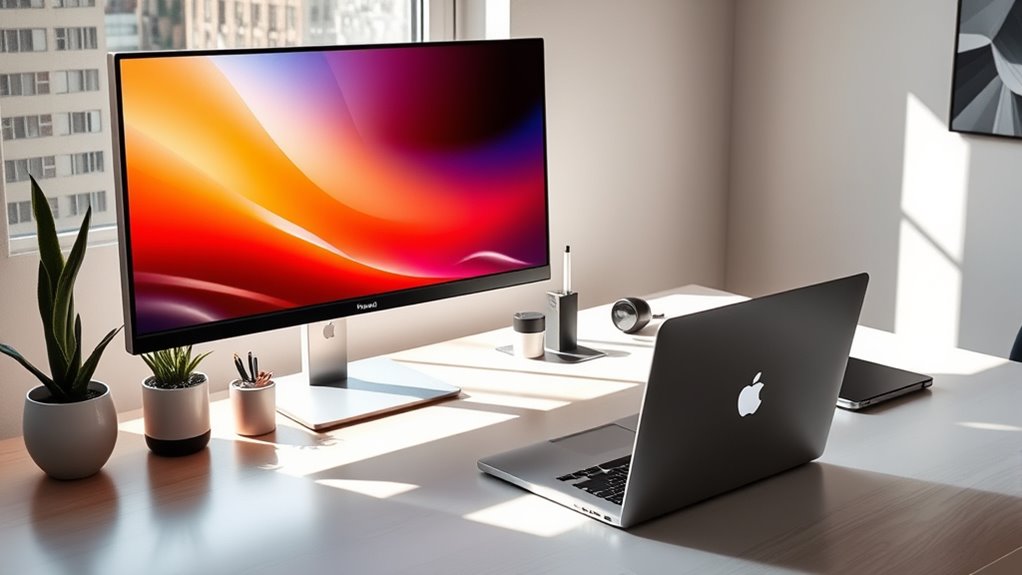

Using a monitor with your laptop can boost your productivity and enhance your visuals. Start by choosing the right monitor with the desired resolution and size. Next, gather necessary cables like HDMI or DisplayPort for seamless connectivity. Once connected, adjust display settings for ideal resolution and color accuracy. If you encounter issues, check connections and settings. You’re on the path to a better workspace experience, and there’s more to discover about optimizing your setup.
Choosing the Right Monitor for Your Laptop
When you’re looking to enhance your laptop experience with a monitor, it’s essential to take into account a few key factors. First off, consider the monitor resolution; higher resolutions like 1080p or 4K can greatly improve your visual experience, making text sharper and colors more vibrant. Next, think about screen size. A larger screen can provide greater workspace, ideal for multitasking or immersing yourself in games and movies. However, make sure your desk can accommodate it comfortably. Balance is key; too big or too small can be counterproductive. Finally, don’t forget to check the monitor’s refresh rate, especially if you’re into gaming. Choosing the right monitor can elevate your laptop use, granting you more freedom and flexibility.
Necessary Cables and Adapters
To connect your laptop to a monitor, you’ll need the right cables and possibly some adapters. Different monitors and laptops use various ports, so knowing which types of cables are compatible is key. Let’s break down the essential cables and the adapters you might need for a seamless setup.
Types of Cables
Although connecting a monitor to your laptop might seem straightforward, the right cables and adapters are essential for a seamless experience. Here are three types you should consider:
- HDMI Cables: These are the most common and support high-definition video and audio. Perfect for gaming or streaming!
- DisplayPort Cables: Ideal for high-performance setups, especially if you’re into gaming or graphic design. They offer superior resolution and refresh rates.
- VGA Connections: While older, VGA can still be useful for connecting to legacy monitors.
You might also need USB C connections for newer laptops, and don’t forget audio cables if you want to enhance your sound experience. Choosing the right cable can make all the difference in your setup!
Required Adapters Explained
Connecting your laptop to a monitor often requires specific adapters to bridge the gap between different ports. Depending on your laptop’s output, you may need various adapter types, such as HDMI, DisplayPort, or USB-C. Each of these serves a unique purpose and adheres to different connection standards. For instance, if your laptop has a USB-C port and your monitor only has HDMI, you’ll need a USB-C to HDMI adapter. Similarly, if you’re using an older laptop with a VGA output, a VGA to HDMI adapter will be necessary. Understanding these adapters is essential for seamless connectivity, ensuring you can enjoy the freedom of a larger display without technical hiccups. Choose wisely to keep your setup efficient and hassle-free!
Connecting Your Laptop to the Monitor
Now that you’ve got your cables ready, it’s time to connect your laptop to the monitor. First, check cable compatibility to guarantee a smooth connection, then adjust your display settings for the best experience. You can choose to extend or duplicate your screen depending on how you want to use your monitor.
Check Cable Compatibility
Before you can enjoy a larger display, it’s essential to check cable compatibility between your laptop and the monitor. A compatibility check guarantees you’ll have a seamless connection. Here are three key cable types to take into account:
- HDMI: Most modern laptops and monitors support this versatile option for video and audio.
- DisplayPort: Excellent for high resolutions and refresh rates, great for gamers or designers.
- VGA: An older standard, still found in some devices, but won’t support higher resolutions.
Make sure you know which ports your laptop and monitor have. With the right cable types, you can easily connect and expand your workspace, giving you the freedom to enjoy your content like never before!
Adjust Display Settings
Once you’ve confirmed that your cables are compatible, it’s time to adjust your display settings to optimize your new setup. Start by right-clicking on your desktop and selecting “Display settings.” Here, you can choose your preferred display resolution, ensuring it matches your monitor’s capabilities for the best visual experience. Don’t forget to check the screen orientation—whether you want it landscape or portrait—so it aligns perfectly with your workflow. Adjusting these settings can greatly enhance your productivity and comfort, giving you the freedom to work how you want. Experiment with different resolutions and orientations until you find what feels right for you. With just a few clicks, you’ll transform your workspace into a more enjoyable environment.
Extend or Duplicate Screen
How do you want your laptop’s display to interact with your monitor? You’ve got two main options: extend or duplicate your screen. Each display mode offers unique benefits, letting you customize your workspace for maximum freedom.
- Extend: Use your monitor as an additional workspace, perfect for multitasking.
- Duplicate: Mirror your laptop’s screen for presentations or sharing with others.
- Screen Mirroring: Stream content effortlessly, ideal for watching movies or giving demonstrations.
To switch between these modes, go to your display settings after connecting your laptop to the monitor. Choose what best suits your needs, and embrace a more flexible workspace!
Configuring Display Settings
As you connect your laptop to a monitor, configuring the display settings is vital for optimizing your viewing experience. Start by adjusting the display resolution; select the highest resolution supported by both your laptop and monitor for crisp visuals. This enhances clarity, making it easier on your eyes. Next, focus on color calibration. Properly calibrating colors guarantees that what you see on screen is accurate, which is especially important for creatives or anyone who values vibrant visuals. You can access these settings through your laptop’s display menu or control panel. Experiment with the options until you find what feels right. With a few adjustments, you’ll enjoy a more immersive experience that truly reflects your personal style and preferences.
Optimizing Your Workspace for Productivity
While you’ve successfully connected your laptop to a monitor, the next step is to optimize your workspace for maximum productivity. Focusing on workspace ergonomics can help you work comfortably and efficiently. Here are some productivity tips to enhance your setup:
- Monitor Height: Make sure your monitor is at eye level to reduce neck strain.
- Chair Comfort: Invest in a supportive chair that promotes good posture.
- Declutter: Keep your desk tidy to minimize distractions and enhance focus.
Troubleshooting Common Issues
Even with an optimized workspace, you might encounter some common issues when using a monitor with your laptop. One of the most frequent problems is a blank screen. Check your connections and verify that the monitor is powered on. If you see distorted images or flickering, it could be a sign of common display issues. Adjust your laptop’s display settings or update your graphics drivers to resolve these glitches.
Resolution problems are another concern; sometimes, the monitor doesn’t sync properly with your laptop’s settings. Go into your display settings and select the recommended resolution for your external monitor. Don’t forget to explore the monitor’s menu for additional adjustments. With a little troubleshooting, you’ll enjoy a seamless experience in no time!
Frequently Asked Questions
Can I Use Multiple Monitors With My Laptop?
Yes, you can use multiple monitors with your laptop. Just connect them and configure your dual display settings. Make certain the screen resolution is compatible for an ideal viewing experience, giving you the freedom to multitask effectively.
What Is the Ideal Monitor Size for Laptops?
The ideal monitor size for laptops often ranges from 24 to 32 inches, depending on your workspace. When choosing monitor types, consider screen dimensions that balance clarity and comfort for extended use.
How Do I Clean My Monitor Screen Safely?
Cleaning your monitor screen safely is as crucial as a superhero’s cape! Use a microfiber cloth and a screen cleaning solution, avoiding harsh chemicals. Regular monitor maintenance keeps your display pristine and guarantees an amazing viewing experience.
Will Using a Monitor Drain My Laptop Battery Faster?
Yes, using a monitor can increase battery consumption, especially if your power settings aren’t optimized. To conserve battery, adjust brightness and consider using a power-saving mode when connecting to an external display.
Can I Use a TV as a Monitor for My Laptop?
Yes, you can use a TV as a monitor for your laptop. Just check the TV compatibility, connect it via HDMI, and adjust your display settings for ideal resolution and experience. Enjoy the larger screen!

[…] unit area decreases when you enlarge the projected image, because lumens are distributed across a larger screen surface. From my testing, a projector that looked bright on an 80-inch diagonal can look noticeably […]
[…] that’s truly dark, and 3,500+ lumens when it’s still bright (twilight, nearby lights, or a larger screen). Once you know your ambient light level, screen size, and throw distance, you can size lumens […]
[…] to a modern LED/LCD TV running in a lower-power mode, the projector can draw more watts. Also, larger screen setups may tempt users to increase brightness further, which increases electricity […]
[…] mean a better projector—brightness only wins when you need to overcome ambient light or fill a larger screen. If you’re projecting in a controlled, dark room, higher lumens can be overkill and you may get a […]
[…] a smaller screen to keep the image readable, often around 60–80 inches diagonal in a dark room. Larger screen sizes reduce brightness per square foot, making whites look gray and text harder to see. A good […]
[…] The minimum throw distance is the smallest distance where the projector can still project the specified image size with proper focus. Many short throw models list a minimum throw ratio (throw distance ÷ image width), so you can compute the minimum distance using your target screen width. Always confirm the recommended distance for your specific diagonal inches, since a “minimum distance” that works for a small image may not work for a larger screen. […]
[…] see projector measurement standards used across reviews). When you move farther away or pick a larger screen, effective brightness can drop, so the goal is to keep your placement within intended operating […]