
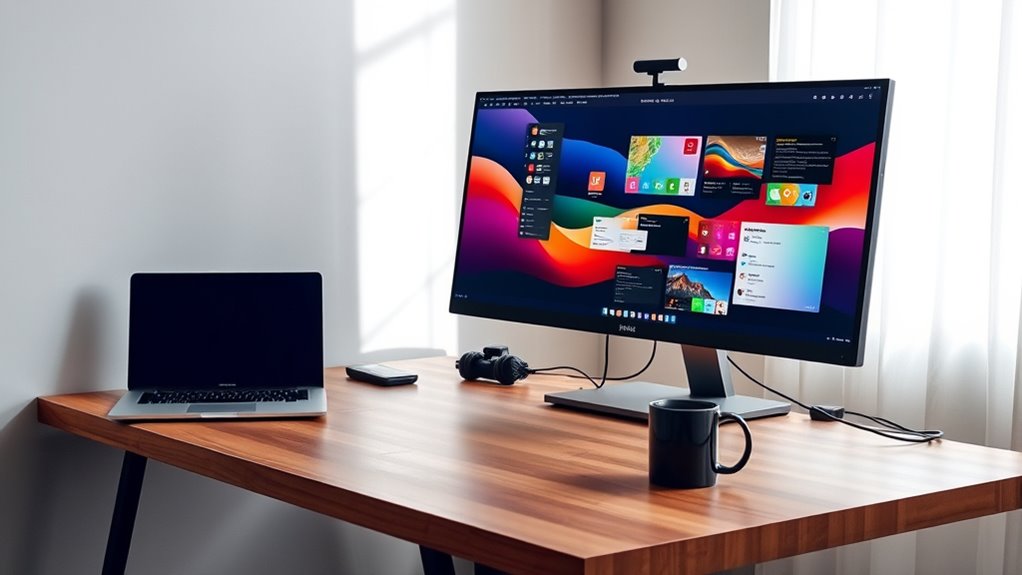

To use two monitors with your laptop, first check your laptop’s ports and graphics card compatibility. Select monitors that match your requirements. Gather the necessary cables and adapters for connections. Connect the second monitor, then adjust the display settings in your operating system to choose your preferred mode: Duplicate, Extend, or Second screen only. Organize your workspace for maximum efficiency by positioning monitors comfortably. Explore more to optimize your dual monitor setup.
Understanding the Benefits of Dual Monitors
While you might be accustomed to working with a single screen, using dual monitors can greatly enhance your productivity and multitasking capabilities. By integrating two displays, you can experience increased productivity as you can view multiple applications simultaneously without toggling between windows. This enhanced multitasking allows you to compare documents, analyze data, or attend virtual meetings while keeping your notes open. A streamlined workflow is achieved as tasks can be organized across screens, reducing clutter and saving time. Additionally, dual monitors can lead to improved focus since you can dedicate one screen to specific tasks, minimizing distractions. Overall, embracing dual monitors can revolutionize how you work, granting you the freedom to manage your tasks more efficiently.
Checking Your Laptop’s Compatibility
Before setting up dual monitors, you need to check your laptop’s ports and connections to guarantee compatibility with external displays. Additionally, verify your graphics card’s capability to support multiple monitors, as some integrated graphics may have limitations. Confirming these aspects will help you avoid potential issues during your setup.
Ports and Connections
To successfully set up two monitors with your laptop, you’ll first need to check the available ports and connections on your device. HDMI options are common, but verify your laptop supports dual output. USB C connections can also be beneficial, especially with Thunderbolt advantages, allowing for high-speed data transfer and video output. DisplayPort usage might be another option, offering flexibility for multiple displays. Be aware of VGA limitations, as this older standard may not support higher resolutions. If your laptop lacks sufficient ports, consider using docking stations or monitor adapters to enhance connectivity. Finally, effective cable management will keep your workspace tidy while you enjoy the freedom of a dual-monitor setup.
Graphics Card Capability
Understanding your laptop’s graphics card capability is essential for successfully using two monitors, as not all integrated or dedicated graphics cards support dual displays. First, check your graphics card types; integrated cards may struggle with higher resolutions or intensive tasks, while dedicated cards typically offer better performance and support for multiple displays. Look for specifications that mention dual-monitor support, often found in the user manual or online. Additionally, consider the performance impact when using two monitors—running multiple screens can strain your GPU, affecting frame rates and overall responsiveness. If your laptop’s graphics card isn’t up to the task, you might need to upgrade or explore alternative solutions like USB display adapters to achieve your multi-monitor setup.
Selecting the Right Monitors for Your Setup
When selecting monitors for your dual-display setup, you’ll want to take into account several key factors to guarantee compatibility and peak performance. First, check the monitor specifications, ensuring they match your laptop’s output capabilities. Look for the resolution, refresh rate, and size that fits your workflow. Consider display technologies like IPS for better color accuracy and viewing angles or TN for faster response times if you’re into gaming. Think about connectivity options too; HDMI, DisplayPort, and USB-C are common interfaces. If you’re multitasking, larger screens or ultra-wide monitors might enhance your experience. Ultimately, choose monitors that align with your specific needs to maximize your productivity and enjoy the freedom of an expanded visual workspace.
Gathering the Necessary Cables and Adapters
Before you can set up your dual-monitor configuration, you’ll need to gather the appropriate cables and adapters that match your laptop and monitors. First, identify the cable types supported by your laptop’s video output—common ones include HDMI, DisplayPort, USB-C, and VGA. Next, check your monitors’ input ports to ascertain compatibility. If they differ, look into suitable adapter options, such as HDMI to VGA or USB-C to HDMI adapters. Verify your cables are long enough to reach the monitors comfortably without straining connections. Investing in high-quality cables can enhance performance and prevent signal loss. Finally, remember to verify that your laptop can handle dual displays by checking its specifications. This preparation sets the stage for a seamless multi-monitor experience.
Connecting the Second Monitor to Your Laptop
To connect the second monitor to your laptop, first, plug one end of the appropriate video cable into the monitor’s input port and the other end into your laptop’s output port. Depending on the monitor types, you might use HDMI, DisplayPort, VGA, or DVI cables. Verify both devices are powered on. If your laptop has multiple output ports, select one compatible with your monitor. For older monitors, you may need adapters, like HDMI to VGA. Once connected, your laptop should automatically detect the monitor, allowing you to extend or duplicate your display. Check your laptop’s specifications for supported resolutions to optimize your experience. Enjoy the enhanced workspace that dual monitors provide!
Configuring Display Settings in Windows
After connecting your second monitor, you’ll need to configure the display settings in Windows to guarantee a superior viewing experience. This guarantees ideal display scaling and maximizes the multi-tasking benefits of dual monitors. Follow these steps:
- Right-click on the desktop and select “Display settings.”
- Scroll down to “Multiple displays” and choose your preferred display mode (Duplicate, Extend, or Second screen only).
- Adjust the display scaling to guarantee text and apps appear at a comfortable size for both screens.
- Click “Apply” to save your changes and arrange the monitors in the settings to match their physical layout.
This setup not only enhances productivity but also allows for a more customized workspace tailored to your needs. Enjoy your expanded desktop!
Configuring Display Settings on Macos
To configure your display settings on macOS, start by accessing the Display Preferences through System Preferences. Once there, you can arrange the monitor positions to match your physical setup and adjust the resolution settings for ideal clarity. This setup guarantees an efficient and seamless multi-monitor experience.
Accessing Display Preferences
Accessing display preferences on macOS is essential for optimizing your dual-monitor setup. Follow these steps to configure your settings effectively:
- Click on the Apple menu in the top-left corner and select “System Preferences.”
- Choose “Displays” to access the display settings.
- Adjust the display scaling options to fit your needs. This helps guarantee text and images appear clear across both monitors.
- Set the monitor orientation according to your preference, whether it’s landscape or portrait, to enhance your workflow.
Arranging Monitor Positions
Once you’ve accessed the display preferences, arranging your monitor positions is essential for a seamless workflow. Proper monitor alignment guarantees your eyes can move naturally between screens, minimizing strain and enhancing productivity. To achieve an ergonomic setup, position your monitors at eye level and within arm’s reach.
Here’s a simple table to help visualize your setup:
| Monitor 1 Position | Monitor 2 Position | Alignment Type |
|---|---|---|
| Left | Right | Side by Side |
| Above | Below | Stacked |
| Main | Secondary | Primary Focus |
Adjust the arrangement based on your tasks, providing easy access to both screens. This setup not only fosters comfort but also boosts efficiency in your workflow.
Adjusting Resolution Settings
Adjusting resolution settings is essential for improving your dual monitor setup on macOS. Here’s how to effectively configure your display settings:
- Access System Preferences: Click on the Apple menu and select “System Preferences,” then “Displays.”
- Select Display: Choose the monitor you want to adjust from the “Display” tab.
- Resolution Scaling: Opt for “Scaled” to see available resolutions. Experiment with options to find what suits your needs best for clarity and size.
- Display Alignment: Verify the displays are aligned correctly in the “Arrangement” tab for a seamless experience by dragging them to your preferred positions.
This guarantees ideal performance and enhances your productivity across both screens.
Organizing Your Workspace for Maximum Efficiency
Creating an efficient workspace with two monitors can greatly enhance your productivity. To optimize your workspace layout, consider the following productivity tips:
| Task Type | Monitor Usage |
|---|---|
| Primary Tasks | Main monitor for focus |
| Secondary Tasks | Secondary monitor for reference |
| Communication | Use both for video calls and chats |
Position your monitors at eye level, reducing neck strain, and guarantee they’re angled towards you for easy access. Prioritize your tasks by placing essential applications on your primary monitor and supplementary tools on the secondary one. This arrangement allows for a smoother workflow, enabling you to multitask effectively while keeping distractions at bay. Embrace the freedom of a well-organized workspace and watch your efficiency soar!
Tips for Optimal Dual Monitor Use
To maximize your dual monitor setup, you’ll want to contemplate effective monitor arrangement strategies, ensuring both screens complement your workflow. Configuring display settings correctly is essential for ideal resolution and scaling, enhancing visibility. Implementing efficient workflow techniques can greatly boost productivity, allowing you to navigate tasks seamlessly across screens.
Monitor Arrangement Strategies
While setting up dual monitors can enhance productivity, the arrangement of these displays plays an essential role in optimizing your workflow. Here are some effective monitor positioning techniques and ergonomic setup tips to take into account:
- Align Heights: Verify both monitors are at eye level to reduce neck strain.
- Angle for Comfort: Tilt monitors slightly inward, which facilitates a more natural viewing angle.
- Position Strategically: Place your primary monitor directly in front of you, with the secondary monitor to one side for easy access.
- Maintain Distance: Keep monitors an arm’s length away to prevent eye fatigue and promote comfort.
Display Settings Configuration
Once you’ve arranged your monitors, configuring the display settings is essential for seamless multitasking. Start by right-clicking on your desktop and selecting “Display settings.” Here, you can adjust the display orientation for each monitor—landscape or portrait—depending on your workflow needs. If you prefer to see the same content on both screens, enable screen mirroring. This option is useful for presentations or sharing information with others. To extend your desktop, select the “Extend these displays” option, which allows for a broader workspace. Position the monitors in the settings to match their physical arrangement, ensuring your mouse moves smoothly between them. This setup maximizes productivity and enhances your dual-monitor experience.
Efficient Workflow Techniques
After configuring your display settings, implementing efficient workflow techniques can greatly enhance your productivity with dual monitors. Here are four tips to optimize your dual monitor experience:
- Task Prioritization: Use one screen for your primary tasks and the other for secondary tasks. This keeps your focus sharp and organized.
- Workflow Automation: Utilize tools like automation software to streamline repetitive tasks across both monitors, saving time and effort.
- Window Management: Use shortcuts to quickly switch between applications and resize windows, ensuring a smooth workflow.
- Dedicated Spaces: Assign specific applications to each monitor, creating a dedicated workspace that minimizes distractions and enhances clarity.
Troubleshooting Common Issues With Dual Monitors
Have you ever encountered frustrating issues when trying to set up dual monitors with your laptop? Common connection issues often arise, like monitor detection failure. Verify your cables are compatible; mismatched connectors can hinder performance. If you experience resolution problems or display lag, check your display settings and adjust them accordingly. For screen flickering solutions, try updating your graphics drivers, as outdated ones may cause extended desktop glitches. Regular driver update requirements can help maintain stability. If issues persist, restarting both your laptop and monitors can reset connections. Remember, troubleshooting dual monitors can be a process, but identifying these common problems will lead you to a smoother, more efficient setup.
Frequently Asked Questions
Can I Use Different Brands of Monitors Together?
Absolutely, you can mix different brands of monitors! Just make certain they’re compatible. Adjust your display settings for peak performance. Embrace the freedom of diverse screens, and enjoy a richer, more dynamic workspace experience.
Will Using Dual Monitors Drain My Laptop Battery Faster?
Yes, using dual monitors will increase battery consumption, leading to faster depletion. The performance impact can vary based on the resolution and brightness settings of the monitors, so adjust them to optimize battery life while multitasking.
How Do I Switch Between Single and Dual Monitor Modes?
To switch between single and dual monitor modes, access your display settings. Alternatively, use keyboard shortcuts like Windows + P to quickly toggle between display options, allowing you to adapt your workspace effortlessly.
Is There a Maximum Resolution for Dual Monitors With My Laptop?
Yes, there’s a maximum resolution for dual monitors, determined by your laptop’s graphics capabilities. Check your display settings to find the supported resolutions and guarantee both monitors operate efficiently within those limits for peak performance.
Can I Use a TV as a Second Monitor?
Yes, you can use a TV as a second monitor. Just connect it via HDMI or another TV connection. Adjust the display settings on your laptop for ideal resolution and screen arrangement, ensuring a seamless experience.
