
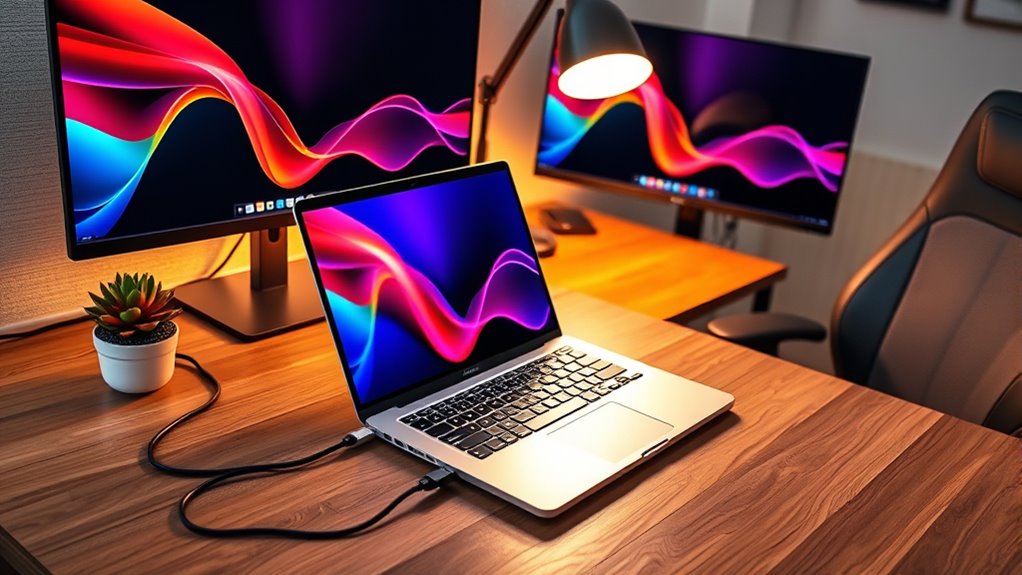

To connect two monitors to your laptop, first identify your laptop’s display ports like HDMI or DisplayPort. Choose monitors compatible with these ports for ideal resolution and refresh rates. Use the appropriate cables or adapters to connect both monitors securely. Next, configure the display settings in your operating system to set resolutions and choose between extending or duplicating screens. This setup maximizes your workspace, and there’s more to learn about ensuring smooth functionality.
Understanding Your Laptop’s Display Ports
When you’re looking to connect two monitors to your laptop, it’s important to understand the display ports available on your device. Most laptops feature HDMI, DisplayPort, USB-C, or VGA ports, each with unique capabilities. HDMI and DisplayPort typically support higher resolutions and refresh rates, making them ideal for modern displays. USB-C can also transmit video, but make sure your laptop supports DisplayPort Alt Mode for this functionality. If your monitors don’t match your laptop’s port types, don’t worry—adapter options are widely available. You can find HDMI to DisplayPort or USB-C to HDMI adapters, for instance. By knowing your port types and available adapters, you can customize your setup and achieve the dual-monitor freedom you desire.
Choosing the Right Monitors
While selecting the right monitors, it’s essential to take into account factors like resolution, size, and refresh rate to guarantee they meet your needs. Start by checking monitor compatibility with your laptop’s output ports. Consider screen resolution; higher resolutions like 1440p or 4K provide sharper images, ideal for design work or gaming. Size matters, too—larger screens enhance multitasking, but make sure they fit your workspace. Refresh rate is another key factor; a higher rate provides smoother visuals, beneficial for gaming or video editing. Finally, think about panel types—IPS panels offer better color accuracy, while TN panels can be cheaper but may lack vibrancy. Balancing these elements will help you choose monitors that enhance your productivity and experience.
Connecting the Monitors
After selecting compatible monitors, the next step is connecting them to your laptop. You’ll need to take into account the monitor types and available ports on your device. Common ports include HDMI, DisplayPort, USB-C, and VGA. Identify the type of connections your monitors support, as this will determine your cable options. For example, if both monitors have HDMI ports, using HDMI cables is straightforward. If they differ, you might need adapters or alternative cables. Once you’ve gathered the necessary cables, plug them into the corresponding ports on your laptop and monitors. Ascertain everything is securely connected to prevent signal issues. With the right setup, you’re ready to enjoy an expanded workspace across two monitors.
Configuring Display Settings
Configuring display settings for your dual-monitor setup is essential for optimizing your workspace. You’ll want to guarantee the display resolution is set correctly for each monitor to enhance productivity. Here’s a quick reference table to help you configure multiple displays:
| Setting | Monitor 1 | Monitor 2 |
|---|---|---|
| Display Resolution | 1920 x 1080 | 2560 x 1440 |
| Refresh Rate | 60Hz | 144Hz |
| Orientation | Landscape | Portrait |
Adjust these settings in your operating system’s display settings panel. You can choose to extend or duplicate displays based on how you want to work. Remember, a well-configured multi-monitor setup can greatly boost your efficiency and freedom while working on various tasks.
Troubleshooting Common Issues
Even with the right display settings, you might encounter issues when using dual monitors. First, check your display resolution; mismatched resolutions can cause one monitor to appear blank or distorted. Make sure both monitors support the chosen resolution for peak performance. Next, cable compatibility is essential. Confirm that your cables and ports (HDMI, DisplayPort, etc.) are compatible with your laptop and monitors. If you’re using adapters, they must also support the necessary resolutions. Finally, try restarting your laptop after making changes to settings or connections, as this can resolve many temporary glitches. By addressing these common issues, you can achieve a seamless dual-monitor experience and enjoy the freedom of multitasking effectively.
Frequently Asked Questions
Can I Connect Monitors Wirelessly to My Laptop?
Yes, you can connect monitors wirelessly to your laptop using a wireless display feature. Just access your laptop settings, enable the option, and follow the prompts to connect to your desired display. Enjoy the freedom!
Will Using Two Monitors Affect My Laptop’s Battery Life?
Yes, using two monitors does affect your laptop’s battery life due to increased battery consumption. Adjusting your power settings can help mitigate this, but expect shorter usage times, especially during intensive tasks or graphics work.
What if My Laptop Doesn’t Support Multiple Displays?
If your laptop doesn’t support multiple displays, consider alternative solutions like using a USB display adapter. You might also explore hardware upgrades, such as a new laptop with enhanced graphics capabilities for better multi-monitor support.
Are There Any Compatibility Issues With Different Monitor Brands?
Yes, there can be compatibility issues between different monitor brands. Make certain the monitor resolution matches your laptop’s capabilities and check that you’re using compatible connection types, like HDMI or DisplayPort, for best performance.
Can I Use a TV as a Second Monitor?
Absolutely, you can use a TV as a second monitor! Just verify the TV’s compatibility with your laptop. Adjust your display settings to extend or duplicate the screen, opening new horizons for your workspace.
