
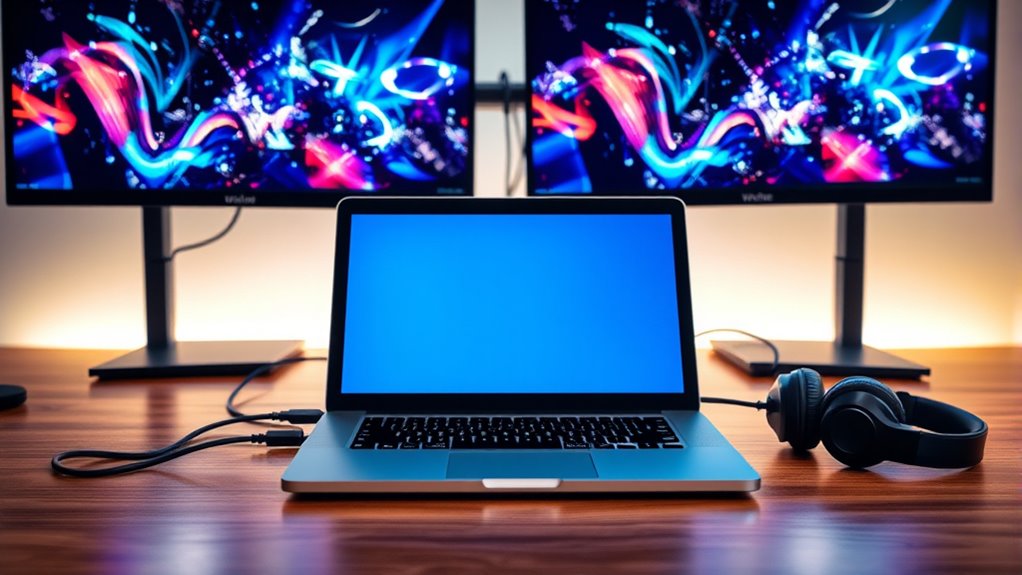

To connect two monitors to your laptop, first check your laptop’s available ports (HDMI, DisplayPort, USB-C) and confirm your graphics card supports multiple displays. Gather the necessary cables and adapters. Connect the first monitor, power it on, then adjust the display settings by right-clicking on the desktop to extend or duplicate the display. Follow the same steps for the second monitor, and soon you’ll optimize your setup for enhanced productivity. More tips on troubleshooting and positioning follow.
Understanding Dual Monitor Setup
When you want to enhance your productivity, understanding a dual monitor setup is essential. A dual monitor configuration allows you to expand your workspace, making multitasking more efficient. By having two screens, you can keep important documents open on one monitor while researching or communicating on the other. This setup minimizes the need to switch between tabs, which often disrupts focus. The dual monitor benefits include increased screen real estate, improved organization, and better project management. You can also customize each display for specific tasks, which boosts productivity enhancement. With a dual monitor setup, you’ll find that your workflow becomes smoother, enabling you to complete tasks with greater speed and efficiency, ultimately providing you with more freedom to manage your time effectively.
Checking Laptop Compatibility
Before connecting two monitors, you need to check your laptop’s compatibility. Look for the available ports, such as HDMI, DisplayPort, or USB-C, as these will determine how you connect the monitors. Additionally, assess your graphics card’s capability to support multiple displays to guarantee a smooth experience.
Ports Available on Laptop
To successfully connect two monitors to your laptop, you need to check the available ports. Start by identifying your USB ports, which can provide versatility with adapters. HDMI ports are common and support high-definition video, while DisplayPort options offer additional features like daisy-chaining. If your laptop has VGA availability, it may connect older monitors, but quality may be compromised. Thunderbolt connections and Mini DisplayPort can support multiple monitors seamlessly, providing high bandwidth. DVI support is another option for connecting to certain displays. Note that Ethernet ports are generally not relevant for video output. Evaluating these ports guarantees your laptop can handle dual monitor setups effectively, allowing for a more expansive workspace.
Graphics Card Capability
Having identified the available ports on your laptop, the next step is to assess the graphics card capability. Understanding the graphics card types is vital, as not all can handle dual monitors effectively. You’ll want to check the performance benchmarks of your GPU to guarantee smooth operation. Here’s what to take into account:
- Integrated vs. Dedicated: Integrated cards might struggle with two displays.
- Memory: More VRAM can improve multitasking across screens.
- Resolution Support: Confirm your card can handle the combined resolution of both monitors.
- Refresh Rate: Check if your GPU supports the refresh rates of your monitors.
Selecting the Right Monitors
When selecting monitors for your laptop, it’s essential to take into account compatibility requirements to guarantee proper connectivity. You’ll also want to evaluate resolution and size to match your workspace and visual needs. Choosing the right monitors can greatly enhance your productivity and overall experience.
Monitor Compatibility Requirements
Before you plunge into connecting two monitors to your laptop, it’s essential to verify compatibility between your devices. Understanding monitor types and display technologies is key to guaranteeing a seamless experience. Here’s what you need to take into account:
- Connection Ports: Check your laptop’s available ports (HDMI, DisplayPort, USB-C) and match them with your monitors.
- Display Technologies: Confirm your monitors use compatible technologies (LCD, LED, OLED) for peak performance.
- Refresh Rates: Choose monitors with matching refresh rates to avoid flickering or lag.
- Aspect Ratios: Align aspect ratios (16:9, 16:10) to maintain a consistent visual experience across screens.
Resolution and Size Considerations
Selecting the right monitors involves careful consideration of resolution and size to guarantee your productivity and viewing experience. The screen resolution impacts how sharp and clear your images appear, while the monitor size affects how much screen real estate you have for multitasking. Here’s a quick comparison to help you decide:
| Monitor Size | Recommended Resolution |
|---|---|
| 24 inches | 1920 x 1080 (Full HD) |
| 27 inches | 2560 x 1440 (QHD) |
| 32 inches | 3840 x 2160 (4K UHD) |
| 34 inches | 3440 x 1440 (UltraWide) |
When choosing, balance your desired screen resolution with the monitor size to ascertain comfort and efficiency. A higher resolution on a larger monitor can provide a more immersive experience.
Gathering Necessary Cables and Adapters
To successfully connect two monitors to your laptop, it is vital to gather the right cables and adapters beforehand. Having the correct setup will give you the freedom to multitask like never before. Here’s what you’ll need:
Connecting two monitors to your laptop requires the right cables and adapters for optimal multitasking capabilities.
- HDMI cables – Ideal for high-definition video and audio.
- DisplayPort cables – Great for high resolutions and refresh rates.
- VGA cables – Useful for older monitors; however, they’re less common now.
- Adapter options – Depending on your laptop’s ports, you may need USB-C to HDMI or DisplayPort adapters for a seamless connection.
Connecting the First Monitor
With the necessary cables and adapters in hand, you can now connect the first monitor to your laptop. Start by identifying the appropriate port on your laptop, such as HDMI, DisplayPort, or USB-C. Plug one end of your chosen cable into the laptop and the other into the monitor. Power on the monitor and your laptop should automatically detect it. If not, you might need to adjust your display settings. Right-click on your desktop, select “Display Settings,” and choose to extend or duplicate your display. For ideal monitor setup, verify your display alignment matches your workspace preferences, allowing for seamless navigation between screens. This initial connection sets the stage for an enhanced multi-monitor experience.
Connecting the Second Monitor
To connect your second monitor, you’ll need the appropriate cables and adapters based on your laptop’s output ports. After physically connecting the monitor, you’ll configure the display settings to extend or duplicate your screen. If you encounter any issues, troubleshooting steps can help resolve common connection problems.
Required Cables and Adapters
Connecting a second monitor requires specific cables and adapters compatible with your laptop’s ports. To guarantee a seamless setup, consider these essential cable types and adapter options:
- HDMI Cable: Widely used, providing high-quality audio and video.
- DisplayPort Cable: Excellent for high-resolution displays; great for gaming.
- VGA Cable: An older option that still works with many monitors, though lower quality.
- USB-C Adapter: Ideal for modern laptops; allows connection to various monitor types.
Choosing the right combination not only enhances your workspace but also liberates your multitasking capabilities. With the right cables and adapters, you’re one step closer to maximizing your productivity and enjoying the freedom of extended screens.
Display Settings Configuration
After securing the necessary cables and adapters, the next step is configuring the display settings to effectively utilize your second monitor. First, right-click on your desktop and select “Display settings.” You’ll see both screens represented. Choose your second monitor and set it to “Extend these displays” for a seamless multi-monitor experience. Adjust the resolution to match the native resolution of the second monitor for ideal clarity.
Next, tweak the display scaling to guarantee text and images are easily readable. If color accuracy is vital for your work, use the color calibration tool available in the display settings to adjust gamma, brightness, and contrast. This setup will enhance your productivity, giving you the freedom to work across multiple screens efficiently.
Troubleshooting Connection Issues
If you encounter issues with your second monitor not displaying, there are several troubleshooting steps you can take to resolve the problem. Start by identifying connection problems to get you back on track.
- Check cables: Verify all cables are securely connected to both your laptop and the monitor.
- Select the correct input: On your monitor, choose the right input source (HDMI, DisplayPort, etc.).
- Update drivers: Make certain your graphics drivers are up to date for peak performance.
- Restart devices: Sometimes, simply rebooting your laptop and monitor can fix display issues.
Configuring Display Settings
Configuring the display settings for two monitors on your laptop can greatly enhance your productivity. Start by right-clicking on your desktop, then select “Display settings.” Here, you’ll see the options for display arrangement. You can choose to extend your desktop across both monitors or enable screen mirroring to replicate your primary display. If you opt for extending, drag the monitor icons to match their physical layout, ensuring seamless navigation between screens. Adjust the resolution and scaling to optimize clarity and readability. Once you’re satisfied, click “Apply” to save your changes. This setup allows you to multitask efficiently, giving you the freedom to work across multiple applications without feeling cramped. Enjoy your new, expansive workspace!
Adjusting Monitor Position and Orientation
Once you’ve set up your displays and configured the settings, the next step is adjusting the monitor position and orientation for ideal use. Proper alignment can enhance your productivity and comfort. Here are some monitor alignment tips to keep in mind:
Adjusting your monitor position is key to enhancing productivity and comfort in your workspace.
- Eye Level: Position the top of your monitors at or just below eye level to avoid neck strain.
- Distance: Keep monitors about an arm’s length away to reduce eye fatigue.
- Tilt: Adjust the tilt of each monitor to minimize glare and improve visibility.
- Alignment: Verify both monitors are aligned horizontally for a seamless shift between screens.
Following these ergonomic positioning guidelines will empower you to create a comfortable workspace, fostering creativity and focus. Enjoy the freedom of an optimized dual-monitor setup!
Troubleshooting Common Issues
Even the best dual-monitor setups can encounter issues that disrupt your workflow. When you experience common display issues, start by checking the physical connections; verify all cables are securely plugged in. If one monitor isn’t detected, it might be a case of monitor detection problems. Right-click on your desktop, select “Display settings,” and click “Detect” to force your system to find the monitor. Sometimes, updating your graphics drivers can resolve compatibility issues. Another solution is to adjust the display settings to verify both monitors are enabled and set to the correct resolution. If problems persist, consider testing each monitor individually to pinpoint the faulty device. Stay persistent, and you’ll regain full functionality.
Optimizing Your Dual Monitor Experience
After resolving any display issues, you can focus on enhancing your dual monitor setup for improved productivity. Here are four tips to maximize your dual monitor experience and enjoy the extended desktop benefits:
- Adjust Display Settings: Make sure both monitors are set to their best resolution for clarity.
- Organize Your Workspace: Position your applications across screens to streamline workflow and reduce clutter.
- Utilize Keyboard Shortcuts: Familiarize yourself with shortcuts for quicker navigation between screens, boosting dual monitor productivity.
- Consider Monitor Placement: Align monitors at eye level to minimize strain and create a more comfortable viewing experience.
Frequently Asked Questions
Can I Use Different Monitor Brands Together?
Yes, you can use different monitor brands together. Just verify monitor compatibility regarding resolution and refresh rates. Brand performance varies, so check specifications to avoid issues. Mixing brands can enhance your setup’s versatility and functionality.
What Resolution Should My Monitors Support?
You’ll want both monitors to support similar resolutions for seamless synergy. Ideal display settings enhance your experience, so consider monitor compatibility considerations carefully—choosing matching resolutions guarantees clarity, reducing frustration and maximizing your visual freedom.
Will Using Two Monitors Drain My Laptop Battery Faster?
Yes, using two monitors will likely drain your laptop’s battery faster due to increased power consumption. The extra display requires more resources, impacting overall battery performance and reducing your time away from a power source.
Can I Connect Monitors Wirelessly?
Yes, you can connect monitors wirelessly using wireless adapters. Just verify your laptop supports this feature, then adjust your display settings to configure the monitors. This setup offers enhanced freedom with minimal cable clutter.
Is There a Limit to the Number of Monitors I Can Connect?
You can typically connect up to three monitors, depending on your laptop’s graphics capabilities. Most systems support multiple display configurations, but monitor limitations may arise from hardware and software constraints. Always check your laptop’s specifications first.
