
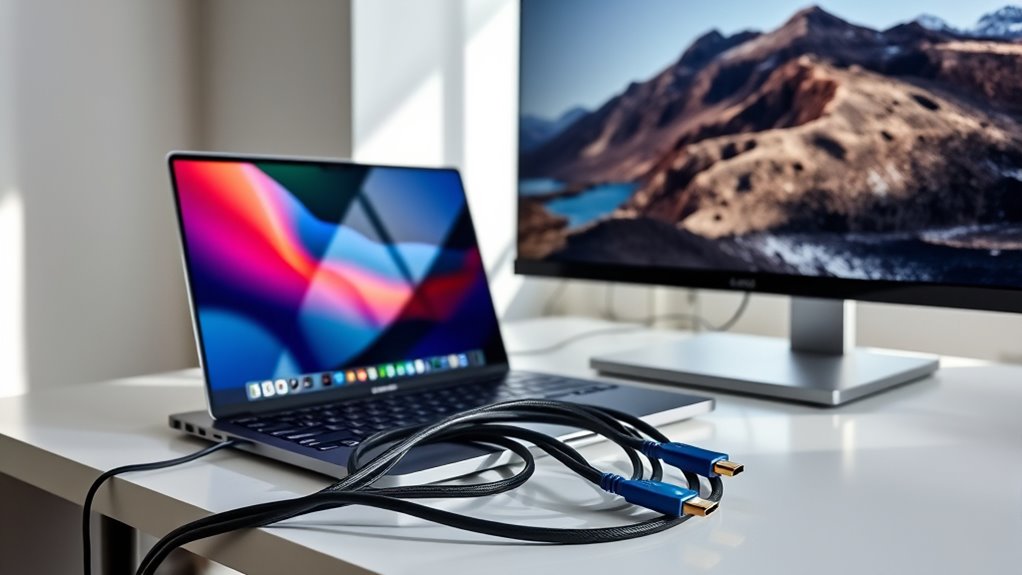

To hook your laptop to a monitor, start by checking the available ports on both devices, like HDMI or DisplayPort. Choose the right cable that fits those ports, ensuring compatibility. Connect the cable to both your laptop and the monitor. Then, adjust your display settings by right-clicking on your desktop and selecting the right resolution. You can enhance your dual-screen experience with some simple tweaks. There’s more to optimize your setup, so keep going!
Understanding Your Laptop and Monitor Ports
When connecting your laptop to a monitor, understanding the various ports is essential. Different port types can markedly impact your experience, so it’s important to recognize what you have. Most laptops feature HDMI, DisplayPort, USB-C, or VGA ports. Each of these has unique capabilities and resolutions. Knowing your monitor’s port types will help you determine the best connection.
Additionally, cable compatibility plays an important role in ensuring a smooth setup. Not all cables work with every port, so double-check the specifications. If your laptop has an HDMI port, but your monitor only supports VGA, you’ll need an adapter or a different cable. By grasping these basics, you can enjoy seamless connectivity and maximize your workspace.
Choosing the Right Cable for Connection
Choosing the right cable for your connection is essential to guarantee peak performance between your laptop and monitor. If you want high-quality video and audio, HDMI cables are a solid choice thanks to their robust specifications. They support 4K resolution, making them ideal for gaming or media consumption. On the other hand, if you’re after enhanced features, consider DisplayPort. Its advantages include higher bandwidth and the ability to connect multiple monitors from one port, which can give you a more expansive workspace. When choosing, think about your specific needs and what your devices support. The right cable can make all the difference in achieving the freedom and functionality you desire in your dual-screen setup.
Connecting Your Laptop to the Monitor
Connecting your laptop to the monitor is a straightforward process that can greatly enhance your productivity and viewing experience. You can choose between a wired or wireless connection, depending on your setup. For a wired connection, select the appropriate cable for your laptop and monitor. If you prefer a wireless option, verify both devices support screen mirroring.
Here’s a quick comparison of connection options:
| Connection Type | Advantages | Disadvantages |
|---|---|---|
| Wired | Stable connection, high display resolution | Limited mobility |
| Wireless | Greater flexibility | Potential lag, lower resolution |
Configuring Display Settings on Your Laptop
After you’ve successfully connected your laptop to the monitor, the next step is to configure the display settings for peak performance. Start by right-clicking on your desktop and selecting “Display settings.” Here, you can adjust the display resolution for both your laptop and monitor. Choose a resolution that suits your work style; higher resolutions provide more detail but may require more processing power. Next, consider screen scaling. If text or icons appear too small, increasing the scaling can enhance readability, making your dual-screen experience more enjoyable. Experiment with these settings until you find the perfect balance that allows you to work freely and efficiently. Enjoy your expanded workspace and all the possibilities it brings!
Tips for Optimizing Your Dual-Screen Setup
While setting up your dual-screen workspace can enhance productivity, optimizing it is key to getting the most out of your setup. Start by ensuring your display arrangement suits your workflow. Position your monitor at eye level and within arm’s reach to minimize strain. Customize your taskbar to show on both screens, so you can easily access your favorite apps. Utilize keyboard shortcuts to switch between windows quickly—this can greatly boost productivity enhancement. Consider color calibration to maintain visual consistency across screens, which helps reduce eye fatigue. Finally, experiment with different layouts and configurations until you find what feels most comfortable for you. A well-optimized dual-screen setup can transform how you work, giving you the freedom to create and collaborate more efficiently.
Troubleshooting Common Connection Issues
If you encounter issues when trying to connect your laptop to a monitor, don’t worry—many common problems are easy to fix. First, check your cable compatibility; using the wrong type can lead to signal loss or no connection at all. Make sure your cable matches the ports on both your laptop and monitor. Next, verify that both devices are powered on and the monitor is set to the correct input source. If you still experience issues, try restarting both devices. Sometimes, a simple reboot can resolve connection hiccups. Finally, update your graphics drivers, as outdated software may hinder performance and cause connectivity issues. With these steps, you’ll be back in action in no time!
Frequently Asked Questions
Can I Use a TV Instead of a Monitor?
Yes, you can use a TV instead of a monitor. In fact, 60% of people prefer larger screens for multitasking. Just guarantee your TV’s compatibility with your laptop and consider the screen quality for the best experience.
Will Connecting a Monitor Drain My Laptop’s Battery?
Yes, connecting a monitor can increase battery consumption. However, by adjusting power management settings, you can optimize performance and extend your laptop’s battery life, allowing you the freedom to work longer without constant charging.
Can I Connect Multiple Monitors to One Laptop?
Yes, you can connect multiple monitors to your laptop, but it depends on your laptop’s compatibility and the monitor types. Check your laptop’s specifications and available ports to guarantee everything works smoothly together.
Is It Possible to Use Different Resolutions on Each Screen?
Yes, you can use different resolutions on each screen. Just adjust the display settings on your laptop to guarantee resolution compatibility. This way, you can customize each monitor to fit your preferences perfectly.
Do I Need Special Software for Dual-Screen Setups?
You don’t need special software for dual-screen setups, as most operating systems support it natively. However, verify your software’s compatibility to enjoy the dual screen benefits, like increased productivity and improved multitasking.
