
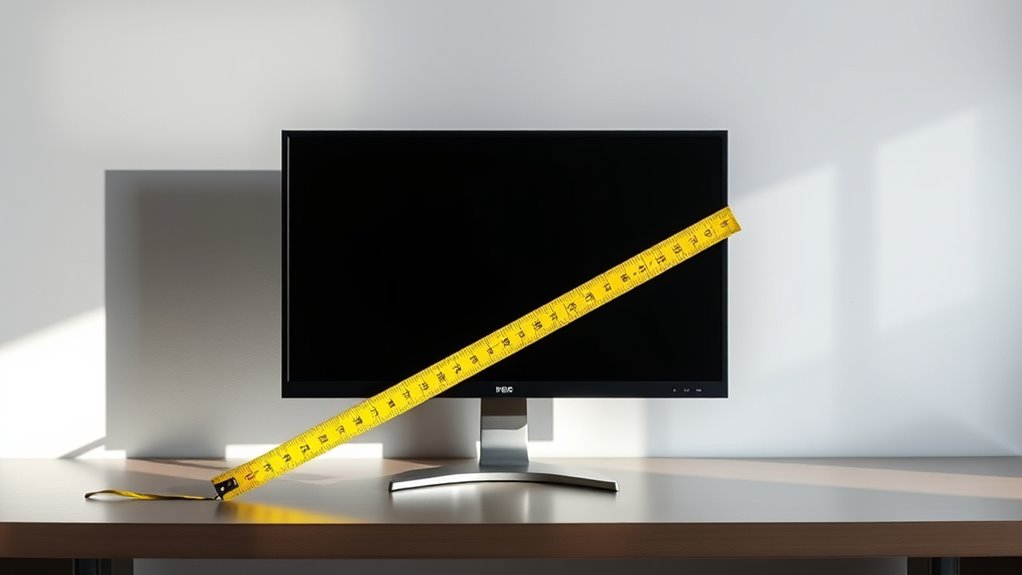

To measure your monitor’s screen size, grab a measuring tape and measure diagonally from one corner of the screen to the opposite corner. Make sure to exclude the bezel for an accurate reading. It’s also important to take into account the aspect ratio and resolution for your specific needs. If you’re curious about nuances like measuring ultrawide displays or converting inches to centimeters, there’s much more to explore for choosing the perfect monitor.
Understanding Screen Size Measurement
When you’re looking to buy a monitor, understanding how screen size is measured can make a big difference in your choice. Monitor size is typically measured diagonally from one corner to the opposite corner. This measurement doesn’t account for the screen aspect ratio, which is the width-to-height relationship of the display. Knowing the aspect ratio helps you determine how well the monitor fits your viewing needs. Additionally, resolution impact plays an essential role; a higher resolution means more pixels, which can enhance clarity and detail. So, when you’re considering a monitor, don’t just focus on the size. Evaluate the aspect ratio and resolution together to guarantee you get a monitor that truly meets your requirements for freedom in your workspace.
Tools Needed for Measuring Your Monitor
To measure your monitor accurately, you’ll need a few essential tools. A measuring tape or ruler will help you get the dimensions, while a calculator can assist with any necessary conversions. Finally, having a screen size chart handy can clarify your findings and guarantee you’re measuring correctly.
Measuring Tape or Ruler
A simple measuring tape or ruler is all you need to accurately determine your monitor’s screen size. To get started, verify you’re measuring diagonally from one corner of the screen to the opposite corner, as this is the standard way to gauge screen size. For precise results, use tape measurement techniques that minimize any slippage. When using a ruler, make sure it’s straight and flush against the monitor’s edge—this is key for ruler accuracy tips. Take your time and double-check your measurements, as even a slight variance can lead to incorrect sizing. With these tools and techniques in hand, you’ll be ready to measure your monitor and make informed decisions about upgrades or replacements!
Calculator for Conversion
After measuring your monitor’s screen size with a tape measure or ruler, you might need a calculator for conversion to guarantee you’re interpreting the results correctly. Using a calculator can help you apply the right conversion factors, ensuring your measurements are accurate, whether you’re converting inches to centimeters or vice versa. Just remember to double-check your numbers to maintain measurement accuracy. This is essential, especially if you’re comparing different monitors or sizing up for a new one. With a few quick calculations, you’ll have the precise screen size you need to make informed decisions about your display. Embrace the freedom of knowing exactly what you’re working with—accurate measurements lead to better choices!
Screen Size Chart
Measuring your monitor accurately requires just a few key tools. First, you’ll need a measuring tape or ruler to determine the diagonal length of your screen. This method works for all monitor types, from sleek ultrawides to standard displays. To get a clear measurement, make sure the tape starts at one corner and stretches to the opposite corner without any obstruction. It’s essential to measure only the screen area, excluding bezels. Next, jot down your findings in a screen size chart for easy reference. Finally, if you’re comparing monitors, consider the aspect ratio, as it affects how screen size translates to actual viewing space. With these tools, you can confidently assess any monitor type and make informed decisions!
Measuring Diagonally: The Standard Method
When measuring your monitor’s screen size, you’ll want to measure diagonally, as this is the standard method used across the industry. To do this accurately, you’ll need the right tools and a clear understanding of screen dimensions. Once you’ve got your measurement, interpreting the results will help you determine the monitor’s size effectively.
Understanding Screen Dimensions
To accurately determine a monitor’s screen size, you’ll need to measure diagonally, as this is the industry standard method. This approach allows you to capture the full extent of the display, ensuring you consider the aspect ratio and pixel density that can greatly affect your viewing experience.
Here’s what you can feel when you get it right:
- The thrill of finding the perfect fit for your workspace
- The satisfaction of a crisp, vibrant display
- The joy of immersive gaming or movie experiences
- The freedom to multitask with ease
Measuring accurately not only helps you choose the right monitor but also enhances your overall digital experience, making every pixel count.
Tools Needed for Measurement
Having the right tools is vital for accurately measuring your monitor’s screen size. To get started, you’ll need basic measurement equipment like a tape measure or a ruler. A flexible measuring tape can be particularly handy, allowing you to reach the corners of your screen with ease. Confirm your measuring tool is marked in inches or centimeters, depending on your preference. For precision, employing screen measurement techniques, like measuring diagonally from one corner to the opposite, is the standard approach. This method guarantees you capture the full screen size, which is essential for selecting the right monitor or understanding its specifications. With these tools, you’re ready to measure with confidence and clarity!
Interpreting Measurement Results
How can you guarantee your measurement results are accurate? When measuring your monitor, always use the diagonal method for consistency. This method guarantees you capture the true screen aspect, giving you a clearer picture of the size. To interpret your results effectively, keep these tips in mind:
- Measure from corner to corner, avoiding any bezels.
- Double-check your measurement for precision.
- Understand that slight variations can affect measurement accuracy.
- Use the correct units (inches or centimeters) for your needs.
Measuring Width and Height of Your Screen
When you want to accurately measure the width and height of your monitor screen, it’s important to use a reliable method to confirm precision. Start by gathering your measuring tools, like a ruler or measuring tape. To measure the width, lay the measuring tool flat across the screen from one edge to the other. For height, measure from the bottom edge to the top. Make sure you’re measuring the actual screen dimensions, excluding any bezels or frames. If you’re using a digital tool, verify it’s calibrated correctly for accuracy. Knowing these measurements can help you choose the right space for your setup. With this approach, you’ll have a clear picture of your monitor’s size and can make informed decisions.
Accounting for the Bezel: What to Consider
When measuring your monitor, don’t forget to account for the bezel width, as it can impact your overall screen experience. The bezel is the frame around the display, and its size can reduce the effective viewing area. Knowing how to measure both the screen and the bezel will help you better understand your monitor’s true dimensions.
Bezel Width Impact
Although many people focus solely on the screen’s diagonal measurement, the bezel width can considerably impact the overall size of your monitor setup. Bezel thickness and bezel design play significant roles in how your workspace feels and functions. A slimmer bezel can create a more immersive experience, giving you the freedom to enjoy your content without distraction. Consider these factors:
- Aesthetics: A sleek design enhances your room’s look.
- Space Efficiency: Less bezel means more screen space.
- Multi-Monitor Setup: Thinner bezels create a more seamless experience.
- Comfort: A compact design can reduce eye strain.
When choosing a monitor, remember that the bezel isn’t just a border; it shapes your entire viewing experience. Embrace the freedom of choice!
Measuring Effective Display Area
Understanding the effective display area of your monitor is essential for optimizing your viewing experience, especially after considering the influence of bezel width. To measure this area, start by determining your screen’s diagonal size, but remember to account for the bezels that frame your display. Measure the width and height of the visible screen instead of the overall monitor size. This will give you a clearer picture of the effective display space, which directly impacts visual clarity. A larger effective display allows for better multitasking and enhanced immersion in your favorite activities. By focusing on this aspect, you’ll guarantee you get the most out of your monitor, making your viewing experience both enjoyable and efficient.
How to Measure Curved Monitors
Measuring a curved monitor can seem a bit tricky due to its unique design, but it’s straightforward once you know the steps. Start by using a flexible measuring tape to find the diagonal length from one corner to the opposite corner, just like with traditional monitors. Remember, curved monitor benefits include immersive viewing experiences, so measuring accurately enhances that experience.
Measuring a curved monitor is easy; just use a flexible tape to capture the diagonal length for the best immersive experience.
Here are some quick tips to keep in mind:
- Embrace the curves for a more engaging display.
- Consider the monitor’s radius for a precise measurement.
- Use the correct measuring techniques for the best results.
- Enjoy the freedom of a wider field of view.
Measuring Ultrawide Monitors
When it comes to measuring ultrawide monitors, you’ll want to take a slightly different approach than with standard displays. First, measure the diagonal screen size from one corner to the opposite corner, just like you would with traditional monitors. However, keep in mind that ultrawide monitors often have a 21:9 aspect ratio, which gives you broader visuals. The ultrawide benefits include enhanced multitasking and immersive gaming experiences, as you can view more content simultaneously. Yet, there are ultrawide drawbacks too, such as potential compatibility issues with some applications. Be sure to take into account these factors when measuring and choosing your ultrawide monitor, ensuring it fits both your space and needs perfectly.
Converting Inches to Centimeters
If you’re looking to convert inches to centimeters, it’s simple and straightforward. Just remember that 1 inch equals 2.54 centimeters. Using this conversion factor, you can easily achieve centimeters accuracy in your measurements. Here’s how:
- Feel empowered by knowing that you can take control of your measurements.
- Experience the freedom that comes with precise dimensions.
- Release your creativity in choosing the right screen size.
- Embrace the clarity of understanding how inches conversion works.
To convert, multiply the number of inches by 2.54. For example, a 24-inch monitor would be 24 x 2.54 = 60.96 centimeters. With this knowledge, you’ll make informed decisions about your monitor’s size that fits your needs perfectly!
Common Screen Sizes and Their Uses
Choosing the right screen size can greatly enhance your computing experience. Common monitor types vary in size, typically ranging from 21 to 34 inches. For casual browsing or office work, a 24-inch monitor might be ideal, providing ample screen real estate without overwhelming your desk. Gamers often prefer larger monitors, around 27 inches or more, which immerse you in action-packed gameplay. If you’re into graphic design or video editing, a 32-inch monitor can deliver the detail you need for precision work. Each usage scenario calls for different dimensions, so think about how you’ll use your monitor. By aligning the screen size with your specific needs, you’ll enjoy a more comfortable and efficient computing experience.
Tips for Choosing the Right Monitor Size
How can you guarantee you pick the perfect monitor size for your needs? Start by considering your workspace, viewing distance, and how you’ll use it. Remember, the right monitor can enhance your experience and boost your productivity. Here are some tips to guide you:
- Think about the monitor resolution: Higher resolutions mean clearer images.
- Consider screen aspect: Wider screens can improve multitasking.
- Match the size to your tasks: Larger screens are great for gaming or design.
- Don’t forget about ergonomics: Make sure it fits comfortably in your setup.
Choosing wisely not only empowers your work but also liberates your creativity. Invest in a monitor that resonates with your lifestyle and needs, and enjoy the freedom it brings!
Frequently Asked Questions
Does Screen Size Affect Resolution Quality?
Yes, screen size does affect resolution quality. Think of it as a canvas; larger screens can showcase more detail, leading to better screen clarity. In resolution comparison, size matters for an immersive viewing experience.
How Often Should I Measure My Monitor Size?
You should measure your monitor size during regular monitor maintenance or when you notice discrepancies in measurement accuracy. Keeping track guarantees your setup remains ideal and helps you make informed decisions about upgrades or adjustments.
Can I Trust Manufacturer Specifications for Screen Size?
You can generally trust manufacturer specifications for screen dimensions, but it’s wise to double-check. Some manufacturers exaggerate accuracy, so comparing user reviews guarantees you’re getting the true size of your monitor.
Does Screen Size Impact Eye Strain?
Yes, screen size can impact eye strain. Larger screens often provide better visual clarity, enhancing eye comfort during prolonged use. However, it’s important to maintain proper distance and adjust brightness for best viewing experiences.
Are There Standard Sizes for Portable Monitors?
Yes, there are standard sizes for portable monitors, typically ranging from 13 to 17 inches. When considering screen portability, think of weight, thickness, and connectivity options to guarantee freedom in your mobile workspace.

[…] [ ] Measure screen size (width and/or […]
[…] quick answer is: collect throw ratio, measure screen size correctly, calculate min/max distances, and then confirm the mounting reference point and aspect […]