
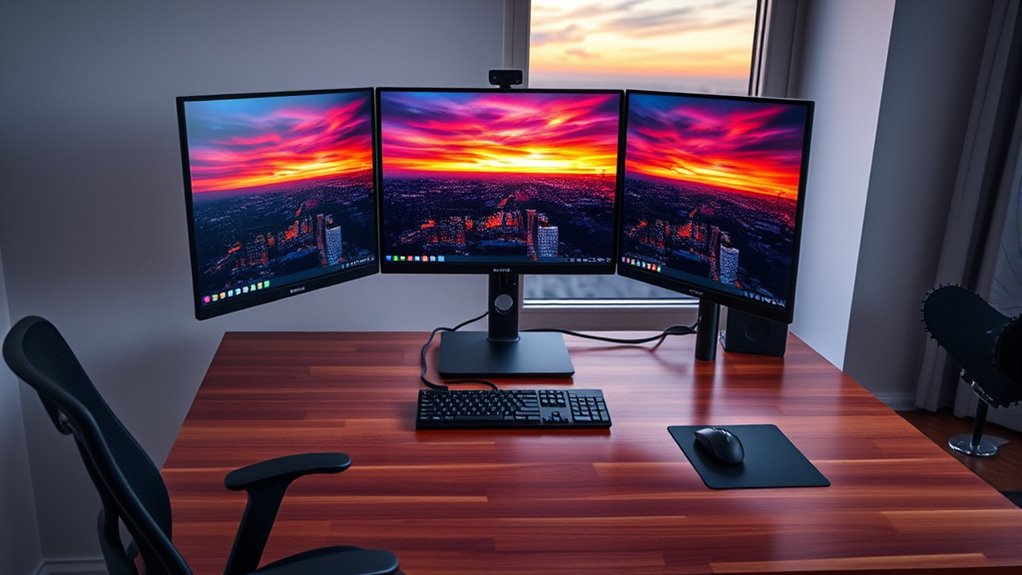

To set up multiple monitors, start by choosing compatible displays based on type, size, and resolution. Check your computer’s graphics card and ports. Connect the monitors using appropriate cables, then adjust the display settings for resolution and calibration. Position the monitors to minimize strain and enhance workflow. Use display management software for better organization. If you face issues, troubleshooting steps can help resolve them effectively. Discover more tips to optimize your multi-monitor experience.
Choosing the Right Monitors
When choosing the right monitors for a multi-display setup, it’s essential to take into account several key factors. First, consider the display types—LED, IPS, or TN panels—each offering different color accuracy, response times, and viewing angles. Your choice affects not just visuals but also your overall experience. Next, evaluate screen sizes; larger screens can enhance productivity, but make certain they fit comfortably within your workspace. A consistent size across monitors can also reduce eye strain and improve usability. Finally, think about resolution; higher resolutions yield sharper images, especially important for design or gaming. Balancing these factors will set the foundation for an efficient, flexible multi-monitor setup tailored to your needs.
Checking Your Computer’s Compatibility
How can you guarantee your computer supports multiple monitors? First, check your graphics card. It must meet the monitor specifications and system requirements for your intended setup. Look for available ports—HDMI, DisplayPort, or VGA—and confirm they match your monitors. Next, consult your computer’s manual or manufacturer’s website to verify compatibility. If you’re using a laptop, make certain it has the capability to extend displays rather than just mirroring. Additionally, review your operating system’s support for multiple displays; most modern OS versions handle this well. Finally, consider your CPU and RAM; they should be robust enough to handle the increased workload. By checking these factors, you can confidently determine if your computer is ready for a multi-monitor experience.
Connecting Your Monitors
To connect your monitors, start by plugging each monitor into the appropriate port on your graphics card using the suitable cables—HDMI, DisplayPort, or VGA. Make sure to choose the right cable options based on your monitor types and available ports. Here’s a quick reference table to help you:
| Monitor Type | Cable Options | Best Use Case |
|---|---|---|
| LCD | HDMI, VGA | General use |
| LED | HDMI, DisplayPort | Gaming, high-definition video |
| 4K UHD | DisplayPort | High-resolution tasks |
| Curved | HDMI, DisplayPort | Immersive experiences |
Ensure that each connection is secure for peak performance. Once you’ve connected all monitors, you’re ready for the next step!
Configuring Display Settings
After connecting your monitors, you’ll need to configure the display settings to optimize your setup. Start by adjusting the display resolution for each monitor to match its native resolution, ensuring sharper images and better clarity. Right-click on your desktop, select “Display settings,” and choose the appropriate resolution from the dropdown menu.
Next, focus on color calibration. This step is essential for accurate color representation across screens. Use built-in calibration tools in your operating system, or third-party software, to adjust brightness, contrast, and color balance.
Take your time with these settings; small tweaks can greatly enhance your visual experience. By customizing these parameters, you’ll create a workspace that not only looks great but also meets your productivity needs.
Arranging Your Monitors Physically
While arranging your monitors physically, consider the ergonomics of your workspace to enhance comfort and productivity. Proper monitor placement is essential; position your primary monitor at eye level, about an arm’s length away. This minimizes strain on your neck and eyes. If using multiple monitors, align them in a slightly curved arc, ensuring they’re all within your direct line of sight.
Pay attention to desk organization by keeping cables tidy and using monitor stands if needed. This not only maximizes desk space but also prevents clutter, allowing for a more efficient workflow. Remember to adjust each monitor’s angle for ideal visibility, reducing glare. By thoughtfully arranging your monitors, you create a functional and inviting workspace tailored to your needs.
Using Display Management Software
With your monitors arranged for ideal ergonomics, the next step is to enhance functionality using display management software. This type of display software allows you to customize your multi monitor management experience, giving you greater control over how applications and windows behave across screens. You can easily set specific resolutions, orientations, and layouts to match your workflow preferences. Additionally, many display management tools offer features like window snapping, virtual desktops, and customizable shortcuts, which streamline your productivity. Look for software that supports your operating system and provides a user-friendly interface. By leveraging these tools, you’ll maximize your efficiency and create an organized workspace that suits your unique needs, ultimately giving you the freedom to work more effectively.
Optimizing for Gaming or Design
To optimize your multi-monitor setup for gaming or design, you’ll need to arrange your monitors for maximum efficiency. Consider the alignment and distance between screens to reduce head movement and enhance your field of view. Additionally, adjusting your graphics settings can greatly improve performance and visual quality, tailored to your specific tasks.
Monitor Arrangement Tips
When arranging multiple monitors for gaming or design, it’s crucial to reflect on both functionality and comfort. Proper screen alignment and ergonomic positioning can enhance your experience considerably. Here are some tips to think about:
- Position monitors at eye level to reduce neck strain.
- Use a curved setup for immersive gaming or design workflows.
- Make sure monitors are at a comfortable distance, typically 20-30 inches away.
- Align screens horizontally to maintain a natural line of sight.
- Contemplate using adjustable stands for flexibility in positioning.
Graphics Settings Adjustments
Although optimizing graphics settings might seem challenging, it’s crucial for enhancing your gaming or design experience across multiple monitors. Start by checking your graphics card’s capabilities; verify it supports your desired resolution settings for each monitor. Adjust the resolution settings in your operating system and graphics control panel to match the native resolutions of your displays for the best visual quality. For gaming, prioritize frame rates over ultra-high resolutions to maintain smooth performance. If you’re into design, increase resolution settings to capture fine details. Don’t forget to tweak anti-aliasing and texture quality based on your system’s performance. Balancing these settings will give you the freedom to enjoy stunning visuals without sacrificing responsiveness, vital for both gaming and design tasks.
Troubleshooting Common Issues
Setting up multiple monitors can sometimes lead to unexpected issues, so it’s important to know how to troubleshoot common problems. First, check for cable issues; verify all cables are securely connected and compatible with your monitors. If you’re experiencing glitches or display errors, driver conflicts might be the culprit. Update your graphics drivers to the latest version or reinstall them if necessary.
Setting up multiple monitors can lead to issues; check connections, update drivers, and troubleshoot display settings for a smooth experience.
Here are some additional troubleshooting steps:
- Verify that your monitors are powered on.
- Check display settings to confirm proper configuration.
- Test each monitor individually to isolate the issue.
- Restart your computer to refresh connections.
- Use device manager to identify any hardware issues.
Tips for an Effective Multi-Monitor Setup
To maximize your multi-monitor setup, focus on effective monitor arrangement strategies and ideal display settings. Position your screens to minimize head and eye movement, ensuring a seamless workflow. Additionally, adjust resolution and scaling settings for a consistent and clear visual experience across all displays.
Monitor Arrangement Strategies
When arranging multiple monitors, it’s essential to take into account ergonomics and workflow efficiency. Proper monitor orientation and display alignment can greatly enhance your productivity. Here are some strategies to keep in mind:
- Align monitors at eye level: Prevent neck strain by positioning monitors so the top edge is at or slightly below eye level.
- Use a primary display: Designate one monitor as your main screen for essential tasks.
- Create a seamless layout: Position monitors side by side to maintain a cohesive workspace.
- Explore angled setups: Tilt monitors towards you for better visibility and comfort.
- Organize by task: Arrange monitors based on your workflow, dedicating screens for specific applications or projects.
Optimize your setup to enhance your multitasking capabilities!
Optimal Display Settings
Achieving the right display settings is vital for maximizing the benefits of your multi-monitor setup. Start by selecting your resolution choices; ideally, you want all monitors to match in resolution for a seamless experience. If they differ, adjust each display to its native resolution to avoid distortion. Next, focus on color calibration. Use calibration tools or software to guarantee color consistency across monitors, which is significant for tasks like graphic design or video editing. Don’t forget to adjust brightness and contrast for comfortable viewing. Finally, consider your workspace lighting; it can impact how you perceive colors and brightness. With these best settings, you’ll enhance productivity and create a more enjoyable multi-monitor environment.
Frequently Asked Questions
Can I Mix Different Monitor Brands and Sizes?
Yes, you can mix different monitor brands and sizes, but verify monitor compatibility and matching display resolutions for peak performance. Just like a well-tuned orchestra, harmony between them enhances your multitasking experience.
How Do I Maintain Monitor Color Calibration Across Multiple Displays?
To maintain color calibration and display consistency across multiple monitors, use a color calibration tool for each display. Regularly calibrate them, ensuring uniform settings for brightness, contrast, and color profiles to achieve accurate results.
Will Multiple Monitors Affect My Laptop’s Battery Life?
Yes, multiple monitors can increase battery consumption considerably. To mitigate this, utilize power management settings, reducing screen brightness, and disconnecting unused displays when not in use to enhance your laptop’s battery efficiency and longevity.
Can I Use a TV as a Second Monitor?
Absolutely, you can use a TV as a second monitor! Just check the TV’s compatibility with your device. Adjust your display settings, and you’ll transform your living room into a vibrant workspace bursting with possibilities.
What Is the Best Distance to Sit From Multiple Monitors?
The ideal viewing distance for multiple monitors is typically 20 to 30 inches. An ergonomic setup minimizes strain, ensuring you can comfortably see all screens without leaning or squinting, promoting productivity and reducing fatigue.
