
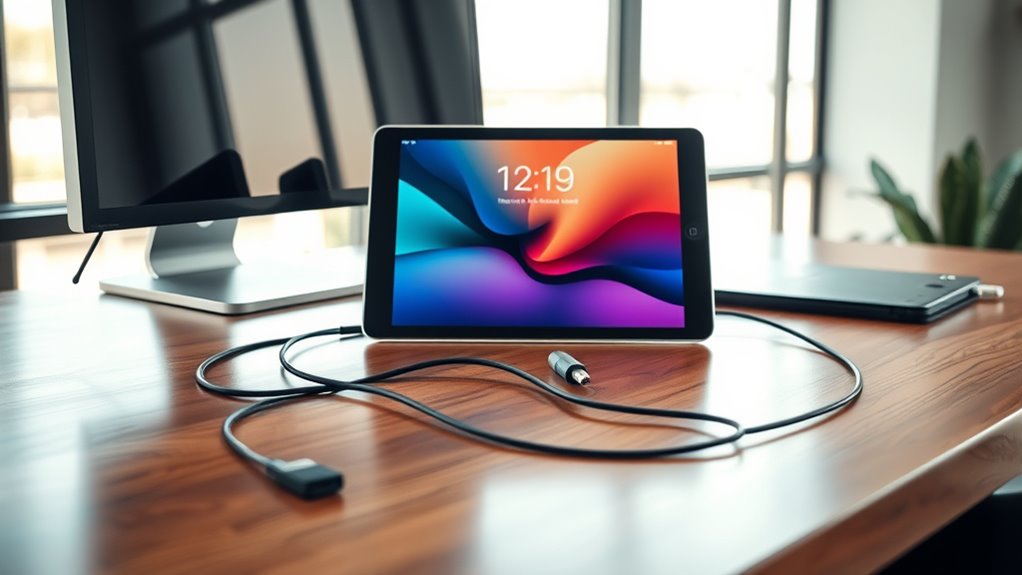

Yes, you can connect your iPad to a monitor easily, using either wired or wireless options. For wired connections, you can use adapters like Lightning to HDMI or USB-C to HDMI, depending on your iPad model. Wireless options include screen mirroring or AirPlay streaming. Connecting your iPad to a monitor boosts productivity and enhances your viewing experience. There are additional tips and settings to explore for ideal setup.
Understanding Ipad Compatibility With Monitors
When you’re considering connecting your iPad to a monitor, it’s essential to understand compatibility. Not all monitors will work seamlessly with your iPad, so you need to check the specifications. Your iPad’s resolution plays an important role; higher resolutions can offer clearer images, but not all monitors support them. You’ll find various monitor types, including LCD, LED, and OLED, each with different capabilities. Make sure the monitor you choose can handle the iPad’s output resolution for the best experience. Additionally, consider the aspect ratio; mismatched ratios can lead to distorted images. By ensuring compatibility between your iPad and monitor types, you can fully enjoy the expanded screen space without any drawbacks.
Wired Connection Options
Once you’ve confirmed your iPad’s compatibility with a monitor, the next step is to explore wired connection options. You can easily enhance your experience with various monitor types using simple cables. Here’s a quick guide to help you choose the right iPad connection:
| Connection Type | Compatibility | Best For |
|---|---|---|
| Lightning to HDMI | iPad Air, Pro | High-definition displays |
| USB-C to HDMI | iPad Pro, Air | Versatile connections |
| USB-C to VGA | Older monitors | Legacy devices |
| Lightning to VGA | Older iPads | Projectors |
| HDMI to HDMI | Most monitors | Direct plug-and-play |
Using these wired options, you’ll enjoy a stable, high-quality display experience, granting you the freedom to create and present seamlessly.
Wireless Connection Options
If you prefer a cable-free setup, there are several wireless connection options available for connecting your iPad to a monitor. One popular method is screen mirroring, which lets you display your iPad’s screen on a compatible monitor or TV. For this, make sure both devices are on the same Wi-Fi network. You can use AirPlay streaming to effortlessly send content from your iPad to an Apple TV or any AirPlay-compatible device. Simply swipe down from the top-right corner of your iPad, select Screen Mirroring, and choose your device. This setup not only frees you from cables but also allows for easy sharing of videos, presentations, and photos without the hassle of wires. Enjoy the freedom of wireless connectivity!
Using Adapters for Different Ports
To connect your iPad to a monitor, you’ll need the right adapters for different ports. If you’re using a Lightning connector, a Lightning to HDMI adapter is a great option. For USB-C devices, consider a USB-C to DisplayPort adapter or explore VGA connection options for older displays.
Lightning to HDMI Adapter
Connecting your iPad to a monitor is a breeze when you use a Lightning to HDMI adapter. This simple device leverages the lightning advantages of your iPad, offering high-quality video and audio output. Plus, it’s widely compatible with most HDMI monitors, ensuring you can enjoy your content on a bigger screen without hassle.
Here’s a quick overview of the benefits:
| Feature | Lightning to HDMI Adapter | Other Adapters |
|---|---|---|
| Video Quality | Up to 1080p | Varies |
| Adapter Compatibility | Broad | Limited |
| Setup Ease | Plug-and-play | Often complex |
Using a Lightning to HDMI adapter gives you the freedom to enhance your viewing experience effortlessly. Enjoy the seamless connection!
USB-C to DisplayPort
For those with newer iPads equipped with USB-C ports, using a USB-C to DisplayPort adapter opens up additional options for connecting to monitors. This setup leverages USB-C benefits like high data transfer rates and power delivery, making it easy to charge your device while you work. DisplayPort advantages include support for higher resolutions and refresh rates, ensuring a crisp and responsive display experience. Whether you’re streaming videos or working on graphic design projects, this combination provides enhanced performance. Plus, it allows for daisy-chaining multiple monitors, giving you greater flexibility in your workspace. So, if you’re looking to maximize your iPad’s capabilities, a USB-C to DisplayPort adapter is a smart choice.
VGA Connection Options
Many users still rely on VGA connections for older monitors and projectors, and adapters can bridge the gap between your iPad and these devices. You’ll need a Lightning to VGA adapter or a USB-C to VGA adapter, depending on your iPad model. Just plug the adapter into your iPad and connect it to the VGA cable of the monitor. However, keep in mind the VGA limitations, like lower resolution and lack of audio support. If you want better quality, consider VGA alternatives like HDMI or DisplayPort, which offer superior video performance. Ultimately, while VGA connections can work, exploring these alternatives can enhance your overall experience and give you more freedom when connecting your iPad to a monitor.
Setting up Your Ipad With a Monitor
To set up your iPad with a monitor, you’ll need the right cables and adapters to make the connection. Once you’ve got everything plugged in, you may need to adjust the display settings for ideal viewing. Let’s go through the steps to guarantee a smooth setup.
Required Cables and Adapters
While setting up your iPad with a monitor, you’ll need the right cables and adapters to guarantee a smooth connection. Understanding the various cable types and adapter compatibility will help you choose the best options for your setup.
| Cable Type | Adapter Compatibility |
|---|---|
| Lightning to HDMI | iPad models with Lightning port |
| USB-C to HDMI | iPad Pro models (2018 and later) |
| HDMI to VGA | Monitors with VGA input |
| USB-C to DisplayPort | iPad Pro models (2018 and later) |
Display Settings Adjustment
Once you have the appropriate cables and adapters connected, adjusting the display settings on your iPad is the next step. Start by going to the Settings app and tapping on “Display & Brightness.” Here, you can customize your display arrangement, choosing between mirroring your iPad screen or extending it for more workspace. If you prefer a particular layout, simply drag the display icons to rearrange them.
Next, check the resolution settings to verify the output looks sharp and clear on your monitor. Some monitors may allow you to set a preferred resolution, so adjust accordingly for the best viewing experience. With these settings fine-tuned, you’re free to enjoy your iPad on a larger screen!
Troubleshooting Common Connection Issues
When connecting your iPad to a monitor, you might encounter a few common issues that can disrupt the experience. Don’t worry; you can easily troubleshoot these connection problems and display issues. Here are some steps to take into account:
- Check all cables for damage or loose connections.
- Confirm your monitor is powered on and set to the correct input.
- Restart both your iPad and monitor to refresh the connection.
- Verify that your iPad’s software is updated to the latest version.
- Try another adapter or cable if available, as they may be faulty.
Enhancing Your Viewing Experience
To enhance your viewing experience when connecting your iPad to a monitor, consider adjusting the display settings for ideal performance. Utilize screen mirroring to replicate your iPad’s screen seamlessly on the larger display. This feature allows you to share videos, presentations, or photos with ease, transforming your content into an immersive experience. You can also set up a dual display, enabling you to use both your iPad and monitor simultaneously. This setup helps boost productivity, letting you multitask efficiently. Make certain to explore resolution settings to guarantee clarity and sharpness. Don’t forget to position your monitor at eye level for comfort, reducing strain during long viewing sessions. Enjoy your enhanced visual freedom!
Frequently Asked Questions
Can I Mirror My Ipad Screen to Multiple Monitors at Once?
You can’t mirror your iPad screen to multiple monitors at once due to its iPad mirroring capabilities, which only support one external display at a time. Explore alternative solutions for expanded workspace options instead.
Does Using a Monitor Drain My Ipad’s Battery Faster?
Yes, using a monitor can increase your iPad’s battery consumption due to extra power management requirements. However, you can minimize drain by adjusting brightness and using energy-saving features to maintain battery life longer.
Can I Use My Ipad as a Second Monitor?
Yes, you can use your iPad as a second display to boost your productivity. Apps like Duet Display or Sidecar allow seamless integration, giving you more screen real estate for multitasking and enhancing your workflow.
Will Connecting to a Monitor Affect My Ipad’s Performance?
Connecting to a monitor typically won’t affect your iPad’s performance considerably. However, high display resolutions may slightly impact processing power, especially during demanding tasks. Most users won’t notice a substantial difference in everyday use.
Are There Specific Apps for Better Monitor Integration With Ipad?
You’ll find screen sharing apps and presentation tools designed for seamless integration. These can elevate your experience, allowing you to showcase content effortlessly. Explore options like Keynote or Zoom to maximize your iPad’s potential!
