
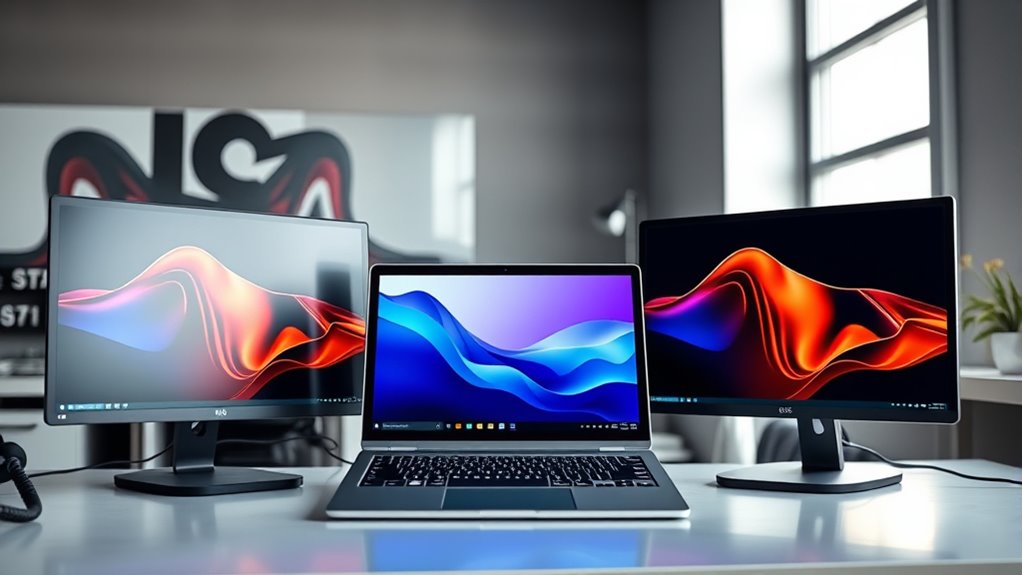

The Surface Laptop Studio supports up to two external monitors, which can greatly enhance your multitasking capabilities. You can connect these monitors using Thunderbolt 4 ports, maximizing your workspace efficiency. Each display can reach a resolution of up to 4K, though the refresh rate is capped at 60Hz for that resolution. To optimize performance, check your connectivity options and monitor compatibility. If you’re curious about recommended monitors and setup tips, there’s more information available.
Overview of Surface Laptop Studio
The Surface Laptop Studio stands out as a versatile device designed for creative professionals and everyday users alike. Its unique design features, including a dynamic woven-hinge and a sleek, premium finish, provide you with flexibility in how you work. You can easily switch between laptop and studio modes, enhancing your user experience whether you’re sketching, editing, or writing. Performance capabilities are impressive, powered by robust processors and ample RAM, ensuring smooth multitasking and efficient handling of demanding applications. The device’s graphics performance also supports creative tasks, making it a solid choice for artists and designers. Overall, the Surface Laptop Studio offers an appealing blend of functionality and style, catering to your diverse needs without compromising on quality.
Display Specifications
When considering the Surface Laptop Studio, it’s important to understand its display specifications. You’ll want to know how many external monitors it can support, the maximum resolution and refresh rates available, and the types of connections offered. These factors can greatly impact your overall experience and productivity.
Maximum External Displays Supported
You can connect up to two external monitors to the Surface Laptop Studio, making it a versatile choice for multitasking and productivity. This flexibility allows you to create various external display configurations that cater to your workflow. Whether you’re a creative professional or a business user, multi monitor setups can enhance your efficiency.
Here’s a quick overview of the supported configurations:
| Configuration Type | Number of Displays |
|---|---|
| Single Monitor | 1 |
| Dual Monitors | 2 |
| Display Port + HDMI | 2 |
| USB-C + HDMI | 2 |
With these options, you can tailor your workspace to suit your needs, ensuring you have the freedom to work effectively.
Resolution and Refresh Rates
While working with multiple monitors, understanding the resolution and refresh rates supported by the Surface Laptop Studio can greatly impact your overall experience. The device supports various display configurations, allowing you to connect up to two external monitors with resolutions up to 4K. High refresh rates enhance smoothness and responsiveness, especially when multitasking or gaming. For ideal visuals, consider monitor calibration to guarantee color accuracy and consistency across your displays. Depending on your needs, you might prioritize higher resolutions for design work or faster refresh rates for gaming. Ultimately, balancing these factors can reveal the full potential of your setup, enabling a more immersive and productive environment tailored to your preferences.
Connection Types Available
Understanding the connection types available for the Surface Laptop Studio is key to maximizing your multi-monitor setup. This device supports several options, primarily through its Thunderbolt 4 ports. These high-speed connections guarantee excellent monitor compatibility, allowing you to connect multiple displays with ease. You can utilize adapters for HDMI or DisplayPort connections, enhancing flexibility in your setup.
When considering your monitors, check their specifications to verify they support the resolutions and refresh rates you desire. Keep in mind that while you can connect up to two external displays, the actual performance may vary based on the workloads you’re running. By selecting the right connection types, you’ll create a seamless and efficient workspace tailored to your needs.
Connectivity Options
Although the Surface Laptop Studio boasts a sleek design, its connectivity options are vital for maximizing productivity, especially when connecting multiple monitors. You’ll find Thunderbolt 4 ports that offer high-speed data transfer and support for external displays. This flexibility allows you to create an efficient workspace tailored to your needs. Proper cable management is essential; it not only keeps your setup organized but also enhances monitor ergonomics, ensuring you maintain a comfortable viewing position. With the right adapters, you can easily connect various types of monitors, increasing your workspace’s functionality. Whether you’re multitasking or diving deep into creative projects, these connectivity options empower you to achieve a seamless and productive experience.
Maximum External Monitor Support
The Surface Laptop Studio is capable of supporting up to two external monitors simultaneously. This flexibility enhances your workflow, allowing you to expand your digital workspace considerably. When connecting multiple displays, you’ll benefit from impressive monitor performance, enabling seamless multitasking. It’s important to verify your external monitors have display compatibility with the laptop’s ports, typically utilizing USB-C or Thunderbolt connections. This compatibility guarantees that you can make the most of your setup, whether you’re working on complex projects or enjoying multimedia content. Keep in mind that peak performance relies on using quality cables and compatible monitors. By effectively utilizing this dual-monitor setup, you can enjoy an expansive, efficient workspace tailored to your needs.
Resolution and Refresh Rate Limitations
When connecting external monitors to your Surface Laptop Studio, it’s crucial to understand the maximum supported resolutions and refresh rate capabilities. These limitations can greatly impact your overall experience, especially for tasks requiring high visual fidelity. Knowing these specs will help you choose the right monitors for your setup.
Maximum Supported Resolutions
Understanding the maximum supported resolutions of the Surface Laptop Studio is essential for users aiming to optimize their multi-monitor setup. This device supports impressive maximum resolution capabilities, allowing you to connect multiple external displays efficiently. Specifically, you can achieve up to 4K resolution with certain external display configurations, making it ideal for creative professionals or anyone needing sharp visuals. It’s important to note that while you can connect several monitors, the performance may vary based on the resolution you choose. By recognizing these limitations, you can tailor your setup to fit your needs, ensuring you get the most out of your Surface Laptop Studio while maintaining visual clarity across all screens.
Refresh Rate Capabilities
Two key factors to evaluate when setting up multiple monitors with the Surface Laptop Studio are resolution and refresh rate capabilities. You’ll find that the device supports various refresh rate technologies, but limitations exist based on monitor compatibility. Typically, when using 4K monitors, the refresh rate caps at 60Hz, which might not suffice for high-performance gaming or fast-paced video editing. However, if you opt for lower resolutions, you could achieve higher refresh rates, like 120Hz or more. It’s essential to check the specifications of both your monitors and the Surface Laptop Studio to guarantee they align and work seamlessly together. Understanding these refresh rate limitations will enhance your multitasking experience and overall productivity.
Setting Up Multiple Monitors
Setting up multiple monitors with the Surface Laptop Studio can greatly enhance your productivity and multitasking capabilities. To begin, connect your external monitors using the available ports. Once connected, you’ll need to adjust your monitor arrangement in the display settings. This allows you to configure how your screens are positioned relative to each other, whether side by side or stacked.
You can access these settings by right-clicking on the desktop and selecting “Display settings.” Here, you can choose the primary display, resolution, and orientation to suit your workflow. Utilizing multiple monitors not only expands your digital workspace but also lets you manage tasks more efficiently, giving you the freedom to customize your setup to fit your needs.
Recommended Monitors for Optimal Performance
When choosing monitors for your Surface Laptop Studio, it’s essential to take into account factors like resolution, size, and connectivity to guarantee peak performance. For performance optimization, consider monitors with at least 1440p resolution, which balances clarity and resource usage. A 27-inch screen size is often ideal, providing ample workspace without overwhelming your setup. Look for monitors with USB-C or Thunderbolt connectivity to streamline your connections and reduce clutter. Brands like Dell, LG, and ASUS offer reliable options that cater to various needs. Remember, your monitor selection can considerably impact productivity, whether you’re multitasking or engaging in creative projects. Choosing wisely can enhance your experience and maximize the capabilities of your Surface Laptop Studio.
Troubleshooting Monitor Connections
Even though the Surface Laptop Studio is designed to support multiple monitors, you might encounter connection issues that can hinder your setup. Start by checking monitor compatibility; not all monitors support the same resolutions or refresh rates. If a monitor isn’t detected, verify your cables are securely connected and functioning properly. It’s wise to use high-quality cables to avoid signal loss. Additionally, consider your cable management; tangled or damaged cables can cause interference. If you’re still having trouble, try connecting the monitor to a different port on your laptop or testing it with another device. Sometimes, updating your drivers can also resolve connectivity issues, so keep those up to date for best performance.
Tips for Enhancing Your Workspace
A well-organized workspace can markedly boost your productivity and comfort while using the Surface Laptop Studio. Start by decluttering your desk; removing unnecessary items can create a more focused environment. Invest in productivity tools, like cable management solutions and monitor stands, to maximize your space effectively. Consider a dual-monitor setup to expand your workflow, allowing you to multitask efficiently. Use ergonomic accessories, such as a comfortable chair and keyboard, to enhance your comfort during long hours. Organize your digital workspace too; categorize files and utilize apps that streamline your tasks. Remember, an organized workspace fosters creativity and focus, enabling you to reach your goals with ease. Embrace these tips for a more liberated and efficient work experience.
Frequently Asked Questions
Can I Use a Projector With the Surface Laptop Studio?
Sure, you can use a projector with your Surface Laptop Studio. Just verify projector compatibility, and tweak the external display settings to optimize your projection experience. It’ll enhance your presentations or movie nights considerably!
How Does Battery Life Change With Multiple Monitors?
Using multiple external displays can greatly impact your laptop’s battery performance. More screens consume extra power, leading to quicker depletion of your battery. It’s essential to manage your usage for ideal efficiency while multitasking.
Is It Possible to Daisy-Chain Monitors?
Yes, you can daisy-chain monitors if they support daisy chain technology and are compatible with each other. This setup can enhance your workspace, but make certain your laptop’s graphics capabilities can handle the additional displays effectively.
What Adapters Are Recommended for HDMI and Displayport?
For HDMI adapters, consider high-quality ones supporting 4K resolutions. For DisplayPort cables, choose ones with at least 1.4 specifications for ideal performance. These options guarantee reliable connectivity and enhance your overall experience with multiple displays.
Can I Use Different Monitor Brands Simultaneously?
Using different monitor brands simultaneously is like mixing colors; it can create a beautiful display, but monitor compatibility issues may arise. For effective multi-display setups, make certain drivers and settings accommodate diverse brands for best performance.

[…] HDMI 2.1 supports up to 48 Gbps bandwidth, which is central to enabling features like 4K at high refresh rates on modern TVs. According to ITU-R BT.2100 / HDR ecosystem requirements, HDR commonly uses 10-bit […]
[…] TVs are designed for modern consoles and support 4K at high refresh rates, which is important for PS5 and Xbox Series X gaming. Sony’s gaming optimization is often praised […]
[…] picture processing is bypassed). Verify the official spec sheets for your console’s supported refresh rates and HDR […]