
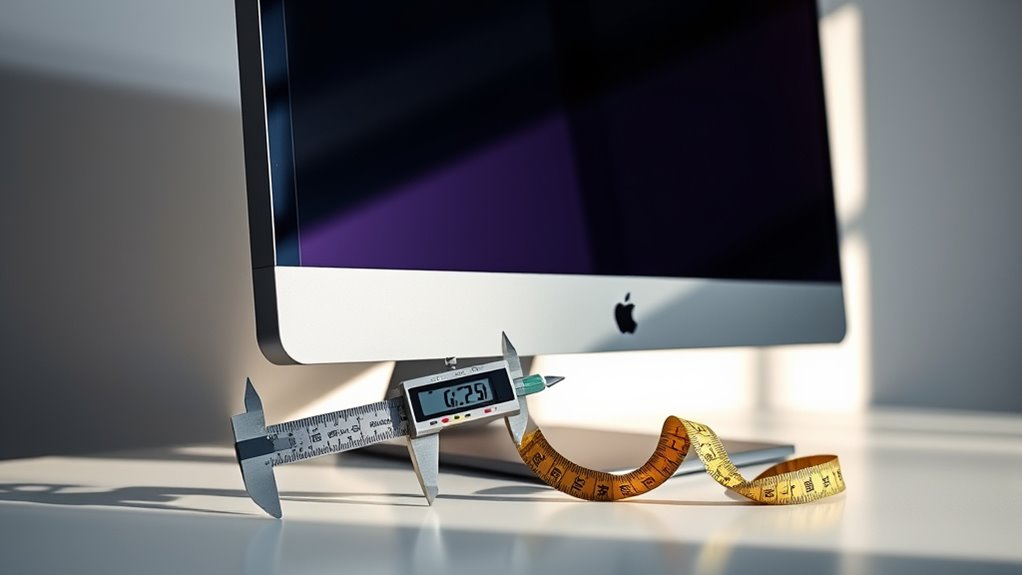

To measure the size of your computer monitor, start by using a measuring tape to find the diagonal length from one corner to the opposite corner. This measurement is typically expressed in inches. Don’t forget to check the width and height dimensions, as these can vary based on the aspect ratio. Also, assess the monitor’s resolution and depth for a better selection. There’s more to take into account for an ideal setup, so keep exploring your options.
Understanding Monitor Size Measurement
When you’re looking to understand monitor size measurement, it’s important to know that the size is typically expressed in inches, referring to the diagonal length of the screen. Different monitor types, like LCD or LED, can affect your viewing experience, so consider how screen features contribute to your needs. For instance, a larger screen may enhance your productivity or gaming experience, while a smaller one could be ideal for limited desk space. Pay attention to the aspect ratio, as this impacts how content is displayed. Whether you prefer a widescreen format for movies or a more square shape for design work, understanding these aspects will help you choose the right monitor that matches your personal freedom and style.
Measuring Diagonal Screen Size
When you measure a computer monitor, the diagonal screen size is key to understanding its overall dimensions. You’ll need the right tools for accurate measurement, and it’s easy to make common mistakes if you’re not careful. Let’s explore how to properly measure the diagonal size and avoid those pitfalls.
Understanding Screen Diagonal Measurement
Measuring a computer monitor’s screen size involves understanding the diagonal measurement, which is essential for determining the display’s overall dimensions. The diagonal measurement reflects the distance from one corner of the screen to the opposite corner, providing a useful indicator of the screen’s size. It’s important to note that this measurement doesn’t directly translate to width and height, as different aspect ratios can affect these dimensions. For example, a 24-inch screen may have varying width and height depending on whether it’s 16:9 or 4:3. Knowing the diagonal measurement helps you choose a monitor that fits your space and meets your needs without the guesswork. So, always consider this when evaluating potential monitors.
Tools for Accurate Measurement
To guarantee accurate measurement of your monitor’s diagonal screen size, you’ll need a few essential tools. Using the right measurement tools and calibration techniques guarantees precision. Here’s a quick reference table for your measurement toolkit:
| Tool | Purpose | Calibration Technique |
|---|---|---|
| Measuring Tape | For measuring distance | Align to the screen corners |
| Ruler | To check smaller screens | Use the ruler edge for accuracy |
| Smartphone App | Digital measurement | Verify app is calibrated first |
With these tools, you can confidently measure your monitor’s diagonal size. Remember, accurate measurement is key to maximizing your viewing experience—so take your time and verify everything is set up correctly!
Common Measurement Mistakes
How can such a simple task lead to inaccuracies? When measuring your monitor’s diagonal size, it’s easy to make common mistakes that result in size discrepancies. Here’s what to watch out for:
- Using the wrong measurement units: Always stick to inches or centimeters for consistency.
- Measuring the bezel: Don’t include the frame; focus solely on the screen.
- Not measuring at the right angle: Make sure you’re measuring straight from one corner to the opposite.
- Overlooking screen curvature: Curved screens can affect perceived size, so account for that when measuring.
Determining Width and Height
When you’re looking to determine the width and height of your computer monitor, start by using a tape measure for the most accurate results. To get the width measurement, lay the tape across the monitor’s screen from one edge to the other, avoiding any bezels. Make sure you’re measuring the display area, not the total width including the frame. For the height measurement, measure from the bottom edge to the top edge of the screen, again focusing on the display area. It’s essential to keep the tape straight and level for precise results. Taking these measurements will help you understand your monitor’s size better, enabling you to make informed decisions about setups or replacements.
Considering Aspect Ratio
After measuring the width and height of your monitor, the next step is to contemplate its aspect ratio. The aspect ratio determines how the width relates to the height, influencing your visual experience. Here are some common aspect ratio types you might encounter:
- 16:9 – Ideal for movies and gaming.
- 4:3 – Classic for web browsing and older applications.
- 21:9 – Perfect for immersive gaming and multitasking.
- 16:10 – Great for productivity and extra vertical space.
Understanding the aspect ratio impact can help you choose a monitor that fits your needs, whether it’s for gaming, work, or entertainment. Make sure you select an aspect ratio that enhances your experience and gives you the freedom to enjoy your content fully.
Evaluating Screen Resolution
When it comes to evaluating screen resolution, understanding pixel density is key to getting the best visual experience. Different resolution standards, like Full HD or 4K, can greatly affect image clarity and detail. Knowing these factors will help you choose a monitor that meets your needs.
Understanding Pixel Density
Understanding pixel density is essential for evaluating screen resolution, as it directly affects the clarity and sharpness of images displayed on your monitor. The pixel density impact can considerably enhance your viewing experience. Here’s how to make a pixel density comparison:
- Check Resolution: Look at your monitor’s resolution (e.g., 1920×1080).
- Measure Screen Size: Find the diagonal size of your monitor in inches.
- Calculate PPI: Use the formula PPI = √(width² + height²) / diagonal size.
- Assess Quality: Higher PPI means better sharpness and clarity.
Common Resolution Standards
There are several common resolution standards that can greatly impact your viewing experience. Understanding these resolution types helps you choose the best monitor for your needs. Here’s a quick overview of popular resolutions:
| Resolution Type | Pixel Count | Common Use |
|---|---|---|
| 1080p | 1920 x 1080 | Gaming, Streaming |
| 1440p | 2560 x 1440 | Professional Work |
| 4K | 3840 x 2160 | High-End Media |
Each of these resolution impacts clarity and detail, making your visual experience more enjoyable. Whether you’re gaming, working, or watching movies, the right resolution can make all the difference. Consider your needs and choose wisely to enhance your digital freedom.
Assessing Monitor Depth
To effectively assess monitor depth, start by measuring from the front bezel to the back of the monitor’s casing. This measurement is essential for understanding monitor thickness considerations, especially if you’re tight on space. Here’s how to perform a display depth evaluation:
- Position the monitor on a flat surface.
- Use a ruler or measuring tape for accuracy.
- Measure straight back from the front bezel to the furthest point at the back.
- Record the depth to compare with your setup requirements.
Checking Stand and Mounting Options
When choosing a computer monitor, it’s crucial to take into account the stand and mounting options that best fit your setup. You’ll want to take into consideration the stand height to guarantee your monitor sits at a comfortable eye level. If you prefer flexibility, look into using mounting brackets for wall or desk mounts. These can free up valuable desk space and allow for better viewing angles. Check if your monitor is VESA compatible, as this will determine the type of mounting brackets you can use. By evaluating these options, you can create a more ergonomic workspace tailored to your needs, enhancing your overall comfort and productivity. Don’t overlook the importance of a stable, adjustable setup—it can greatly impact your experience.
Making Space for Your Monitor
Creating a designated space for your monitor is crucial, especially if you want to maintain an organized and efficient workspace. Here are some tips to help you make the most of your desk space:
- Measure your desk: Verify your monitor fits comfortably without crowding your workspace.
- Clear clutter: Remove unnecessary items from your desk to create an inviting environment.
- Plan cable management: Use clips or sleeves to keep cords neat and out of the way.
- Consider monitor height: Position your monitor at eye level to promote good posture and reduce strain.
Comparing Different Monitor Sizes
With your workspace organized and ready, it’s time to contemplate the size of your monitor. When comparing different sizes, consider how monitor ergonomics can greatly impact your comfort and productivity. A larger screen can enhance your ideal viewing experience, providing ample space for multitasking. However, if you’re in a compact area, a smaller monitor might be more practical.
Keep in mind that the distance from your eyes to the screen matters; too large a monitor can strain your neck and eyes if it’s too close. Ultimately, it’s about finding the right balance that suits your needs. Whether you’re a gamer, designer, or casual user, choosing the right size will elevate your overall computing experience.
Frequently Asked Questions
What Tools Do I Need to Measure a Monitor Accurately?
You’ll need a measuring tape or ruler for accurate measuring techniques. Measure diagonally from one corner to the opposite corner, then note the monitor dimensions in inches. This guarantees you get a precise size every time.
Can I Measure a Curved Monitor the Same Way?
You can measure a curved monitor similarly, but remember it’s like measuring a rainbow—take multiple points along the curve for accuracy. Use standard measurement techniques to guarantee you capture the display’s true dimensions.
How Does Monitor Size Affect Gaming Experience?
Monitor size affects your gaming experience by influencing screen resolution and refresh rate. A larger screen can enhance immersion, but if resolution lags behind, visuals might suffer. Choose wisely for that ultimate freedom in gameplay!
Does Monitor Size Impact Eye Strain?
Absolutely, monitor size can impact eye strain. Larger screens at a proper screen distance enhance eye comfort, reducing fatigue. If you’re gaming or working long hours, consider a size that suits your space and vision needs.
What Is the Ideal Monitor Size for My Workspace?
The ideal monitor size for your workspace depends on your workspace dimensions and user preferences. Generally, a 24 to 32-inch monitor suits most setups, balancing screen real estate with comfort and visual clarity.
