
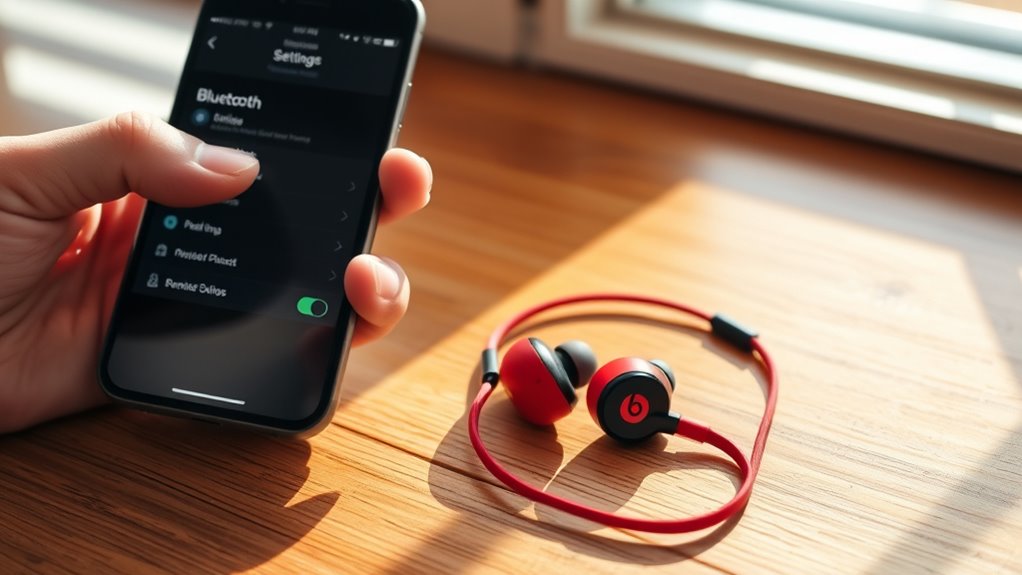

To connect your Beats earbuds, verify they’re charged and in pairing mode by holding the power button until the light flashes. For an iPhone, go to Settings > Bluetooth, make sure Bluetooth is on, then tap your Beats in the list. For Android, open Bluetooth settings and select your earbuds. On a computer, access Bluetooth settings and connect to your Beats. If you face issues, troubleshoot by resetting the earbuds or adjusting Bluetooth settings for a smooth experience.
Preparing Your Beats Earbuds for Pairing
Before you can enjoy your Beats earbuds, preparation is key. Start by familiarizing yourself with the earbud features, as they’ll enhance your experience. Verify your earbuds are fully charged; a low battery can hinder performance and connectivity. Next, activate pairing mode on your earbuds. Most models allow you to switch to this mode by holding down the power button until you see the indicator light flashing. This signals that they’re ready to connect. Make sure the device you’re pairing with is nearby and also in pairing mode. By understanding these steps, you’re setting the stage for a seamless connection, allowing you to enjoy your music, podcasts, or calls without interruptions. Freedom in sound is just a pairing away!
Connecting Beats Earbuds to an Iphone
Once your Beats earbuds are in pairing mode, connecting them to your iPhone is a straightforward process. First, grab your iPhone and open it. Go to your iPhone settings and select Bluetooth. Make sure Bluetooth is turned on; you’ll see a list of available devices. Look for your Beats earbuds in the list—tap on them to initiate the connection. If prompted, confirm the pairing. Here are some pairing tips: keep your earbuds close to your iPhone for the best connection and make sure they’re charged. Once connected, you’ll hear a confirmation tone. Your Beats earbuds are now ready to use! Enjoy the freedom of wireless listening without any hassle.
Connecting Beats Earbuds to an Android Device
If you’re looking to connect your Beats earbuds to an Android device, the process is just as simple. Here’s how to do it in a few easy steps:
- Put your Beats earbuds in pairing mode: Press and hold the power button until you see the LED light flashing.
- Open Bluetooth settings: On your Android device, go to Settings > Connected devices > Bluetooth.
- Select your Beats earbuds: In the list of available devices, tap on your earbuds to initiate the pairing process.
Once connected, you’ll enjoy the freedom of wireless listening. If you run into any issues, make sure your earbuds are charged and nearby. Enjoy your music without the hassle!
Connecting Beats Earbuds to a Computer
Connecting your Beats earbuds to a computer is a straightforward process that enhances your listening experience during work or leisure. First, verify your earbuds are charged and in pairing mode. To activate pairing mode, press and hold the power button until you see the LED light flash. Next, on your computer, navigate to the Bluetooth settings. On Windows, go to Settings > Devices > Bluetooth & other devices. For Mac, click on the Apple menu, then System Preferences > Bluetooth. Once you’re in the Bluetooth settings, select your Beats earbuds from the list of available devices. Click “Connect,” and your earbuds will be paired, ready for use. Enjoy the freedom of wireless listening with your computer!
Troubleshooting Connection Issues
Even the best technology can encounter hiccups, so it’s essential to know how to troubleshoot connection issues with your Beats earbuds. If you’re having trouble, try these steps:
- Check Bluetooth Settings: Verify Bluetooth is enabled on your device. Sometimes, turning it off and back on can help.
- Resetting Earbuds: If they still won’t connect, try resetting your earbuds. Press and hold the power button for about 10 seconds until the LED indicator flashes.
- Forget and Reconnect: Go to your device’s Bluetooth settings, forget the earbuds, and then reconnect them to establish a fresh connection.
Following these steps should help you regain that seamless audio experience. Enjoy your music without interruptions!
Frequently Asked Questions
Can I Use Beats Earbuds With a Non-Bluetooth Device?
No, you can’t use Beats earbuds with a non-Bluetooth device unless they have a wired connection option. For ideal audio quality, consider using wired headphones designed specifically for non-Bluetooth devices.
How Do I Reset My Beats Earbuds?
Think of your Beats earbuds like a computer needing a refresh. To reset, follow the reset instructions: hold the power and volume down buttons for 10 seconds until the LED flashes, completing the reset process.
Are My Beats Earbuds Water-Resistant?
Your Beats earbuds typically have some water resistance and sweat protection, but they’re not fully waterproof. It’s best to avoid heavy rain or submerging them in water to guarantee they stay in good condition.
How Long Does the Battery Last on Beats Earbuds?
Beats earbuds typically last around 8 to 12 hours on a single charge, depending on the model. For ideal battery longevity, keep ’em charged regularly and avoid extreme temperatures when storing or using them.
Can I Use Beats Earbuds for Phone Calls?
Yes, you can use Beats earbuds for phone calls. With impressive call quality and solid microphone performance, they guarantee clear communication. In fact, users report up to 90% satisfaction during calls, enhancing your freedom to connect.
