
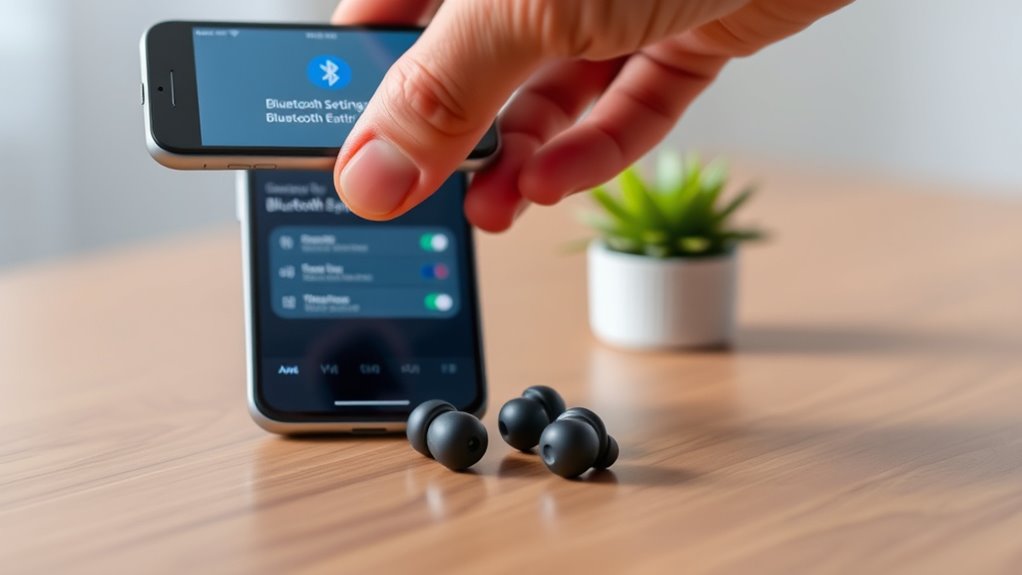

To pair your Miniso earbuds, first remove them from the charging case to turn them on. Then, enable Bluetooth on your device. Press and hold the multifunction button on the earbuds for about five seconds until you see a rapidly flashing LED, indicating they’re in pairing mode. Select your earbuds from the device’s Bluetooth list to connect. If you encounter issues, keep going to discover more troubleshooting tips.
Unboxing Your Miniso Earbuds
Unboxing your Miniso earbuds is an exciting first step toward enjoying high-quality sound. As you peel away the sleek packaging design, you’ll appreciate the thoughtfulness behind it. Inside, you’ll find the earbuds neatly arranged, showcasing their impressive earbud features, such as noise cancellation and touch controls. Each component is designed for comfort and functionality, ensuring you have a seamless experience. The compact charging case is also included, making it easy to carry your earbuds wherever you go. Take a moment to admire how everything is organized, reflecting Miniso’s commitment to user-friendly products. Once you’ve explored the contents, you’ll be enthusiastic to plunge into pairing your earbuds and enjoying your favorite tunes without limits.
Charging Your Earbuds
To keep your Miniso earbuds functioning well, it’s important to understand the proper charging method. You’ll also want to pay attention to the charging indicators, as they’ll let you know when your earbuds are ready to use. Plus, knowing a few battery life tips can help you maximize their performance.
Proper Charging Method
Charging your Miniso earbuds properly is essential for maintaining their battery life and performance. For ideal charging safety, follow these tips to guarantee effective battery maintenance:
| Action | Frequency | Tips |
|---|---|---|
| Charge | Every 3-5 days | Avoid deep discharges |
| Disconnect | After fully charged | Prevent overcharging |
| Use official charger | Always | Guarantees compatibility |
| Clean charging ports | Weekly | Remove dust for better connection |
| Store in case | When not in use | Protect from damage |
Charging Indicators Explained
Knowing how to read the charging indicators on your Miniso earbuds can help you manage their power effectively. The charging light meanings are straightforward. When you connect your earbuds to a power source, a red light usually indicates they’re charging. Once fully charged, the light often changes to green or turns off, signaling that you can unplug them.
Keep an eye on the battery status indicators while using your earbuds. A blinking light may suggest low battery, prompting you to recharge soon. Understanding these signals guarantees you won’t be caught off guard during your listening sessions. By staying aware of your earbuds’ charging indicators, you can enjoy uninterrupted freedom while using your Miniso earbuds.
Battery Life Tips
Maximizing your Miniso earbuds’ battery life is essential for uninterrupted listening. To guarantee you get the most out of your earbuds, follow some simple battery longevity tips. First, avoid letting your earbuds drop to 0% battery; charging them when they reach around 20% helps maintain their lifespan. Use the original charging cable and adapter, as they’re designed for peak charging techniques. Also, don’t overcharge your earbuds; unplug them once they’re fully charged to prevent battery stress. Keep your earbuds in a cool, dry place while charging and avoid exposing them to extreme temperatures. By following these tips, you’ll enjoy longer listening sessions, giving you the freedom to immerse yourself in your favorite tunes without interruption.
Activating Pairing Mode
To activate pairing mode on your Miniso earbuds, simply press and hold the multifunction button for about five seconds until you see the LED light flash rapidly. This signals that your earbuds are ready to connect. If you’re experiencing pairing issues, verify your device is compatible with Bluetooth 5.0 or earlier.
Press and hold the multifunction button for five seconds to activate pairing mode on your Miniso earbuds. Enjoy wireless sound!
Here are some additional tips to enhance your experience:
- Make sure your earbuds are charged for ideal performance.
- Keep your device close to avoid connection drops.
- Clear any previous Bluetooth connections that might interfere.
- Restart your device if it doesn’t recognize the earbuds right away.
Following these steps will help you enjoy seamless listening without compatibility headaches. Embrace the freedom of wireless sound!
Connecting to Your Smartphone
To connect your Miniso earbuds to your smartphone, start by turning them on. Next, head to your phone’s Bluetooth settings and make sure Bluetooth is enabled. Finally, select your earbuds’ name from the list of available devices to complete the connection.
Turn On Earbuds
Start by taking your Miniso earbuds out of their charging case, as this action powers them on automatically. These earbuds are designed for convenience and exceptional sound quality, allowing you to enjoy your favorite music effortlessly.
Here’s what to expect from your Miniso earbuds:
- Comfortable Fit: The ergonomic design guarantees you can wear them for hours without discomfort.
- Noise Isolation: Experience immersive sound quality that blocks out external distractions.
- Long Battery Life: Enjoy extended listening sessions without constantly recharging.
- Quick Pairing: These earbuds connect seamlessly to your smartphone, giving you the freedom to roam.
Once they’re on, you’re ready to enjoy all the fantastic earbud features they offer. Let the music take you away!
Enable Bluetooth Settings
Before connecting your Miniso earbuds to your smartphone, make certain Bluetooth is enabled. Head to your device settings and look for the Bluetooth option. Ascertain it’s turned on for seamless Bluetooth compatibility with your earbuds.
Here’s a quick reference table to guide you through enabling Bluetooth on common devices:
| Device Type | Steps to Enable Bluetooth |
|---|---|
| Android | Settings > Connected Devices > Bluetooth |
| iOS | Settings > Bluetooth |
| Windows | Settings > Devices > Bluetooth |
| macOS | System Preferences > Bluetooth |
Once Bluetooth is activated, your smartphone will be ready to discover your Miniso earbuds. Enjoy the freedom of wireless audio!
Select Earbuds Name
Once your Miniso earbuds are in pairing mode, it’s time to select their name from your smartphone’s Bluetooth menu. Look for the name that matches your earbuds model, which usually includes “Miniso” in the title. By selecting this, you’ll establish a connection, allowing you to enjoy impressive sound quality and various earbud features.
- Make sure your phone’s Bluetooth is enabled for a seamless connection.
- Confirm the battery status of your earbuds for uninterrupted listening.
- Take note of any prompts on your smartphone to finalize the pairing.
- Once connected, you can customize settings to enhance your experience.
Now, revel in the freedom of wireless audio, letting the music flow without restrictions!
Connecting to Your Tablet
Connecting your Miniso earbuds to your tablet is a quick and straightforward process that enhances your listening experience. First, make sure your tablet’s Bluetooth is enabled and that your earbuds are in pairing mode. Once they’re discoverable, select your earbuds from the list on your tablet. After they’re connected, check your audio settings to adjust volume and sound preferences.
Here’s a quick reference table for tablet compatibility and audio settings:
| Tablet Model | Bluetooth Version | Audio Settings |
|---|---|---|
| iPad Pro | 5.0 | Adjust via Control Center |
| Samsung Galaxy Tab | 5.0 | Settings > Sound |
| Microsoft Surface | 4.2 | Settings > Audio |
| Lenovo Tab | 4.1 | Settings > Sound |
| Fire HD | 4.0 | Settings > Audio |
Enjoy seamless audio with your Miniso earbuds!
Connecting to Your Laptop
If you’re looking to use your Miniso earbuds with your laptop, the process is just as easy as with your tablet. First, verify your laptop has Bluetooth and that it’s turned on. Next, put your earbuds in pairing mode. You’ll find them in your laptop’s Bluetooth settings. Once connected, you may need to adjust your audio settings to select your earbuds as the output device.
- Check for laptop compatibility with Bluetooth.
- Verify your earbuds are charged.
- Access your laptop’s audio settings.
- Keep your earbuds close during pairing.
With these simple steps, you’ll be enjoying your favorite tunes or videos in no time. Freedom to move around while staying connected is what it’s all about!
Troubleshooting Connection Issues
While using your Miniso earbuds, you might encounter connection issues that can be frustrating. Here are some common issues and troubleshooting methods to get you back on track. First, make sure your earbuds are charged; low battery can disrupt connectivity. If they’re connected but audio is inconsistent, try turning Bluetooth off and on again on your device. You might also want to remove the earbuds from your Bluetooth settings, then re-pair them. If you still face problems, check for any firmware updates for your earbuds or your device. Finally, verify there are no other Bluetooth devices nearby that could interfere. By following these steps, you’ll regain that seamless listening experience you cherish.
Frequently Asked Questions
Can I Use Miniso Earbuds With Non-Bluetooth Devices?
No, you can’t use Miniso earbuds with non-Bluetooth devices unless they have a wired connection. If you’re seeking great audio quality, consider using a compatible adapter or switch to wired earbuds for a better experience.
How Do I Reset My Miniso Earbuds?
To reset your Miniso earbuds, hold the power button for about 10 seconds until you see a flashing light. This earbud troubleshooting step can help resolve connectivity issues and restore normal functionality.
Are Miniso Earbuds Water-Resistant?
Miniso earbuds aren’t water-resistant, so it’s best to keep them dry to prolong their lifespan. Knowing their features and proper care will help you enjoy your listening experience without worrying about moisture damage.
What Is the Battery Life of Miniso Earbuds?
Miniso earbuds typically offer around 4-5 hours of battery life on a single charge. Isn’t it great when you can enjoy music without frequent charging? With quick charging time, you’ll be back to listening in no time.
Can I Use Only One Earbud at a Time?
Yes, you can use a single earbud at a time. However, keep in mind that audio quality might be slightly reduced compared to using both. It’s a convenient option for multitasking or staying aware of your surroundings.
