
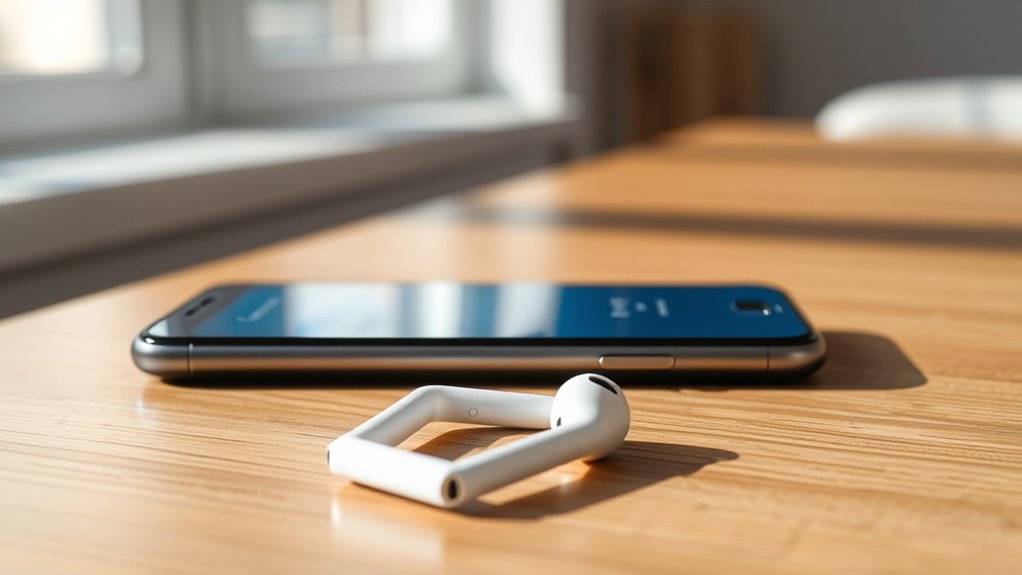

To connect your Apple earbuds to your iPhone, first verify they’re charged and compatible. For wired earbuds, simply plug the 3.5mm jack into the headphone port, or use a Lightning to 3.5mm adapter for newer models. For AirPods, open the case to see a flashing white light, then go to Bluetooth settings on your iPhone and select your AirPods. Enjoy seamless audio, and if you need help with settings or troubleshooting, there’s more to uncover.
Preparing Your Earbuds for Connection
Before you can connect your Apple earbuds to your iPhone, you’ll need to make certain they’re ready. First, check the earbud compatibility with your iPhone model. Most newer iPhones should have no issues connecting with Apple earbuds. Next, confirm your earbuds are fully charged; this will help you avoid interruptions while listening. To check charging requirements, look for a solid light on the charging case or a battery indicator if you have AirPods. If they’re low on battery, plug them in and wait a few minutes. Remember, having your earbuds in working order sets the stage for a smoother connection experience, giving you the freedom to enjoy your favorite music or podcasts without hassle.
Connecting Wired Earbuds to Your Iphone
Connecting wired earbuds to your iPhone is a straightforward process that only takes a few seconds. First, plug the 3.5mm jack of your earbuds into the headphone port on your iPhone. If you’re using a newer model without a headphone jack, you’ll need a Lightning to 3.5mm adapter, which plugs into the Lightning port. Once connected, your iPhone should automatically recognize the wired audio compatibility, and you can start enjoying your favorite tunes. To guarantee longevity, follow some earbud maintenance tips: keep them clean, avoid yanking the cord, and store them properly when not in use. This way, you’ll maintain the sound quality and durability of your wired earbuds for a satisfying listening experience.
Pairing Airpods With Your Iphone
To pair your AirPods with your iPhone, simply confirm that both devices are charged and within a few feet of each other. Open the AirPods case, and you’ll see a white light flashing. On your iPhone, go to Bluetooth settings and verify it’s turned on. Your AirPods will appear in the list of available devices; tap on them to connect. Once paired, you’ll enjoy seamless connectivity and the fantastic AirPods features, such as automatic ear detection and spatial audio support. Plus, AirPods are designed for excellent earbuds compatibility, easily switching between your Apple devices. Enjoy the freedom of wireless listening and take advantage of the immersive sound experience your AirPods provide.
Troubleshooting Connection Issues
Experiencing connection issues with your Apple earbuds can be frustrating, but there are several steps you can take to resolve them. First, check for earbud compatibility issues by ensuring that your earbuds are designed to work with your specific iPhone model. Next, make sure your iPhone’s Bluetooth is turned on and that your earbuds are charged. If you’re still having trouble, try turning off other Bluetooth devices nearby, as they may cause interference. Restarting your iPhone can also help clear any temporary glitches. If you suspect Bluetooth interference, move away from possible sources like microwaves or Wi-Fi routers. Finally, consider resetting your earbuds to restore their connection settings, which can often resolve lingering issues.
Managing Earbud Settings on Your Iphone
Managing your earbud settings on your iPhone is essential for getting the most out of your listening experience. Start by accessing the Bluetooth settings to customize your earbud features. You can adjust the settings for double-tap actions, allowing you to play music or answer calls without reaching for your phone. Explore sound customization options in the Music or Settings app to fine-tune the audio to your liking. If you have AirPods, consider enabling features like Spatial Audio for an immersive sound experience. Don’t forget to check for firmware updates, ensuring your earbuds perform at their best. By managing these settings, you’ll enjoy a personalized listening experience that suits your unique preferences.
Frequently Asked Questions
Can I Use Apple Earbuds With Non-Apple Devices?
Yes, you can use Apple earbuds with non-Apple devices. However, you might encounter some compatibility concerns, and the sound quality may not be as ideal compared to using them with Apple products. Enjoy the freedom!
How Do I Clean My Apple Earbuds Effectively?
To clean your Apple earbuds effectively, use a soft, dry cloth for exterior maintenance, a gentle cleaning solution for stubborn grime, and avoid moisture in the openings for ideal earbud maintenance. Your earbuds will thank you!
Are There Any Compatibility Issues With Older Iphone Models?
Yes, there can be earbud compatibility issues with older iPhones, especially if they lack the latest Bluetooth versions. Always check your iPhone model’s specifications to guarantee your Apple earbuds will work seamlessly with it.
What Should I Do if My Earbuds Are Not Charging?
If your earbuds aren’t getting their beauty sleep, try these troubleshooting tips: check the charging case, clean the connectors, and make sure the case is charged. Sometimes, a little TLC is all they need!
Can I Use Siri With My Apple Earbuds?
Yes, you can use Siri with your Apple earbuds. Just activate Siri using voice commands or the earbud controls, and you’re free to ask questions or give commands hands-free, enhancing your experience effortlessly.
