
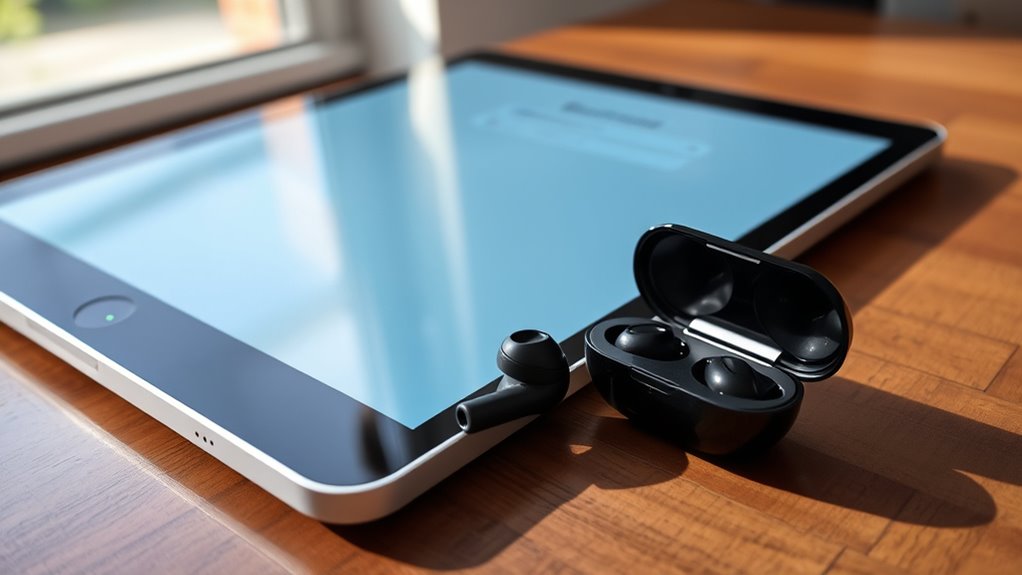

To pair your earbuds to an iPad, first verify they’re compatible and charged. Turn on your iPad, swipe down from the top-right corner, and enable Bluetooth. Prepare your earbuds by entering pairing mode, then select them from the Bluetooth settings on your iPad. Confirm the connection and check for audio output. If you face any issues, there are simple troubleshooting steps to follow. Continue on to discover more tips for a smooth pairing experience.
Check Your Earbuds Compatibility
Before you plunge into pairing your earbuds with your iPad, it’s essential to check their compatibility. Different earbud types, like true wireless, wired, or over-ear, may require specific compatibility standards. Start by confirming your iPad supports Bluetooth if you’re using wireless earbuds. Most modern iPads do, but it’s good to double-check your model. Then, verify that your earbuds can connect via Bluetooth; look for a pairing mode or button. If you’re using wired earbuds, confirm they have the right connector—most iPads use a Lightning port or a headphone jack, depending on your model. Understanding these factors will save you time and frustration, allowing you to enjoy your music, podcasts, or calls without a hitch.
Turn on Your Ipad
To turn on your iPad, locate the power button, usually found on the top edge or side of the device. Press and hold it until the screen lights up. If your iPad is already on but the screen is off, you can simply tap the home button or the power button to wake it up.
Power Button Location
The power button on your iPad is essential for turning on the device and waking it from sleep mode. Depending on the model, you may find different power button types. For most iPads, the power button is located on the top edge, while some newer models might have a side position. This button’s functionality goes beyond just powering on; it also allows you to lock your screen and initiate Siri when pressed. To turn your iPad on, simply hold down the power button until you see the Apple logo. Remember, whether you’re using an older model or the latest release, knowing the exact location of this button keeps your iPad within reach and ready to use whenever you need it.
Screen Wake Options
One way to quickly wake your iPad’s screen is by using the built-in features designed for convenience. You can simply tap the screen or press the power button, but there are other options that enhance your experience. To increase screen brightness instantly, adjust the settings in the Control Center. If you prefer a more responsive experience, enable the “Raise to Wake” feature, which activates the screen as you lift your iPad. This boosts touch sensitivity, allowing for quicker access to your apps and tasks. With these features, you can enjoy a seamless interaction with your device, making it easier to pair your earbuds and use your iPad to its fullest potential.
Enable Bluetooth on Your Ipad
Enabling Bluetooth on your iPad is a quick and straightforward process. First, swipe down from the top-right corner of your screen to access the Control Center. You’ll see the Bluetooth icon. Tap it to turn Bluetooth on. If you prefer, you can also go to the Bluetooth settings in the Settings app. Here’s a handy table to help you understand device compatibility:
| Device Type | Compatibility | Notes |
|---|---|---|
| Earbuds | Yes | Most modern earbuds work. |
| Headphones | Yes | Check for Bluetooth. |
| Speakers | Yes | verify they’re charged. |
| Smartwatches | Yes | Sync via Bluetooth. |
Once Bluetooth is activated, you’re ready to connect your earbuds!
Prepare Your Earbuds for Pairing
Now that Bluetooth is activated on your iPad, it’s time to prepare your earbuds for pairing. First, identify your earbud type—whether they’re true wireless, on-ear, or in-ear—as this can affect the pairing method. For most Bluetooth earbuds, you’ll need to charge them fully and verify they’re turned on. If your earbuds have a pairing button, press it until you see a blinking light, indicating they’re in pairing mode. Some models may automatically enter this mode when turned on. Make certain your earbuds are close to your iPad to establish a strong connection. With everything ready, you’re set to make the pairing process smooth and enjoyable. Freedom in sound awaits you!
Pair Your Earbuds With Your Ipad
To pair your earbuds with your iPad, you’ll first need to enable the Bluetooth settings on your device. Once Bluetooth is turned on, you can easily connect your earbuds by selecting them from the list of available devices. This process guarantees you can enjoy your audio without any hassle.
Enable Bluetooth Settings
Before you can enjoy your favorite tunes or podcasts, you’ll need to enable Bluetooth on your iPad. This step is essential for connecting your earbuds, and it only takes a moment. Here’s how to get started:
- Open the Settings app on your iPad.
- Tap on Bluetooth to access the Bluetooth settings.
- Toggle the Bluetooth switch to On.
Once you’ve activated Bluetooth, your iPad will start searching for nearby devices, including your earbuds. If you run into any issues, consider some Bluetooth troubleshooting tips or check your earbuds maintenance to verify they’re charged and functioning properly. This will set you on the path to enjoying your audio freedom seamlessly!
Connect Your Earbuds
Connecting your earbuds to your iPad is a quick process that can be completed in just a few steps. First, verify your earbuds are charged and in pairing mode. This varies by earbud types; check the manufacturer’s instructions if you’re unsure. On your iPad, go to Settings, then Bluetooth, and make sure it’s turned on. Your iPad will scan for available devices. Once you see your earbuds listed, tap on them to connect. You’ll hear a confirmation sound, indicating the connection is successful. Enjoy high-quality sound with your favorite music or podcasts. The right pair of earbuds can enhance your listening experience, giving you the freedom to enjoy audio wherever you go.
Confirm the Connection
Once you’ve paired your earbuds with your iPad, it’s crucial to confirm the connection. This verifies you’re all set to enjoy your audio experience without interruptions. Here’s how to get that connection confirmation:
Confirm your earbuds are connected to your iPad to ensure an uninterrupted audio experience.
- Check Bluetooth Settings: Open the Bluetooth settings on your iPad to see if your earbuds are listed as connected.
- Listen for Audio Feedback: Play a song or video. If you hear sound through your earbuds, the connection is successful.
- Test Controls: Use the controls on your earbuds to adjust volume or skip tracks. If they respond, you’re good to go!
Taking these simple steps will help you feel confident in your connection and ready to enjoy your favorite tunes or podcasts.
Adjust Audio Settings
Adjusting your audio settings can greatly enhance your listening experience on your iPad. To do this, head to Settings, then tap on Sounds. Here, you can explore various audio enhancements that cater to your sound preferences. For instance, you may enable features like EQ settings or spatial audio to create a more immersive experience. Don’t forget to check the volume limit, ensuring it suits your comfort level without compromising sound quality. If you’re using third-party apps, explore their audio settings too, as they often provide additional customization options. By fine-tuning these settings, you can enjoy your favorite music, podcasts, or videos in a way that truly resonates with you. Immerse yourself, and let your audio experience shine!
Troubleshoot Common Issues
While pairing your earbuds to an iPad is usually straightforward, you might encounter some common issues that can disrupt the process. Here are a few troubleshooting tips to help you get back on track:
- Check Bluetooth settings: Verify Bluetooth is turned on your iPad. Sometimes, toggling it off and back on can resolve connectivity issues.
- Reduce Bluetooth interference: Move away from other electronic devices that might be causing interference. Microwaves and Wi-Fi routers can occasionally disrupt the signal.
- Reset your earbuds: If connection problems persist, try resetting your earbuds according to the manufacturer’s instructions. This can often clear up any lingering issues.
Frequently Asked Questions
Can I Connect Multiple Earbuds to My Ipad at Once?
You can’t connect multiple earbuds to your iPad at once due to Bluetooth limitations. This restriction affects audio quality, making it challenging to enjoy a seamless listening experience with more than one pair of earbuds.
How Do I Reset My Earbuds if They Won’t Pair?
To reset your earbuds, hold the power button until they turn off, then press it again until the LED blinks. If you’re facing earbud compatibility issues, try these troubleshooting tips for better connectivity.
Will Pairing Earbuds Affect My Ipad’s Battery Life?
Pairing earbuds can slightly impact your iPad’s battery life due to Bluetooth settings. However, with good battery management, you won’t notice a significant difference. Enjoy your music without worrying too much about draining your battery!
Can I Use Earbuds With a Wired Ipad Connection?
Yes, you can use earbuds with a wired connection on your iPad, provided they’re compatible. Just make certain your earbuds have the right plug type for seamless wired audio connection compatibility, allowing you to enjoy your music freely.
Are There Specific Brands of Earbuds That Work Best With Ipads?
While there’s no one-size-fits-all, brands like Apple AirPods and Bose are renowned for their Apple compatibility and impressive Bluetooth range. You’ll enjoy seamless connectivity and freedom of movement, making your listening experience truly extraordinary.
