
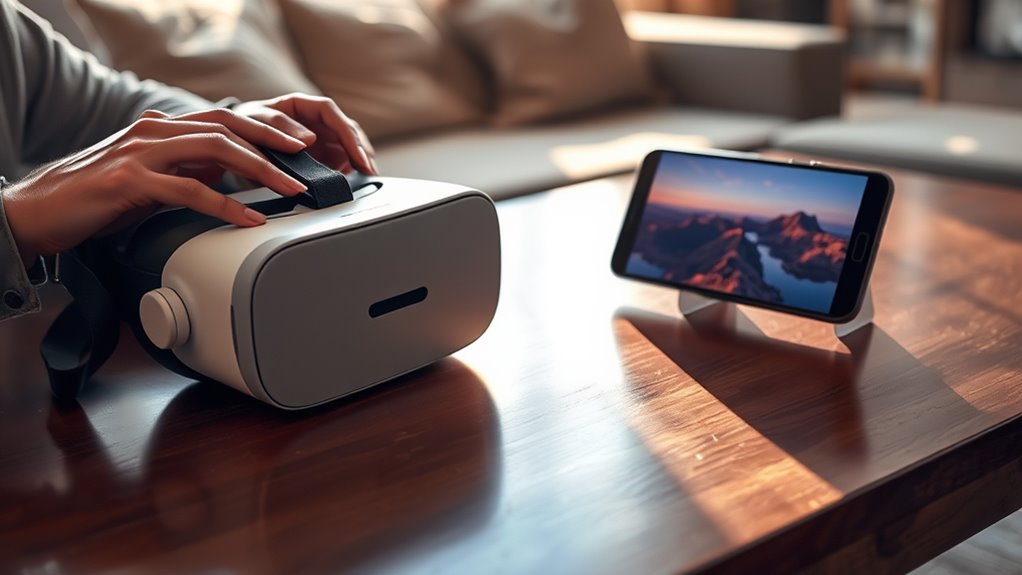

To use your VR headset with your phone, start by checking compatibility between your smartphone and the headset. Next, download necessary VR apps from your app store. Connect your phone to the headset, either wired or wirelessly. Adjust settings for brightness and notifications to enhance your experience. Finally, explore a variety of VR content, from games to immersive experiences. There’s so much more to discover about optimizing your setup and enjoying VR adventures.
Check Compatibility of Your VR Headset and Smartphone
Before diving into the immersive world of virtual reality, you’ll want to confirm your VR headset is compatible with your smartphone. Different headset models have specific compatibility requirements that you’ll need to check. Start by identifying the smartphone models that work with your VR headset. Most manufacturers provide a list of compatible devices, so make sure your phone’s specifications align with those. Pay attention to factors like screen size, resolution, and software compatibility, as these elements play a critical role in your VR experience. If your smartphone isn’t on the list, you might not fully enjoy the virtual adventures ahead. Taking the time to confirm compatibility now will save you frustration later, allowing you to explore the VR world with ease.
Download Necessary Apps
To fully immerse yourself in virtual reality, you’ll need to download a few essential apps. Start by exploring your app store options, whether you’re using Android or iOS. Popular apps include VR games, immersive experiences, and social platforms designed for VR. Once you’ve identified the apps you want, go ahead and initiate the app installation. Simply tap the download button, and let your device handle the rest. After installation, make certain the apps are updated for peak performance. This way, you’ll access the full potential of your VR headset. With the right apps, you’ll plunge into a world of endless possibilities, enjoying a virtual experience tailored just for you. So, gear up and get ready to explore!
Connect Your Smartphone to the VR Headset
Once you’ve downloaded the necessary apps, connecting your smartphone to the VR headset is the next crucial step. First, check your smartphone compatibility with the headset type you’ve chosen. Most modern headsets support a wide range of smartphones, but it’s important to verify yours fits. For wired connections, plug in your phone securely into the designated slot. If you’re using a wireless headset, enable Bluetooth on your smartphone and follow the pairing instructions provided by the manufacturer. Once connected, you should see the VR interface on your phone screen. Adjust the headset to guarantee a comfortable fit and make sure it’s properly aligned with your eyes. Now you’re ready to plunge into a new reality!
Adjust Settings for Optimal Experience
Adjusting settings on your VR headset can greatly enhance your overall experience. Start by customizing the brightness to suit your environment; too bright or too dim can detract from immersion. Most headsets allow you to adjust brightness easily through the settings menu. Next, you might want to enable notifications, but be selective. Only allow notifications that matter when you’re in VR, so they don’t disrupt your adventure. You can toggle this setting in your phone’s app connected to the headset. Remember, a well-adjusted headset can make your virtual experiences feel more engaging and less strained. So, take a moment to tweak these settings, and you’ll find yourself diving deeper into your favorite virtual worlds, fully immersed and ready for exploration.
Explore VR Content and Enjoy!
With your headset settings now optimized, it’s time to explore the vast world of VR content available at your fingertips. Immerse yourself in experiences that transport you to another dimension, whether it’s breathtaking landscapes, thrilling games, or interactive art. Check out VR apps specifically designed for mobile gaming—these can enhance your gameplay and make every session feel more engaging. You can also browse virtual reality platforms that host a variety of experiences, from educational content to social interactions. Don’t forget to share your favorite finds with friends, as VR is even better when experienced together. So, put on your headset, and let the adventures unfold; freedom awaits within the virtual environment!
Frequently Asked Questions
Can I Use Any Smartphone With Any VR Headset?
You can’t use just any smartphone with any VR headset. Smartphone compatibility varies, and headset limitations exist. Always check specs to confirm your device aligns with the headset’s requirements for a superior experience without restrictions.
How Do I Fix Connectivity Issues Between My Phone and VR Headset?
To fix connectivity issues, try these troubleshooting tips: check your connection settings, confirm Bluetooth is enabled, restart both devices, and verify that your VR headset is compatible with your phone. Keep exploring for a smooth experience!
Will Using VR Drain My Smartphone’s Battery Quickly?
Yes, using VR can drain your smartphone’s battery quickly. To mitigate this, focus on battery management and enable power-saving modes. Prioritizing these settings helps extend your phone’s life while enjoying immersive experiences.
What Types of VR Content Are Available for Mobile Devices?
You’ll find various types of VR content for mobile devices, including immersive gaming experiences and stunning 360-degree videos. These options let you explore new worlds and engage with content in ways you’ve never imagined.
Can I Use My VR Headset for Augmented Reality Experiences?
You can’t judge a book by its cover; similarly, not all VR headsets are compatible with augmented reality experiences. Check your headset’s specifications to explore the exciting world of AR content on your mobile device!
