
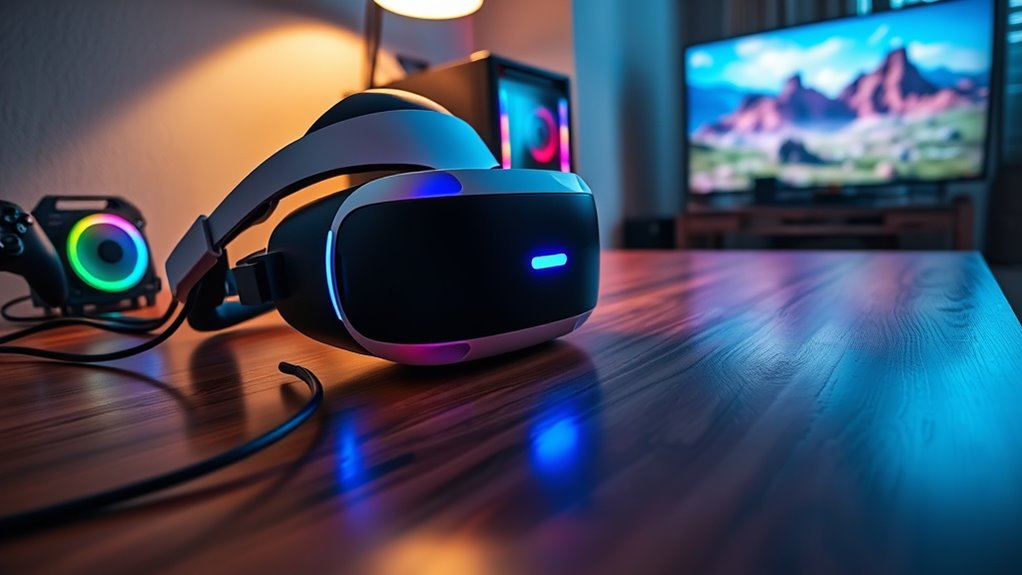

To use PS VR headsets on a PC, you’ll need some specific software and configurations. By installing SteamVR, PSVR drivers, and tools like ReVive, you can run various VR games. Confirm your PC meets the essential hardware requirements, such as a compatible GPU and CPU. Once set up, optimize graphics settings to enhance performance and visual clarity. If you want to know more about maximizing your VR experience, there’s plenty more to explore.
Understanding the Technology Behind PS VR Headsets
Although you might think of PlayStation VR primarily as a gaming accessory, understanding its underlying technology reveals a sophisticated system designed for immersive experiences. The headset’s motion tracking capabilities are essential, utilizing sensors to detect your head movements and translate them into the virtual environment. This real-time tracking creates a sense of presence, allowing you to look around and interact naturally. Additionally, the display resolution plays a vital role; with a resolution of 1920 x 1080 pixels, it delivers sharp visuals that enhance the experience. These elements combine to create a compelling VR experience, making it feel like you’re truly stepping into another world. The technology behind PS VR consequently represents a significant leap in how we engage with digital content.
Key Differences Between PS VR and PC VR Systems
While PS VR offers a unique entry point into virtual reality, there are key differences when comparing it to PC VR systems that can greatly impact your experience. Here are some notable contrasts:
- PS VR advantages: More affordable and user-friendly setup.
- PC VR limitations: Often requires a powerful gaming rig, increasing costs.
- Content availability: PC VR boasts a wider library of games and experiences.
- Graphics fidelity: PC VR systems can deliver superior graphics and performance.
- Tracking capabilities: Many PC VR headsets provide more advanced tracking options.
Understanding these differences can help you decide which system aligns better with your VR aspirations, whether you seek accessibility or cutting-edge performance. Embrace the freedom to choose what’s right for you!
Essential Hardware Requirements for PC Compatibility
If you’re considering using a PS VR headset with your PC, you’ll need to pay close attention to the hardware requirements. Meeting these specs guarantees ideal performance and enhances your VR experience. Depending on your current setup, you might need some hardware upgrades to align with performance benchmarks.
Here’s a quick overview of essential requirements:
| Component | Minimum Requirement |
|---|---|
| GPU | NVIDIA GTX 970 / AMD RX 480 |
| CPU | Intel i5-4590 / AMD Ryzen 5 |
| RAM | 8GB or more |
| USB Ports | 3x USB 3.0 |
| Operating System | Windows 10 |
Software Needed for Running PS VR on PC
To run your PS VR headset on a PC, you’ll need the right software applications to guarantee compatibility with various VR games. This involves not just installing necessary drivers, but also utilizing platforms that support VR content effectively. By understanding these software requirements, you can access the full potential of your PS VR experience on PC.
Required Software Applications
When setting up a PlayStation VR headset on a PC, understanding the necessary software applications is vital for a seamless experience. You’ll want to guarantee software compatibility to fully utilize your PS VR applications. Here’s a list of key software to get you started:
- SteamVR: This platform is essential for running VR games and applications.
- PSVR drivers: These are needed for recognizing your headset.
- Virtual Desktop: Allows you to experience your desktop in VR.
- ReVive: This application helps in launching Oculus games on your PS VR.
- OpenVR: It enhances your VR experience by providing additional tools.
Equipping your system with these applications will pave the way for an immersive PS VR experience on your PC.
Compatibility With VR Games
While many VR games are designed with specific headsets in mind, compatibility with the PS VR on PC largely depends on the software you choose to use. You’ll encounter various compatibility concerns, especially since not all games support PS VR natively. Programs like Trinus PSVR or SteamVR can help bridge this gap, enabling you to play a broader range of titles. However, be mindful that using these applications can sometimes impact game performance, leading to issues like latency or reduced frame rates. To maximize your experience, ascertain your PC meets the required specifications and optimize the software settings. This way, you can fully enjoy the immersive world of VR gaming on your PS VR without unnecessary limitations.
Setting up Your PS VR Headset With a PC
Setting up your PS VR headset with a PC can be a straightforward process if you follow the right steps. To guarantee a seamless experience, pay attention to cable management and headset positioning. Here’s what you need to do:
- Gather your equipment: Make sure you have your PS VR headset, processor unit, and necessary cables.
- Connect the cables: Hook up the headset to the processor unit and then to your PC, making certain they’re secure.
- Set up the PlayStation Camera: Position the camera at eye level for ideal tracking.
- Adjust headset positioning: Make sure it fits snugly on your head and is aligned with your eyes.
- Organize cables: Tidy up the cables to prevent tripping hazards and guarantee a clean gaming space.
With these steps, you’re well on your way to enjoying VR on your PC!
Configuring SteamVR for PS VR
As you immerse yourself in the world of virtual reality on your PC, configuring SteamVR for your PS VR headset is an essential step that can greatly enhance your experience. Start by launching SteamVR and steering to the SteamVR settings. Here, you can adjust various parameters to optimize compatibility with your PS VR. Pay particular attention to the PS VR calibration; it’s vital for ensuring your headset tracks accurately. You’ll want to set your play area and adjust the field of view to match your preferences. Don’t forget to check the audio settings, too, as the PS VR has unique audio capabilities. Taking the time to fine-tune these settings can transform your VR experience, revealing the full potential of your headset.
Optimizing Performance for a Smooth VR Experience
To guarantee you enjoy a smooth VR experience, it’s essential to enhance your system’s performance. Here are some effective strategies for performance tuning that can help maintain a high frame rate:
- Update Drivers: Verify your graphics card drivers are current for peak compatibility.
- Lower Graphics Settings: Adjust in-game settings to find the right balance between visuals and performance.
- Close Background Applications: Free up resources by shutting down unnecessary programs while gaming.
- Enable Performance Mode: Utilize your PC’s performance settings to prioritize VR applications.
- Monitor System Temperature: Keep an eye on your hardware temperature to prevent throttling.
Troubleshooting Common Issues With PS VR on PC
When using a PS VR headset on your PC, you might encounter connection problems or display issues that can disrupt your experience. These challenges can stem from various factors, including hardware limitations or software settings. Let’s explore practical solutions to help you troubleshoot and get back to enjoying immersive virtual reality.
Connection Problems
While setting up your PS VR headset on a PC can be an exciting venture into virtual reality, connection problems can quickly dampen the experience. To guarantee smooth operation, consider the following connection troubleshooting tips:
- Check headset compatibility: Make sure your PS VR is compatible with your PC setup.
- Inspect cables: Look for any damage or loose connections in the cables.
- Verify USB ports: Confirm you’re using the right USB ports and they’re functioning properly.
- Update drivers: Keep your graphics and USB drivers up to date for peak performance.
- Restart devices: Sometimes, a simple restart of your PC and headset can resolve connectivity issues.
Display Issues
Display issues can greatly impact your experience with PS VR on a PC, and there are several common problems you might encounter. One key factor is the display resolution; if it’s not properly configured, you might notice blurriness or distortion. Confirm your PC’s output matches the headset’s native resolution for the best clarity. Another important element is the refresh rate. A low refresh rate can lead to motion sickness and lag, ruining immersion. Adjusting your graphics settings to guarantee a stable refresh rate can make a significant difference. If you’re still facing issues, check your HDMI connections and consider updating your drivers. With a bit of troubleshooting, you can optimize your setup for a smoother VR experience.
Recommended VR Games and Applications for PS VR on PC
As you immerse yourself in the world of PS VR on PC, you’ll discover a diverse range of games and applications that can enhance your virtual reality experience. These titles offer immersive experiences that showcase the potential of your setup. Here are some game recommendations you shouldn’t miss:
- Half-Life: Alyx – A groundbreaking narrative-driven adventure.
- Beat Saber – An energetic rhythm game that’s a workout and a blast.
- The Walking Dead: Saints & Sinners – A survival horror experience filled with choices.
- No Man’s Sky – Explore vast, procedurally generated universes.
- VRChat – Connect and socialize with others in limitless virtual environments.
These selections can elevate your VR journey, releasing new domains of freedom and exploration.
Future of PS VR and PC Gaming Integration
Given the rapid advancements in technology, the future of PS VR and PC gaming integration looks promising and full of potential. As you explore future trends, expect seamless compatibility between PS VR headsets and PC platforms. Developers are increasingly recognizing the value of cross-platform experiences, enhancing user experiences through optimized software and hardware collaborations.
Imagine playing VR games that leverage the power of your PC’s graphics while maintaining the intuitive design of PS VR. This integration could lead to richer, more immersive environments, allowing for expansive gameplay options. As VR technology evolves, you’ll likely find innovative features that enhance interactivity and realism. The future holds exciting possibilities, making your gaming experience not just immersive, but also incredibly versatile.
Frequently Asked Questions
Can I Use PS VR With a Laptop?
Yes, you can use PS VR with a laptop, but it depends on your laptop’s performance and PS VR compatibility. Make sure your laptop meets the requirements for an immersive experience—otherwise, you might face limitations.
Is PS VR Compatible With All PC Games?
PS VR isn’t compatible with all PC games, but it works with many VR titles. Your PC gaming experience can be enhanced considerably, provided the game supports VR technology, offering you a wider range of immersive gameplay.
How Does PS VR Track Motion on PC?
Your PS VR tracks motion on PC through VR sensors that capture your movements, like a dancer following music’s rhythm. This precise tracking creates a seamless experience, granting you the freedom to explore virtual worlds effortlessly.
Can I Use PS VR Without a Playstation Console?
Yes, you can use PS VR without a PlayStation console. With the right PS VR setup on your PC, you’ll access a world of VR gaming, allowing you to explore immersive experiences beyond console limitations.
Will PS VR Work With Non-Sony Peripherals?
Yes, PS VR can work with non-Sony peripherals, but you may face compatibility issues. Exploring alternative peripherals can enhance your experience, but make certain they’re properly supported to avoid technical challenges and maximize your VR enjoyment.
