
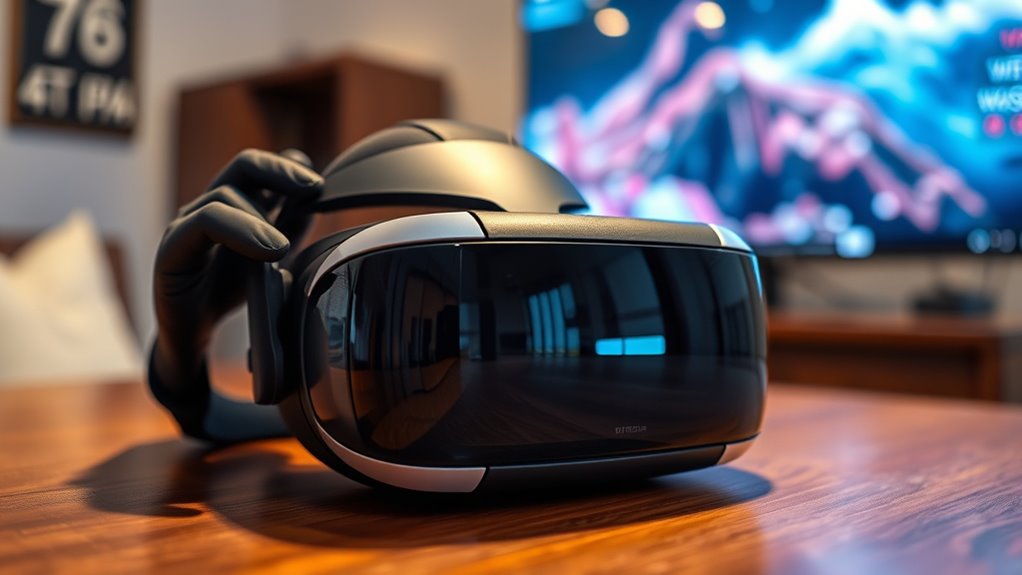

To use a VR headset as a monitor, start by choosing a compatible headset and install required software like Virtual Desktop. Connect your headset to your PC via USB/HDMI, ensuring drivers are updated. Next, configure display settings to adjust resolution and refresh rates for clarity. Once set up, launch your desired applications in VR for an immersive experience. By mastering these steps, you can access a new way to enhance your digital workspace. Keep exploring to optimize your setup!
Choosing the Right VR Headset
When you’re contemplating using a VR headset as a monitor, choosing the right one can make all the difference. Look for wireless options that grant you the freedom to move without being tethered, enhancing your experience. It’s essential to evaluate compatibility factors, as not all headsets work seamlessly with every device. Check if your computer or gaming console supports the headset you’re eyeing. Also, pay attention to resolution and field of view; these elements greatly impact how immersive your experience will be. Don’t forget comfort—if you’re wearing it for long sessions, a lightweight design is key. Ultimately, the right headset will elevate your setup, giving you the freedom to enjoy a unique virtual workspace.
Installing Required Software
To get started with using your VR headset as a monitor, you’ll need to install some essential software. First, check the software compatibility with your specific VR headset and computer system. Popular options include Virtual Desktop or Bigscreen, which allow for immersive experiences. Download the software from the official website to guarantee you’re getting the latest version. During the installation process, follow the prompts carefully. Make sure to enable any required permissions and settings that might pop up to secure smooth functionality. Once installed, you’re one step closer to transforming your VR headset into an enchanting monitor. Embrace the freedom of a virtual workspace and plunge into a whole new domain of productivity!
Connecting Your VR Headset to Your Computer
Before diving into the immersive experience of using your VR headset as a monitor, you’ll need to connect it to your computer. Here’s how to get started:
- Check VR Headset Compatibility: Verify your headset is compatible with your computer’s hardware and software. This is vital for a seamless experience.
- Use the Right Cables: Connect your VR headset to your computer using the appropriate USB connection. This typically involves a USB-C or USB 3.0 cable, depending on your model.
- Install Necessary Drivers: If prompted, install any required drivers to establish a proper connection. This helps your computer recognize the headset effectively.
Once you’ve completed these steps, you’re ready to explore the virtual world!
Configuring Display Settings
Now that your VR headset is connected, it’s time to configure your display settings for the best experience. You’ll want to adjust the resolution and select the right display mode to guarantee everything looks sharp and immersive. Let’s explore how to tweak these settings effectively.
Adjusting Resolution Settings
Many users find that adjusting the resolution settings on their VR headset can greatly enhance their viewing experience. By optimizing resolution scaling, you’ll boost display clarity and enjoy a sharper image. Here’s how to get started:
- Access the Display Settings: Navigate to your headset’s settings menu and locate the display options.
- Adjust Resolution: Experiment with different resolutions to see which one offers the best clarity without sacrificing performance.
- Test Different Scaling Options: Some headsets allow you to scale the resolution independently. Play around with these settings to find your sweet spot.
Selecting Display Mode
When it comes to using your VR headset as a monitor, selecting the right display mode is essential for optimizing your experience. Start by checking the display compatibility between your headset and the device you’re connecting to. This guarantees you’re not missing out on any features or visual quality. Next, immerse yourself in the display settings menu and explore the available options. You might find modes like “desktop view” or “cinema mode,” each tailored to different user preferences. Experiment with these settings until you find the one that feels just right for you. Remember, the goal is to create a seamless and immersive experience, so don’t hesitate to tweak settings until you’re completely satisfied with your virtual setup.
Navigating Your Virtual Workspace
How can you effectively maneuver your virtual workspace while using a VR headset? Embracing this technology opens up a world of immersive workflow experiences, enhancing your productivity. Here are three tips to get you started:
Discover how to enhance your productivity in a virtual workspace with immersive VR technology and effective maneuvering tips.
- Familiarize Yourself with Virtual Collaboration Tools: Explore the tools available in your VR environment, like virtual desktops and file-sharing apps, to stay connected with your team seamlessly.
- Customize Your Environment: Tailor your virtual workspace to fit your preferences. Adjust lighting, layout, and even background sounds to create a setting that makes you feel at home.
- Practice Spatial Awareness: Use your controllers to maneuver efficiently. Get comfortable with moving around your space to avoid obstacles and improve your overall experience.
With these steps, you’ll find maneuvering your virtual workspace both freeing and productive!
Optimizing Performance for Productivity and Gaming
To get the best experience from your VR headset, you’ll want to tweak a few key settings. Adjusting refresh rates, configuring display settings, and reducing latency can make a noticeable difference in both productivity and gaming. Let’s explore how these adjustments can enhance your overall experience.
Adjusting Refresh Rates
Although adjusting refresh rates might seem like a technical detail, it can greatly enhance your experience whether you’re working or gaming in a VR headset. The refresh rate importance can’t be overstated; it affects how fluid and responsive your visuals feel. Here’s how to optimize it for smooth gameplay:
- Check Compatibility: Verify your VR headset and graphics card support higher refresh rates for the best performance.
- Adjust Settings: Access your VR software settings and tweak the refresh rate according to your preference, aiming for at least 90Hz for smooth visuals.
- Test Gameplay: Play a few games or run productivity applications to see how different rates affect your experience, adjusting as necessary.
With these steps, you’ll enjoy a seamless and immersive VR environment!
Configuring Display Settings
When you want to get the most out of your VR headset, configuring your display settings is essential for both productivity and gaming. Start by adjusting the display scaling to guarantee text and images are clear and easy to read. This can enhance your workflow and gaming experience, making everything feel more immersive. If you’re using multiple monitors, make sure your VR setup supports multi monitor support, allowing you to seamlessly switch between screens. Check your resolution settings as well; higher resolutions can offer better clarity, but may require more processing power. Balancing these settings will not only optimize performance but also provide a more enjoyable experience, whether you’re working or gaming. Embrace the freedom of customization!
Reducing Latency Issues
As you immerse yourself in a virtual reality environment, you might notice that latency can greatly impact your experience, whether for work or gaming. To enhance your VR experience, consider these latency reduction techniques for optimizing input lag:
- Wired Connections: Use a wired connection instead of Wi-Fi. This reduces latency considerably, providing a smoother experience.
- Adjust Graphics Settings: Lowering the graphics settings can help improve frame rates, which directly affects latency.
- Update Drivers: Verify your graphics and VR headset drivers are up to date. This can resolve issues related to lag and improve performance.
Frequently Asked Questions
Can I Use Any VR Headset for This Purpose?
You can’t use just any VR headset; compatibility issues and specific headset requirements matter. Check your device’s specifications to guarantee it supports the features needed for a seamless experience when using it as a monitor.
Is It Possible to Use Multiple VR Headsets Simultaneously?
You can’t use multiple VR headsets simultaneously without specific hardware compatibility. Imagine diving into multiplayer experiences with friends—while it’s a thrilling thought, you’ll need the right setup to make it a reality.
What Types of Applications Are Best Suited for a VR Monitor?
Gaming experiences and productivity tools thrive in a VR monitor. You’ll enjoy immersive gameplay and enhanced multitasking, making tasks like design or data analysis feel more dynamic. It’s freedom to work and play in a whole new way!
How Does Using a VR Headset Affect My Eyesight?
Using a VR headset can lead to eye strain and affect vision clarity, especially with prolonged use. To minimize these effects, take regular breaks and adjust headset settings for your comfort and visual clarity.
Are There Any Limitations With VR Resolutions and Aspect Ratios?
VR’s a double-edged sword; it offers immersion but faces resolution constraints and aspect ratio limitations. You might notice discrepancies in visual quality, impacting your experience. Understanding these factors can help you make informed choices.
