
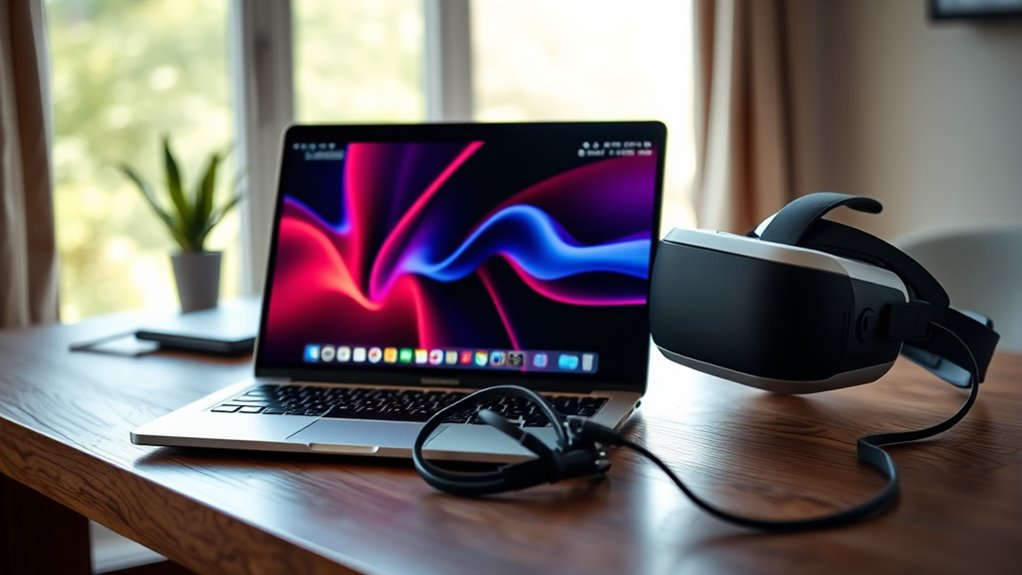

To connect your VR headset to your laptop, first, check that your laptop meets the headset’s system requirements, focusing on GPU compatibility. Gather the necessary equipment, like USB and HDMI cables, and install the required VR software. Plug the headset into the appropriate ports and configure the VR settings for ideal performance. If you encounter issues, troubleshoot by checking for overheating and ensuring drivers are updated. There’s more to learn to enhance your VR experience.
Check System Requirements
Before diving into the exciting world of virtual reality, it’s essential to guarantee your laptop meets the necessary system requirements. Start by checking the VR performance metrics, which include minimum and recommended specifications for your headset. Pay close attention to the GPU, as laptop graphics compatibility is vital for an immersive experience. A powerful graphics card guarantees smooth frame rates and prevents lag, which can break your immersion. Additionally, verify your processor and RAM to make sure they align with the headset’s demands. If your laptop falls short, consider upgrading components or investing in a new device. By making certain your laptop meets these requirements, you’ll enhance your VR experience, allowing you the freedom to explore virtual worlds without frustration.
Gather Necessary Equipment
Before you get started, you’ll need to gather the right equipment for connecting your VR headset to your laptop. Make certain to check compatibility requirements, as well as the necessary cables and adapters. Don’t forget to take into account power supply needs to guarantee everything runs smoothly.
Check Compatibility Requirements
Checking compatibility requirements is essential for a smooth VR experience, and you’ll need to gather the right equipment before diving in. Start by ensuring your laptop meets the headset specifications, as this’ll save you time and frustration. Here are some key points to take into account during compatibility testing:
- Graphics Card: Verify that your GPU meets the minimum requirements for the headset.
- USB Ports: Check for the necessary USB ports and their types, as some headsets require USB-C or USB 3.0.
- Software: Make sure your operating system and drivers are up to date to support the VR software.
Required Cables and Adapters
To guarantee a successful connection between your VR headset and laptop, you’ll need a few essential cables and adapters. Start by identifying the cable types required by your headset—most commonly USB-C, HDMI, or DisplayPort. Make sure your laptop has the corresponding ports. If not, consider adapter options like USB-C to HDMI or DisplayPort to HDMI converters to bridge the gap. It’s vital to use high-quality cables to ensure peak performance and reduce latency. Additionally, check if your headset requires any extra connections, such as power or audio cables. With the right equipment in hand, you’ll be ready to immerse yourself in the virtual world without any connectivity issues.
Power Supply Considerations
Once you’ve gathered the necessary cables and adapters, it’s important to secure your VR headset has a reliable power supply. Proper power management secures your headset operates smoothly, meeting its voltage requirements without interruptions. Here are a few key considerations to keep in mind:
- Verify your laptop’s USB ports can deliver sufficient power.
- Use a powered USB hub if necessary to boost power supply.
- Check the headset’s specifications for exact voltage needs.
Install the VR Software
Before you can fully immerse yourself in virtual reality, you’ll need to install the appropriate VR software on your laptop. Start by checking your VR headset’s specifications to verify software installation aligns with your device’s requirements. Most VR platforms, like Oculus or SteamVR, have specific software that guarantees compatibility with your headset.
Visit the official site for your chosen platform and download the necessary software. Follow the installation prompts, making sure you grant any required permissions. Once installed, you’ll want to create or log into your account, allowing you access to VR content. Remember, having the right software not only enhances your experience but also assures smooth performance. With this setup, you’re one step closer to exploring virtual worlds!
Connect the Headset to Your Laptop
With the VR software installed, you’re ready to connect your headset to your laptop. You can choose either a wireless connection or use USB ports, depending on your headset’s capabilities. Here’s how to get started:
- Check compatibility: Verify your laptop meets the headset’s hardware requirements.
- Use USB ports: If you opt for a wired connection, plug the headset into the appropriate USB ports.
- Enable wireless connection: For a wireless setup, follow the headset’s instructions to connect to your laptop’s Wi-Fi.
Once you’ve made the connection, you’re set to explore virtual worlds. Enjoy the freedom to immerse yourself fully, whether you’re wired or going wireless!
Configure VR Settings
After connecting your VR headset to your laptop, it’s essential to configure the VR settings to guarantee peak performance and a smooth experience. Start by accessing the VR software on your laptop; this is where you’ll find the options for VR resolution settings. Adjust these settings to match your headset’s capabilities, ensuring a clear and immersive visual experience. Next, check the VR refresh rate—higher rates deliver smoother motion and less motion sickness. Aim for at least 90Hz, if your hardware supports it. Don’t forget to save your changes before exiting the settings menu. By fine-tuning these aspects, you’ll enhance your overall VR experience and enjoy a more realistic adventure without interruptions.
Troubleshooting Common Issues
Even with well-configured VR settings, you might encounter some common issues that can disrupt your experience. Here are a few problems to watch for:
Even with optimal VR configurations, common issues may still arise, impacting your overall experience.
- VR headset overheating: If your headset gets too hot, it may shut down unexpectedly.
- Software update issues: Outdated software can lead to compatibility problems, so make certain everything’s up to date.
- Driver installation problems: Missing or incorrect drivers can hinder performance, so double-check your installations.
To tackle these issues, make sure your USB port compatibility is solid and that you’re plugging everything into the right ports. Regularly check for updates, and if overheating persists, consider adjusting your usage time. By staying proactive, you can enjoy a seamless VR experience.
Frequently Asked Questions
Can I Use My VR Headset With a Gaming Console?
Yes, you can use your VR headset with a gaming console, but it depends on VR console compatibility. Make sure to check your headset’s specifications and explore the available console game selection for best experience.
How Do I Clean My VR Headset Lenses Safely?
To clean your VR headset lenses safely, use a microfiber cloth and lens cleaning solution designed for optics. Avoid paper towels or harsh chemicals, as they can scratch the lenses and damage the coatings.
Are There VR Headsets Compatible With Macos?
Yes, there are VR headsets compatible with macOS, but you might face compatibility issues. Mac VR options are limited, so it’s important to research specific headsets that work seamlessly with your system for the best experience.
What Are the Best VR Games for Beginners?
The best beginner games include Beat Saber, Job Simulator, and Moss. Exploring top VR genres like action, adventure, and puzzle will enhance your experience, helping you discover what you enjoy most in virtual reality.
Can I Use My VR Headset Wirelessly?
Yes, you can use your VR headset wirelessly! However, watch for worrisome wireless connection latency issues that might disrupt your immersive experience. Freedom from cords can be fantastic, but stability’s essential for seamless play.
