
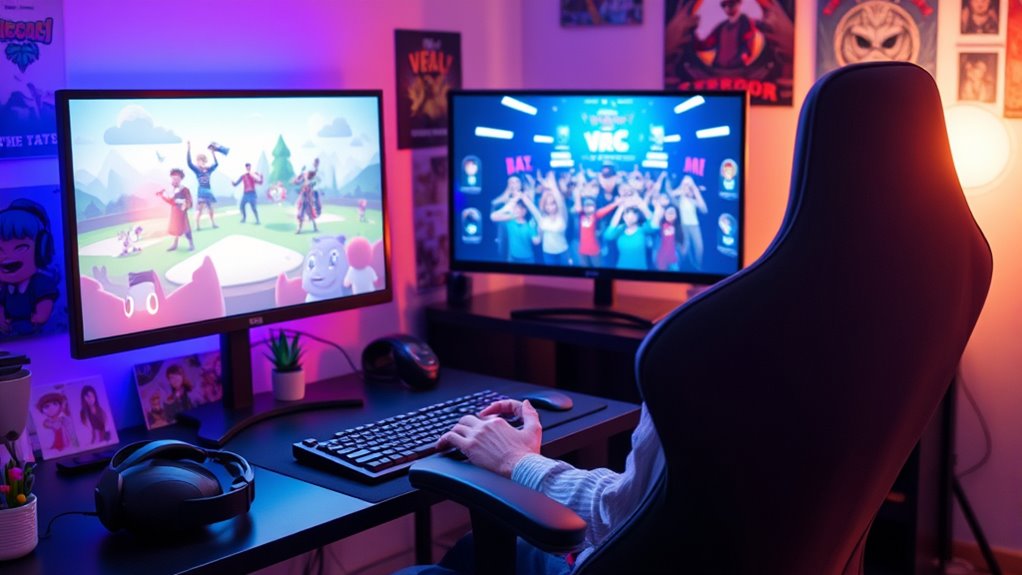

You can play VRChat without a VR headset by using your PC’s keyboard and mouse or a gamepad. The game offers a full experience on non-VR platforms, allowing you to interact with avatars, explore user-generated worlds, and engage with communities. Plus, you can customize your avatar to truly make it your own. If you’re curious about optimizing controls and enhancing your overall experience, there’s a lot more to discover about maximizing your fun in VRChat.
Understanding VRChat and Its Features
When you plunge into VRChat, you’re stepping into a vibrant, user-generated universe that offers a unique blend of social interaction and immersive experiences. One of the standout features is avatar customization, allowing you to create a digital persona that reflects your personality. You can choose from countless options, whether you want to be a whimsical creature or a futuristic robot. This flexibility fosters deeper social interactions, as you’ll connect with others who share your interests or spark new conversations with your unique look. Exploring various worlds, you’ll find diverse communities where creativity thrives, making each experience distinctly yours. Ultimately, VRChat is a playground for self-expression and connection, whether you’re in VR or on a PC.
System Requirements for Playing VRChat on PC
Before jumping into VRChat, it’s essential to know the system requirements for your PC. You’ll want to guarantee your hardware meets the minimum specifications, but aiming for the recommended setup can enhance your experience considerably. Let’s break down what you need to get started on your virtual adventures.
Minimum Hardware Specifications
Understanding the minimum hardware specifications for playing VRChat on PC is essential for a smooth and enjoyable experience. If you want to immerse yourself in this vibrant virtual world, confirm your setup meets these requirements to guarantee adequate graphics performance:
- Operating System: Windows 10 or newer
- Processor: Intel i5-3200 or equivalent
- Memory: At least 8 GB RAM
- Graphics Card: NVIDIA GeForce GTX 760 or equivalent
- Network: Broadband internet connection
Recommended Software Setup
Having your hardware sorted is just the first step to enjoying VRChat on PC; the right software setup is equally important. First, make sure you’ve got the latest version of Windows and VRChat installed. Then, consider software alternatives like OpenVR or Virtual Desktop, which can enhance your experience without a headset. Performance tweaks are essential; adjust your graphics settings to strike a balance between quality and frame rates. Lowering anti-aliasing and shadows can boost performance considerably. Don’t forget to keep your drivers updated, especially for your graphics card, as this can prevent lag and crashes. With the right software setup, you’ll open up a smoother, more immersive VRChat experience, allowing you to connect freely with others.
Downloading and Installing VRChat
To get started with VRChat, you’ll first want to guarantee your PC meets the necessary system requirements for smooth gameplay. Once that’s sorted, installing the game is a straightforward process that can have you exploring virtual worlds in no time. Let’s go through the steps to download and install VRChat, so you can jump right into the action.
System Requirements Overview
While you can enjoy VRChat without a VR headset, it’s essential to guarantee your system meets the necessary requirements for a smooth experience. Ensuring your hardware compatibility is vital for peak system performance. Here’s what you need to check:
- Operating System: Windows 8.1 or later
- Processor: Dual-core CPU 2.0 GHz or better
- RAM: At least 4 GB
- Graphics Card: NVIDIA GeForce 660 / AMD Radeon HD 7870 or equivalent
- Internet Connection: Stable broadband for multiplayer interactions
Installation Steps Guide
Now that you’ve verified your system meets the requirements, it’s time to get VRChat up and running on your computer. First, head to the VRChat website or your preferred game launcher, like Steam. Click the download button and follow the prompts to install the game. You might encounter some installation challenges—ensure your firewall or antivirus isn’t blocking the process. Once installed, launch VRChat, and take a moment to familiarize yourself with the user interface. Steering through menus and settings can empower your experience, so explore options like avatars and worlds. Embrace this journey into virtual freedom, where you can connect with others without a VR headset. You’re all set to plunge into a vibrant community!
Choosing the Right Controls: Keyboard and Mouse vs. Gamepad
When diving into VRChat without a headset, choosing the right controls can greatly enhance your experience. You have two primary options: keyboard and mouse or gamepad. Each has its own pros and cons, so it’s essential to evaluate what suits your playstyle best.
- Keyboard Shortcuts: Offers quick access to functions, enhancing fluidity.
- Mouse Accuracy: Ideal for precise movements and aiming.
- Gamepad Mapping: Customizable controls for a more console-like experience.
- Comfort: Consider what feels natural for longer sessions.
- Adaptability: Switching between controls can keep gameplay fresh.
Ultimately, choose the setup that allows you to express yourself freely in VRChat. Enjoy exploring your virtual world with your chosen controls!
Customizing Your Avatar Without a VR Headset
After setting up your controls, the next step is customizing your avatar, a key aspect of VRChat that lets you express your unique personality. Without a VR headset, you can still engage in avatar customization and create a character design that truly represents you. Use the built-in avatar editor to tweak features like hair, clothing, and accessories. You can also import custom models if you’re familiar with 3D design tools, expanding your options even further. This freedom in character design allows you to explore various themes and aesthetics, enhancing your overall experience in the game. Remember, your avatar is an extension of yourself, so don’t hesitate to experiment and make it genuinely yours!
Exploring VRChat Worlds and Experiences
While diving into VRChat worlds and experiences, you’ll discover a vast array of environments and activities that cater to every interest. By exploring user-generated content, you can immerse yourself in a community that thrives on creativity. You’re not just a visitor; you’re an adventurer, discovering hidden worlds crafted by fellow users. Here are some experiences to check out:
- Interactive games and challenges
- Artistic galleries showcasing user creations
- Themed party environments with live music
- Relaxing spaces for meditation and socializing
- Unique role-playing settings with rich narratives
Each world offers something new, inviting you to connect, create, and collaborate. So, let your curiosity guide you as you explore the endless possibilities VRChat has to offer!
Tips for Enhancing Your VRChat Experience on PC
To truly enhance your VRChat experience on PC, consider optimizing your settings and exploring available tools that can elevate your interactions. Start by diving into avatar customization; personalizing your avatar not only reflects your style but also enables deeper social connections. Experiment with different avatars to find one that resonates with you and enhances your presence in various worlds.
Next, fine-tune your graphics settings for smoother performance—this can greatly improve your immersion. Utilize third-party tools like Discord for voice chat, allowing more seamless social interactions. Engage with community events and join groups that align with your interests; these connections can lead to memorable experiences. With the right adjustments, you’ll find your VRChat journey more enjoyable and fulfilling.
Frequently Asked Questions
Can I Use a Laptop to Play VRCHAT Without a VR Headset?
Absolutely, you can use a laptop to play VRChat without a headset. Just guarantee your laptop’s performance is up to par, and you’ll navigate through the virtual world using keyboard controls with ease.
Is There a Difference in Gameplay Between VR and Non-Vr Modes?
Yes, there’s a noticeable difference. VR offers deeper game immersion and intuitive control dynamics, while non-VR mode feels more limited and traditional, impacting how you interact with the environment and other players.
How Do I Communicate With Others in VRCHAT Without a Headset?
You can communicate in VRChat without a headset by using text chat or voice chat. Curiously, around 30% of players prefer typing for detailed conversations, allowing for engaging interactions while enjoying the virtual world.
Are There Limitations on Avatars When Playing Without VR?
Yes, there’re avatar limitations when you’re playing without VR. While you can customize your avatar, certain features may not translate well, limiting expressions and interactions. Embrace creativity within those constraints to enhance your experience!
Can I Join VRCHAT Events Without a VR Headset?
Yes, you can join VRChat events without a VR headset. You’ll still enjoy social interactions and event participation, though some immersive features may be limited. Embrace the freedom to connect with others in a unique way!
