


Connecting your AirPods to JetBlue’s in-flight entertainment system is indeed possible and can significantly enhance your viewing experience during your flight. This guide will walk you through the simple steps to connect your AirPods, troubleshoot common issues, and provide tips for optimizing audio quality. Whether you’re settling in for a long haul or simply enjoying a short flight, having your own AirPods can make a world of difference.
Understanding JetBlue’s In-Flight Entertainment System
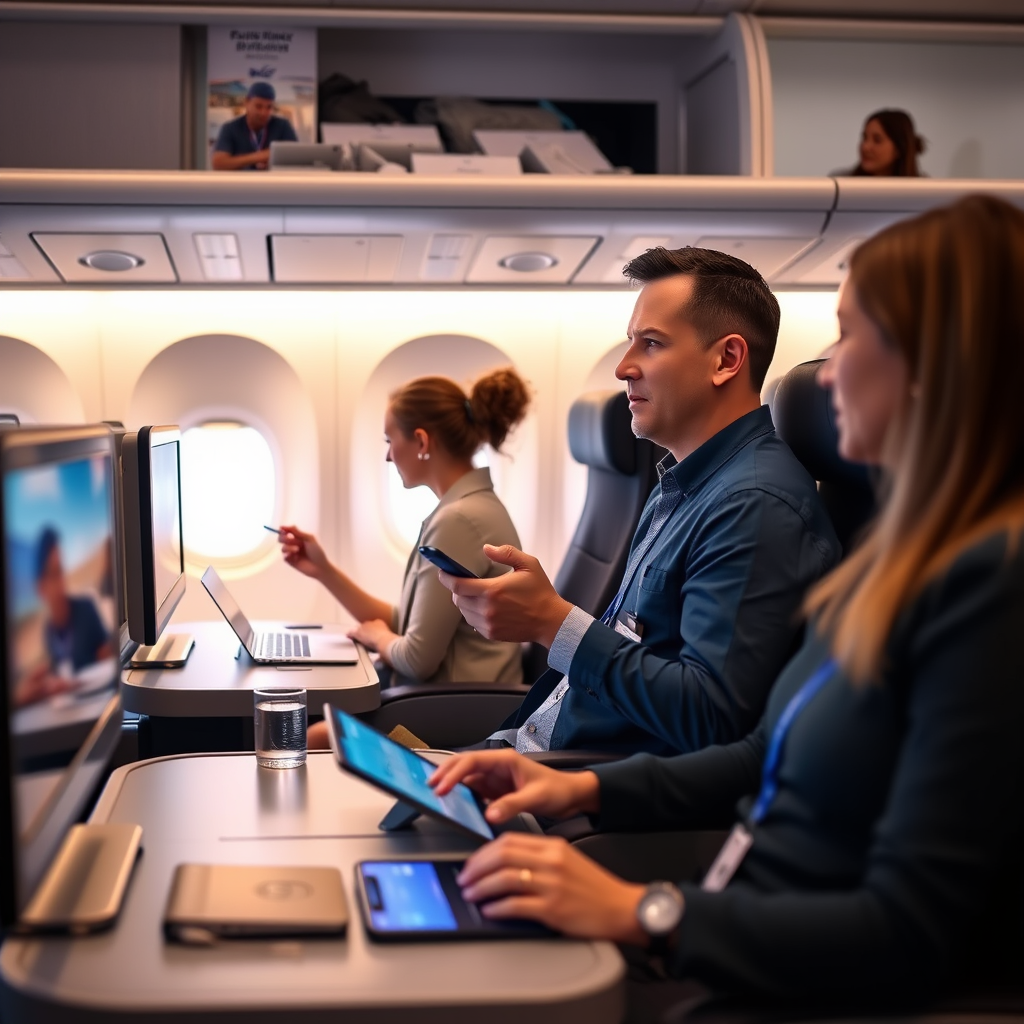
JetBlue Airways is well-known for its innovative approach to in-flight entertainment. The airline provides each passenger with access to a wide array of content through its extensive TV system, which allows streaming on personal devices. This system is equipped with Bluetooth capabilities, making it compatible with a variety of wireless audio devices, including Apple’s AirPods. By utilizing Bluetooth technology, JetBlue allows travelers to enjoy their favorite shows and movies without the discomfort of traditional wired headphones, providing a more flexible and personalized in-flight entertainment experience.
Steps to Connect Your AirPods
Connecting your AirPods to JetBlue TV is a straightforward process that can be accomplished with just a few steps:
1. Ensure Your AirPods Are Charged: Before you board, make sure your AirPods are fully charged to avoid interruptions during your movie or show.
2. Put Your AirPods in Pairing Mode: To enable pairing mode, place your AirPods in their case, open the lid, and press and hold the button on the back of the case until the LED indicator starts blinking white. This signifies that your AirPods are ready to connect.
3. Access the JetBlue TV Settings: Once you are seated and the in-flight entertainment system is activated, navigate to the JetBlue TV settings on your screen. Look for the option that allows you to manage audio settings.
4. Select Bluetooth Audio Options: In the audio settings menu, choose the option for Bluetooth audio. The system will scan for available devices.
5. Connect Your AirPods: When your AirPods appear in the list of available devices, select them to establish the connection. Once connected, you should hear audio directly from your AirPods.
Following these steps will allow you to seamlessly connect your AirPods to JetBlue’s in-flight entertainment system, enhancing your travel experience.
Troubleshooting Connection Issues
While connecting your AirPods to JetBlue TV is typically a smooth process, you may encounter some issues. Here are a few common troubleshooting tips:
1. Disconnect from Other Devices: If your AirPods are already connected to another device, such as your smartphone, disconnect them. This can often resolve connectivity issues.
2. Restart the In-Flight Entertainment System: If you find that your AirPods are not connecting, try restarting the in-flight entertainment system. Sometimes, a simple reboot can clear up any temporary glitches.
3. Check Bluetooth Settings on Your AirPods: If your AirPods are not appearing on the JetBlue TV list, make sure they are still in pairing mode. If necessary, repeat the pairing process.
4. Ensure Compatibility with JetBlue: Although JetBlue supports Bluetooth connections, be sure to verify that your AirPods are compatible and functioning correctly. If they do not connect after multiple attempts, consider using an alternative audio device.
Common Issues When Connecting AirPods to JetBlue TV
| # | Issue | Possible Cause | Solution |
|---|---|---|---|
| 1 | Not Detecting | AirPods not in pairing mode | Ensure AirPods are in pairing mode |
| 2 | Audio Delay | Bluetooth latency | Try reconnecting |
| 3 | Connection Drops | Interference from other devices | Move closer to the TV |
| 4 | Poor Sound Quality | Low battery on AirPods | Charge AirPods |
| 5 | Cannot Hear Audio | Volume settings | Check volume on both devices |
| 6 | Audio Mismatch | Desynchronization | Restart the system |
| 7 | No Connection | Device compatibility | Use provided headphones as a backup |
Tips for Optimal Audio Experience
To ensure that you have the best audio experience while using your AirPods with JetBlue TV, consider the following tips:
1. Stay Within Range: Keep your AirPods within a reasonable distance from the in-flight entertainment system. Bluetooth typically has a range of about 30 feet, but walls and other obstacles can reduce this distance.
2. Adjust Audio Settings: Utilize the audio settings on the JetBlue TV system to enhance sound quality. Experiment with different sound profiles to find the one that best suits your preferences.
3. Manage Battery Life: To prolong battery life, consider using only one AirPod at a time if you are on a longer flight. This will allow you to extend the listening time without needing to recharge frequently.
4. Reduce Interference: If you experience connectivity issues, try to minimize the number of active Bluetooth devices around you. This can help reduce interference and improve the quality of your connection.
5. Use Noise Cancellation Wisely: If you have AirPods Pro, utilize the noise cancellation feature to block out ambient noise, which can significantly enhance your viewing experience.
Alternative Audio Options on JetBlue
If you encounter any issues while attempting to connect your AirPods, JetBlue offers alternative audio options:
1. Supported Bluetooth Headphones: Besides AirPods, JetBlue’s system supports a variety of Bluetooth headphones. You may want to bring a backup set of wireless headphones in case your AirPods do not connect.
2. Provided Headphones: JetBlue also offers complimentary headphones for passengers. These may not match the sound quality of AirPods, but they are a reliable option if you face connectivity issues.
3. Wired Headphones: For those who prefer wired connections, JetBlue provides standard headphone jacks. You can use your own wired headphones if you prefer a more traditional audio experience.
4. Streaming on Personal Devices: In addition to the in-flight TV system, passengers can stream shows and movies on their personal devices using JetBlue’s free Wi-Fi. This allows for even more flexibility in how you choose to enjoy your in-flight entertainment.
Frequently Asked Questions
In case you have further questions, here are some frequently asked questions regarding connecting AirPods to JetBlue TV:
1. Can I use other Bluetooth headphones on JetBlue?
Yes, JetBlue’s in-flight entertainment system supports a variety of Bluetooth headphones, not just AirPods.
2. What to do if my AirPods won’t connect?
If your AirPods won’t connect, ensure they are charged, in pairing mode, and not connected to another device. Restarting the in-flight entertainment system may also help.
3. Is there a limit to the number of devices that can connect to JetBlue TV?
Typically, only one audio device can connect at a time for sound output. Make sure to disconnect any previous devices to establish a new connection.
4. Can I switch devices while watching?
While you can switch devices, you will need to disconnect your current audio device and reconnect the new one through the JetBlue TV settings.
Connecting your AirPods to JetBlue TV enhances your travel experience, allowing for a more personal and enjoyable way to watch movies and shows. By following the outlined steps to connect, addressing common issues, and utilizing tips for optimal audio quality, you can ensure a seamless experience. For additional assistance, JetBlue’s support resources and flight attendants are available to help you with any connectivity concerns. Enjoy your flight and the entertainment options JetBlue has to offer.
Frequently Asked Questions
Can you connect AirPods to JetBlue TV?
Yes, you can connect AirPods to JetBlue TV. JetBlue offers in-flight entertainment that can be accessed via your personal devices, and you can pair your AirPods through Bluetooth while on board. Just ensure your AirPods are charged and in pairing mode to connect them to your device.
How do I connect my AirPods to JetBlue’s in-flight entertainment system?
To connect your AirPods to JetBlue’s in-flight entertainment, first ensure your AirPods are charged. Once seated, enable Bluetooth on your personal device and select your AirPods from the list of available devices. After pairing, you should be able to hear the audio from JetBlue TV through your AirPods.
Why won’t my AirPods connect to JetBlue TV?
If your AirPods won’t connect to JetBlue TV, it may be due to Bluetooth settings or interference. Make sure your AirPods are fully charged and in pairing mode. Additionally, check if your device’s Bluetooth is enabled and try restarting both your device and the AirPods to resolve any connection issues.
What should I do if my AirPods keep disconnecting from JetBlue TV?
If your AirPods keep disconnecting from JetBlue TV, try resetting your AirPods by holding the setup button on the back of the case until the LED light flashes amber and then white. Also, ensure that your device is up to date and that you are seated in an area with minimal interference from other electronic devices on the plane.
Which AirPods models are compatible with JetBlue TV?
All AirPods models, including AirPods, AirPods Pro, and AirPods Max, are compatible with JetBlue TV as long as they can connect via Bluetooth. Just ensure that your AirPods are charged and properly paired with your personal device to enjoy the in-flight entertainment seamlessly.
References
- https://www.wikiwand.com/en/JetBlue_Airways
https://www.wikiwand.com/en/JetBlue_Airways - Google Scholar Google Scholar
https://scholar.google.com/scholar?q=connect+airpods+to+jetblue+tv - Google Scholar Google Scholar
https://scholar.google.com/scholar?q=airpods+inflight+entertainment - Google Scholar Google Scholar
https://scholar.google.com/scholar?q=wireless+headphones+airlines - https://www.bbc.com/news/technology-44445193
https://www.bbc.com/news/technology-44445193 - https://www.nytimes.com/2020/01/15/business/airlines-inflight-entertainment.html
https://www.nytimes.com/2020/01/15/business/airlines-inflight-entertainment.html - https://www.reuters.com/article/us-jetblue-airways-technology-idUSKBN1ZB1J1
https://www.reuters.com/article/us-jetblue-airways-technology-idUSKBN1ZB1J1 - Google Scholar Google Scholar
https://scholar.google.com/scholar?q=can+you+connect+airpods+to+jetblue+tv - can you connect airpods to jetblue tv – Search results
https://en.wikipedia.org/wiki/Special:Search?search=can+you+connect+airpods+to+jetblue+tv - https://www.ncbi.nlm.nih.gov/search/research-articles/?term=can+you+connect+airpods+to+jetblue+tv
https://www.ncbi.nlm.nih.gov/search/research-articles/?term=can+you+connect+airpods+to+jetblue+tv
