


If your speakers aren’t working, the issue could be as simple as a loose connection or a software setting that needs adjustment. In this article, we’ll explore various reasons your speakers may not be functioning and provide effective solutions to help you get them back up and running. By following these troubleshooting steps, you can often resolve the problem without needing professional assistance, ensuring that your audio experience is restored quickly and efficiently.
Check Physical Connections
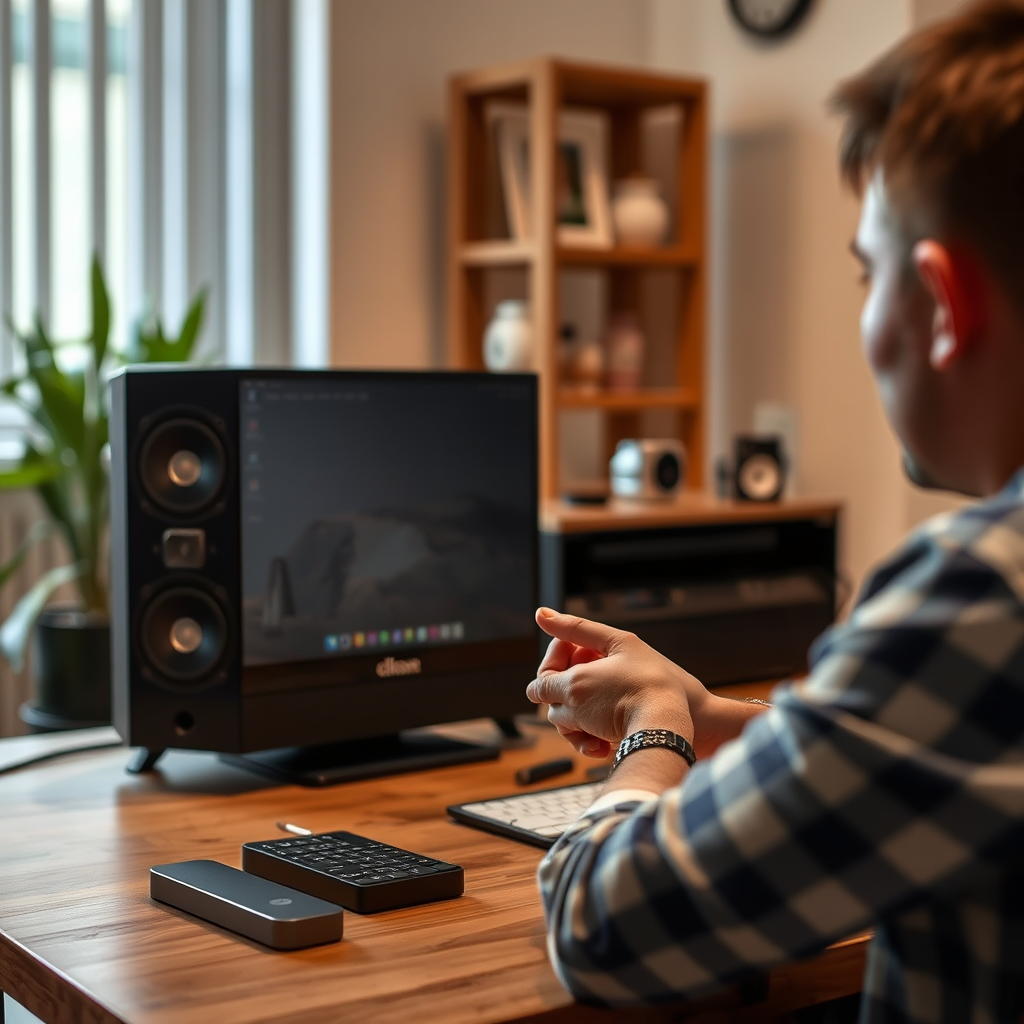
One of the most straightforward yet commonly overlooked reasons why speakers may not work is due to physical connections. First, ensure that all cables are securely connected to both the speakers and the audio source. A loose cable can easily disrupt the connection, resulting in no sound output. It’s also important to check for any visible damage on the cables or connectors. Frayed wires, bent connectors, or any signs of wear can lead to audio issues. If you identify a damaged cable, replacing it is often a quick and cost-effective solution.
Additionally, double-check that the speakers are connected to the correct audio output port, especially if your device has multiple output options. For instance, if you have both HDMI and auxiliary outputs, ensure that you’re using the one that matches your speaker setup.
Verify Power Supply
Power issues can also be a significant factor when troubleshooting non-functioning speakers. Begin by confirming that your speakers are plugged into a functioning power outlet. You can test this by plugging another device into the same outlet to see if it receives power. If your speakers are powered by batteries, make sure they are charged or replace them with fresh ones.
Moreover, some speakers come with power switches. Check for any switches on the speakers themselves that may need to be turned on. This simple step can often be the solution to your audio woes.
Adjust Audio Settings
If your connections are secure and your speakers are powered, the next step is to inspect your audio settings. Start by checking the volume level on both your computer or device and the speakers. It’s possible that the volume is muted or set too low, which can lead to the perception that the speakers are malfunctioning.
In addition, make sure the correct audio output device is selected in your system settings. On Windows, you can do this by right-clicking the sound icon in the taskbar, selecting ‘Playback devices,’ and ensuring your speakers are set as the default device. On Mac, navigate to ‘System Preferences,’ then ‘Sound,’ and confirm your speakers are selected under the ‘Output’ tab.
Common Audio Problems and Solutions
| # | Issue | Common Causes | Suggested Fix |
|---|---|---|---|
| 1 | No Sound | Loose Connections | Check and secure all cables |
| 2 | Distorted Sound | Audio Settings | Adjust EQ and balance settings |
| 3 | Intermittent Sound | Faulty Cables | Replace cables |
| 4 | Power Issues | Unplugged Speakers | Ensure speakers are plugged in |
| 5 | Low Volume | Device Settings | Increase volume on device |
| 6 | Audio Lag | Bluetooth Connection | Reduce distance between devices |
| 7 | Speaker Not Recognized | Outdated Drivers | Update audio drivers |
Update Drivers and Software
Keeping your software and drivers up to date is essential for ensuring that your speakers function correctly. Outdated audio drivers can lead to compatibility issues with your operating system and the audio devices. To check if your audio drivers are up to date, navigate to your device manager (on Windows) or use the ‘Software Update‘ feature (on Mac). Follow the prompts to install any necessary updates.
After updating your drivers, it’s advisable to restart your device. A restart refreshes the system and applies any changes made during the update process. This can often resolve lingering issues that may not have been fixed with the update alone.
Test with Different Devices
If your speakers are still not working after trying the above steps, you should test them with different devices. Connect your speakers to another audio source, such as a smartphone or tablet. This will help you determine if the issue lies with the speakers or the original audio source.
Additionally, consider using different cables to rule out faulty wiring. If your speakers work with another device or using different cables, it indicates that the original device or cables may be the source of the problem, allowing you to focus your troubleshooting efforts accordingly.
Inspect for Hardware Issues
If the previous steps have not resolved the issue, it may be time to inspect the hardware of your speakers. Look for any signs of damage or malfunction within the speakers themselves, such as blown drivers or malfunctioning internal components. If you notice any unusual sounds, such as crackling or popping, this may suggest a deeper hardware issue.
For speakers with built-in amplifiers, ensure that the amplifier is functioning correctly. If the amplifier is faulty, it could prevent sound from being transmitted to the speakers. In some cases, you may need to consult the user manual for troubleshooting specific to your model or reach out to the manufacturer for support.
Seek Professional Help
If none of the above solutions work, it may be time to seek professional help. Consider reaching out to a technician who specializes in audio equipment for assistance. They can perform a thorough diagnosis and identify any underlying issues that may not be apparent through basic troubleshooting.
Before you proceed with repairs, check if your speakers are still under warranty. Many manufacturers offer warranties that cover repairs or replacements for defective products. If your speakers are covered, contacting the manufacturer can save you both time and money.
Getting your speakers to work can often be resolved with simple troubleshooting steps. By checking connections, adjusting settings, and testing different setups, you can identify the root of the problem. If issues persist, don’t hesitate to seek professional assistance to ensure your audio experience is restored. Remember, maintaining your audio equipment and staying vigilant about updates can help prevent future problems, ensuring that your speakers deliver high-quality sound when you need it most.
Frequently Asked Questions
Why are my speakers not working even though they are powered on?
If your speakers are powered on but not producing sound, check the audio source and ensure it is properly connected. Additionally, verify the volume settings on both the speakers and the device they are connected to, as the sound may be muted or set too low. Lastly, inspect the audio cables for any damage or disconnection.
How can I troubleshoot my speakers if they are making a crackling sound?
To troubleshoot crackling sounds in your speakers, first check the audio cables for loose connections or damage. You can also try adjusting the audio settings on your device, as incorrect equalizer settings may cause distortion. Additionally, test the speakers with another device to determine if the problem lies with the speakers or the original audio source.
What should I do if my computer speakers are not recognized by my laptop?
If your computer speakers are not recognized by your laptop, start by checking the connection type, ensuring it’s plugged into the correct audio port. Next, go to your laptop’s sound settings and make sure the speakers are set as the default playback device. If they still aren’t recognized, consider updating your audio drivers or running the audio troubleshooter.
Which settings should I check if my Bluetooth speakers are not connecting?
If your Bluetooth speakers are not connecting, first ensure that they are in pairing mode and within range of your device. Check the Bluetooth settings on your device to make sure Bluetooth is turned on and search for available devices. If they still won’t connect, try resetting the Bluetooth speakers and removing any previously paired devices from your Bluetooth settings.
Why do my speakers only work intermittently?
Intermittent speaker functionality can be caused by loose connections or damaged cables, so inspect them for any wear or disconnections. Additionally, check the audio source and settings, as software issues or incorrect configurations may lead to inconsistent sound. If the problem persists, it could indicate a hardware failure in the speakers themselves.
References
- Windows help and learning
https://support.microsoft.com/en-us/help/4026504/windows-10-fix-sound-problems - https://www.lifewire.com/fix-a-computer-that-doesnt-recognize-your-speakers-2626005
https://www.lifewire.com/fix-a-computer-that-doesnt-recognize-your-speakers-2626005 - https://www.bbc.com/news/technology-51351828
https://www.bbc.com/news/technology-51351828 - Google Scholar Google Scholar
https://scholar.google.com/scholar?q=speaker+not+working+issues - Google Scholar Google Scholar
https://scholar.google.com/scholar?q=speaker+troubleshooting+guide - Google Scholar Google Scholar
https://scholar.google.com/scholar?q=audio+output+problems+solutions - Google Scholar Google Scholar
https://scholar.google.com/scholar?q=why+are+my+speakers+not+working - why are my speakers not working – Search results
https://en.wikipedia.org/wiki/Special:Search?search=why+are+my+speakers+not+working - https://www.ncbi.nlm.nih.gov/search/research-articles/?term=why+are+my+speakers+not+working
https://www.ncbi.nlm.nih.gov/search/research-articles/?term=why+are+my+speakers+not+working
