

To plug in speakers on a PC, locate the audio output ports on your computer, which are typically marked with color codes. Most PCs feature a dedicated audio jack, usually colored green, for connecting speakers. This guide will walk you through various connection options, whether wired or wireless, and provide tips for optimizing your audio experience.
Understanding Audio Ports
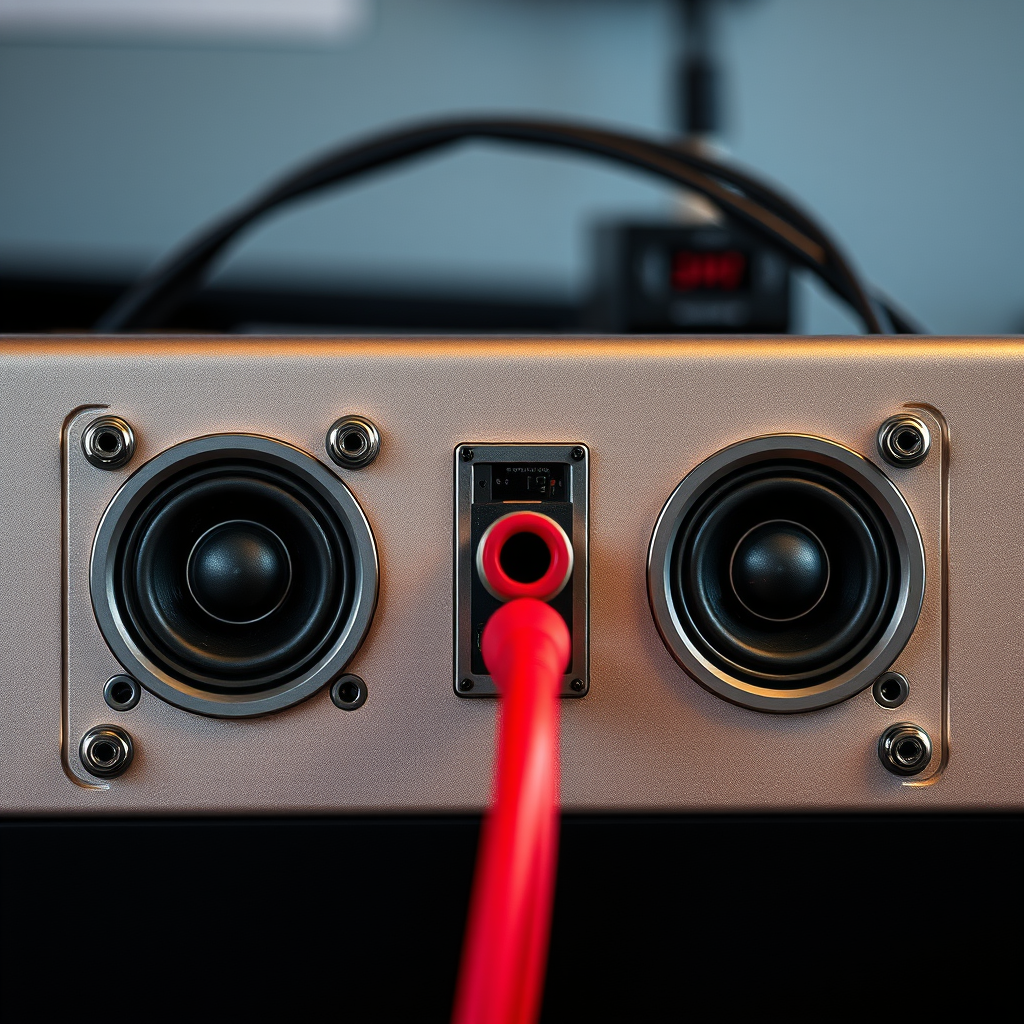
Understanding the audio ports on your PC is essential for setting up your speakers correctly. Most desktops and laptops come equipped with a 3.5mm audio jack, which is usually color-coded green. This jack is the standard connection point for speakers and headphones. Additionally, some computers may have multiple audio ports, particularly those designed for surround sound systems, which might include separate jacks for front, rear, and subwoofer speakers.
It is crucial to identify these ports correctly, as using the wrong port can result in no sound or degraded audio quality. Furthermore, some modern PCs may feature USB ports that can also be used for audio output, allowing for a broader range of speaker connectivity options.
Types of Speaker Connections
When it comes to connecting speakers to a PC, there are two primary types of connections: wired and wireless.
– Wired Speakers: These typically connect using a 3.5mm audio jack. Many wired speakers also offer USB connectivity, which can provide better power management and potentially higher sound quality.
– Wireless Speakers: These utilize Bluetooth or Wi-Fi technology, allowing for a cable-free experience. Wireless speakers are particularly advantageous for users seeking to minimize clutter or who require mobility in their audio setup.
Each type of connection has its pros and cons, and the choice largely depends on personal preferences, the specific environment, and the intended use of the audio setup.
Setting Up Wired Speakers
Setting up wired speakers is a straightforward process:
1. Connect the Speakers: Begin by plugging the speaker cable into the green audio jack on your PC. If your speakers have multiple input options, ensure you are using the correct port.
2. Power On the Speakers: Ensure that your speakers are turned on. Many models feature a power button or volume knob that must be engaged for operation.
3. Adjust the Volume: After connecting, adjust the volume on both the speakers and your computer. It’s advisable to start with a lower volume to avoid potential damage to the speakers or hearing.
4. Test the Sound: Play audio on your PC to confirm that the speakers are working correctly. If there’s no sound, revisit the connections and ensure the correct playback device is selected in your audio settings.
Setting Up Bluetooth Speakers
Connecting Bluetooth speakers involves a few additional steps compared to wired speakers:
1. Activate Bluetooth: On your PC, navigate to the Bluetooth settings and turn on Bluetooth. Most operating systems have a quick access option in the system tray.
2. Power On the Speakers: Ensure that your Bluetooth speakers are turned on and are in pairing mode. This often involves holding down a specific button, usually marked with a Bluetooth symbol.
3. Pair the Devices: In your PC’s Bluetooth settings, search for available devices. Once your speakers appear in the list, click on them to initiate pairing.
4. Confirm the Connection: Upon successful pairing, your computer will usually provide a confirmation message. At this point, you can set the Bluetooth speakers as your default audio output device.
5. Test the Audio: As with wired speakers, play some audio to ensure that the connection is successful and the sound quality meets your expectations.
Troubleshooting Audio Issues
If you encounter audio issues after connecting your speakers, consider the following troubleshooting steps:
– Volume Settings: Check the volume settings on both your PC and the speakers. Ensure that neither is muted and that the volume levels are adequately set.
– Playback Device Selection: Right-click the audio icon in the system tray and select ‘Playback devices.’ From there, ensure that your speakers are set as the default device.
– Driver Updates: Sometimes, outdated audio drivers can cause issues. Check your PC’s device manager for any available updates for your sound drivers.
– Connection Issues: For wired speakers, verify that the connection is secure. For Bluetooth speakers, ensure that they are close enough to the PC and not connected to another device.
Enhancing Your Audio Experience
To elevate your audio experience beyond basic connections, consider the following enhancements:
– Sound Card Upgrade: If you are serious about audio quality, investing in a dedicated sound card can significantly improve sound fidelity and offer features such as surround sound processing.
– Audio Software: Various software applications are available that provide equalization settings, surround sound emulation, and other enhancements. Programs like Equalizer APO or Boom 3D can allow for more tailored audio experiences.
– Speaker Positioning: Proper speaker placement can dramatically affect sound quality. Experimenting with distance from walls and angles can help achieve a more immersive listening experience.
Additional Resources
For more specific information regarding your PC’s audio port configurations, it is advisable to consult your PC’s manual. Additionally, many manufacturers provide online resources or customer support for advanced speaker setups, especially if you are integrating a more complex audio system.
Top 7 Speaker Brands by Popularity (2023)
| # | Brand | Type | Audio Quality | Popularity Rating |
|---|---|---|---|---|
| 1 | Bose | Wireless | High | ★★★★☆ |
| 2 | Sony | Wired/Wireless | High | ★★★★☆ |
| 3 | Logitech | Wired | Medium | ★★★☆☆ |
| 4 | JBL | Wireless | High | ★★★★☆ |
| 5 | Klipsch | Wired | Very High | ★★★★★ |
| 6 | Bang & Olufsen | Wireless | Very High | ★★★★★ |
| 7 | Ultimate Ears | Wireless | High | ★★★★☆ |
Summarizing the key points, it’s crucial to identify the correct audio port for your speakers and ensure proper setup, whether wired or wireless. For an optimal audio experience, don’t hesitate to explore additional resources or enhancements. If you have further questions or need assistance, feel free to reach out or comment below!
Frequently Asked Questions
Where do I plug in my speakers on a PC?
To plug in your speakers on a PC, locate the audio output ports on the back of your computer. Most PCs have a green port labeled “Line Out” or “Audio Out.” Simply connect the speaker’s audio cable to this port, and your speakers should be recognized automatically by the system.
How do I know if my speakers are connected properly to my PC?
You can check if your speakers are connected properly by going to the sound settings on your PC. Right-click on the sound icon in the taskbar, select “Playback devices,” and look for your speakers in the list. If they are enabled and set as the default device, they should work correctly.
Why are my external speakers not working on my PC?
If your external speakers are not working on your PC, first ensure they are powered on and properly connected to the correct audio port. Additionally, check the volume levels on both your speakers and your PC, and ensure that the correct playback device is selected in the sound settings. If issues persist, consider updating your audio drivers.
What type of cable do I need to connect my speakers to my PC?
The type of cable you need to connect your speakers to your PC typically depends on the speaker model. Most standard speakers use a 3.5mm audio jack, but some may require RCA cables or USB connections for powered speakers. Ensure you have the correct cables according to your speaker specifications for optimal performance.
Which port should I use for my surround sound speakers on a PC?
For surround sound speakers, you should use the multi-channel audio ports on your PC, often found on the back panel. These ports are usually color-coded: green for front speakers, black for rear speakers, and orange for a subwoofer. Make sure to configure your sound settings to enable surround sound for the best audio experience.
References
- https://en.wikipedia.org/wiki/Audio_output
https://en.wikipedia.org/wiki/Audio_output - https://www.lifewire.com/how-to-connect-speakers-to-your-pc-2626153
https://www.lifewire.com/how-to-connect-speakers-to-your-pc-2626153 - About the security content of QuickTime 7.6.7 – Apple Support
https://support.apple.com/en-us/HT202093 - Google Scholar Google Scholar
https://scholar.google.com/scholar?q=where+to+plug+in+speakers+on+pc - Google Scholar Google Scholar
https://scholar.google.com/scholar?q=PC+audio+output+configuration - where to plug in speakers on pc – Search results
https://en.wikipedia.org/wiki/Special:Search?search=where+to+plug+in+speakers+on+pc - https://www.ncbi.nlm.nih.gov/search/research-articles/?term=where+to+plug+in+speakers+on+pc
https://www.ncbi.nlm.nih.gov/search/research-articles/?term=where+to+plug+in+speakers+on+pc
