


If your speakers aren’t working, the issue may often be simpler than you think. Common problems can usually be traced back to connection issues, incorrect settings, or power supply problems. In this article, we’ll explore the most frequent reasons your speakers might not function properly and provide effective troubleshooting methods to help you get back to enjoying your audio experience.
Check Connections and Cables
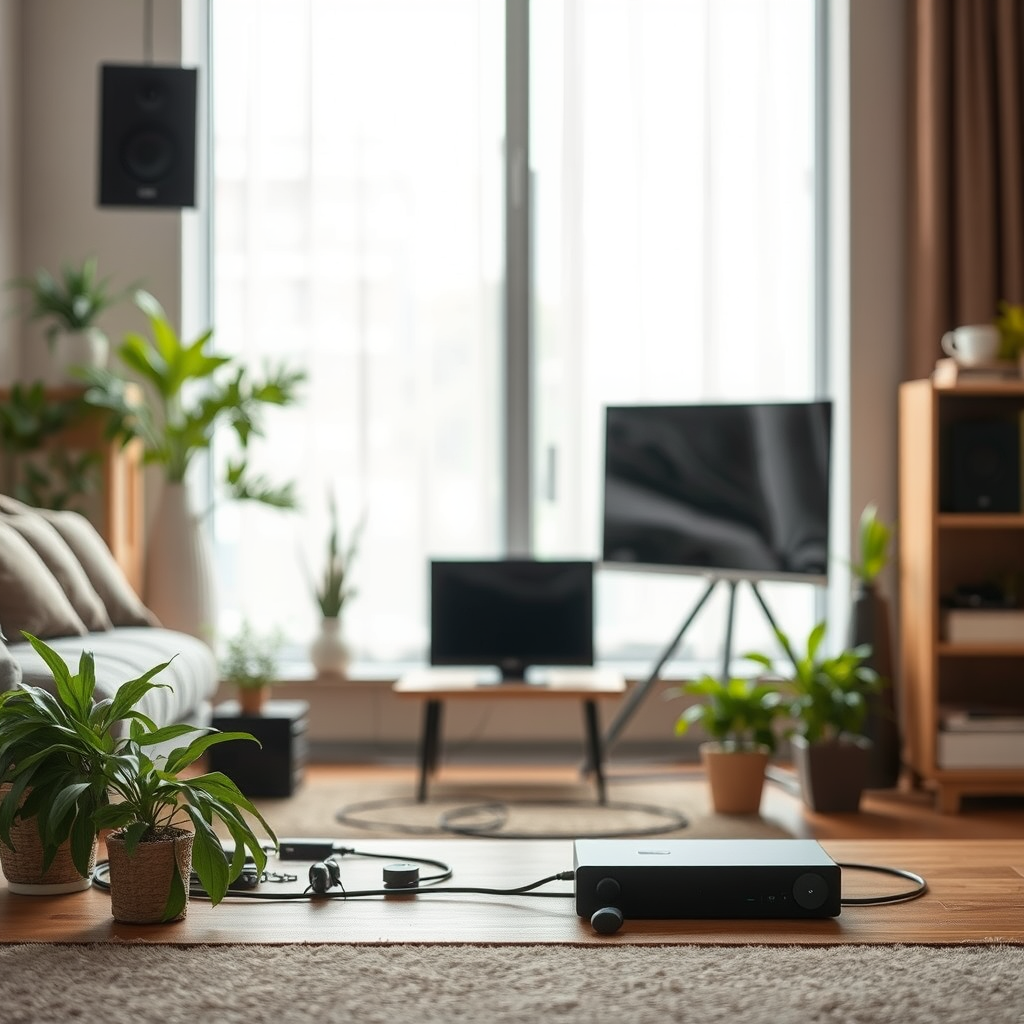
The first step in troubleshooting speaker issues is to examine the connections and cables. Loose or improperly connected cables can prevent sound from reaching your speakers, so ensure that all cables are securely plugged into both the speakers and the audio source. This includes checking the speaker wire connections, as well as any auxiliary or USB cables used for connection.
Inspect the cables for any visible damage or wear, such as fraying insulation or bent connectors. Faulty cables can disrupt sound transmission, leading to silence or distorted audio. If you suspect a cable issue, try replacing it with a new or known-good cable to see if that resolves the problem.
Verify Power Supply
Next, confirm that your speakers are powered on and plugged into a functioning outlet. Some speakers have a power switch or volume knob that must be turned on for them to work. Look for any indicator lights on the speakers that signal whether they are receiving power. If the light is off, try a different power outlet or check if a fuse has blown in the power supply.
For battery-operated speakers, ensure that the batteries are fresh and properly installed. If the speakers are rechargeable, connect them to charge and ensure that the charging light indicates that power is being received.
Adjust Audio Settings
Even if your speakers appear to be connected and powered, audio settings on your device can affect functionality. Check the audio output settings on your computer, smartphone, or other audio source to make sure it is set to the correct speaker output. On many devices, you can switch between internal speakers and connected external speakers, so ensure that your external speakers are selected.
Additionally, verify that the volume levels are appropriately set and that your device isn’t muted. Sometimes, software updates or program settings can inadvertently change your audio output settings, so a quick check can save you from unnecessary frustration.
Test with Different Devices
To rule out issues with your current device, connect your speakers to another audio source. This could be another computer, smartphone, or tablet. If the speakers work with a different device, the issue may reside with the original audio source rather than the speakers themselves.
Furthermore, testing with various applications or audio formats can help identify if the problem is application-specific. For example, if the speakers work with music apps but not with video conferencing software, the issue might be related to that particular application’s settings.
Update Drivers and Firmware
Keeping your audio drivers and firmware up-to-date is crucial for optimal speaker performance, especially for computer-based audio systems. Outdated or corrupted drivers can lead to compatibility issues and sound problems. Check the manufacturer’s website for any driver updates related to your speaker model. On Windows, you can also use the Device Manager to check for updates.
Additionally, some advanced speaker systems, particularly wireless or Bluetooth models, may require firmware updates to function correctly. Refer to the manufacturer’s instructions on how to check for and install firmware updates. This step can often resolve issues that stem from compatibility or performance degradation over time.
Inspect for Hardware Issues
If you have gone through all the previous troubleshooting steps and your speakers still aren’t working, it may be time to inspect them for hardware issues. Listen closely for any unusual sounds, such as crackling or popping, which can indicate internal problems. If your speakers are powered, check for blown fuses or damaged components, as these can prevent sound from being produced.
For passive speakers that rely on an external amplifier, ensure that the amplifier is functioning correctly. A malfunctioning amplifier can lead to the speakers not receiving the necessary signal to produce sound.
Seek Professional Help
If you’ve exhausted all troubleshooting steps without success, it may be time to consult a professional technician. They can diagnose more complex issues that may not be immediately apparent, such as internal circuitry problems or compatibility issues with your audio source.
Before seeking professional help, verify your warranty options with the manufacturer or retailer. Many speakers come with warranties that cover certain repairs or replacements, saving you time and money in the long run. Manufacturer support can also provide valuable insights or solutions that are tailored to your specific speaker model.
Common Speaker Issues and Solutions
| # | Issue | Description | Solution |
|---|---|---|---|
| 1 | No Sound | Speakers not producing any sound. | Check connections and power supply. |
| 2 | Distorted Sound | Sound output is unclear or garbled. | Inspect for hardware issues or faulty cables. |
| 3 | No Bluetooth Connection | Speakers not connecting to Bluetooth devices. | Check Bluetooth settings and pair again. |
| 4 | Low Volume | Sound is too quiet to hear. | Adjust device volume and speaker settings. |
| 5 | Intermittent Sound | Audio cuts in and out. | Check connections and source for issues. |
| 6 | No Indicator Light | Power light is off. | Check power supply and battery status. |
| 7 | Echo or Reverb | Sound appears distorted or unclear. | Adjust EQ settings or speaker placement. |
Summarizing the key points, common speaker issues often arise from simple connection or power problems, but software and hardware aspects may also play a role. If you find yourself stuck, don’t hesitate to reach out for professional assistance or explore warranty support. Understanding these elements will help you get your speakers back in working order quickly!
Frequently Asked Questions
Why aren’t my speakers producing any sound?
If your speakers aren’t producing any sound, first check the physical connections; ensure that the speaker cables are securely connected to both the speakers and the audio source. Additionally, verify that the audio source is not muted and that the correct output device is selected in your device’s sound settings.
How can I troubleshoot my speakers not working?
To troubleshoot your speakers, start by testing them with a different audio source to determine if the issue lies with the speakers or the original device. Check for software updates for your audio drivers and ensure that all volume levels are appropriately set. If the problem persists, consider resetting your speakers to factory settings.
What common issues can cause speakers to stop working?
Common issues that can cause speakers to stop working include loose connections, damaged cables, or outdated audio drivers. Additionally, settings issues such as incorrect audio output selections or muted audio can also lead to sound problems.
Which settings should I check if my speakers are not functioning?
If your speakers are not functioning, check your device’s sound settings for the correct audio output selection. Ensure that the volume is turned up and not muted, and look for enhancements or effects that may be affecting playback. Also, inspect any third-party audio software that might override system settings.
Why do my speakers make a crackling sound?
Crackling sounds from speakers can be caused by several factors, including loose or damaged cables, interference from other electronic devices, or issues with the audio source itself. To resolve this, try using different cables, moving the speakers away from other electronics, or testing with a different audio source to identify and eliminate the root cause.
References
- https://en.wikipedia.org/wiki/Speaker_(audio
https://en.wikipedia.org/wiki/Speaker_(audio - https://www.lifewire.com/how-to-fix-windows-10-sound-problems-4587319
https://www.lifewire.com/how-to-fix-windows-10-sound-problems-4587319 - Google Scholar Google Scholar
https://scholar.google.com/scholar?q=speaker+troubleshooting - Google Scholar Google Scholar
https://scholar.google.com/scholar?q=audio+output+issues - Google Scholar Google Scholar
https://scholar.google.com/scholar?q=why+speakers+not+working - Google Scholar Google Scholar
https://scholar.google.com/scholar?q=why+aren’t+my+speakers+working - why aren’t my speakers working – Search results
https://en.wikipedia.org/wiki/Special:Search?search=why+aren’t+my+speakers+working - https://www.ncbi.nlm.nih.gov/search/research-articles/?term=why+aren’t+my+speakers+working
https://www.ncbi.nlm.nih.gov/search/research-articles/?term=why+aren’t+my+speakers+working

[…] you’re not stuck with silent gameplay. Follow the instructions and you’ll pair, connect, and adjust audio settings in […]
[…] I don’t have a soundbar?Yes—most Roku setups can send audio to the TV through HDMI, and you can adjust audio settings in […]