

To connect your Pyle Bluetooth speakers to your iPhone, start by ensuring that both devices are powered on and in pairing mode. This process typically involves accessing the Bluetooth settings on your iPhone and locating your Pyle speakers in the available devices list. Once connected, you’ll enjoy high-quality sound from your iPhone. In this article, we’ll guide you step-by-step through the connection process and troubleshoot common issues.
Preparing Your Pyle Bluetooth Speakers
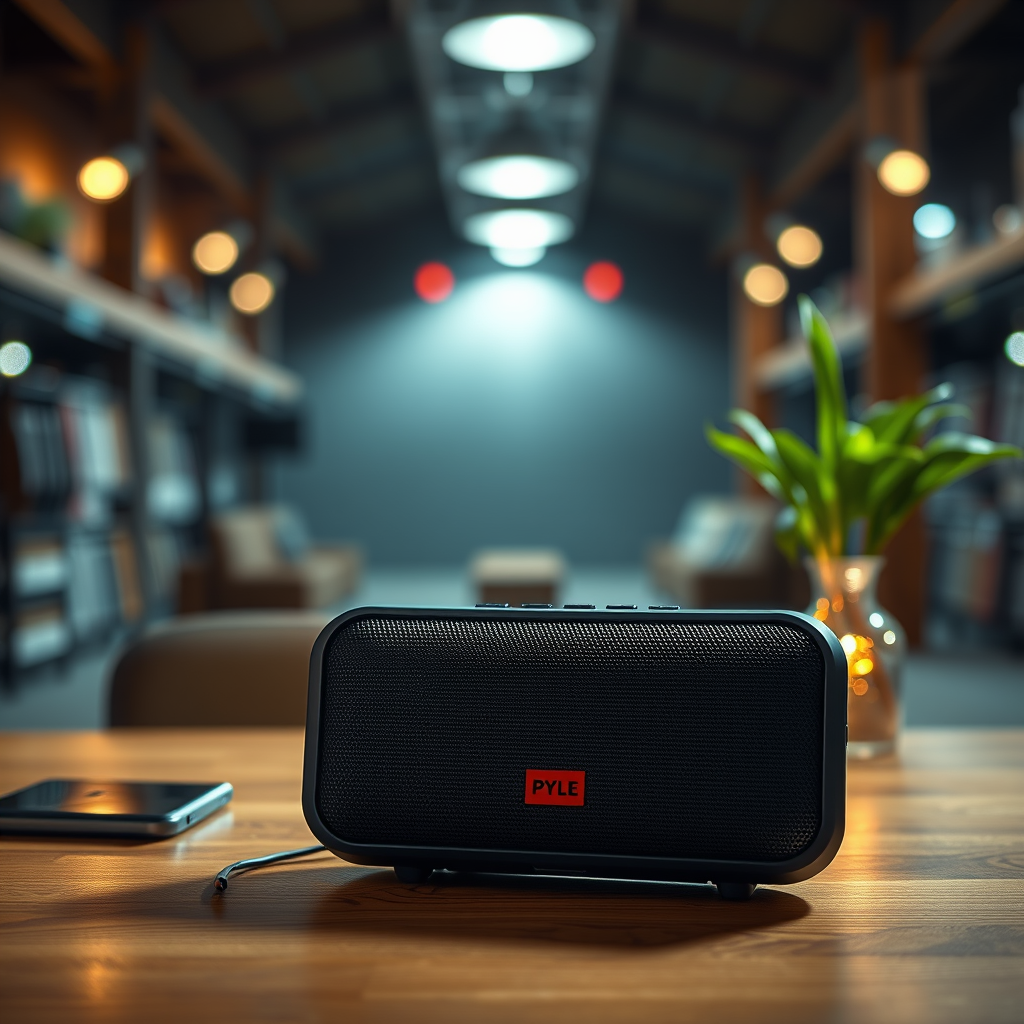
Before you can enjoy listening to your favorite music or podcasts through your Pyle Bluetooth speakers, it’s essential to prepare the speakers for connection. First, ensure that your speakers are either charged or plugged into a power source. A fully charged speaker will provide optimal performance and avoid disruptions during use.
Next, turn on the speakers and activate Bluetooth pairing mode. This is typically done by pressing the designated Bluetooth button, which is often marked with the Bluetooth symbol. In some models, you may need to hold the button for a few seconds until you see a flashing LED light, indicating that the speakers are now discoverable by other devices. This step is crucial, as failing to enter pairing mode will prevent your iPhone from locating the speakers.
Accessing Bluetooth Settings on Your iPhone
To connect your Pyle Bluetooth speakers, you need to access the Bluetooth settings on your iPhone. Start by unlocking your device and locating the Settings app, which is represented by a gear icon.
Once in the Settings menu, scroll down and tap on “Bluetooth.” Make sure that Bluetooth is turned on; you can toggle the switch to the right to enable it. When Bluetooth is activated, your iPhone will start searching for nearby devices. This is where your Pyle speakers should appear once they are in pairing mode.
Pairing Your iPhone with Pyle Speakers
After ensuring that Bluetooth is enabled on your iPhone, it’s time to pair the device with your Pyle speakers. In the Bluetooth menu, look for your Pyle speakers under the “Other Devices” section. They may be listed by model number or simply as “Pyle Speakers.”
Once you locate your speakers, tap on the name to initiate the pairing process. A confirmation prompt may appear, asking if you want to connect to the device. Select “Pair” or “OK” to finalize the connection. After successfully pairing, the speakers will typically appear under “My Devices” with a status of “Connected,” indicating that your iPhone is now linked to the speakers.
Top Pyle Bluetooth Speakers Comparison (2024)
| # | Model | Battery Life | Bluetooth Version | Water Resistance | Weight | Rating |
|---|---|---|---|---|---|---|
| 1 | Pyle PBT80 | 12 hours | 5.0 | IPX4 | 2.2 lbs | ★★★★☆ |
| 2 | Pyle PBT92 | 15 hours | 5.0 | IPX7 | 3.1 lbs | ★★★★★ |
| 3 | Pyle PBT60 | 10 hours | 4.2 | IPX5 | 1.5 lbs | ★★★☆☆ |
| 4 | Pyle PBT20 | 8 hours | 4.0 | IPX6 | 1.8 lbs | ★★★☆☆ |
| 5 | Pyle PBT50 | 9 hours | 4.1 | IPX5 | 2.0 lbs | ★★★☆☆ |
| 6 | Pyle PBT100 | 18 hours | 5.0 | IPX8 | 3.5 lbs | ★★★★★ |
| 7 | Pyle PBT120 | 14 hours | 5.0 | IPX7 | 3.0 lbs | ★★★★☆ |
Troubleshooting Connection Issues
While connecting your Pyle Bluetooth speakers to your iPhone is usually straightforward, you may encounter some issues. If your speakers do not appear in the Bluetooth menu, first ensure that they are indeed in pairing mode. It’s common for devices to inadvertently connect to another previously paired device, which can prevent your iPhone from recognizing the speakers.
If your speakers still don’t show up, try restarting both your iPhone and the speakers. For the iPhone, press and hold the power button until you see the “slide to power off” option, then slide to turn it off. For the speakers, you may need to press and hold the power button until they turn off, then turn them back on. After restarting, reattempt the pairing process.
Another potential solution is to reset the Bluetooth settings on your iPhone. Go to Settings > General > Reset > Reset Network Settings. This will erase all your saved networks and Bluetooth connections, so you will need to reconnect to all devices afterward.
Adjusting Audio Settings
Once your Pyle Bluetooth speakers are connected to your iPhone, you may want to adjust the audio settings for optimal sound quality. Depending on your music or audio app, equalizer settings may be available that can enhance your listening experience.
Access the equalizer settings by going to Settings > Music > EQ on your iPhone. Here, you can choose from various preset options such as “Bass Booster,” “Treble Booster,” or “Flat,” among others. Selecting the right EQ setting can help tailor the audio output to match your personal preferences and the acoustics of your environment.
Additionally, some Pyle speakers come with their own audio features, such as bass enhancement or stereo pairing capabilities. Familiarize yourself with these features to get the most out of your speaker’s sound profile.
Maintaining Your Connection
To ensure a stable connection between your iPhone and Pyle Bluetooth speakers, keep both devices within a reasonable distance of each other—typically within 33 feet (10 meters). Walls and other obstructions can interfere with the Bluetooth signal, leading to disconnections or audio dropouts.
Regularly check for software updates for both your iPhone and Pyle speakers. For the iPhone, navigate to Settings > General > Software Update. For Pyle speakers, refer to the user manual to see if there are firmware updates available. Keeping your devices updated can improve performance and resolve connection issues.
Disconnecting and Reconnecting
If you need to disconnect your Pyle Bluetooth speakers from your iPhone, you can do so easily. Simply turn off Bluetooth on your iPhone by going to Settings > Bluetooth and toggling the switch off, or you can turn off the speakers themselves.
To reconnect, follow the same steps outlined for pairing. Your iPhone should remember the speakers, making it a quick process to re-establish the connection. If you experience any difficulties reconnecting, ensure the speakers are still in pairing mode and try refreshing the Bluetooth settings on your iPhone.
By following these steps, you’ll successfully connect your Pyle Bluetooth speakers to your iPhone, enabling you to enjoy your favorite music and audio with ease. If you encounter any issues, revisit the troubleshooting section for assistance. Whether it’s for a party or personal use, enjoy your enhanced audio experience!
Frequently Asked Questions
How do I put my Pyle Bluetooth speaker in pairing mode?
To put your Pyle Bluetooth speaker in pairing mode, first ensure it is powered on. Then, press and hold the Bluetooth button until you hear a pairing prompt or see a flashing LED light. This indicates that the speaker is ready to connect with your iPhone.
Why won’t my iPhone connect to my Pyle Bluetooth speaker?
If your iPhone won’t connect to your Pyle Bluetooth speaker, ensure Bluetooth is enabled on your iPhone and that the speaker is in pairing mode. Additionally, check if the speaker is already connected to another device or if it needs to be reset. If problems persist, try forgetting the speaker in your iPhone’s Bluetooth settings and reconnecting.
What should I do if my Pyle Bluetooth speaker keeps disconnecting from my iPhone?
If your Pyle Bluetooth speaker keeps disconnecting from your iPhone, first ensure that both devices are within a close range, ideally within 30 feet. Additionally, check for any software updates for both your iPhone and the speaker, as outdated firmware can cause connectivity issues. Restarting both devices can also help resolve intermittent disconnections.
Which Pyle Bluetooth speaker models are compatible with iPhone?
Most Pyle Bluetooth speaker models are compatible with iPhones, including popular models like the Pyle PBMSPG8 and Pyle PBT60. To confirm compatibility, check the specifications or user manual for Bluetooth support, ensuring it uses standard Bluetooth technology that works with iPhones.
How can I improve the sound quality from my Pyle Bluetooth speaker when connected to my iPhone?
To improve sound quality from your Pyle Bluetooth speaker when connected to your iPhone, ensure your speaker’s firmware is up to date. Additionally, adjust the equalizer settings in your iPhone’s music app to enhance bass or treble according to your preference. Placing the speaker in a location free from obstructions can also help optimize audio performance.
References
- Bluetooth
https://en.wikipedia.org/wiki/Bluetooth - https://www.ncbi.nlm.nih.gov/pmc/articles/PMC7105686/
https://www.ncbi.nlm.nih.gov/pmc/articles/PMC7105686/ - https://www.sciencedirect.com/topics/computer-science/bluetooth
https://www.sciencedirect.com/topics/computer-science/bluetooth - The HIPAA Privacy Rule | HHS.gov
https://www.hhs.gov/hipaa/for-professionals/privacy/index.html - https://www.cdc.gov/niosh/topics/technology/bluetooth.html
https://www.cdc.gov/niosh/topics/technology/bluetooth.html - Google Scholar Google Scholar
https://scholar.google.com/scholar?q=how+to+connect+bluetooth+speakers+to+iphone - Google Scholar Google Scholar
https://scholar.google.com/scholar?q=bluetooth+speaker+connection+iphone - Google Scholar Google Scholar
https://scholar.google.com/scholar?q=Pyle+Bluetooth+speakers+instruction - https://www.bbc.com/news/technology-51182543
https://www.bbc.com/news/technology-51182543 - https://www.theguardian.com/technology/2020/jan/27/how-to-use-bluetooth-speakers
https://www.theguardian.com/technology/2020/jan/27/how-to-use-bluetooth-speakers
