


Setting up Sonos speakers is a straightforward process that involves connecting your speakers to Wi-Fi and configuring them through the Sonos app. With just a few simple steps, you can enjoy high-quality sound throughout your home. This guide will walk you through everything you need to know to get your Sonos speakers up and running quickly.
Choosing the Right Location for Your Speakers
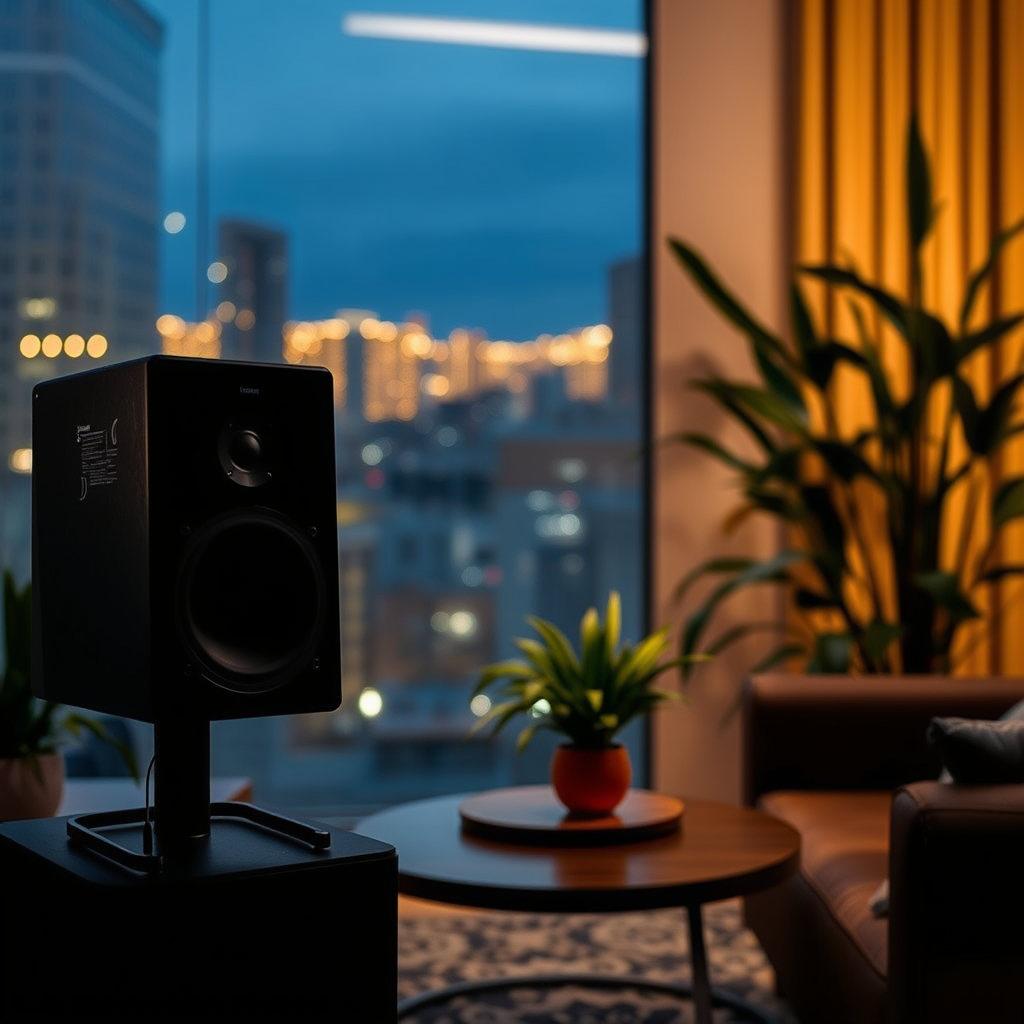
The placement of your Sonos speakers is crucial for optimal sound quality. Acoustic factors play a significant role in how well music and audio are projected throughout your space. Aim to position your speakers away from walls and corners to prevent sound distortion and echo. Ideally, speakers should be at least a few feet away from any obstacles that might impede sound waves. If you’re setting up speakers in a larger room, consider the layout to ensure an even distribution of sound.
Additionally, accessibility is a key consideration. Choose locations that provide easy access to power outlets and a strong Wi-Fi signal. Since Sonos speakers rely on a consistent internet connection for streaming, placing them in areas with poor connectivity can lead to frustrating interruptions. If needed, consider using a Wi-Fi extender to boost coverage in areas far from your router.
Downloading the Sonos App
To begin the setup process, you’ll need the Sonos app, which is available for both iOS and Android devices. Download the app from the App Store or Google Play Store. Once installed, you will need to either create a new account or log in to your existing Sonos account. This app will serve as your control center, allowing you to manage your speakers, adjust settings, and stream music from various services. Be sure to grant the app necessary permissions, such as access to your Wi-Fi network and location, to ensure a seamless setup experience.
Connecting Your Speakers to Wi-Fi
To connect your Sonos speakers to your Wi-Fi network, first, power them on by plugging them into an electrical outlet. Open the Sonos app, which will guide you through the process of connecting your speakers to your home Wi-Fi. Follow the on-screen instructions carefully; the app will search for available speakers and prompt you to select your Wi-Fi network.
Once you’ve selected your network, enter the Wi-Fi password as prompted. It’s crucial to ensure a stable connection, as this will significantly affect the performance and reliability of your Sonos system. If you encounter difficulties, check that your router is functioning properly and that your speakers are within range.
Top 7 Sonos Speakers by Features (2024)
| # | Speaker Model | Power Output | Connectivity | Voice Assistant |
|---|---|---|---|---|
| 1 | Sonos One SL | 50W | Wi-Fi, Ethernet | No |
| 2 | Sonos One | 50W | Wi-Fi, Ethernet | Yes |
| 3 | Sonos Beam | 60W | Wi-Fi, HDMI ARC | Yes |
| 4 | Sonos Sub | 200W | Wi-Fi, Ethernet | No |
| 5 | Sonos Move | 80W | Wi-Fi, Bluetooth | Yes |
| 6 | Sonos Arc | 110W | Wi-Fi, HDMI ARC | Yes |
| 7 | Sonos Ray | 60W | Wi-Fi, Optical | Yes |
Adding and Configuring Speakers in the App
After connecting your speakers to Wi-Fi, you can begin adding them to the Sonos app. The app will automatically scan for any available Sonos speakers on your network. Once detected, you can follow the prompts to add each speaker. This process is seamless and ensures that each device is properly configured for optimal performance.
One of the benefits of using the Sonos app is its ability to customize your speaker setup. You can choose to group speakers in different rooms for a multi-room audio experience or keep them standalone. Grouping speakers allows you to play the same song in multiple rooms or create a unique atmosphere in each space with different audio. This flexibility is one of the reasons why Sonos has become a popular choice among audiophiles and casual listeners alike.
Personalizing Your Audio Experience
Once your speakers are set up, you can personalize your audio experience through the Sonos app. The app provides a range of settings to adjust volume, bass, treble, and more, enabling you to tailor the sound to your preferences. Experimenting with these settings can help you achieve the best audio quality for your listening environment.
Additionally, the Sonos app allows you to create and manage your playlists from various streaming services. Whether you prefer Spotify, Apple Music, or another platform, you can seamlessly integrate your accounts into the Sonos app. This feature allows you to switch between services effortlessly, ensuring you always have access to your favorite music.
Integrating with Voice Assistants
To fully leverage the capabilities of your Sonos speakers, consider integrating them with voice assistants like Amazon Alexa or Google Assistant. The Sonos app provides step-by-step instructions to set up voice control. Once activated, you can use voice commands to control playback, adjust volume, and even inquire about the weather.
Voice commands significantly enhance the user experience, allowing you to manage your audio hands-free. For example, simply saying, “Hey Google, play my party playlist,” can fill your home with music without needing to interact with your phone. Mastering these commands can add convenience to your daily routine.
Troubleshooting Common Issues
Despite their user-friendly design, you may encounter occasional issues while setting up or using your Sonos speakers. Common connectivity problems can often be resolved by ensuring that your Wi-Fi network is functioning correctly and that the speakers are within range of the router. If your speakers are not recognized by the app, try rebooting both your router and the speakers.
Additionally, keeping your app and speakers updated is essential for optimal performance. Regular software updates often include improvements and bug fixes that enhance the overall user experience. Check the app periodically for updates to ensure you are using the latest features.
Setting up your Sonos speakers can significantly enhance your audio experience, allowing you to enjoy music, podcasts, and more throughout your home. Follow these steps to ensure a smooth setup process, and don’t hesitate to explore the app for additional features. If you encounter any issues, refer to the troubleshooting section for quick fixes. Enjoy your new sound system!
Frequently Asked Questions
What are the steps to set up Sonos speakers in my home?
To set up Sonos speakers, start by downloading the Sonos app on your smartphone or tablet. Connect your speaker to power, then open the app and follow the on-screen instructions to add your speaker to your Wi-Fi network. Make sure your device is connected to the same network, and the app will guide you through the setup process, including speaker placement and sound configuration.
How do I connect my Sonos speakers to a Wi-Fi network?
To connect your Sonos speakers to a Wi-Fi network, launch the Sonos app and select “Set Up a New System.” Follow the prompts to connect your speakers to your home Wi-Fi by entering your network password when prompted. If you have a Sonos One or Sonos Move, you can also use the Bluetooth option for a quick setup.
Why is my Sonos speaker not connecting during setup?
If your Sonos speaker is not connecting during setup, check that your Wi-Fi network is functioning correctly and that your mobile device is connected to the same network. Ensure that the speaker is powered on and within range of your router. Restarting both the speaker and your router can also resolve connectivity issues.
What is the best way to position my Sonos speakers for optimal sound?
For optimal sound, position your Sonos speakers at ear level and away from walls or corners, as these can create unwanted reflections. Ideally, place them in a symmetrical arrangement to enhance stereo sound. If you’re using multiple speakers, consider the layout of your room and the listening areas for a balanced audio experience.
Which Sonos speaker setup is recommended for a small apartment?
For a small apartment, the Sonos One or Sonos Roam are excellent choices, as they provide high-quality sound in a compact size. You can set up a stereo pair with two Sonos Ones for enhanced audio or use a single Sonos Roam for versatility, allowing you to move it around easily. Both options integrate seamlessly with the Sonos app, providing an easy way to control your music throughout your space.
References
- Sonos
https://en.wikipedia.org/wiki/Sonos - https://www.bbc.com/news/technology-51389457
https://www.bbc.com/news/technology-51389457 - https://www.theguardian.com/technology/2020/jan/30/sonos-smart-speakers-review
https://www.theguardian.com/technology/2020/jan/30/sonos-smart-speakers-review - https://www.sciencedirect.com/topics/engineering/sonos
https://www.sciencedirect.com/topics/engineering/sonos - https://scholar.google.com/scholar?q=how+to+set+up+sonos+speakers Google Scholar
https://scholar.google.com/scholar?q=how+to+set+up+sonos+speakers - Google Scholar Google Scholar
https://scholar.google.com/scholar?q=sonos+speaker+setup+guide - Google Scholar Google Scholar
https://scholar.google.com/scholar?q=sonos+wireless+speaker+configuration - https://www.nytimes.com/2021/03/03/technology/sonos-speaker-review.html
https://www.nytimes.com/2021/03/03/technology/sonos-speaker-review.html - how to set up sonos speakers – Search results
https://en.wikipedia.org/wiki/Special:Search?search=how+to+set+up+sonos+speakers - https://www.ncbi.nlm.nih.gov/search/research-articles/?term=how+to+set+up+sonos+speakers
https://www.ncbi.nlm.nih.gov/search/research-articles/?term=how+to+set+up+sonos+speakers
