


If your speakers are not working, the first step is to check the connections and settings on your device. Often, issues can be resolved by ensuring everything is properly plugged in and configured correctly. In this article, we will explore common reasons for speaker malfunctions and provide practical solutions to get your audio back on track.
Check the Connections
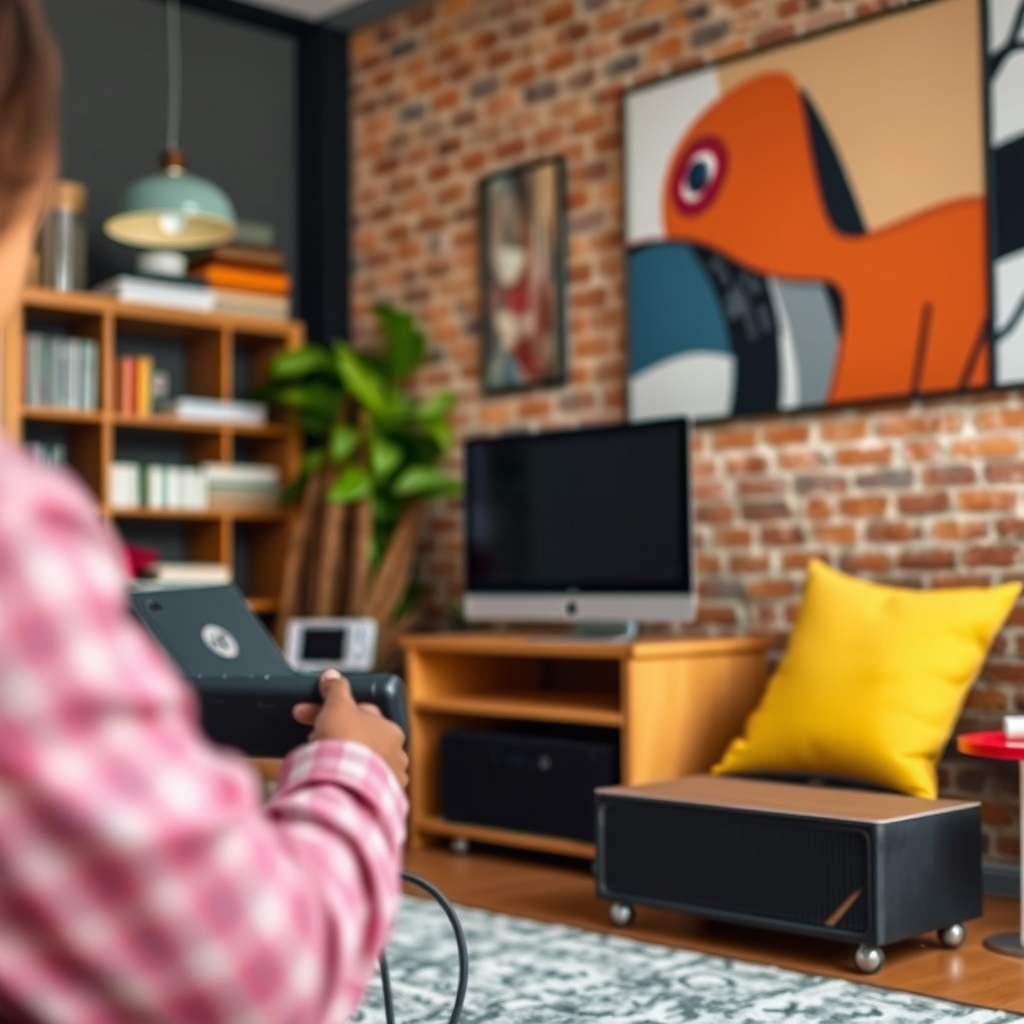
One of the most frequent causes of speaker issues is faulty connections. Begin by ensuring that all cables are securely connected to both the speakers and the audio source. Loose cables can lead to intermittent audio or complete silence. If your speakers are wired, check the following:
– Ensure that the speaker wires are properly connected to the speaker terminals and the audio device.
– For USB or HDMI connections, make sure that the cable is firmly inserted into the respective ports.
In addition to checking the connections, it’s crucial to inspect the cables themselves. Look for any damaged or frayed wires, which may need replacement. If you have spare cables available, try swapping them out to see if that resolves the issue.
Verify Audio Settings
After confirming your connections are secure, the next step is to verify your audio settings. Checking your device’s volume levels is essential; sometimes, they may be muted or set too low, leading to an absence of sound. Here are a few tips to help you navigate your audio settings:
– Volume Levels: Ensure that the volume on both your device and the speakers is turned up. Sometimes, the volume can be adjusted inadvertently, leading to a silent experience.
– Audio Output Settings: Depending on your operating system, you may need to select the correct playback device. Ensure that your speakers are set as the default audio output device. On Windows, this can be done through the Sound settings, while macOS users can check the Sound preferences.
Update Drivers and Software
Outdated audio drivers or software can also contribute to speaker malfunctions. Keeping your drivers up-to-date is crucial for ensuring compatibility with your audio devices. Here’s how to check for updates:
– Audio Drivers: Visit the manufacturer’s website of your audio device to see if there are any updated drivers available for download. You can also check through your device manager (for Windows) or the System Report (for macOS) to find your audio hardware and driver details.
– System Updates: Sometimes, system updates can resolve compatibility issues, especially following major updates to your operating system. Regularly checking for updates will help ensure your audio experience is optimized.
Common Speaker Issues and Their Solutions
| # | Issue | Cause | Solution | Urgency |
|---|---|---|---|---|
| 1 | No Sound | Loose Connections | Check and secure all cables | High |
| 2 | Distorted Sound | Faulty Speakers | Test with a different device | Medium |
| 3 | Intermittent Sound | Cable Damage | Inspect and replace cables | High |
| 4 | No Audio on Specific Apps | Application Settings | Check app audio settings | Medium |
| 5 | Low Volume | Settings Misconfiguration | Adjust volume settings | Medium |
| 6 | Speaker Not Recognized | Driver Issues | Update or reinstall drivers | High |
| 7 | No Bluetooth Connection | Pairing Issues | Re-pair the devices | Medium |
Inspect the Speakers
If the above steps do not resolve the issue, it is time to inspect the speakers themselves. Testing the speakers with a different device can help determine if the problem lies within the speakers or the original audio source. Here are some key points to consider:
– Test with Alternative Devices: Connect your speakers to another audio source, such as a smartphone or another computer. If they work with a different device, the issue may be with the original audio source.
– Visible Damage: Look for any visible signs of damage on the speakers, such as dents, cracks, or burnt components. Damage can severely affect sound quality and performance, which may necessitate repair or replacement.
Troubleshoot Bluetooth Connections
For those using Bluetooth speakers, connection issues can often lead to sound problems. Begin by ensuring that the speakers are properly paired with the device. Follow these steps to troubleshoot:
– Reconfirm Pairing: Make sure that the Bluetooth speakers are paired with your device. Sometimes, disconnecting and reconnecting can resolve connection issues.
– Restart Devices: Restart both the Bluetooth speakers and the device to reset the connection. This can often help clear up software glitches that may be causing the issue.
Explore External Factors
Sometimes, environmental factors can affect speaker performance. Electrical interference from other devices can disrupt audio quality. Consider the following:
– Distance from Interference: Move your speakers away from other electronic devices, such as routers, microwaves, or fluorescent lights, to see if performance improves.
– Power Source: Ensure that your speakers are plugged into a reliable power source. If using a power strip, try plugging them directly into a wall outlet.
Seek Professional Help
If all else fails, consider consulting a professional technician for a more in-depth diagnosis. Professional assistance can often uncover issues that are not immediately apparent. Furthermore, if your speakers are still under warranty, explore your warranty options to see if repairs or replacements are covered.
Summarizing the common reasons your speakers may not be working—such as connection issues, audio settings, and equipment malfunctions—can help you troubleshoot effectively. If you’ve gone through these steps and still face problems, don’t hesitate to reach out for professional assistance to enjoy your audio experience again.
Frequently Asked Questions
Why are my speakers not producing any sound?
If your speakers are not producing sound, first check the power source to ensure they are plugged in and turned on. Next, verify that the audio cable is securely connected to both the speakers and the audio source. Additionally, check your device’s volume settings and ensure that the correct output device is selected.
How can I troubleshoot my speakers that aren’t working?
To troubleshoot speakers that aren’t working, start by checking all physical connections, including power and audio cables. Then, test the speakers with a different audio source to rule out device issues. You can also explore the sound settings on your computer or device to ensure the speakers are set as the default playback device.
What should I do if my Bluetooth speakers are not connecting?
If your Bluetooth speakers are not connecting, make sure they are in pairing mode and within range of your device. Check if other devices are connected to the speakers, as many models can only connect to one device at a time. If problems persist, try restarting both the speakers and your device, then attempt the connection again.
Why do my speakers make a crackling noise?
Crackling noises from speakers can be caused by several factors, including loose connections, interference from other electronic devices, or faulty cables. Additionally, check the audio settings on your device, as incorrect configurations can lead to audio distortion. If the problem continues, consider testing the speakers with different cables or devices to isolate the issue.
Which settings could be affecting my speaker performance?
Several settings can affect speaker performance, including the audio output settings on your device, equalizer settings, and volume levels. Ensure that your speakers are selected as the default output device in your operating system’s sound settings. Additionally, check for any sound enhancements or equalizer settings that may be altering the audio quality negatively.
References
- Sound system
https://en.wikipedia.org/wiki/Sound_system - https://www.mayoclinic.org/healthy-lifestyle/consumer-health/in-depth/audio-systems/art-20046566
https://www.mayoclinic.org/healthy-lifestyle/consumer-health/in-depth/audio-systems/art-20046566 - https://www.sciencedirect.com/topics/computer-science/audio-systems
https://www.sciencedirect.com/topics/computer-science/audio-systems - https://www.bbc.com/news/technology-57900136
https://www.bbc.com/news/technology-57900136 - https://www.cdc.gov/nceh/lead/faq.htm
https://www.cdc.gov/nceh/lead/faq.htm - https://www.nytimes.com/2020/01/23/technology/tech-support.html
https://www.nytimes.com/2020/01/23/technology/tech-support.html - https://www.hhs.gov/answers/technology/what-are-the-reasons-my-speakers-arent-working.html
https://www.hhs.gov/answers/technology/what-are-the-reasons-my-speakers-arent-working.html - Google Scholar Google Scholar
https://scholar.google.com/scholar?q=why+my+speakers+are+not+working - Google Scholar Google Scholar
https://scholar.google.com/scholar?q=speaker+issues+troubleshooting - https://scholar.google.com/scholar?q=audio+output+problems Google Scholar
https://scholar.google.com/scholar?q=audio+output+problems
