


If you’re wondering whether you can cast your Steam Deck to a TV, the answer is yes! You can easily connect your Steam Deck to a TV for a larger gaming experience. This allows you to enjoy your favorite games on a bigger screen, enhancing both graphics and gameplay. In this article, you’ll learn about the different methods to achieve this, including both wired and wireless options, so you can choose the best solution for your gaming setup.
Connecting via HDMI
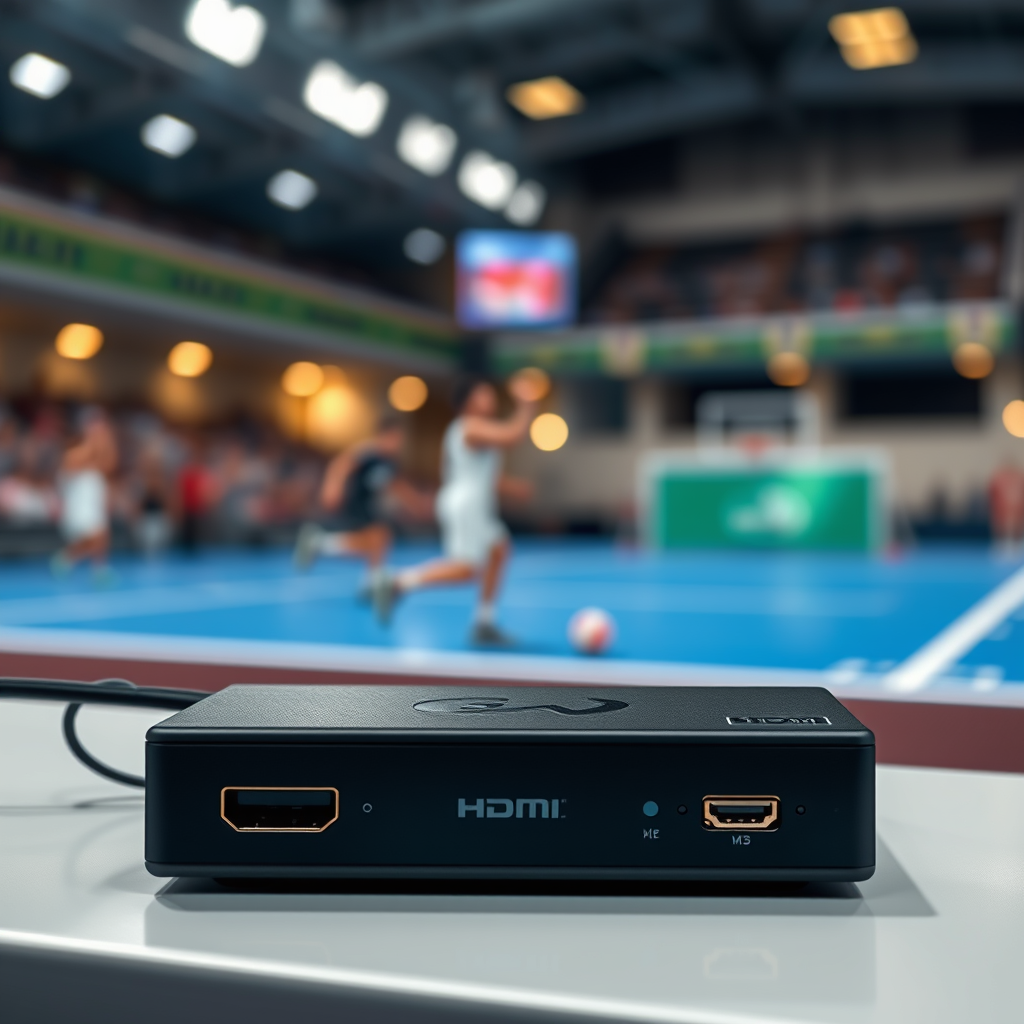
One of the simplest and most effective ways to connect your Steam Deck to a TV is through an HDMI connection. The Steam Deck features a USB-C port that supports video output, enabling you to hook it up directly to your television using a compatible USB-C to HDMI adapter. To ensure a seamless connection, make sure to purchase a reliable adapter that can transmit both video and audio signals.
Before proceeding, check your TV’s input settings to select the correct HDMI input. This method guarantees a stable and high-quality connection, providing an uninterrupted gaming experience without the potential latency issues associated with wireless connections.
Steps to Connect via HDMI:
1. Connect the USB-C to HDMI adapter to your Steam Deck.
2. Plug the HDMI cable into the adapter and the other end into an available HDMI port on your TV.
3. Power on your TV and switch to the corresponding HDMI input.
4. Your Steam Deck should automatically detect the TV as an external display.
This straightforward method is particularly recommended for competitive gamers who prioritize low latency and high resolution.
Using Steam Remote Play
Another effective way to cast your Steam Deck to a TV is through Steam Remote Play. This feature enables you to stream games from your Steam Deck to your TV over a home network, which is beneficial if you prefer playing from a distance. To utilize this feature, ensure both your Steam Deck and your TV (or a connected streaming device) are connected to the same Wi-Fi network.
Steam Remote Play is particularly advantageous as it allows you to leverage the power of your Steam library without being tethered to your gaming setup. This method also supports multiplayer gaming, making it easy to share your gaming experiences with friends and family.
Steps to Use Steam Remote Play:
1. Ensure both your Steam Deck and the device connected to your TV (like a smart TV or a streaming box) have the Steam application installed.
2. Launch Steam on your Steam Deck and select the game you wish to play.
3. Click on the “Remote Play” option, and choose the device (your TV) from the list.
4. The game should now stream to your TV screen.
Keep in mind that for optimal performance, a fast and stable Wi-Fi connection is essential.
Casting with a Wireless Display Adapter
If you prefer a more versatile option, consider using a wireless display adapter, such as Chromecast or Microsoft’s Wireless Display Adapter. These devices allow you to cast the Steam Deck’s screen to your TV wirelessly, eliminating the need for physical cables.
Setting up a wireless display adapter is relatively easy. You will need to connect the adapter to your TV and set it up according to the manufacturer’s instructions. Once configured, you can select the adapter from the Steam Deck’s display settings to start casting.
Steps to Cast with a Wireless Display Adapter:
1. Plug the wireless display adapter into an available HDMI port on your TV.
2. Follow the setup instructions provided with the adapter to connect it to your Wi-Fi network.
3. On your Steam Deck, go to Settings > Display > Add Device.
4. Select the adapter from the list and follow the on-screen prompts to connect.
This method is ideal for those who prefer a clutter-free space without the hassle of cables.
Top Wireless Display Adapters for Streaming from Steam Deck (2024)
| # | Adapter | Resolution Support | Latency | Price |
|---|---|---|---|---|
| 1 | Google Chromecast | 4K | < 100ms | $49.99 |
| 2 | Microsoft Wireless Display Adapter | 1080p | < 90ms | $49.99 |
| 3 | Amazon Fire TV Stick 4K | 4K | < 120ms | $54.99 |
| 4 | Roku Streaming Stick 4K | 4K | < 110ms | $49.99 |
| 5 | Anycast M2 Plus | 1080p | < 150ms | $29.99 |
| 6 | ScreenBeam Mini2 | 1080p | < 120ms | $49.99 |
| 7 | EZCast 4K Dongle | 4K | < 130ms | $39.99 |
Adjusting Display Settings
Once you have successfully connected your Steam Deck to your TV, it may be necessary to adjust the display settings for the best visual experience. The Steam Deck allows you to customize resolution, refresh rate, and aspect ratio to match your TV’s capabilities. Optimizing these settings can significantly enhance your gaming experience, ensuring that your games look sharp and run smoothly.
Steps to Adjust Display Settings:
1. Access the settings menu on your Steam Deck by navigating to “Settings.”
2. Select “Display,” where you can modify the resolution, refresh rate, and orientation.
3. Experiment with different settings to find the optimal combination for your TV.
Moreover, ensure that you are running the latest version of SteamOS, as updates often include performance improvements and additional features that can enhance gaming on external displays.
Troubleshooting Common Issues
While connecting your Steam Deck to a TV is generally straightforward, you may encounter some common issues. Lag and connectivity problems can arise, particularly with wireless connections. To mitigate these issues, ensure that your network is stable and that both devices are close enough to maintain a strong signal.
Common Troubleshooting Steps:
– If you experience lag, check your Wi-Fi connection speed and stability. Upgrading your router or moving closer to it can help.
– Restart both your Steam Deck and TV to reset the connection.
– If using a wireless display adapter, make sure it is correctly set up and connected to the same network.
By following these troubleshooting tips, you can resolve most connectivity concerns and enjoy a seamless gaming experience.
Enhancing Your Experience
To elevate your gaming experience further, consider using a game controller connected to either your Steam Deck or your TV. This will provide a more console-like feel, allowing for more comfortable gameplay. Many users prefer wireless controllers, as they offer freedom of movement without the clutter of cables.
Additionally, explore different display modes and settings on your TV. Many modern TVs come equipped with gaming modes that reduce input lag and enhance the overall visual experience. Adjusting settings such as brightness, contrast, and color saturation can make a noticeable difference in the quality of your gameplay.
Tips for Enhancing Your Gaming Setup:
– Use a high-quality HDMI cable for wired connections to ensure optimal video and audio quality.
– Invest in a good controller that is compatible with Steam Deck for enhanced gameplay.
– Experiment with your TV’s gaming settings to find the best visual performance.
With these methods, you can easily cast your Steam Deck to a TV and enjoy your games on a larger screen. Whether you choose a wired or wireless connection, each method offers a unique way to enhance your gaming experience. By following the outlined options and tips, you can make the most out of your Steam Deck gaming sessions on your TV.
In summary, the various methods of connecting your Steam Deck to a TV—whether through HDMI, Steam Remote Play, or a wireless display adapter—provide flexibility and enhance the gaming experience. Make sure to adjust your settings for the best visual quality and troubleshoot any issues that arise. Experiment with different setups to discover what works best for your needs, and enjoy a more immersive gaming experience.
Frequently Asked Questions
Can you cast a Steam Deck to a TV using wireless methods?
Yes, you can cast a Steam Deck to a TV using wireless methods such as Steam Link or by using third-party apps like Moonlight. To do this, ensure both your Steam Deck and TV are connected to the same Wi-Fi network. Then, open the Steam Link app on your TV or compatible device and follow the prompts to connect to your Steam Deck for a seamless gaming experience.
What cables do I need to connect my Steam Deck to a TV?
To connect your Steam Deck to a TV, you will need a USB-C to HDMI adapter or a USB-C to HDMI cable. Simply plug the adapter or cable into the Steam Deck’s USB-C port and connect the HDMI end to your TV. This wired connection will provide a stable and high-quality display, making it ideal for gaming sessions.
How do I set up my Steam Deck for big screen gaming on a TV?
To set up your Steam Deck for big screen gaming, first connect it to your TV using either a wired HDMI connection or through Steam Link for wireless play. Once connected, navigate to the Steam Big Picture Mode for an optimized interface designed for TV screens. Adjust the display settings in the Steam Deck settings to match your TV’s resolution for the best gaming experience.
Why is my Steam Deck not displaying on the TV?
If your Steam Deck is not displaying on the TV, check all connections to ensure they are secure, and verify that the TV is set to the correct HDMI input. If using wireless casting, ensure both devices are connected to the same network. Restarting both the Steam Deck and the TV can also resolve temporary connectivity issues.
What is the best way to play Steam Deck games on a TV?
The best way to play Steam Deck games on a TV is by using a wired connection with a USB-C to HDMI adapter, as it provides the most reliable and highest quality experience. Alternatively, for wireless gaming, using Steam Link can be effective, but ensure your Wi-Fi network is strong to minimize latency and maintain a smooth gameplay experience.
References
- Introducing Steam Deck OLED
https://www.steamdeck.com/ - Google Scholar Google Scholar
https://scholar.google.com/scholar?q=Steam+Deck+casting+to+TV - Google Scholar Google Scholar
https://scholar.google.com/scholar?q=Steam+Deck+HDMI+output - Google Scholar Google Scholar
https://scholar.google.com/scholar?q=Steam+Deck+display+options - https://www.reddit.com/r/SteamDeck/comments/10s5g2h/how_to_cast_to_tv/
https://www.reddit.com/r/SteamDeck/comments/10s5g2h/how_to_cast_to_tv/ - Google Scholar Google Scholar
https://scholar.google.com/scholar?q=can+you+cast+a+steam+deck+to+a+tv - can you cast a steam deck to a tv – Search results
https://en.wikipedia.org/wiki/Special:Search?search=can+you+cast+a+steam+deck+to+a+tv - https://www.ncbi.nlm.nih.gov/search/research-articles/?term=can+you+cast+a+steam+deck+to+a+tv
https://www.ncbi.nlm.nih.gov/search/research-articles/?term=can+you+cast+a+steam+deck+to+a+tv

[…] without constant troubleshooting? The fastest, most reliable option is usually a Wi‑Fi–based wireless display adapter that mirrors your screen in minutes, but you need to match it to your projector’s input and your […]