

Yes, you can connect your Nintendo Switch to a TV without a dock by using a compatible USB-C to HDMI adapter. This alternative allows you to enjoy your gaming experience on a larger screen even if you don’t have the official dock available. In this article, we’ll delve into various methods to connect your Switch to a TV, alongside tips and considerations for each option, ensuring that you enjoy uninterrupted gaming sessions.
Understanding the Switch Dock’s Functionality
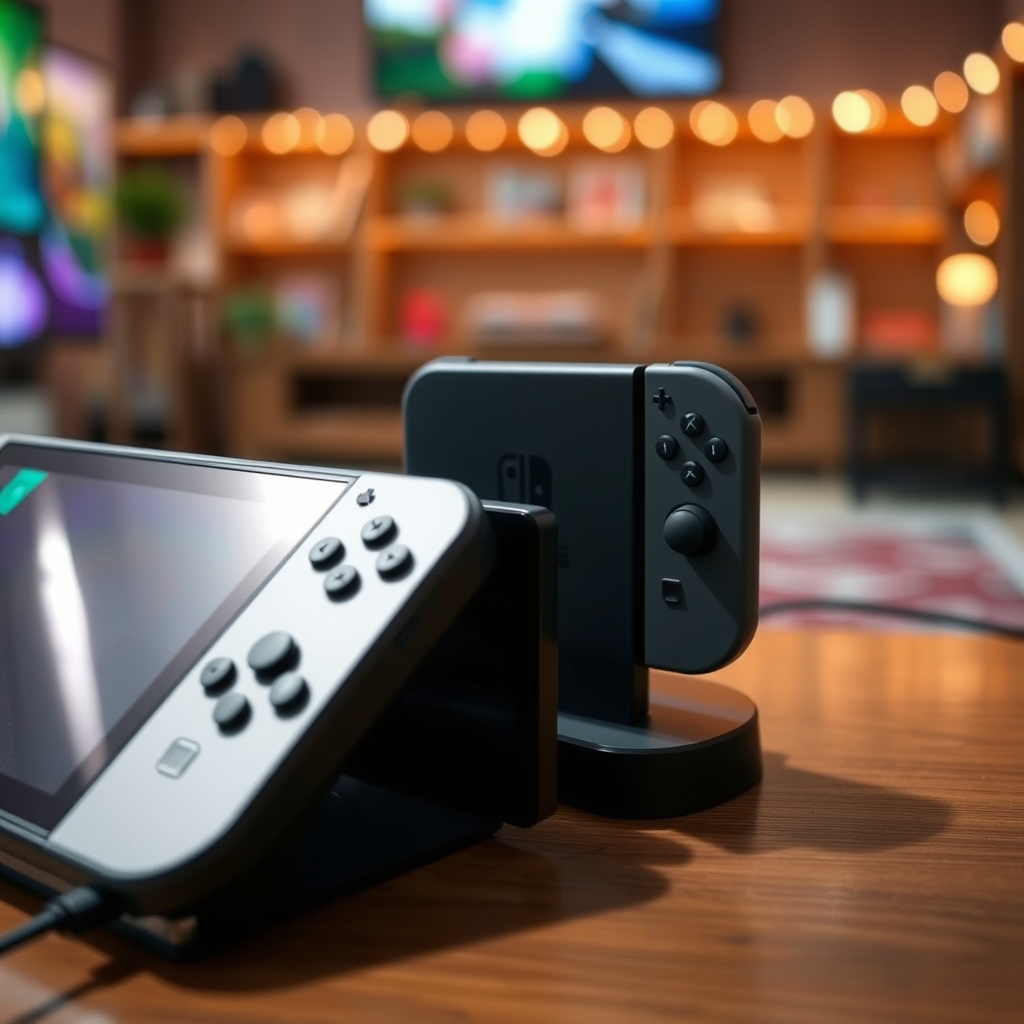
The Nintendo Switch dock serves as a crucial hub for connecting your console to a television. It converts the Switch’s USB-C output to an HDMI signal, allowing you to play games on a larger display. Additionally, the dock charges the device while it is in use, ensuring that your gaming experience remains uninterrupted due to low battery levels. This dual functionality makes the dock a valuable accessory, although not strictly necessary for everyone. For those who may misplace their dock or want a more portable solution, understanding how to bypass the dock while still achieving a TV connection is essential.
Using a USB-C to HDMI Adapter
A USB-C to HDMI adapter is a reliable method to connect your Nintendo Switch to a TV directly. This adapter facilitates the transmission of video and audio signals from your Switch to the television, enabling you to play games without the dock. It’s imperative to ensure that the adapter you choose supports video output; not all USB-C adapters are created equal.
When selecting an adapter, look for specifications that confirm compatibility with the Nintendo Switch. Some adapters may also come with additional features, such as charging ports, which can further enhance your gaming experience by allowing you to power the Switch while playing. High-quality adapters can maintain a stable connection and provide excellent video quality, ensuring that your gaming experience is both enjoyable and visually pleasing.
Alternative Connectivity Options
If a USB-C to HDMI adapter doesn’t suit your needs or if you’re looking for additional options, there are several alternatives available. One notable option is the use of a capture card. Capture cards can be particularly useful for gamers who wish to stream their gameplay on platforms like Twitch or YouTube. They allow for a seamless connection between the Switch and a PC, capturing high-quality gameplay footage.
Another alternative is exploring third-party docks. While not officially endorsed by Nintendo, many third-party manufacturers create docks that mimic the original’s functionality. These docks can provide similar connectivity options and may even come with additional ports for enhanced usability. However, it’s vital to conduct thorough research and read reviews to ensure that any third-party dock you consider is reliable and safe for your device.
Top 7 USB-C to HDMI Adapters for Nintendo Switch (2024)
| # | Adapter Name | Video Output | Charging Support | User Rating |
|---|---|---|---|---|
| 1 | Anker USB-C to HDMI | Yes | Yes | ★★★★☆ |
| 2 | HyperDrive USB-C Hub | Yes | Yes | ★★★★★ |
| 3 | JSAUX USB-C to HDMI | Yes | No | ★★★★☆ |
| 4 | VAVA USB-C Hub | Yes | Yes | ★★★★☆ |
| 5 | HooToo USB-C Adapter | Yes | No | ★★★★☆ |
| 6 | Baseus USB-C to HDMI | Yes | Yes | ★★★★☆ |
| 7 | Apple USB-C Digital AV Adapter | Yes | No | ★★★★★ |
Limitations and Considerations
While connecting your Switch to a TV without a dock is certainly feasible, there are limitations and considerations to keep in mind. Not all USB-C to HDMI adapters are compatible with the Nintendo Switch, so it’s crucial to research thoroughly before making a purchase. Some adapters may not support the necessary video output or may have compatibility issues that can lead to subpar performance or no connection at all.
Additionally, the quality of the connection can vary significantly depending on the specifications of the adapter. For instance, lower-quality adapters may result in reduced resolution, lag, or even complete failure to transmit the video signal. It is advisable to invest in a reputable brand known for high-quality products to ensure a reliable gaming experience.
Troubleshooting Connection Issues
If you encounter issues while attempting to connect your Switch to the TV, there are several troubleshooting steps you can take. First, check the HDMI settings on your television. Ensure that the correct HDMI input is selected, as many TVs have multiple HDMI ports and may default to a different one.
Next, verify that the adapter is securely connected to both the Nintendo Switch and the TV. A loose connection can prevent the signal from being transmitted effectively. If the screen still isn’t displaying any content, try connecting the Switch to a different HDMI port on the TV or testing with another HDMI cable to rule out cable issues.
Maintaining Your Switch’s Battery Life
When using your Nintendo Switch in dockless mode, it’s essential to consider battery management to avoid interruptions during gameplay. If you’re not connected to a power source, it’s wise to utilize the console in handheld mode whenever possible to conserve battery life.
Monitor your battery levels regularly while playing, and consider taking breaks to charge the device if necessary. Additionally, using a high-quality USB-C adapter that supports charging while in use can help maintain battery levels, allowing for longer gaming sessions without the need for constant monitoring.
If you find yourself often gaming on the go, investing in a portable power bank designed for the Nintendo Switch may also be beneficial. This allows you to recharge the console during extended play sessions without being tethered to a wall outlet.
In summary, connecting your Nintendo Switch to a TV without a dock is indeed possible with the right equipment and knowledge. Whether you opt for a USB-C to HDMI adapter, a capture card for streaming, or a third-party dock, there are various options available to enhance your gaming experience.
If you’re looking to play your Nintendo Switch on your TV without the dock, consider investing in a reliable USB-C to HDMI adapter. Always verify compatibility and explore other methods if needed. Happy gaming!
Frequently Asked Questions
Can you connect a Nintendo Switch to a TV without using a dock?
Yes, you can connect a Nintendo Switch to a TV without a dock by using a USB-C to HDMI adapter. This adapter allows you to connect the Switch directly to the TV’s HDMI port, enabling you to play games on a larger screen without the need for the official dock.
How do you set up a Nintendo Switch to work with a TV without the dock?
To set up your Nintendo Switch without the dock, first, ensure your USB-C to HDMI adapter is compatible with video output. Connect the adapter to the Switch, then plug the HDMI end into the TV. Finally, switch your TV input to the corresponding HDMI channel to display the Switch screen.
Why would someone want to connect their Switch to a TV without the dock?
Many gamers may want to connect their Switch to a TV without the dock for portability or when traveling. Additionally, using an alternative setup can save space in your gaming area or prevent wear on the official dock, which can sometimes be prone to damage.
What is the best USB-C to HDMI adapter for connecting a Switch to a TV?
The best USB-C to HDMI adapter for connecting a Nintendo Switch to a TV typically offers 4K support and is from a reputable brand like Anker or Cable Matters. Look for an adapter that has good reviews for durability and compatibility to ensure a seamless gaming experience.
Which TVs are compatible when connecting a Nintendo Switch without the dock?
Most modern TVs with HDMI ports are compatible with a Nintendo Switch connected directly via a USB-C to HDMI adapter. However, ensure that your TV supports the resolution output of the Switch, ideally 1080p, for the best gaming experience. Always check the specifications of your TV to confirm compatibility.
References
- https://www.lifewire.com/how-to-connect-a-nintendo-switch-to-a-tv-4177503
https://www.lifewire.com/how-to-connect-a-nintendo-switch-to-a-tv-4177503 - How to connect your Nintendo Switch to a TV – Digital Trends
https://www.digitaltrends.com/gaming/how-to-connect-nintendo-switch-to-tv/ - Google Scholar Google Scholar
https://scholar.google.com/scholar?q=nintendo+switch+connect+to+tv - Google Scholar Google Scholar
https://scholar.google.com/scholar?q=nintendo+switch+dock+alternative - Google Scholar Google Scholar
https://scholar.google.com/scholar?q=connecting+nintendo+switch+to+tv+without+dock - Google Scholar Google Scholar
https://scholar.google.com/scholar?q=can+you+connect+switch+to+tv+without+dock - https://en.wikipedia.org/wiki/Special:Search?search=can+you+connect+switch+to+tv+without+dock
https://en.wikipedia.org/wiki/Special:Search?search=can+you+connect+switch+to+tv+without+dock - https://www.ncbi.nlm.nih.gov/search/research-articles/?term=can+you+connect+switch+to+tv+without+dock
https://www.ncbi.nlm.nih.gov/search/research-articles/?term=can+you+connect+switch+to+tv+without+dock
