


To pair your Sony WF-C500 earbuds, start by ensuring they are in pairing mode and that Bluetooth is enabled on your device. This article will walk you through the simple steps to connect your earbuds to your smartphone or tablet seamlessly, ensuring you enjoy your music and calls without any hassle. The Sony WF-C500 earbuds are designed for convenience and high-quality sound, making them a popular choice for music enthusiasts and anyone on the go.
Preparing Your Sony WF-C500 Earbuds
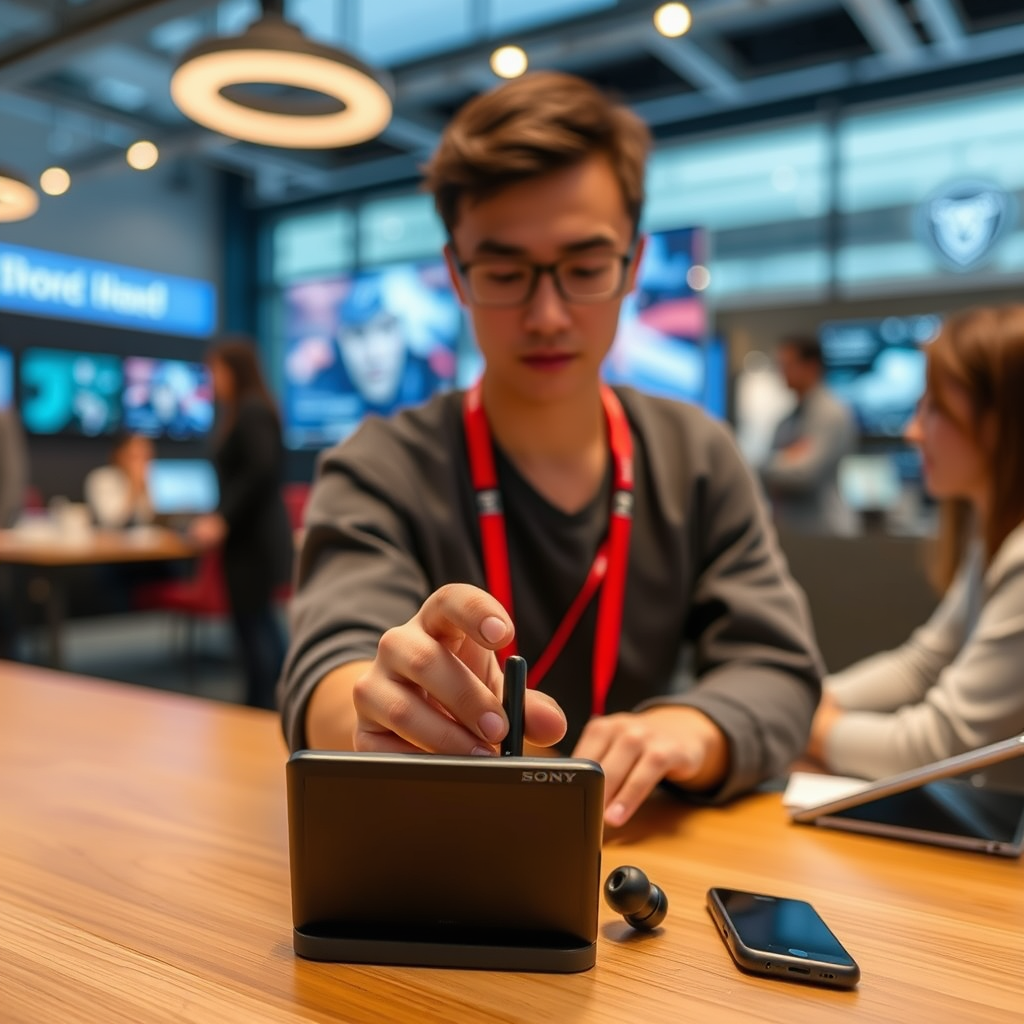
Before you begin the pairing process, it’s crucial to prepare your Sony WF-C500 earbuds properly. Start by ensuring that the earbuds are fully charged. A full charge not only guarantees optimal performance but also prevents interruptions during use. You can charge the earbuds by placing them in the charging case and connecting it to a power source using the USB-C cable provided.
Once charged, remove the earbuds from the charging case. This action will activate their pairing mode, a feature that allows them to be discoverable by your smartphone or tablet. You’ll notice a blinking white light on the earbuds indicating they are ready to pair. If the light remains steady, it means the earbuds are already connected to a device and will need to be reset to pair with a new device.
Enabling Bluetooth on Your Device
Next, you need to enable Bluetooth on your device, whether it’s a smartphone or tablet. Start by navigating to the settings menu. On most devices, you can find the settings icon on your home screen or within the app drawer. Once in the settings menu, look for the Bluetooth option, which is usually located under “Connections” or “Wireless & Networks.”
When you locate the Bluetooth settings, make sure it is turned on. This action will make your device discoverable to other Bluetooth-enabled devices in proximity. It’s essential to keep your device close to the earbuds during this process to ensure a smooth connection.
Pairing the Earbuds with Your Device
Once Bluetooth is enabled on your device, it’s time to pair your Sony WF-C500 earbuds. Open the Bluetooth settings; you should see a list of available devices. Look for “WF-C500” in the list; this is the name of your earbuds. Tap on it to initiate the pairing process.
A prompt may appear asking you to confirm the connection. Select “Pair” or “Connect” to establish a secure link between your device and the earbuds. After a successful connection, you will receive a confirmation tone from the earbuds, and the light indicator will change to a steady blue, signifying that they are now connected and ready for use.
Sony WF-C500 Features Overview (2023)
| # | Feature | Details | Battery Life | Water Resistance |
|---|---|---|---|---|
| 1 | Bluetooth Version | 5.0 | 20 hours | IPX4 |
| 2 | Quick Charge | Yes | 20 hours | IPX4 |
| 3 | Voice Assistant | Yes | 20 hours | IPX4 |
| 4 | Touch Controls | Yes | 20 hours | IPX4 |
| 5 | Weight | 5.4g (each) | 20 hours | IPX4 |
| 6 | Charging Case | Included | 20 hours | IPX4 |
| 7 | Audio Codec | AAC, SBC | 20 hours | IPX4 |
Troubleshooting Common Pairing Issues
Occasionally, you may encounter issues while attempting to pair your Sony WF-C500 earbuds. If they do not appear in the list of available devices, try resetting them. To reset the earbuds, simply hold the touch sensor on both earbuds for about 10 seconds until you see the indicator light blink in red and white. This action will reset the earbuds, allowing you to attempt the pairing process again.
Additionally, ensure that your device is within a reasonable range—typically within 30 feet of the earbuds— as distance can affect connectivity. It’s also advisable to check if other Bluetooth devices are active, as they might interfere with the pairing process. If problems persist, restarting your smartphone can sometimes resolve temporary software glitches that may hinder connectivity.
Managing Your Connection
Once your Sony WF-C500 earbuds are successfully paired, managing the connection becomes essential for a smooth user experience. If you wish to disconnect the earbuds temporarily, you can do so through the Bluetooth settings on your device. Simply tap on “WF-C500” and select “Disconnect.” This action will prevent the earbuds from being connected to your device without needing to forget the connection entirely.
If you decide you no longer want the earbuds to connect automatically, you can also choose to “Forget” the device in the Bluetooth settings. This action will remove the earbuds from your device’s memory and require you to pair them again in the future. Additionally, the WF-C500 earbuds feature an automatic reconnection capability. When powered on, they will automatically reconnect to the last paired device, making it convenient for users who frequently switch between devices.
Maintaining Your Earbuds for Optimal Performance
To ensure the longevity and optimal performance of your Sony WF-C500 earbuds, regular maintenance is key. Cleaning your earbuds is crucial to prevent audio issues. Use a soft, dry cloth to wipe the exterior, and if necessary, a cotton swab to gently clean the speaker mesh. Avoid using any harsh chemicals or water, as this can damage the delicate components.
Keeping the firmware updated is equally important. You can easily check for updates using the Sony Headphones Connect app, which provides access to new features and improvements. Regularly updating your earbuds can enhance performance, fix bugs, and improve compatibility with various devices.
In summary, proper care and maintenance not only prolong the life of your earbuds but also enhance your listening experience, ensuring you enjoy crystal-clear audio for years to come.
Your Sony WF-C500 earbuds can be easily paired with your devices for a hassle-free listening experience. By following the straightforward steps outlined above, you can enjoy high-quality sound and reliable connectivity. Don’t hesitate to refer back to this guide whenever you need assistance pairing your earbuds again. With proper care and usage, your earbuds will provide you with exceptional audio performance for an enjoyable experience.
Frequently Asked Questions
How do I pair my Sony WF-C500 earbuds with my smartphone?
To pair your Sony WF-C500 earbuds with your smartphone, first ensure that the earbuds are charged. Then, press and hold the power button on the earbuds until the indicator light flashes blue and red, indicating they are in pairing mode. On your smartphone, go to the Bluetooth settings, find “WF-C500” in the list of available devices, and select it to complete the pairing process.
Why won’t my Sony WF-C500 earbuds connect to my device?
If your Sony WF-C500 earbuds won’t connect to your device, ensure that they are in pairing mode by holding the power button until the indicator light flashes. Additionally, check if the earbuds are already connected to another device or if Bluetooth is turned on. If the issue persists, try resetting the earbuds by pressing and holding the power button and the volume up button simultaneously for about seven seconds.
What devices are compatible with Sony WF-C500 earbuds?
Sony WF-C500 earbuds are compatible with most devices that support Bluetooth, including smartphones, tablets, laptops, and smart TVs. They work seamlessly with both iOS and Android devices, making them a versatile choice for users looking for quality audio on the go.
How can I ensure the best Bluetooth connection with my Sony WF-C500 earbuds?
To ensure the best Bluetooth connection with your Sony WF-C500 earbuds, keep your device within 10 meters (33 feet) of the earbuds to avoid signal interference. Additionally, minimize obstacles such as walls or other electronic devices that can disrupt the connection. Regularly updating your device’s firmware can also enhance compatibility and performance.
Which features should I know about the Sony WF-C500 earbuds before pairing?
Before pairing your Sony WF-C500 earbuds, it’s important to note that they offer features such as touch controls for music playback and voice assistant access, as well as IPX4 water resistance for added durability. Understanding these features can enhance your user experience and help you make the most out of your earbuds after pairing them with your device.
References
- https://www.sony.com/electronics/support/support-articles/00194621
https://www.sony.com/electronics/support/support-articles/00194621 - https://www.sony.com/electronics/support/articles/00194621
https://www.sony.com/electronics/support/articles/00194621 - Google Scholar Google Scholar
https://scholar.google.com/scholar?q=how+to+pair+sony+earbuds+wf+c500 - Google Scholar Google Scholar
https://scholar.google.com/scholar?q=sony+earbuds+pairing+instructions - Google Scholar Google Scholar
https://scholar.google.com/scholar?q=bluetooth+earbuds+pairing+guide - https://www.lifewire.com/sony-wireless-earbuds-pairing-4164095
https://www.lifewire.com/sony-wireless-earbuds-pairing-4164095 - https://www.pcmag.com/how-to/how-to-pair-bluetooth-earbuds
https://www.pcmag.com/how-to/how-to-pair-bluetooth-earbuds - how to pair sony earbuds wf c500 – Search results
https://en.wikipedia.org/wiki/Special:Search?search=how+to+pair+sony+earbuds+wf+c500 - https://www.ncbi.nlm.nih.gov/search/research-articles/?term=how+to+pair+sony+earbuds+wf+c500
https://www.ncbi.nlm.nih.gov/search/research-articles/?term=how+to+pair+sony+earbuds+wf+c500
