


To pair your Jabra earbuds, first ensure they are charged and in pairing mode. Then, navigate to your device’s Bluetooth settings to connect. This guide will walk you through the steps to successfully pair your Jabra earbuds with various devices, ensuring you can enjoy your audio experience seamlessly.
Jabra earbuds are renowned for their superior sound quality and user-friendly features. However, many users might find the initial pairing process challenging. This guide aims to simplify the pairing process and provide you with troubleshooting tips to make your experience as smooth as possible. Whether you are connecting to a smartphone, computer, or another Bluetooth-enabled device, our step-by-step instructions will help you get started quickly.
Understanding Pairing Mode
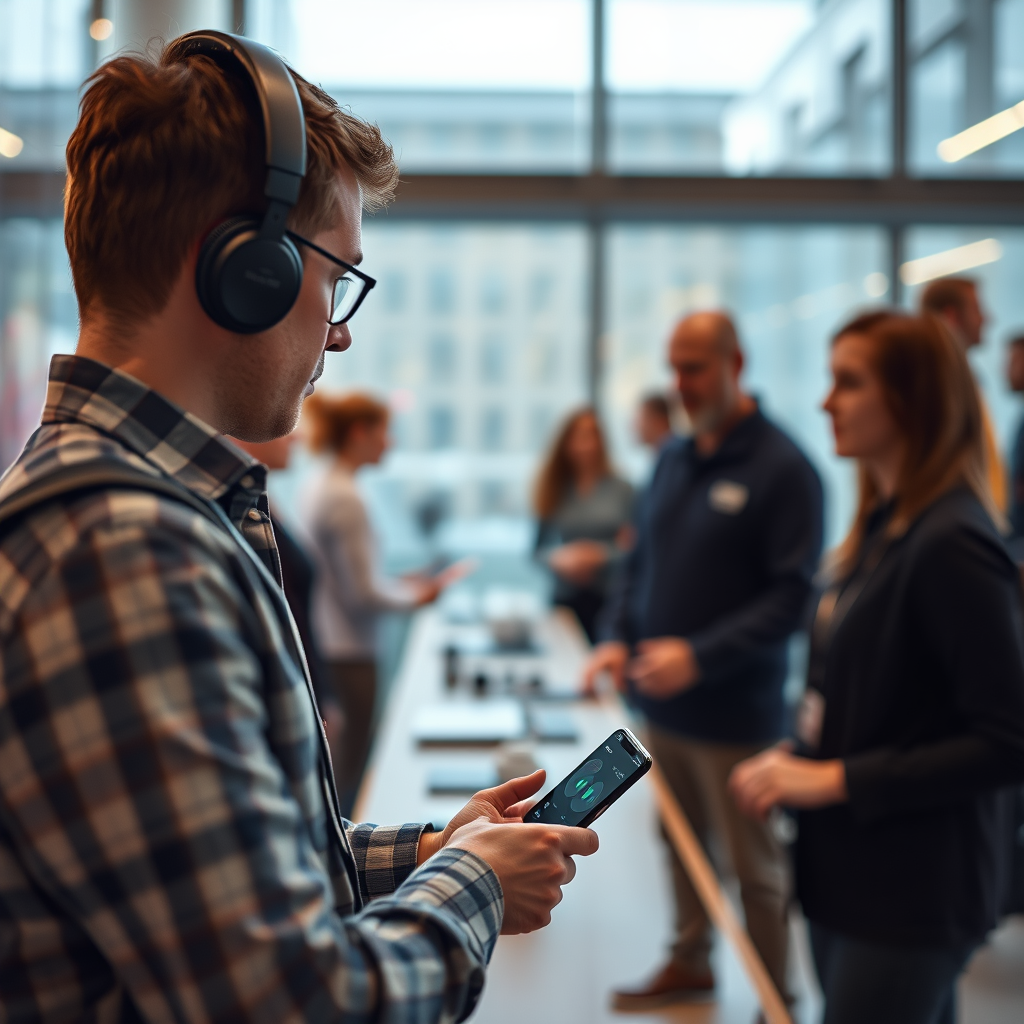
Pairing mode is essential for connecting Jabra earbuds to your devices. Each model has a specific method to enter this mode, typically indicated by a flashing LED light. For most Jabra models, the process involves holding down the power button until the LED light starts flashing blue, signaling that the earbuds are discoverable.
Before attempting to pair, ensure that your earbuds are turned off. If they are already powered on, you may need to turn them off completely and then initiate pairing mode. This step is crucial as it prevents any connectivity issues that may arise from the earbuds being in an active connection state.
Pairing with a Smartphone
Pairing your Jabra earbuds with a smartphone is a straightforward process. Begin by opening the Bluetooth settings on your smartphone. Here’s how you can do it:
1. Access Bluetooth Settings: Navigate to the settings menu on your smartphone. In most devices, this can be found by swiping down from the top of the screen and tapping on the Bluetooth icon or by searching for ‘Bluetooth’ in the settings app.
2. Turn on Bluetooth: Ensure that Bluetooth is enabled on your smartphone. If it is turned off, toggle it on.
3. Select Your Jabra Earbuds: Once Bluetooth is activated, your smartphone will start scanning for nearby devices. Look for your Jabra earbuds in the list of available devices. They may appear as “Jabra Elite 75t” or a similar model name depending on your specific earbuds.
4. Connect: Tap on the name of your Jabra earbuds to establish a connection. You may hear a confirmation sound in your earbuds, indicating a successful pairing.
5. Test the Connection: Play some music or a video to ensure that the audio is directed through your earbuds.
Pairing with a Computer
Connecting your Jabra earbuds to a computer can enhance your audio experience for work or leisure. The steps will vary slightly depending on whether you are using a Windows or Mac device.
For Windows:
1. Open Bluetooth Settings: Click on the Bluetooth icon found in the system tray at the bottom right of your screen. Alternatively, navigate to the ‘Settings’ app, select ‘Devices’, and then ‘Bluetooth & other devices’.
2. Enable Bluetooth: Make sure Bluetooth is turned on.
3. Pair Your Earbuds: Click on “Add Bluetooth or other device,” choose Bluetooth, and wait for your Jabra earbuds to appear on the list. Select them to initiate the connection.
For Mac:
1. Open Bluetooth Preferences: Click on the Apple menu at the top left, choose ‘System Preferences,’ and then select ‘Bluetooth’.
2. Ensure Bluetooth is Active: Toggle Bluetooth on if it is not already enabled.
3. Connect to Your Earbuds: Look for your Jabra earbuds in the list of devices. Click ‘Connect’ next to the name of your earbuds.
4. Verify the Connection: Once connected, you can test the audio output to ensure everything is functioning correctly.
Troubleshooting Connection Issues
Even with the best technology, connection issues can occur. Here are some common troubleshooting steps to resolve any problems you may encounter when pairing your Jabra earbuds.
– Restart Bluetooth: If your Jabra earbuds do not appear on the device list, try turning off Bluetooth on your device and turning it back on. This can refresh the connection and help your device find the earbuds.
– Check for Existing Connections: Ensure that your earbuds are not connected to another device, such as a different smartphone or computer. If they are, disconnect from the other device and retry the pairing process.
– Charge Your Earbuds: Sometimes, low battery levels can prevent successful pairing. Ensure that your Jabra earbuds are fully charged before attempting to connect.
– Clear Previous Connections: If you are trying to connect to a new device, it may help to clear previously paired connections. This can often be done through the settings menu on your earbuds.
Resetting Your Jabra Earbuds
If you continue to experience issues with pairing or connectivity, resetting your Jabra earbuds to their factory settings may be necessary. This process can resolve many persistent problems.
1. Find the Reset Instructions: The method for resetting will vary depending on your specific model. Typically, this involves pressing and holding the multifunction button for about 10 seconds until the LED light flashes red and blue.
2. Follow the Manufacturer’s Guidelines: Consult your user manual or the Jabra website for detailed instructions tailored to your model.
3. Re-enter Pairing Mode: After resetting, you will need to put the earbuds back into pairing mode to connect them to your device.
Additional Features and Functions
Jabra earbuds come equipped with a range of additional features that can enhance your listening experience. Here are some notable functionalities to explore:
– Voice Assistant Integration: Many Jabra models support integration with voice assistants like Siri, Google Assistant, or Alexa. Familiarize yourself with how to activate these features for hands-free control.
– Sound Customization: Utilize the Jabra Sound+ app to customize your sound profile. You can adjust settings like equalization to suit your personal listening preferences.
– Touch Controls: Most Jabra earbuds feature touch controls that allow you to manage calls, music playback, and access voice assistants with simple taps or swipes. Learning how to use these controls can significantly enhance your user experience.
Top 7 Jabra Earbuds Features (2024)
| # | Model | Battery Life | Water Resistance | Noise Cancellation |
|---|---|---|---|---|
| 1 | Jabra Elite 75t | 7.5 hours | IP55 | Yes |
| 2 | Jabra Elite Active 75t | 7.5 hours | IP57 | Yes |
| 3 | Jabra Elite 3 | 7 hours | IP55 | No |
| 4 | Jabra Talk 45 | 6 hours | None | No |
| 5 | Jabra Elite 85t | 5.5 hours | IPX4 | Yes |
| 6 | Jabra Evolve 65t | 5 hours | None | Yes |
| 7 | Jabra Elite 75t NC | 7.5 hours | IP55 | Yes |
Incorporating these features into your daily routine can significantly enhance your listening experience, making your Jabra earbuds a valuable investment.
Summarizing the steps to pair your Jabra earbuds ensures you can enjoy your audio experience seamlessly. If you encounter any issues, refer to the troubleshooting section or consider resetting your earbuds. For more tips and tricks, check out the manufacturer’s website or user manual. With a bit of understanding and practice, you will be able to fully leverage the capabilities of your Jabra earbuds, ensuring you get the most out of your audio experience.
Frequently Asked Questions
How do I pair my Jabra earbuds with my smartphone?
To pair your Jabra earbuds with your smartphone, first ensure that the earbuds are charged. Then, press and hold the power button on the earbuds until you see a flashing LED light, indicating they are in pairing mode. On your smartphone, go to the Bluetooth settings, find your Jabra earbuds in the list of available devices, and select them to complete the pairing process.
What should I do if my Jabra earbuds won’t connect?
If your Jabra earbuds won’t connect, first ensure they are charged and in pairing mode. Try turning off Bluetooth on your device and then turning it back on. If the problem persists, forget the earbuds in your device’s Bluetooth settings and reset the earbuds by holding down the power button for 10 seconds, then attempt to pair again.
Why are my Jabra earbuds not pairing with my laptop?
Your Jabra earbuds may not be pairing with your laptop due to compatibility issues or outdated drivers. Check if your laptop’s Bluetooth is enabled and ensure it supports the Bluetooth version required by your Jabra earbuds. If necessary, update your Bluetooth drivers and try pairing them again by putting the earbuds in pairing mode.
Which Jabra earbuds are the easiest to pair?
The Jabra Elite series, such as the Elite 75t and Elite 85t, are known for their user-friendly pairing process. They feature advanced Bluetooth technology that allows for quick and seamless connections with devices. Additionally, the Jabra Sound+ app can enhance the pairing experience by providing step-by-step guidance and customization options.
How do I reset my Jabra earbuds to fix pairing issues?
To reset your Jabra earbuds, first ensure they are powered on. Then, press and hold both the volume up and volume down buttons for 10 seconds until you see the LED light flash purple. This process will reset the earbuds, allowing you to pair them fresh with your device, eliminating any previous connection issues.
References
- https://support.jabra.com/guide/jabra-elite-75t/gb/en/faq/faq/faq-00100.html
https://support.jabra.com/guide/jabra-elite-75t/gb/en/faq/faq/faq-00100.html - https://www.lifewire.com/how-to-pair-jabra-earbuds-4783033
https://www.lifewire.com/how-to-pair-jabra-earbuds-4783033 - Google Scholar Google Scholar
https://scholar.google.com/scholar?q=how+to+pair+jabra+earbuds - Google Scholar Google Scholar
https://scholar.google.com/scholar?q=jabra+earbuds+pairing+instructions - Google Scholar Google Scholar
https://scholar.google.com/scholar?q=jabra+earbuds+setup+guide - Google Scholar Google Scholar
https://scholar.google.com/scholar?q=how+do+i+pair+jabra+earbuds - how do i pair jabra earbuds – Search results
https://en.wikipedia.org/wiki/Special:Search?search=how+do+i+pair+jabra+earbuds - https://www.ncbi.nlm.nih.gov/search/research-articles/?term=how+do+i+pair+jabra+earbuds
https://www.ncbi.nlm.nih.gov/search/research-articles/?term=how+do+i+pair+jabra+earbuds

[…] to know how to turn JLab earbuds on without the case? The fastest answer is to use the built-in touch controls—depending on your model, press and hold the earbud’s button or tap twice to power up. If that […]
[…] Forget the device in Bluetooth settings, then re-pair from […]
[…] Do this before you touch any Bluetooth settings: […]
[…] for the model name on the packaging, in the charging case labeling, or in your Bluetooth settings under “JLab …”. Once you know whether you’re using a true wireless model (case-based sleep) […]
[…] your JLab earbuds into pairing mode, place them in the charging case (or press and hold the pairing/touch controls) until the LED starts blinking—then connect from your phone’s Bluetooth list. From my hands-on […]
[…] mode starts with identifying whether your Skullcandy earbuds use a physical pairing button or touch controls. Once you know the control type, you can use the correct hold duration and avoid a common failure […]