
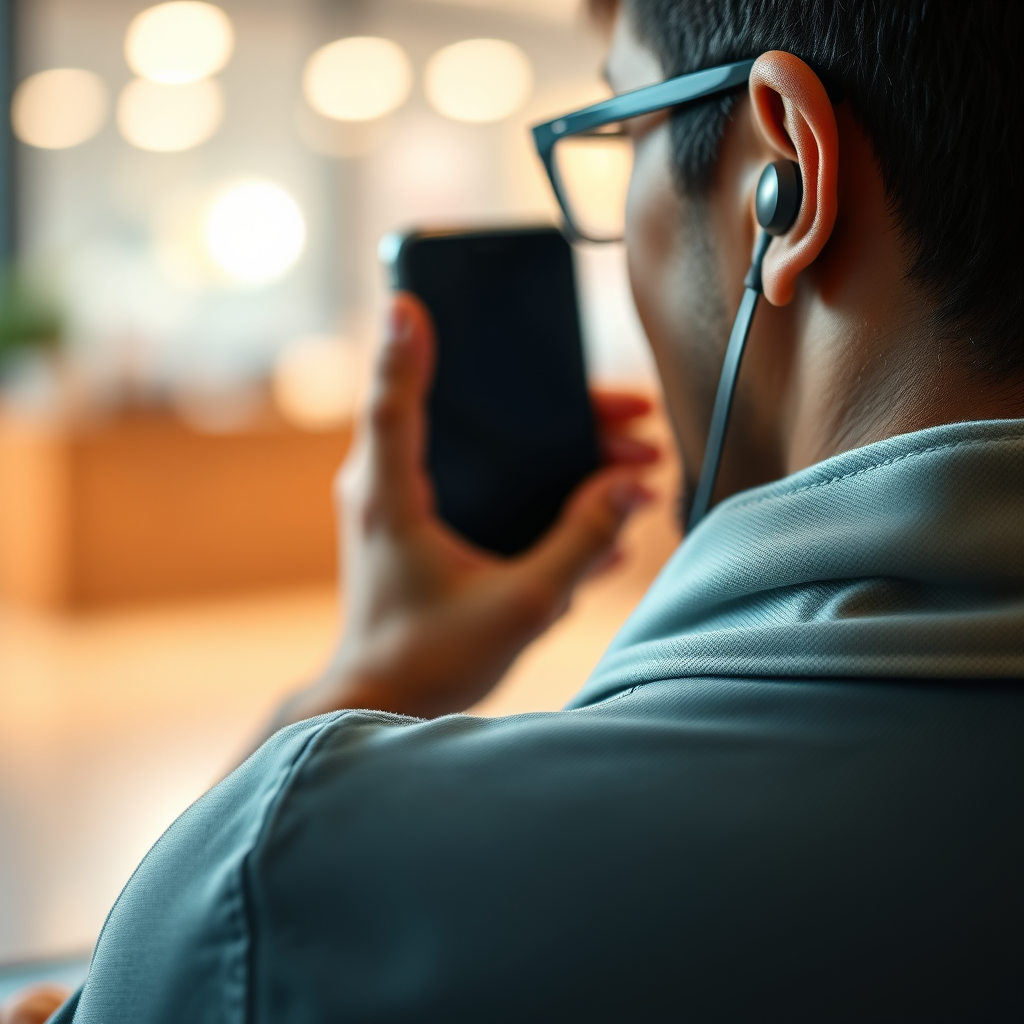

Connecting your Soundcore earbuds to your phone is a straightforward process that can be completed in just a few steps. By following the pairing instructions outlined in this guide, you’ll be able to enjoy your favorite music and podcasts wirelessly in no time. The following sections will walk you through the connection process, ensuring you get the most out of your earbuds.
Understanding Bluetooth Pairing
Once Bluetooth is activated, your phone will be ready to search for compatible devices, which is crucial for establishing a connection with your Soundcore earbuds.
Preparing Your Soundcore Earbuds
To initiate the connection process, you must first ensure that your Soundcore earbuds are adequately prepared. Here are the necessary steps:
1. Charge Your Earbuds: Ensure that your earbuds are fully charged. A fully charged unit will not only provide optimal performance but also help avoid connectivity issues.
2. Power On: Turn on your earbuds. Most Soundcore models have a dedicated power button that you can press to activate them.
3. Activate Pairing Mode: To connect your earbuds to your phone, you need to activate pairing mode. This is typically done by pressing and holding the designated button on the earbuds until you see a flashing light, often in blue or white. This indicator means that your earbuds are discoverable by your phone.
Following these steps will prepare your Soundcore earbuds for a successful connection.
Connecting to Your Phone
Now that your earbuds are in pairing mode, you can connect them to your phone:
1. Open Bluetooth Settings: Access the Bluetooth settings on your smartphone. This can usually be found under the “Settings” menu, and the Bluetooth option will often be listed prominently.
2. Search for Devices: Once in the Bluetooth menu, tap on the option to search for available devices. Your phone will scan for nearby Bluetooth devices, including your Soundcore earbuds.
3. Select Your Earbuds: In the list of available devices, locate your Soundcore earbuds. They will typically appear as “Soundcore” followed by the model number. Tap on the name to initiate pairing.
4. Confirm the Connection: After selecting your earbuds, your phone may prompt you to confirm the connection. Accept any permissions, and once paired, you will receive a notification indicating the successful connection.
Now you can enjoy your audio experience without the hassle of wires.
Top 7 Soundcore Earbud Models (2024)
| # | Model | Battery Life | Noise Cancellation | Water Resistance |
|---|---|---|---|---|
| 1 | Soundcore Liberty 3 Pro | 8 hours | Yes | IPX4 |
| 2 | Soundcore Life P3 | 7 hours | Yes | IPX5 |
| 3 | Soundcore R100 | 6 hours | No | None |
| 4 | Soundcore Spirit X2 | 9 hours | Yes | IP68 |
| 5 | Soundcore Life Q30 | 8 hours | Yes | IPX4 |
| 6 | Soundcore Liberty Air 2 | 7 hours | Yes | IPX5 |
| 7 | Soundcore Life Q20 | 6 hours | No | None |
Troubleshooting Connection Issues
If you encounter issues while trying to connect your Soundcore earbuds to your phone, there are several troubleshooting steps you can follow:
1. Check Pairing Mode: Ensure that your earbuds are indeed in pairing mode. If they are not, you might not be able to see them in the available devices list.
2. Multiple Devices: If your earbuds are connected to another device, they may not appear on your phone. Disconnect them from the other device and reattempt the connection process.
3. Restart Devices: Restarting both your phone and your earbuds can often resolve connection problems. This action refreshes the Bluetooth settings and clears any temporary glitches.
4. Update Firmware: Sometimes, outdated firmware can cause connectivity issues. Check if there is an update available for your earbuds through the Soundcore app and install it.
By following these steps, you should be able to overcome most common connection problems.
Managing Bluetooth Settings
Once your Soundcore earbuds are successfully connected to your phone, you can manage various audio settings and controls directly from your smartphone. This includes adjusting volume levels, switching between different sound modes, and even accessing features like noise cancellation if supported by your model.
If your earbuds are compatible with the Soundcore app, you should consider downloading it. The app offers a range of additional features, such as customizing sound profiles, checking battery levels, and updating firmware. Familiarizing yourself with these features will ensure you get the most out of your earbuds and enhance your overall listening experience.
Disconnecting and Reconnecting
To disconnect your Soundcore earbuds from your phone, you can either turn off the Bluetooth function on your phone or the earbuds themselves. This action will sever the connection, and your earbuds will no longer be paired with your phone.
If you wish to reconnect them later, simply follow the initial connection steps again. Most phones will remember previously connected devices, allowing for a quick reconnection process. This convenience allows you to switch seamlessly between devices without the hassle of going through the pairing process repeatedly.
Maintenance Tips for Your Earbuds
Maintaining your Soundcore earbuds is essential for ensuring optimal performance and longevity. Here are some maintenance tips to keep in mind:
1. Regular Cleaning: Over time, earwax and dirt can accumulate on your earbuds, affecting sound quality. Use a soft, dry cloth to regularly clean the exterior and a small brush for the speaker mesh.
2. Keep Updated: Ensure your earbuds are updated with the latest firmware via the Soundcore app. Firmware updates often include performance improvements and new features, enhancing your listening experience.
3. Store Properly: When not in use, store your earbuds in their case to protect them from dust and damage. Avoid exposing them to extreme temperatures or moisture, which can affect their performance.
By following these maintenance tips, you can prolong the life of your Soundcore earbuds and ensure they deliver high-quality audio for years to come.
Summarizing the process of connecting your Soundcore earbuds to your phone, it involves enabling Bluetooth, preparing your earbuds, and selecting them in your phone’s settings. If you encounter issues, troubleshooting steps can help. Following these guidelines will allow you to enjoy your music seamlessly, and don’t hesitate to explore additional features through the Soundcore app. By taking care of your earbuds, you can enhance your audio experience and ensure they remain in excellent condition for your listening pleasure.
Frequently Asked Questions
How do I put my Soundcore earbuds into pairing mode?
To put your Soundcore earbuds into pairing mode, first, ensure they are charged. Then, press and hold the power button on the earbuds for about 3-5 seconds until you see a blinking LED light, indicating they are in pairing mode. This allows your earbuds to be discoverable by your phone.
What should I do if my Soundcore earbuds won’t connect to my phone?
If your Soundcore earbuds won’t connect to your phone, start by turning off Bluetooth on your phone and then turning it back on. Additionally, make sure the earbuds are charged and in pairing mode. If the issue persists, try resetting the earbuds by holding the power button for 10 seconds.
Why won’t my phone recognize my Soundcore earbuds?
Your phone may not recognize your Soundcore earbuds due to several reasons, such as Bluetooth being disabled, the earbuds not being charged, or the earbuds being connected to another device. Ensure Bluetooth is enabled on your phone, the earbuds are charged, and they are not currently connected to another device before attempting to reconnect.
Which devices are compatible with Soundcore earbuds?
Soundcore earbuds are compatible with most Bluetooth-enabled devices, including smartphones, tablets, and laptops. For optimal performance, ensure that the device is running the latest software version and supports the Bluetooth version used by your Soundcore earbuds.
What is the best way to connect Soundcore earbuds to an iPhone?
To connect Soundcore earbuds to an iPhone, first, enable Bluetooth on your iPhone by going to Settings > Bluetooth. Then, put your earbuds in pairing mode and look for them in the “Other Devices” section on your iPhone. Tap on the name of your earbuds to complete the connection, and they should appear under “My Devices” once successfully connected.
References
- https://www.pcmag.com/how-to/how-to-connect-bluetooth-earbuds-to-your-phone
https://www.pcmag.com/how-to/how-to-connect-bluetooth-earbuds-to-your-phone - https://www.lifewire.com/how-to-connect-bluetooth-headphones-to-android-4178446
https://www.lifewire.com/how-to-connect-bluetooth-headphones-to-android-4178446 - https://www.lifewire.com/how-to-connect-bluetooth-earbuds-to-iphone-4178449
https://www.lifewire.com/how-to-connect-bluetooth-earbuds-to-iphone-4178449 - Google Scholar Google Scholar
https://scholar.google.com/scholar?q=connect+soundcore+earbuds+to+phone - Google Scholar Google Scholar
https://scholar.google.com/scholar?q=Bluetooth+earbuds+pairing+guide - Google Scholar Google Scholar
https://scholar.google.com/scholar?q=wireless+earbuds+setup+instructions - https://scholar.google.com/scholar?q=how+to+connect+soundcore+earbuds+to+phone Google Scholar
https://scholar.google.com/scholar?q=how+to+connect+soundcore+earbuds+to+phone - how to connect soundcore earbuds to phone – Search results
https://en.wikipedia.org/wiki/Special:Search?search=how+to+connect+soundcore+earbuds+to+phone - https://www.ncbi.nlm.nih.gov/search/research-articles/?term=how+to+connect+soundcore+earbuds+to+phone
https://www.ncbi.nlm.nih.gov/search/research-articles/?term=how+to+connect+soundcore+earbuds+to+phone
