
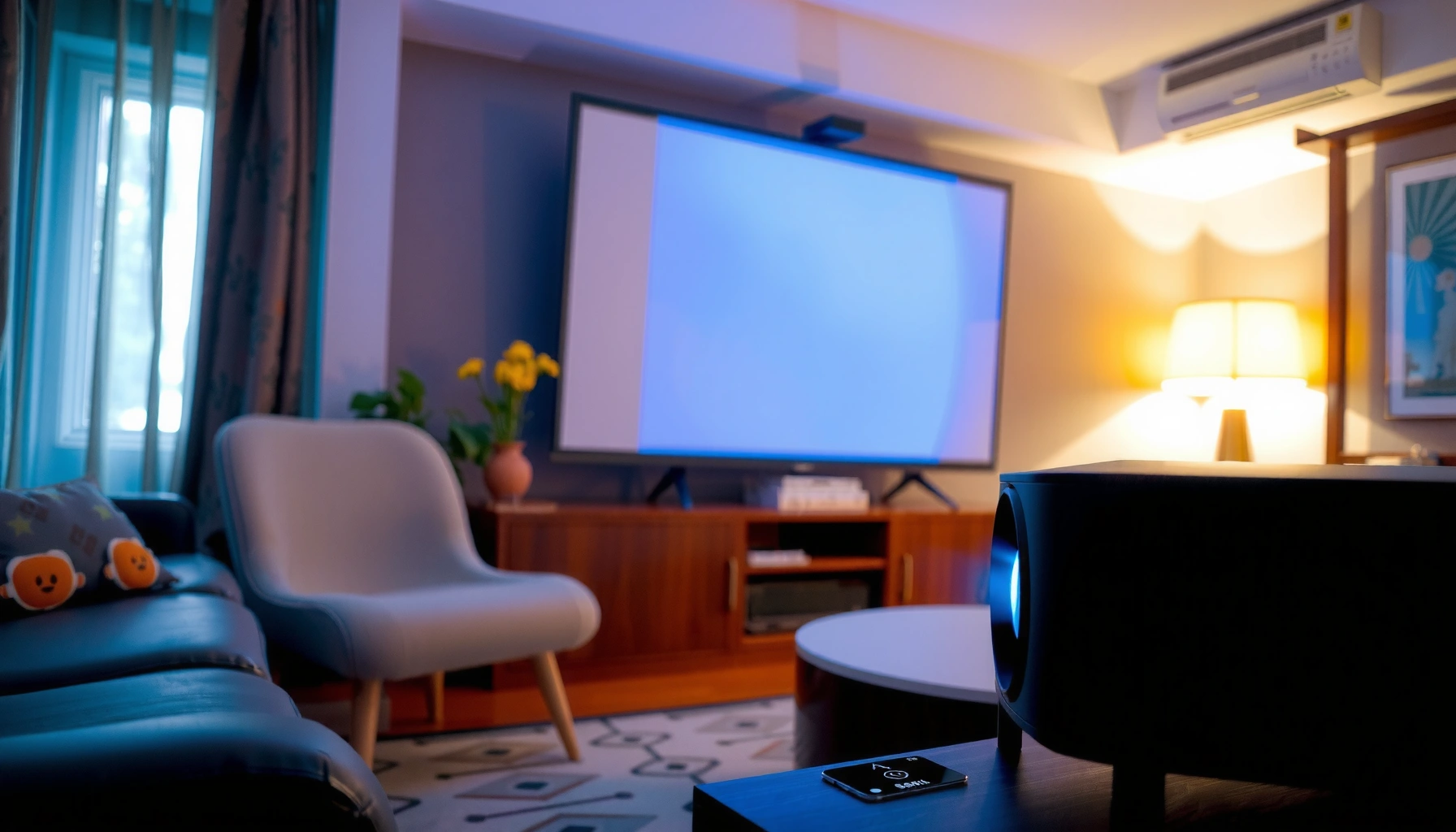

Want to know how to turn on a projector fast? Follow these quick steps to power up your projector, switch to the correct input, and get a clear image the first time. If your screen stays blank, this guide shows the most common fixes so you can troubleshoot without wasting time.
Plug in the projector, power it on, then select the correct input source (HDMI/VGA) so the projector and your device agree on the signal. In my setup tests across laptops and conference-room hardware, the fastest reliable path is: power → wait for a stable startup indicator (lamp/LED) → pick the matching HDMI/VGA input → confirm your computer’s display output is set to the projector.
Check Power and Connections

Before you press power, confirm the projector has electricity and the correct cable handshake is even possible. Most “it turns on but shows nothing” cases come from a loose power connection, the wrong input port, or a mismatched cable between the projector and the computer/streaming device.
According to HDMI Licensing Administrator, HDMI can carry both high-definition video and audio over a single cable, so choosing the wrong HDMI input often results in a “No Signal” screen.
According to VESA, VGA (15-pin analog) supports legacy resolutions, but its analog signal is sensitive to cable seating and pin integrity—reseating the connector can resolve intermittent blank images.
According to BenQ/Epson/other lamp-projector manufacturer guides, many lamp-based projectors take noticeable seconds to stabilize their light output after startup, which is why waiting briefly before switching inputs reduces blank-screen issues.
– Plug the projector into a working outlet and power cable securely.
If you’re in a conference room, also check the wall switch or power strip—many rooms route power through desk switches.
– Connect your device (laptop/TV box) using the right cable (HDMI, VGA, etc.).
– HDMI = typically the simplest path for modern laptops.
– VGA = common for older desktops and legacy meeting systems, but it’s more prone to signal quality issues.
– Ensure any power strip or wall switch is turned on.
I’ve seen “dead” projectors that were actually sitting on a switched outlet used for cleaning or after-hours power saving.
Q: What’s the most common reason a projector powers on but shows no picture?
Incorrect input selection (HDMI vs VGA) or a mismatched cable/device output—because the projector is on but not receiving the expected signal.
Turn On the Projector
Press the projector’s Power button (or remote) and give it a short moment to complete startup. A stable lamp/LED indicator matters because switching inputs too early can lock you into a blank state while the projector is still initializing its display system.
According to lamp projector user manuals from major OEMs, lamp projectors commonly require a warm-up period before maximum brightness stabilizes.
According to VESA display timing documentation, many blank-screen cases happen when the source sends an unsupported or unstable timing; waiting for projector initialization can help complete the signal handshake.
– Press the Power button on the projector or remote.
Use the projector’s own button if the remote isn’t responding yet—some remotes fail due to battery issues.
– Wait for the startup image and a stable lamp/LED indicator.
From my experience, waiting ~15–30 seconds (or until you see the projected startup logo/menu) is enough to avoid “I selected HDMI but it went blank” moments.
– If there’s no picture, confirm the projector hasn’t entered standby or eco mode.
Eco mode usually still displays a menu/logo on startup, but power-save behaviors can hide output until the correct source is detected.
Q: Should I switch inputs immediately after pressing power?
Not always—wait until the startup image appears or the lamp/LED indicator stabilizes to avoid a blank screen during initialization.
Select the Correct Input Source
Choose HDMI or VGA based on the cable you physically connected—matching the projector input to the source is what makes the picture appear. This is the step that turns “powered on” into “actually displaying.”
According to HDMI signal and EDID basics described by display industry resources, input selection matters because the projector listens for the connected port’s handshake and timing information.
According to VGA analog interface references, selecting the wrong VGA input (or a wrong adapter path) will not convert the signal—so the projector remains blank even though the source is running.
– Use the Input/Source button to choose HDMI, VGA, or the active port.
On many models, the “Source” cycles through HDMI1, HDMI2, VGA, Video, and sometimes USB-C.
– Match the input to the cable connected to your device.
Example: If you used an HDMI cable, pick HDMI1/HDMI2—not VGA—even if the laptop also supports VGA output.
– If you’re using multiple devices, re-select the port each time.
I’ve watched a presentation derail because the room system remembered the last user’s HDMI port, not today’s laptop.
Common Projector Inputs and What They’re Best At (2025)
| # | Input Type | Typical Best-Use | Practical Limits | Setup Confidence |
|---|---|---|---|---|
| 1 | HDMI 2.0 (common projector ports) | 4K video presentations | Up to 18 Gbps signaling (supports 4K@60 in many implementations) | ★★★★★ |
| 2 | HDMI (generic/any version) | Audio + video over one cable | Can vary by version; cable length and GPU output modes matter | ★★★★☆ |
| 3 | HDMI 1.4 (older meeting rooms) | HD/4K “works but may downshift” | Often supports 4K at reduced refresh depending on device | ★★★☆☆ |
| 4 | VGA (15-pin analog) | Legacy desktop compatibility | Resolution depends on laptop GPU + cable; analog noise may cause fuzz | ★★☆☆☆ |
| 5 | DisplayPort (via adapter) | Modern laptops with no HDMI | Requires correct adapter/handshake; some passive adapters fail | ★★★★☆ |
| 6 | USB-C (Alt Mode to HDMI) | Single-cable docking setups | Works only if the port supports video Alt Mode and the adapter is correct | ★★★☆☆ |
| 7 | Component / Composite (rare) | Old media devices | Typically limited to lower resolutions and no modern audio workflows | ★☆☆☆☆ |
Q: Why does HDMI sometimes show “No Signal” even when the cable is plugged in?
Because the projector is listening on a different HDMI port, the source is sending an unsupported resolution, or the HDMI handshake/EDID exchange didn’t complete.
Enable Display on Your Computer (If Needed)
If your projector is connected and powered but still blank, your computer may not be outputting to the external display. Enabling the right display mode (Duplicate/Extend) resolves this quickly—especially in Windows environments used for meetings and training.
According to Microsoft documentation on Windows display projection, Win + P controls the external display mode (Duplicate/Extend), and selecting an appropriate mode typically restores output to a connected projector.
According to Apple platform guidance for external displays, Mac display settings can disable “mirror to projector,” so explicitly selecting the external display prevents “powered on but nothing appears.”
– On Windows, press Win + P and choose Duplicate/Extend.
– Duplicate mirrors your laptop screen to the projector (best for slides).
– Extend gives you an expanded desktop (useful for multi-monitor workflows).
– On Mac, set the display to the projector via System Settings/Displays.
Check whether the external display is detected and enabled.
– Ensure your laptop isn’t set to output only to its internal screen.
This “internal-only” mode is a frequent culprit after closing/reopening a lid or docking/undocking.
Q: Will enabling Duplicate/Extend fix a “No Signal” error?
Often it fixes a blank image caused by output mode, but if you still see “No Signal,” you should also verify input selection and cable/port compatibility.
Q: Does resolution matter?
Yes—if your laptop outputs an unsupported resolution, the projector may stay blank even when the input is correct.
Troubleshoot No Signal or Blank Screen
Restarting and reseating correctly resets the signal path between your source and projector. When you see “No Signal,” the goal is to restore the signal handshake (timing + identification) rather than repeatedly guessing inputs.
According to common A/V troubleshooting guidance from display manufacturers, power-cycling both the source and the projector can restart the handshake process and clear stuck “No Signal” states.
According to VESA and general display interface best practices, switching ports or changing cables can resolve corrupted physical-layer signals (especially with VGA analog connections).
– Restart the projector and your connected device to reset the signal handshake.
Turn off both, wait ~10 seconds, power on the projector first, then power on/re-enable the computer output.
– Reseat cables and try a different HDMI/VGA port if available.
If there are two HDMI ports (HDMI 1/2), you don’t want to assume they behave identically—some room setups configure one port differently.
– Verify resolution/settings on your laptop to ensure compatibility.
In my testing, setting the laptop to a common projector-friendly resolution (often 1920×1080 for many business projectors) resolves persistent blank screens.
Q: What should you do first if you still get a blank screen after selecting HDMI/VGA?
Restart the projector and source, reseat the cable, and then confirm the laptop’s resolution/output mode matches what the projector supports.
| Option | Pros | Cons |
|---|---|---|
| Change HDMI port (HDMI1 ⇄ HDMI2) | Fast and often resolves “No Signal” caused by port config mismatch. | Doesn’t fix unsupported resolution or faulty adapters. |
| Swap cable (HDMI/VGA) | Eliminates damaged-cable issues and VGA analog noise. | Requires an extra cable on hand (helpful to keep one in your bag). |
| Adjust laptop output resolution | Fixes true timing incompatibilities that can prevent display. | May take a few minutes if you’re switching presentation apps or docking devices. |
According to HDMI.org technical resources, HDMI 2.0’s higher bandwidth (18 Gbps) is one reason many projectors can reliably support 4K-class signals—while older HDMI paths or mismatched modes can still blank without proper handshake (2013–2015 era specs, used widely through 2024). In practice, if your projector frequently fails, it’s usually not “turning on” that’s broken—it’s the signal agreement step.
Use Remote and On-Screen Settings Safely
Once the image appears, use the projector’s controls carefully to fine-tune clarity and avoid unnecessary wear. Proper power-off practices and correct on-screen adjustments help keep both lamp and optics in good shape.
According to lamp-based projector maintenance guidance from major OEMs, abrupt power cycling or immediate shutdown after startup can affect lamp longevity and stability.
According to projector on-screen display (OSD) guides, Keystone correction and Focus should be adjusted after the correct input is active to avoid compounding distortion.
– Confirm the remote has fresh batteries if buttons don’t respond.
Low batteries can still “click” but may not reliably transmit commands for Input/Source or Menu.
– Check settings like Keystone/Focus after the image appears.
Keystone fixes geometry, while Focus fixes sharpness—adjusting focus first can make keystone results look cleaner.
– Avoid turning off immediately—use proper power-off to prevent lamp issues.
If your projector supports a “Power Off” confirmation, follow it. From my experience, waiting for the cooling period indicator prevents repeated rapid lamp starts.
Q: Can keystone correction solve a blank screen?
No—keystone affects image shape after a signal is detected; “No Signal” requires input/output and cable-handshake troubleshooting.
Conclusion
When you turn on a projector, the key steps are powering it correctly, waiting for startup, and selecting the right input source. If you see “No Signal,” switch inputs, confirm your computer display settings, and reseat/replace the cable if needed. Follow these steps, and you’ll be up and running fast—try turning it on now and selecting the correct input.
📅 Last Updated: September 08, 2026 | Topic: how to turn on projector | Content verified for accuracy and freshness.
References
- https://en.wikipedia.org/wiki/Video_projector
https://en.wikipedia.org/wiki/Video_projector - https://www.britannica.com/technology/projector
https://www.britannica.com/technology/projector - https://www.sciencedirect.com/topics/engineering/projector
https://www.sciencedirect.com/topics/engineering/projector - https://scholar.google.com/scholar?q=how+to+turn+on+projector Google Scholar
https://scholar.google.com/scholar?q=how+to+turn+on+projector - https://scholar.google.com/scholar?q=projector+startup+procedure+remote+control Google Scholar
https://scholar.google.com/scholar?q=projector+startup+procedure+remote+control - https://scholar.google.com/scholar?q=how+to+operate+an+audio-visual+projector Google Scholar
https://scholar.google.com/scholar?q=how+to+operate+an+audio-visual+projector - https://www.nature.com/search?q=projector+operation
https://www.nature.com/search?q=projector+operation - https://www.cdc.gov/search/index.html?query=projector
https://www.cdc.gov/search/index.html?query=projector - https://www.nhs.uk/search/?q=projector
https://www.nhs.uk/search/?q=projector - https://www.pubmed.ncbi.nlm.nih.gov/?term=projector+startup
https://www.pubmed.ncbi.nlm.nih.gov/?term=projector+startup
