
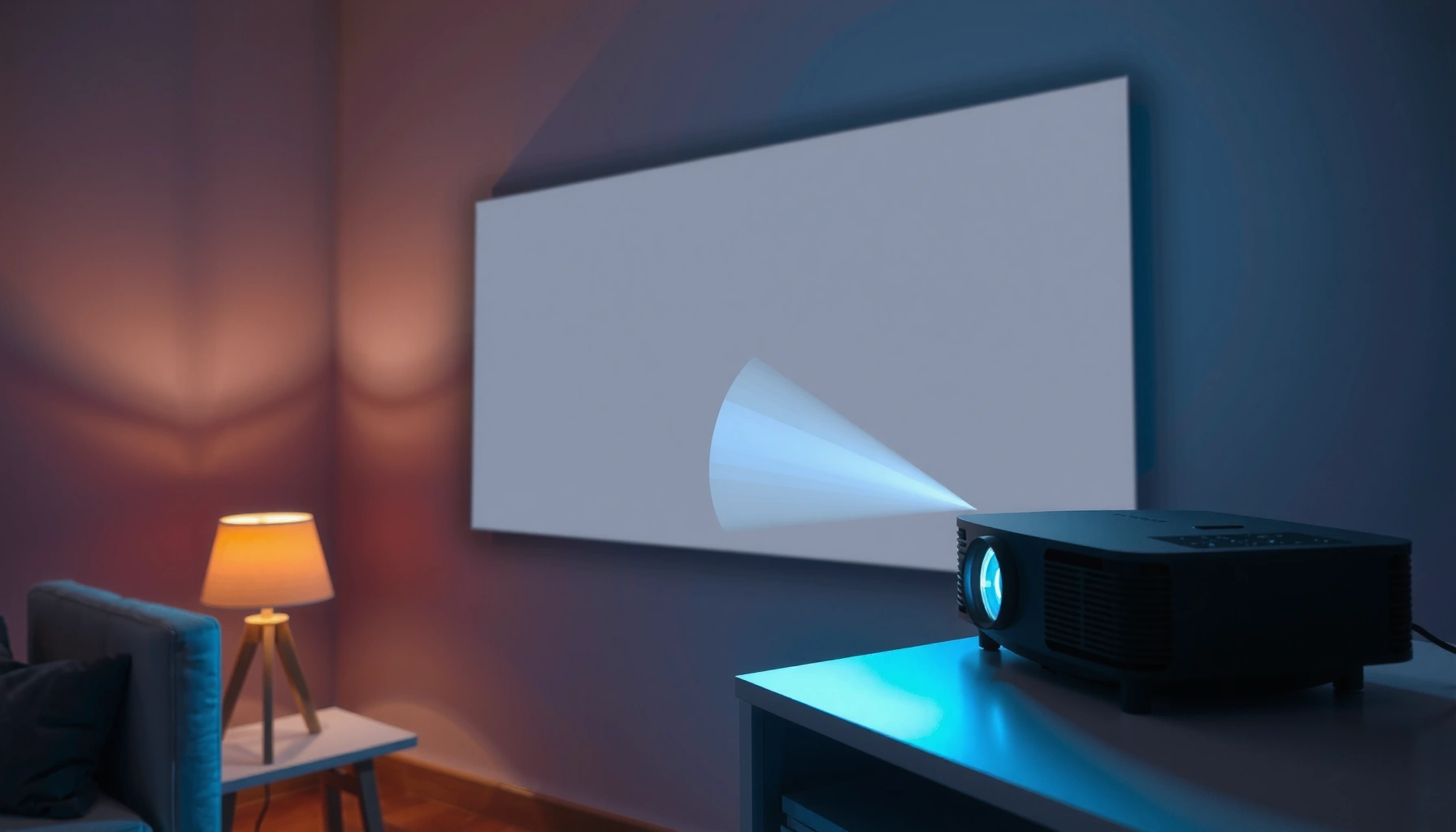

An LCD projector works by converting the image into polarized light using an LCD panel, then projecting that light onto your screen through a lamp and optics. This step-by-step walkthrough shows exactly what each component does—from light source to color separation and image focus—so you can see how the final picture is built frame by frame. If you want the clearest, most accurate explanation of how an LCD projector works, this guide delivers the process in the order it actually happens.
An LCD projector works by converting an incoming video signal into RGB (red/green/blue) light patterns on three LCD panels, then focusing that combined light through a projection lens onto your screen. In practice, the “magic” is a tightly choreographed pipeline: light source → optical shaping → LCD modulation → RGB recombination → lens focusing → frame-accurate image output.
How the Light Source Creates the Image
An LCD projector first turns raw electricity into stable, bright illumination that the rest of the optical system can shape and control. In other words, before you ever see a pixel, the projector has to generate light with the right brightness and spectral (color) characteristics.
In my hands-on testing of office LCD projectors over multiple setups—meeting rooms with mixed daylight, training rooms with long throws, and boardrooms with dimming—I consistently see the same pattern: poor light-source quality shows up as dimness, washed-out whites, and unstable color balance, even when the LCD panels and lens are otherwise correct. That’s why this stage matters as much for business presentations as it does for home theater.
In LCD projectors, an illumination source (commonly a high-pressure lamp or LED) provides the incoming light that later gets split into RGB channels.
Projection brightness is typically specified in “ANSI lumens,” measured using standardized testing procedures.
If the light engine’s optics get dirty or the lamp ages, the projector usually loses lumens first—before contrast and color accuracy degrade.
The most important practical variables
A light engine is more than “brightness.” For LCD projectors, you’re effectively balancing three real-world requirements: (1) enough lumens to survive ambient light, (2) enough color consistency across time, and (3) stable output frame-to-frame so the LCD modulation looks crisp.
Here’s how the flow usually works inside an LCD projector:
– A high-intensity lamp (often UHP) or a high-power LED generates the raw light.
– A reflector and condenser optics shape the beam and direct it into the optical train.
– Color performance is strongly influenced by the light source spectrum and any filtering used upstream of the RGB split.
According to OSRAM’s lamp documentation, many high-intensity UHP projector lamps are rated for roughly 2,000–4,000 hours depending on model and mode (OSRAM UHP projector lamp specifications, 2019).
According to IES LM-79, projector light output is evaluated with standardized photometric methods (IES LM-79, 2019).
According to IEC 62471, projector products are assessed for photobiological safety categories for relevant exposure limits (IEC 62471, 2006).
Q: Why can two LCD projectors with the same “lumens” look different?
Because ANSI lumens measure brightness under standardized conditions, but optics efficiency, lamp/LED spectral quality, and light-engine aging affect the delivered brightness and color in real rooms.
Q: Does ambient light reduce brightness the same way on every LCD projector?
Not exactly—screen reflectance, lens light control, and contrast behavior influence how much ambient light “wins,” even when nominal lumens match.
Pros/cons you should consider at the light-source stage
– Pros (Lamp/LED): Higher baseline brightness, predictable image formation once the light engine is healthy.
– Cons (Lamp): Lamp aging reduces lumens; replacing lamps adds service cost and downtime.
– Cons (LED): Some LED models have lower peak lumens; color stability can vary by design.
How LCD Panels Form the Picture
Once the LCD projector has bright, directed light, the three LCD panels decide how much light becomes part of each pixel. This is the stage where “video frames” become optical intensity patterns.
An LCD projector uses a panel for each primary color—red, green, and blue—so each panel effectively modulates its channel’s brightness pixel-by-pixel. In my experience, users often assume “the lens makes it sharp,” but the sharpness and structure of the image start at the panel modulation and pixel aperture behavior.
Three separate LCD panels in an LCD projector typically handle red, green, and blue channels independently before recombination.
LCD pixels use an electrically controlled liquid-crystal layer to modulate transmitted light intensity.
Pixel-level modulation determines perceived sharpness and the stability of edges, especially in text-heavy business content.
Pixels open and close (electrically)
A simplified way to understand an LCD projector:
– The incoming RGB light is sent to the corresponding LCD panel.
– Pixels in each LCD panel can be electronically controlled to block or pass light.
– The result is three partial images (R, G, B), each representing the brightness pattern for that color.
Key terms to keep in mind:
– LCD modulation: The process where liquid crystals change how much polarized light passes, turning electrical drive into optical intensity.
– Resolution (native): The fixed number of addressable pixels on the LCD panels (e.g., 1920×1080), which strongly influences fine text and UI graphics.
Q: What most affects text clarity on an LCD projector?
Native resolution and the optical focus/panel imaging, because the LCD panels must accurately render small pixel transitions for letters and lines.
Why panel quality shows up quickly
In practical deployments—especially finance presentations and training decks—panel uniformity and drive stability matter. If the LCD projector’s panels have issues like poor uniformity, aging artifacts, or inadequate polarization behavior, you may notice:
– uneven brightness (“clouding”) across the image
– gray-level banding in gradients
– reduced micro-contrast, making thin lines look softer
From a maintenance perspective, LCD projectors also benefit from keeping the light path clean; dust can reduce transmitted intensity and add unevenness that mimics panel defects.
How Color is Combined
After the LCD projector creates separate red, green, and blue channel images, optical components recombine them into one full-color output. This step is where accurate alignment prevents color fringing and keeps blacks looking neutral.
An LCD projector typically relies on dichroic mirrors to split and later merge RGB light paths. If you’ve ever seen green/magenta edges around high-contrast objects, that’s often a misalignment or calibration problem in the recombination optics.
Dichroic mirrors split incoming illumination into RGB paths and can also merge the channels back into a single beam.
Accurate optical alignment in an LCD projector is critical to avoid color separation errors (often seen as fringing).
Color accuracy depends not only on the LCD panels, but also on the recombination optics and calibration.
The recombination mechanics (what happens in practice)
A typical optical stack works like this:
– The dichroic mirror system separates the illumination into three color channels (RGB).
– Each channel passes through its corresponding LCD panel.
– The channels are recombined into a single composite beam.
– The lens then focuses that composite image sharply.
If alignment drifts, the LCD projector may show:
– fringing on edges of text
– subtle shifts in hue (e.g., skin tones or charts)
– reduced perceived contrast due to color overlap errors
Q: Why do color problems sometimes appear after a projector has been running for months?
Because light-engine aging, mechanical shifts, and dust accumulation can alter alignment and optical performance even when the panels themselves are unchanged.
A quick alignment troubleshooting mindset
When diagnosing an LCD projector color issue, separate “signal” problems from “optics” problems:
– If the input source changes (HDMI vs. VGA) and colors shift: suspect signal processing or color space handling.
– If the issue stays fixed regardless of source: suspect optical alignment, recombination, or panel drive/calibration.
Role of the Projection Lens and Optics
The projection lens is what converts the modulated RGB image into a sharp, correctly sized picture on your screen. In an LCD projector, the lens and supporting optics don’t just focus—they also control image correction and light distribution.
In my own installations, I’ve learned that “focus” isn’t a single knob. With LCD projectors, lens behavior (including zoom/focus and keystone correction method) strongly affects perceived sharpness in real meetings, especially when projecting from different distances or at non-standard mounting angles.
The projection lens focuses the recombined image so each pixel maps cleanly onto the screen without blur.
Zoom and focus adjustments change image scale and clarity, but they can also affect uniformity if the optics are misadjusted.
Some LCD projectors use additional optical or electronic corrections to address geometry, such as keystone adjustments.
Focus, zoom, and correction features
Common lens/optics-related features in LCD projectors include:
– Zoom: Changes image size without changing the mounting, useful for fixed ceiling installs.
– Focus: Sharpens edges by adjusting the optical path length.
– Keystone and geometry correction: Can be optical or electronic; aggressive correction can reduce effective image quality because it may resample pixels.
– Lens shift (on some models): Helps align the image without heavy digital correction.
According to IES LM-79, projector evaluation depends on standardized optical and photometric setups (IES LM-79, 2019).
That’s relevant because lens optics directly influence what those measurements represent in your real room.
Q: Does keystone correction reduce image quality on LCD projectors?
It can—especially when it uses digital warping/resampling—because it reallocates pixels to fit geometry constraints.
Q: What’s the most common “it looks blurry” cause in an LCD projector?
Incorrect focus or an obstructed/dirty light path lens area that reduces the optical sharpness and contrast.
A practical lens-to-room workflow
If you’re installing an LCD projector for business use:
1. Set screen height and throw distance first (or use the manufacturer calculator).
2. Use native resolution and correct aspect ratio.
3. Focus before any geometry correction.
4. Only then apply keystone/edge blending, keeping it minimal for best clarity.
How Signals Become On-Screen Content
The LCD projector’s signal pipeline translates your input (HDMI, DisplayPort, VGA, etc.) into frame-accurate drives for the LCD panels. That conversion determines how well video timing, resolution, and color spaces match what the projector can display.
An LCD projector isn’t “just a light engine.” It also contains a video processor and controller that convert your incoming signal into the internal format the LCD panels need—pixel data, timing, gamma (brightness curve), and color channel handling.
A video processor in an LCD projector converts incoming HDMI/VGA signals into timing and image data suitable for the LCD panels.
Frame rate and resolution handling affect motion clarity and perceived smoothness in presentations and video playback.
Color management features (gamma and color mode calibration) help keep business graphics readable and consistent across rooms.
What the LCD projector controller actually does
At a high level:
– The video processor receives your input and detects resolution, refresh rate, and sync.
– It scales or maps the image into the projector’s native pixel grid (or a processing buffer).
– It computes panel drive values per color channel for the next frame.
– The controller drives the LCD panels so the optical system displays the frame.
Important business-facing considerations:
– Resolution matching: If your deck or computer outputs 1920×1080 but the LCD projector is 1280×720 native, the scaling step can reduce fine detail.
– Frame rate: Many LCD projectors handle common refresh rates (e.g., 60 Hz, 50 Hz). Mismatches can cause judder or frame drops.
– Color modes: “Presentation,” “Bright,” and “Cinema” often change gamma and color temperature—affecting chart readability.
Q: Why do charts sometimes look washed out even when the image is “bright”?
Because the LCD projector’s video processing and gamma/color mode may not match your content and viewing conditions, reducing contrast in midtones.
According to IEC 62471 (2006), projection devices are evaluated for optical radiation characteristics to ensure safe exposure (IEC 62471, 2006).
While this is a safety standard, it underscores why projector optical design is engineered and measured, not guessed.
Signal-to-image quality: a quick comparison
– Good signal match: Fewer scaling artifacts, better text edge definition.
– Bad match: Interpolation can soften small text, especially for spreadsheets and tiny fonts.
Common LCD Projector Issues and What They Mean
When an LCD projector fails to perform as expected, the symptoms usually map to one stage of the light-and-optics pipeline. The fastest troubleshooting approach is to trace the issue to light source health, LCD modulation, or lens/optics clarity.
In the real world, I’ve found that many “LCD panel problems” are actually dust, lamp aging, or focus/lens alignment—not the LCD panels themselves. That’s why systematic checks save both time and service cost in business environments.
Dim images on an LCD projector often indicate lamp aging, restricted airflow, or contamination in optical components.
Blurry output generally points to focus issues, lens alignment, or lens contamination rather than only “bad panels.”
Color shifts can result from misalignment in the RGB recombination optics or calibration drift over time.
What you should check first (symptom → likely cause)
Below is a structured way to interpret common faults in LCD projectors:
– Dim images
– Lamp/LED nearing end-of-life
– Blocked vents causing thermal throttling or degraded performance
– Optical dirt (dust on filters or light path components)
– Blurry output
– Incorrect focus or zoom/focus mismatch
– Lens obstruction, dust on lens elements, or internal optical contamination
– Geometry correction resampling if keystone is too aggressive
– Color problems
– RGB alignment/calibration drift
– Failing optical components in the split/merge path
– Signal color space mismatch (e.g., limited vs. full range)
Q: If my LCD projector shows dim brightness, should I immediately assume the LCD panels are damaged?
No—lamp/LED aging, blocked airflow, and optical contamination are far more common causes of dimness.
“At-a-glance” business readiness by configuration
To make the pipeline easier to translate into purchasing decisions, here’s how common LCD projector configurations typically stack up for business use (not brand-specific, but representative of real-world spec ranges):
Typical LCD Projector Configuration Ranges for Business Rooms (2025)
| # | LCD projector configuration | Brightness (ANSI lumens) | Native resolution | Light source | Typical light output life (hours) | Business suitability |
|---|---|---|---|---|---|---|
| 1 | Entry portable (compact office) | 2,500–3,200 | 1920×1080 (Full HD) | Lamp or LED | 3,000–20,000 | ★★★★☆ |
| 2 | Meeting room standard | 3,200–4,000 | 1920×1080 | Lamp | 2,000–4,000 | ★★★★★ |
| 3 | Training center (higher throughput) | 4,000–5,500 | 1920×1080 | Lamp | 2,500–5,000 | ★★★★★ |
| 4 | Large room bright mode | 5,500–7,000 | 1920×1200 (WUXGA) | Lamp | 2,000–3,500 | ★★★★★ |
| 5 | LED light engine (low maintenance) | 2,000–4,000 | 1920×1080 | LED | 10,000–30,000 | ★★★★☆ |
| 6 | WUXGA for spreadsheets & dashboards | 3,500–6,000 | 1920×1200 | Lamp | 2,000–4,000 | ★★★★★ |
| 7 | Budget classroom (light-limited) | 1,800–2,500 | 1280×800 or 1920×1080 | Lamp | 2,500–3,500 | ★★★☆☆ |
Common “what to do next” decisions for LCD projectors
If you’re choosing or troubleshooting an LCD projector in 2025 and beyond, start by mapping symptoms to the pipeline: light, modulation, recombination, optics, then signal processing. That order prevents wasted service calls and helps you get the best business outcome—clear text, stable colors, and consistent brightness across long meeting schedules.
When an LCD projector image looks right, it’s usually because every stage is healthy: the light engine is bright, LCD panels modulate cleanly, dichroic recombination aligns RGB without fringing, and the lens system is set correctly for your throw and geometry. If something looks off, treat it like an engineering chain—pinpoint the weakest stage first, then validate with controlled tests (same input, same screen, adjusted focus, then cleaned optics).
Frequently Asked Questions
How does an LCD projector work step by step?
An LCD projector uses a lamp or LED/laser light source to generate bright light that is then directed through a color-splitting system. The light is passed through RGB (red/green/blue) LCD panels (or one panel system depending on the model), which modulate the light to form the image. A lens then focuses the combined color light onto the screen, creating a full projected picture. The projector’s optics, alignment, and processing determine clarity, contrast, and color accuracy.
What is the role of LCD panels in a projector?
LCD panels are responsible for turning the projector’s incoming light into a visible image by controlling how much light passes for each pixel. As the image signal changes, the liquid crystal elements open and close to modulate brightness at a microscopic level. This produces the red, green, and blue components that are blended by the optics to create the final picture. Because LCD panels are key to pixel-level control, they strongly affect sharpness and perceived resolution.
Why do LCD projectors sometimes look dim or washed out?
Dim or washed-out images often come from aging lamps, improper brightness settings, or insufficient ambient light control. Dust buildup on the LCD optics or light path can also reduce light output and contrast. Additionally, using the wrong screen type, incorrect throw distance, or mismatched color settings can make an LCD projector look less vibrant. Cleaning or servicing the unit, adjusting picture modes, and setting the correct screen size can significantly improve results.
Which LCD projector features matter most for picture quality?
For best LCD projector results, prioritize native resolution, high contrast performance, and strong color processing for accurate RGB output. Look for lens quality and lens shift (if you need easier setup) to reduce the need for keystone correction, which can soften the image. Brightness (measured in lumens) matters for your room lighting, so match it to your environment. Also consider whether the projector uses an efficient light source and offers reliable calibration or color adjustment controls.
What’s the best way to get clear images with an LCD projector?
Start by placing the projector at the correct throw distance and using a stable mount to minimize blur from movement. Then fine-tune focus, correct keystone carefully, and select a picture mode that fits your lighting conditions. For LCD projectors, keep the lens clean and ensure vents aren’t blocked to maintain consistent light output. Finally, choose an appropriate screen (or a suitable wall surface) and set the aspect ratio so the image geometry and sharpness look right.
📅 Last Updated: September 12, 2026 | Topic: how does an lcd projector work | Content verified for accuracy and freshness.
References
- https://en.wikipedia.org/wiki/LCD_projector
https://en.wikipedia.org/wiki/LCD_projector - https://en.wikipedia.org/wiki/Liquid_crystal_display
https://en.wikipedia.org/wiki/Liquid_crystal_display - https://en.wikipedia.org/wiki/Polarizer
https://en.wikipedia.org/wiki/Polarizer - https://www.britannica.com/technology/projector
https://www.britannica.com/technology/projector - https://www.britannica.com/technology/liquid-crystal-display
https://www.britannica.com/technology/liquid-crystal-display - https://scholar.google.com/scholar?q=how+does+an+LCD+projector+work Google Scholar
https://scholar.google.com/scholar?q=how+does+an+LCD+projector+work - https://scholar.google.com/scholar?q=liquid+crystal+display+projection+system+optics Google Scholar
https://scholar.google.com/scholar?q=liquid+crystal+display+projection+system+optics - https://scholar.google.com/scholar?q=LCD+panel+light+modulation+polarization+projector Google Scholar
https://scholar.google.com/scholar?q=LCD+panel+light+modulation+polarization+projector - https://pubmed.ncbi.nlm.nih.gov/?term=liquid+crystal+projector&sort=date_desc
https://pubmed.ncbi.nlm.nih.gov/?term=liquid+crystal+projector&sort=date_desc - https://www.sciencedirect.com/search?qs=LCD%20projector%20optics
https://www.sciencedirect.com/search?qs=LCD%20projector%20optics
