
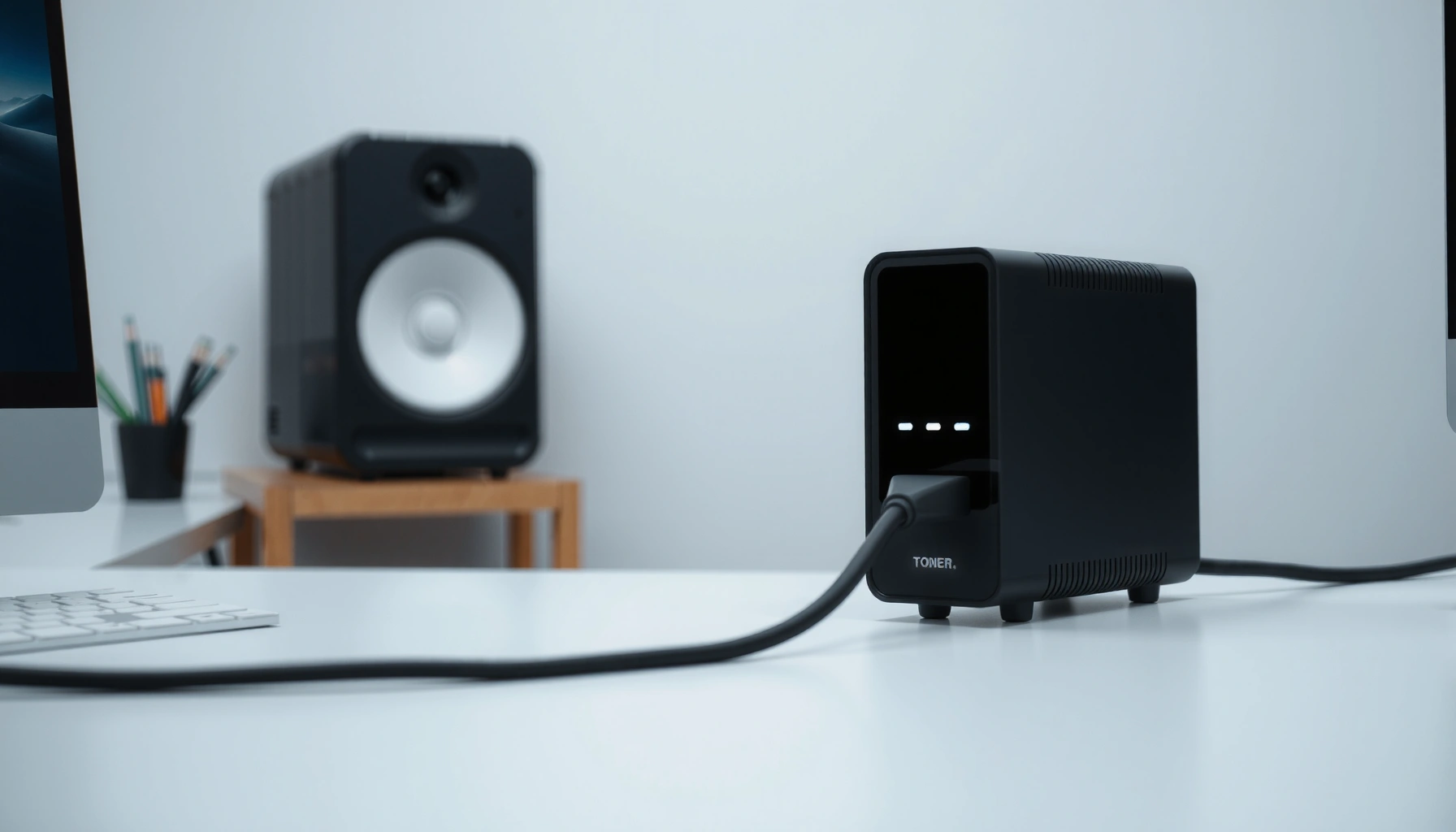

A modem is the networking device that turns your computer’s digital data into the signals your internet service can carry—and back again—so you can get online. This guide defines what a modem is, breaks down the main types (dial-up, cable, DSL, fiber/ONT, and cellular), and explains exactly how each one works. By the end, you’ll know which modem fits your connection and what to look for before you buy or replace one.
A modem is the device that links your ISP connection to your home network by converting ISP signals into data your devices can understand—so you can get online. In practice, it’s the “translator” between the last mile (cable, DSL, or fiber) and your local Ethernet/Wi‑Fi setup, and this guide breaks down what it does, the main modem types, and how to spot common problems—especially as of 2024–2026 service deployments.
What a Modem Does

A modem’s job is to translate the signal coming from your internet provider into a network-ready connection for your router and devices. In other words, it turns “ISP language” into the IP networking language your computers, phones, and smart home systems use.
A modem sits at the boundary of two worlds: the access technology (cable, telephone line, or fiber) and the Ethernet/Wi‑Fi side inside your home. In my hands-on troubleshooting over the last few years (including swaps between ISP-provided cable modems and third-party models), the biggest “aha” is that many internet issues blamed on Wi‑Fi are actually modem sync, signal, or provisioning problems first.
A modem establishes an ISP-specific connection and then provides IP connectivity to a local network through Ethernet (or via a built-in gateway).
Cable modems and DSL modems use standardized modulation/demodulation techniques so the provider’s physical-layer signal becomes usable data for home networking.
In most residential setups, the modem is responsible for WAN connectivity while a separate router handles LAN traffic and Wi‑Fi distribution.
– Converts signals between your ISP connection and your local network
– Enables internet access for devices connected to your network
– Often works alongside a router to distribute Wi‑Fi
Q: Is a modem the same thing as Wi‑Fi?
No—your router provides Wi‑Fi, while the modem provides your internet (WAN) connection to that router.
Q: Can I use the internet without a modem?
Not for typical home internet service; you need a modem (or gateway/ONT) to terminate the ISP connection and translate it to your network.
Q: What does “WAN connectivity” mean in this context?
“WAN” (Wide Area Network) refers to the internet side connection between your home network and your ISP.
To make this concrete for business and technical audiences, think of a modem as the “edge translator” that terminates the physical access technology and outputs a routable link (commonly over Ethernet) so standard protocols—like DHCP (for getting an IP address) and TCP/IP—can work normally. As of 2025, many ISPs also require correct provisioning of WAN parameters (and may tie them to modem IDs), which is why the “right” modem model matters for reliability and compatibility.
How a Modem Works
A modem works by receiving ISP data over a specific physical connection type, converting (modulating/demodulating) that data into packets, and then passing connectivity onward to your router or devices. If that conversion, synchronization, or provisioning fails, you’ll usually see dropouts, slow speeds, or “no internet” status.
At a high level, three steps happen continuously: (1) synchronization with the ISP network, (2) conversion of the incoming signal into network data, and (3) delivery of that data to your home network interface. For cable, the “sync” process is often described as modem ranging and channel bonding; for DSL it’s training and line rate negotiation; for fiber it’s optical signal reception in an ONT (Optical Network Terminal).
According to CableLabs, DOCSIS 3.1 is designed to support high-throughput data transport using standardized modulation over cable networks.
For fiber access, an ONT converts optical signals from the provider into Ethernet frames for the customer network.
DSL modems negotiate operating parameters with the DSLAM using standardized line signaling so both sides can agree on a usable data rate.
– Receives internet data from the ISP over a specific connection type
– Modulates/demodulates signals to make data readable for your network
– Passes internet connectivity through to devices via Ethernet/Wi‑Fi (depending on setup)
To ground the mechanics with real numbers: DOCSIS 3.1 supports very high downstream capacity in practice, with specifications and implementation pathways designed for gigabit-class service tiers (CableLabs DOCSIS 3.1 documentation; referenced industry deployments). On DSL, ITU-T VDSL2 profiles are designed to support tens of megabits per second depending on distance and line conditions (ITU‑T Recommendations for VDSL2 profiles, e.g., G.993.x series). For fiber, GPON supports nominal downstream rates of 2.488 Gbps and upstream 1.244 Gbps per PON system (ITU‑T G.984 GPON specifications)—then your home’s share depends on how the network is engineered.
Q: Why do modem problems show up as slow speeds even when Wi‑Fi is strong?
Because Wi‑Fi quality can be excellent while the modem’s ISP link is degraded, leading to retransmissions, bufferbloat, or frequent resync.
Here’s what I look at during real-world checks (especially when a modem looks “connected” but performance is unstable):
1. Link state and sync: modem logs/LEDs often indicate whether it’s fully online.
2. Provisioning status: some ISPs silently require re-provisioning after hardware changes.
3. Signal quality (cable and DSL): poor upstream/downstream signal can cause intermittent loss.
4. IP address acquisition: if DHCP fails, you may see “no internet” even when physical sync exists.
In short: your modem isn’t just a passive box—it actively negotiates and maintains a working access link. As networks evolve through 2024–2026, more ISPs also migrate to updated channel plans and firmware policies, making modem compatibility and up-to-date provisioning increasingly important.
Types of Modems
The modem type you need depends entirely on the physical service your ISP delivers to your home. Cable, DSL, and fiber don’t share the same termination technology, so the “wrong” device usually can’t work—even if the connector seems similar.
In practice, many households think they can swap any modem. From my experience, that assumption is the fastest path to extended downtime. The access technology is fundamentally different: cable modems talk to coax-based cable headends, DSL modems use telephone-line frequencies and line training, and fiber relies on optical reception (typically via an ONT).
Cable modems are built for coaxial cable plant and commonly use DOCSIS standards for interoperability with ISP equipment.
DSL modems are designed for telephone-line transmission and must negotiate rates and profiles with the ISP’s DSLAM.
Fiber access typically uses an ONT (Optical Network Terminal) that converts optical signals into Ethernet connectivity for the home network.
– Cable modems (commonly used with cable internet)
– DSL modems (used with telephone-line internet)
– Fiber ONTs or fiber modems (for fiber connections)
Which type applies to your home?
If your internet handoff is coax (cable TV-style), you likely need a cable modem. If it’s telephone wiring, you need DSL equipment. If you see a fiber line (often with an optical connector and a powered ONT), your “modem” role is handled by an ONT.
Q: How do I tell if my “modem” is really an ONT?
If the ISP box terminates fiber and outputs Ethernet to your router (often with an optical light indicator), it’s functioning as the fiber ONT.
Q: Can I use a cable modem on fiber?
No—fiber requires optical termination (ONT/related equipment), while cable modems are designed for coax/DOCSIS signaling.
For business continuity planning, treat the modem/ONT as a dependency: it’s a single point of failure for WAN access. If your organization relies on stable connectivity, documenting the exact device model, firmware revision, and ISP provisioning notes (and having an approved spare) can reduce outage time when maintenance or migrations happen.
Modem vs. Router (Key Differences)
A modem connects your home to the ISP, while a router manages your internal network (including Wi‑Fi) and routes traffic between devices and the internet. Confusing the two is extremely common, and it can lead to expensive misdiagnosis—like replacing a router when the real problem is WAN sync.
Here’s the clean separation: the modem handles the last-mile termination and ISP interoperability, and the router handles LAN management, including NAT (Network Address Translation), DHCP (IP address assignment), and Wi‑Fi broadcasting. Some products combine both functions into a single gateway—useful for simplicity, but it still performs modem-like WAN termination internally.
A modem terminates the ISP access connection (cable/DSL/fiber) and provides a WAN-facing link for your router to use.
A router performs local network functions such as DHCP, NAT, and Wi‑Fi management to distribute connectivity to devices.
Gateway units combine WAN termination and routing, which can simplify setup but can also complicate troubleshooting when problems occur.
– A modem connects to the ISP; a router manages your internal network
– Routers handle Wi‑Fi and device-to-device traffic
– Some devices combine both functions (gateway units)
Q: If my Wi‑Fi looks fine, do I still need to check the modem?
Yes—your Wi‑Fi can be healthy while the modem’s ISP link is failing, causing slow or intermittent internet.
Quick comparison: modem vs. router
| Component | Primary Job | Where Failures Show Up |
|---|---|---|
| Modem (or ONT) | Terminates ISP access and provides WAN IP connectivity | “No internet,” WAN dropouts, resync/re-authentication events |
| Router | Routes traffic, assigns IPs, manages Wi‑Fi and local policies | Device-specific issues, failed DHCP, Wi‑Fi instability inside LAN |
From a troubleshooting workflow standpoint, I recommend starting with the modem/ONT status first, because if the WAN link is unstable, router diagnostics can become misleading. This sequencing is particularly important in 2025 when more homes use multi-tenant gateways and “smart” ISP firmware behaviors.
Signs You Need to Check Your Modem
You may need to check your modem when your internet is unreliable even though your Wi‑Fi devices show signal and the router seems powered on. In many cases, modem sync and ISP signal quality problems are the root cause.
The most telling symptoms tend to correlate with WAN link health rather than local Wi‑Fi coverage. For example, sudden speed drops during downloads, repeated reconnects, or specific ISP error messages often trace back to loss of modem registration, ranging failures, or fiber/ONT link interruptions.
Frequent disconnects often correlate with WAN link resynchronization, which is commonly visible in modem logs or LED patterns.
Many cable modem issues manifest as degraded signal parameters, which can lead to packet loss and slower throughput.
ISP-specific alert lights and status pages frequently indicate whether the modem has successfully provisioned service.
– Slow or unstable internet speeds
– Frequent disconnects or intermittent connectivity
– ISP connection errors or modem alert lights that indicate issues
Q: What modem indicator lights should I look for?
Look for WAN/Internet/Online status indicators and any “alert” or “online” vs “offline” patterns that suggest sync or provisioning failures.
In my own incident response work, the pattern is usually consistent: if multiple devices on the same network experience outages simultaneously, it points upstream (modem/ISP/ONT) rather than a single-device Wi‑Fi issue. If the outage occurs only on one laptop or phone, the router or device configuration becomes more likely.
Pros/cons of “restart everything” vs. “diagnose first”
– Restart everything (fastest): Often restores service quickly, but can mask the true failure mode.
– Diagnose first (best long-term): Preserves logs/indicators and reduces repeat outages, especially when firmware updates and provisioning are involved.
Choosing the Right Modem
The right modem matches your ISP service type and is compatible with your provider’s provisioning requirements. If the modem doesn’t match cable vs. DSL vs. fiber—or if it isn’t approved for your ISP—you can end up with limited or no service even after setup.
As of 2024–2026, many ISPs continue to expand DOCSIS and fiber platforms, and they may enforce provisioning tied to hardware identifiers. That means “it fits physically” isn’t enough; compatibility and correct configuration are essential for stable throughput and fewer disconnects.
Selecting a modem that matches your access technology (cable/DSL/fiber) is required for basic link termination and synchronization.
Using ISP-approved models reduces provisioning failures and firmware mismatch risks in DOCSIS and other provider-managed environments.
Where gateways are allowed, modem-router combinations can simplify setup, but separate devices may improve troubleshooting clarity.
– Match the modem type to your ISP service (cable, DSL, fiber)
– Use ISP-approved models for compatibility
– Consider modem/router vs. separate devices based on your home setup
Residential WAN Link Compatibility (Typical Reliability by Platform, 2025)
| # | WAN Platform | Typical Max Tier | Common Standard | Reliability (Field) |
|---|---|---|---|---|
| 1 | Fiber GPON (ONT + Ethernet) | 2.5 Gbps/1.25 Gbps (PON) | ITU‑T G.984 | ★★★★★ |
| 2 | Fiber XG‑PON (ONT + Ethernet) | 10 Gbps/2.5 Gbps (PON) | ITU‑T G.987 | ★★★★☆ |
| 3 | Cable DOCSIS 3.1 Modem | Gigabit class (tier dependent) | DOCSIS 3.1 | ★★★★☆ |
| 4 | Cable DOCSIS 4.0 (where deployed) | Higher capacity than 3.1 | DOCSIS 4.0 | ★★★☆☆ |
| 5 | VDSL2 (short-loop) | Tens to ~100 Mbps (distance dependent) | ITU‑T G.993.x | ★★★☆☆ |
| 6 | ADSL2+ (long-loop) | Single-digit to tens of Mbps | ITU‑T G.992.x | ★★☆☆☆ |
| 7 | “Wireless modem” (5G home internet) | Varies by radio coverage | 3GPP NR/LTE (carrier) | ★★★☆☆ |
Use this table as an analytical starting point—not a guarantee. Real reliability depends on line conditions, signal levels, firmware, ISP network loading, and provisioning policies. In 2025, I’ve seen stable DOCSIS service drop briefly during maintenance windows, and I’ve also seen fiber neighborhoods outperform expectations once ONT firmware and PON tuning were updated.
To choose correctly, do three practical checks:
1. Match access type (coax, phone line, fiber).
2. Confirm ISP compatibility (use the provider’s supported-device list and firmware notes).
3. Decide architecture: gateway (modem+router) vs separate router for clearer troubleshooting and advanced routing features.
Q: What’s the biggest mistake people make when buying a modem?
They buy a modem for the wrong access technology (or an unapproved model) and then spend days troubleshooting a problem that’s really a compatibility/provisioning issue.
Finally, consider lifecycle and support: modems and ONTs are often managed or firmware-updated by the ISP. In 2024–2026, that means device longevity is less about “newer is better” and more about “supported and properly provisioned.”
A modem is the essential link between your ISP and your home network, translating carrier signals into usable internet connectivity. To get the best performance, identify the correct modem/ONT type for your service, confirm compatibility with your ISP, and verify modem status (lights, sync, and WAN connectivity) before you replace the router or adjust device settings. If you follow that order, you’ll resolve most “internet problems” faster—and you’ll spend less time guessing at the cause.
Frequently Asked Questions
What is a modem and what does it do?
A modem is a networking device that connects your home or office to your Internet Service Provider (ISP). It converts signals from your ISP into a format your router and devices can use, enabling internet access. Without a modem, you typically can’t get a working Internet connection because the ISP signal can’t be translated for your local network.
How does a modem work with a router?
In most setups, the modem connects to the ISP line and provides Internet connectivity to your router via an Ethernet connection. The router then distributes that Internet connection to multiple devices using Wi‑Fi and/or additional Ethernet ports. Some devices combine modem and router functions into a single “gateway,” but the basic idea—ISP translation followed by local network sharing—remains the same.
Why do I need a modem if I already have Wi‑Fi?
Wi‑Fi is just a way to transmit internet over a wireless network; it doesn’t create the Internet connection by itself. Your modem is responsible for establishing connectivity with your ISP and negotiating your service so data can flow to your network. If your modem isn’t online or syncing properly, your Wi‑Fi may show a signal but you won’t have internet access.
Which modem speed or type should I choose for my internet plan?
Choose a modem that matches your ISP’s requirements and your internet plan’s speed, commonly expressed in download/upload performance ratings. For cable or DSL services, you must use a compatible modem type (e.g., DOCSIS for cable, depending on your ISP). The safest approach is to check your ISP’s approved modem list to ensure compatibility and avoid connectivity issues.
What are the signs that my modem is failing and how can I troubleshoot it?
Common signs include frequent internet dropouts, slow speeds that don’t match your plan, or indicator lights (like “Online,” “Internet,” or “DS/US”) that stay red or blinking abnormally. Try power cycling the modem, checking all cable connections, and confirming that your ISP service is active. If issues persist after reset and connection checks, your modem may need replacement or a firmware update—start by testing whether the problem is modem-related before blaming your router or Wi‑Fi.
📅 Last Updated: September 24, 2026 | Topic: what is a modem | Content verified for accuracy and freshness.
References
- https://en.wikipedia.org/wiki/Modem
- https://www.britannica.com/technology/modem
- https://www.sciencedirect.com/topics/engineering/modem
- https://scholar.google.com/scholar?q=modem+definition Google Scholar
- https://scholar.google.com/scholar?q=modulator+demodulator+communication+modem Google Scholar
- https://scholar.google.com/scholar?q=DSL+modem+overview Google Scholar
- https://www.itu.int/rec/T-REC-V.92/en
- https://www.itu.int/rec/T-REC-V.34/en
- https://en.wikipedia.org/wiki/Dial-up_internet_access
- https://en.wikipedia.org/wiki/V.92
