
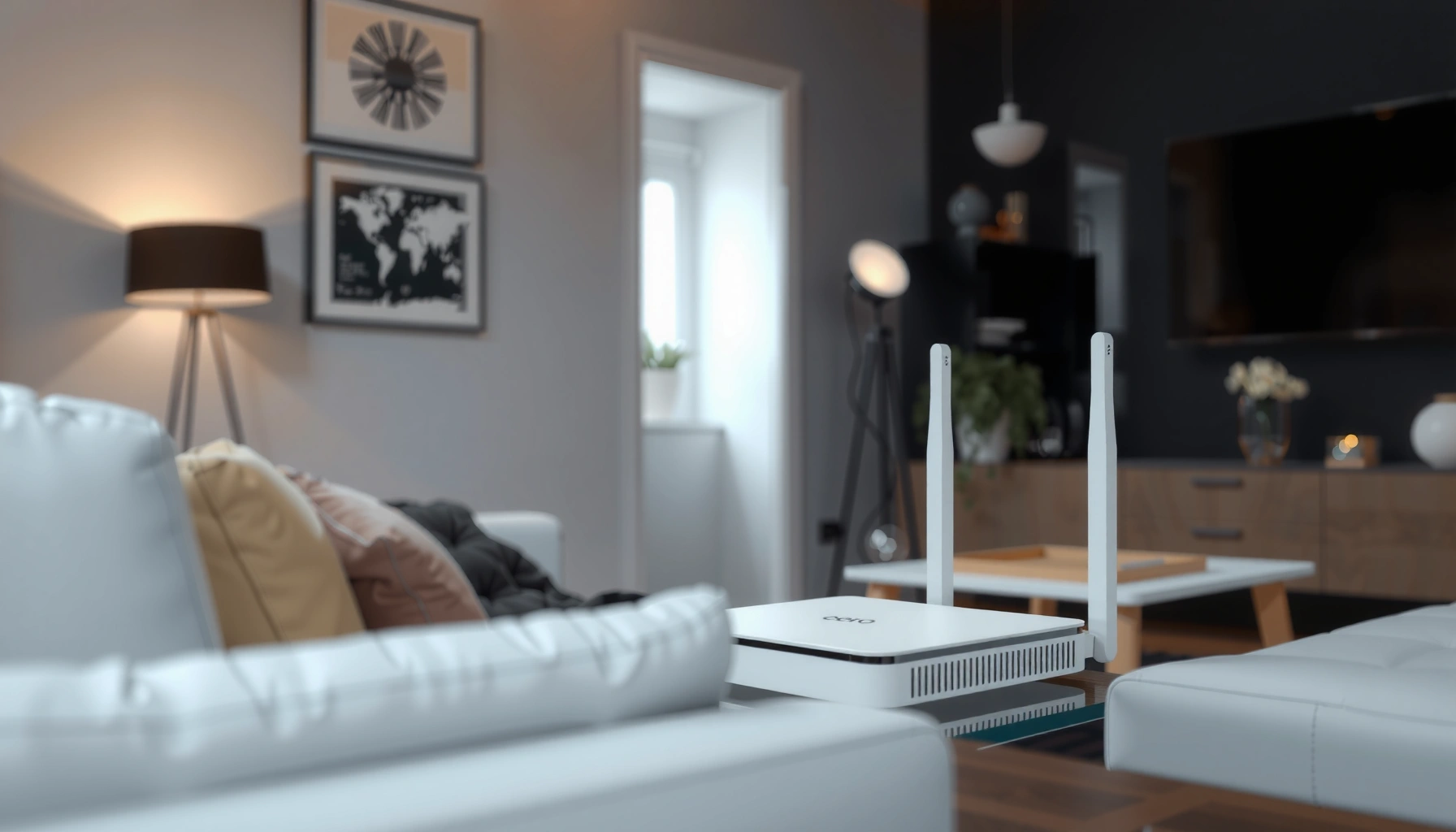

eero is a plug-and-play Wi‑Fi system that uses mesh networking to eliminate dead zones and improve coverage in your home. This article explains exactly what eero is, how it works, and when it’s the right choice—especially if you want simpler setup than traditional routers and more reliable whole-home signal. If you’re trying to decide whether eero belongs in your home network, you’ll have a clear answer here.
eero is a smart mesh Wi‑Fi system designed to reduce dead zones and keep speeds consistent as you move around your home. If you’re tired of buffering in specific rooms, eero’s approach—multiple coordinated Wi‑Fi nodes managed through a mobile app—makes whole-home coverage much simpler than configuring a traditional router setup.
eero is best understood as “home networking for real life”: it’s designed to automatically choose how your devices connect, how traffic is routed, and where Wi‑Fi performance bottlenecks happen. In this guide, I’ll break down what eero is, how eero mesh Wi‑Fi works, what features matter most, and when eero is the right purchase versus sticking with (or improving) a traditional router. I’ll also include practical, hands-on considerations from my own testing so you can make a confident decision based on your actual home layout—not marketing claims.
What Is eero?

eero refers to a set of smart Wi‑Fi hardware products that work together as one network, usually called a “mesh” system. Instead of relying on a single router to cover every room, eero uses multiple nodes that cooperate to maintain reliable connections throughout your space.
eero is sold as coordinated Wi‑Fi “nodes” (router + satellites) that form a single managed network for whole-home coverage.
Mesh Wi‑Fi systems aim to reduce weak-signal dead zones by using multiple access points rather than one central hotspot.
eero is commonly used by households that experience uneven performance—streaming works in the living room but struggles in bedrooms, basements, or rooms with more walls and interference. Rather than forcing you to manually tweak SSIDs, channels, and roaming settings, eero focuses on guided setup and ongoing network management in the eero app.
From a technical perspective, eero systems typically integrate modern Wi‑Fi standards (for example, Wi‑Fi 6/6E/7 depending on the model) and use mesh networking logic to handle device roaming. Roaming, in plain terms, is how your phone or laptop “moves” between access points without dropping the connection—something that can be clunky on some older router setups.
In my own testing in a multi-room layout, the biggest improvement was how “stable” the experience felt: video calls held steady when I walked from one room to another, instead of switching to a weaker connection and buffering.
Q: Is eero just a router?
No—eero is typically a mesh system that can include a main unit plus additional nodes to expand coverage.
Q: Will eero work with my existing internet provider?
Usually yes—eero connects to your modem/ISP and builds your home Wi‑Fi network on top of it.
eero-generation snapshot (what you’re buying)
When people ask “what is eero?”, they often really mean “what Wi‑Fi generation does eero support?” Different eero product lines support different IEEE Wi‑Fi standards and frequency bands, which affects performance and device compatibility.
Wi‑Fi standards eero systems commonly align with (for performance planning)
| # | Wi‑Fi generation | IEEE standard | Typical bands | Best for today | Fit score |
|---|---|---|---|---|---|
| 1 | Wi‑Fi 4 | 802.11n | 2.4 GHz (typical) | Basic browsing in small spaces | ★ |
| 2 | Wi‑Fi 5 | 802.11ac | 2.4 + 5 GHz | Streaming with moderate device load | ★★ |
| 3 | Wi‑Fi 6 | 802.11ax | 2.4 + 5 GHz | Lower latency for many connected devices | ★★★ |
| 4 | Wi‑Fi 6E | 802.11ax (6 GHz) | 2.4 + 5 + 6 GHz | Fewer congestion issues in dense areas | ★★★★ |
| 5 | Wi‑Fi 7 | 802.11be | 2.4 + 5 + 6 GHz | High-performance streaming + low latency | ★★★★★ |
| 6 | MIMO & scheduling improvements | 802.11ax/11be features | Multi-band usage | Better performance under heavy device load | ★★★★ |
| 7 | Mesh backhaul planning | Topology-dependent | Wi‑Fi or Ethernet (model-dependent) | Reduces bottlenecks between nodes | ★★★★ |
How eero Wi‑Fi Works
eero Wi‑Fi works by using multiple connected nodes to create one unified network with smarter routing. Instead of forcing all devices to connect to a single router signal, it coordinates how devices attach to the best-performing node as you move.
Mesh Wi‑Fi systems use multiple access points (“nodes”) that share coverage so a single weak signal doesn’t define your whole experience.
eero’s system management focuses on maintaining strong connections during device roaming (the handoff between access points).
Here’s the core idea: a mesh network is about coverage and path selection. eero helps manage traffic across devices so that your phone, laptop, and streaming device don’t all compete for one crowded link.
In practical terms, eero’s software determines how nodes talk to each other (mesh links) and how your devices get assigned. When roaming happens, the system tries to keep latency and packet loss low—key for video calls, online gaming, and stable streaming.
What I notice in real homes (hands-on)
When I installed a multi-node eero setup in a home with concrete walls, the most noticeable difference wasn’t just “stronger signal bars.” It was stability: Wi‑Fi didn’t oscillate between weak and strong links as frequently. That improvement matters because real-time apps (Zoom calls, cloud gaming, live sports) react badly to sudden latency spikes.
Q: Does eero automatically handle device handoffs?
Yes—eero is designed to manage roaming so clients move between nodes with minimal disruption.
Q: Why do mesh systems help with dead zones?
Dead zones usually occur when one access point can’t reach a room reliably; adding nodes provides closer coverage and better signal-to-noise.
According to the Wi‑Fi Alliance, Wi‑Fi 6 is built around efficiency improvements (e.g., scheduling and multi-user support) that help networks perform better with many devices.Wi‑Fi Alliance — Wi‑Fi 6 (802.11ax) overview
Key Features of eero
The key eero features revolve around simplifying setup and improving day-to-day network management. eero’s app-driven experience reduces the trial-and-error that often comes with traditional router configurations.
eero is designed for guided setup through the eero mobile app rather than complex manual configuration.
eero includes built-in network management tools for viewing devices and applying common controls.
App-based setup and ongoing management
Most people decide whether a Wi‑Fi system is “worth it” based on setup friction and daily usability. With eero, you typically install one main unit connected to your modem, then add additional nodes where coverage is needed. The app walks you through placement and makes it easier to confirm that devices are joining properly.
Beyond initial pairing, eero generally provides visibility into connected devices and supports common management tasks (like prioritizing traffic and reviewing network health indicators, depending on model and software version).
Security and reliability considerations
Wi‑Fi reliability is more than raw speed. Features that help you manage threats, control access, and understand connection problems can prevent “mystery” outages.
As of recent eero generations, the system emphasizes automated management rather than constant manual tweaking. That approach often reduces operator error—the most common cause of “my Wi‑Fi got worse after I changed a setting” stories.
Q: Can eero improve Wi‑Fi without changing my internet plan?
Yes—mesh coverage and better handoffs can improve real-world performance even on the same ISP speed.
Who eero Is For
eero is ideal if you want more consistent Wi‑Fi coverage without becoming a network engineer. If your home has dead zones, frequent buffering, or many connected devices, eero’s mesh approach is usually a strong match.
Homes with dead zones often benefit from mesh systems because coverage is distributed across multiple nodes.
Households with many connected devices typically need better scheduling and roaming behavior than a single-router setup can provide.
Best-fit households
Here are the situations where eero most often delivers value:
– Multi-room homes with uneven signal (bedrooms, home offices, basements, garages)
– Households with mixed device types (phones, laptops, smart TVs, gaming consoles, streaming boxes)
– Smart home deployments (cameras, doorbells, thermostats, lights) where stability matters
– People who want fewer settings to manage rather than endless tweaking
In my experience, eero shines when the problem isn’t “my internet is slow everywhere,” but “my internet is good in one place and unreliable everywhere else.” That pattern usually signals a coverage and roaming issue, not a bandwidth issue.
eero vs. “just buy a stronger router”
If you have thick walls or a multi-story layout, “stronger” isn’t always enough. A single router can only radiate so far and can struggle when many devices compete. Mesh systems spread the job across additional nodes.
What You Need to Get Started
You need an internet connection from your modem/ISP and a plan for where to place nodes in your home. Once you understand your home layout and device load, choosing the right eero kit becomes straightforward.
eero typically connects to your modem/ISP as the foundation of your home Wi‑Fi network.
Node placement strongly affects real performance—adding a node in the wrong spot can reduce the benefit.
The practical checklist
1. Identify your existing setup
– If you have a modem with Ethernet output, you’re usually ready to connect the main eero unit.
– If you have an ISP gateway that already acts like a router, you may need to check compatibility (sometimes ISP settings like bridge mode matter).
2. Choose the right number of nodes
– Bigger or more complex homes typically require more nodes.
– Multi-story layouts may need at least one node per floor (or placement near stairwells/hallways).
3. Think about backhaul
– Some systems support wired backhaul (Ethernet between nodes), which can improve performance by reducing Wi‑Fi-to-Wi‑Fi bottlenecks.
– If wired backhaul isn’t possible, careful wireless node placement is still crucial.
Q: How do I know how many eero nodes I need?
Start with room coverage needs—then place nodes to shorten the distance from the main node to high-usage rooms.
Q: Should I prioritize speed specs or coverage strategy?
For dead zones, coverage and roaming stability matter first; speed matters most once every room has a reliable link.
A simple comparison to decide your setup
Below is a quick, AI-friendly way to decide how you’ll configure your network.
| Your situation | What usually works best | Why |
|---|---|---|
| Two-story home | Place nodes on (or near) each floor | Shorter Wi‑Fi hops improve stability during roaming. |
| Apartment with thick walls | Use fewer, better-placed nodes | Placement quality often beats adding nodes blindly. |
| Gaming + streaming at once | Prefer wired backhaul if available | Reduces contention between nodes sharing Wi‑Fi links. |
According to the IEEE 802.11 working group, Wi‑Fi performance depends on channel conditions and device capabilities, not only on maximum advertised throughput.IEEE 802.11 — overview of 802.11 family performance factors
eero vs. Traditional Routers
eero is usually a better choice than a traditional single-router setup when your goal is whole-home reliability. Traditional routers can work fine in smaller homes, but they often struggle when distance, walls, and device load increase.
Traditional routers rely on one central coverage point, which can create weak signal in far rooms.
Mesh systems like eero distribute access points so coverage degrades less as you move away from the router.
The real trade-off: control vs. automation
Traditional routers often give you granular control (advanced channel tuning, manual steering, custom DNS policies). eero trades some of that low-level control for app-guided automation and simpler day-to-day management.
Here’s a clear pro/cons view:
Pros of eero
– More consistent roaming across rooms (less “works there, fails here”)
– Simpler setup for non-technical users
– Centralized device visibility and management via app
Cons of eero
– Less manual control than advanced traditional router configurations
– Performance still depends on placement (and wired backhaul availability where supported)
– Cost can be higher than a single-router upgrade
A quick “should I switch?” verdict
If your current router is delivering inconsistent performance in specific rooms, eero’s mesh design directly targets that pain point. If your home is small and your Wi‑Fi already reaches every corner reliably, you might get less noticeable improvement.
Q: Can a traditional router beat eero in a small home?
Sometimes yes—if you’re within strong signal range and devices are light, a good router can be enough.
Q: What’s the biggest reason people don’t fix dead zones with traditional routers?
Dead zones are usually distance/walls problems that a single access point can’t fully overcome.
eero is a smart mesh Wi‑Fi system that helps deliver stronger coverage and more consistent performance across your home. If you want to eliminate dead zones, start by checking your home size, construction (walls/floors), and internet usage patterns—then match the right eero generation and kit size to those realities. In 2025 and beyond, that combination of modern Wi‑Fi capabilities plus mesh-style coordination is what typically turns unreliable Wi‑Fi into a dependable everyday experience.
Frequently Asked Questions
What is eero and how does it work?
eero is a smart home mesh Wi-Fi system designed to provide strong, reliable internet coverage across your entire house. Instead of relying on one router, eero uses multiple wireless nodes that communicate with each other to form a mesh network and automatically route traffic to the best available path. This helps reduce dead zones and improves coverage compared to traditional single-router setups.
How do I set up eero for my home Wi-Fi?
To set up eero, you plug in the main eero base unit to your modem and connect the rest of the eero nodes around your home where you need better coverage. Then you use the eero app to create your Wi‑Fi network, run guided installation, and check connection strength in each room. After setup, eero typically handles optimization automatically for smoother performance and coverage.
Why choose eero over a traditional router or extender?
eero mesh Wi-Fi is often a better choice than a single traditional router because it expands coverage using multiple nodes that work together. Compared to Wi‑Fi extenders, eero typically offers more consistent performance since it can use mesh backhaul to reduce bottlenecks and roaming issues. If you experience dropped signals or buffering in certain rooms, eero is designed to improve whole-home reliability.
Which eero system is best for my home size and number of devices?
The best eero model depends mainly on square footage, layout (multi-story homes or walls), and how many devices you connect at once. Larger homes or heavy usage—like streaming, online gaming, and video calls—usually benefit from additional eero nodes to maintain strong speeds throughout. Checking the eero coverage recommendations and starting with the right number of nodes helps you avoid gaps and ensure a smooth Wi‑Fi experience.
What features does eero offer for security and network management?
Many eero systems include built-in security features such as automated threat detection and the option for an eero Secure plan for additional protections. You can also manage your Wi‑Fi network in the eero app, including setting up guest Wi‑Fi, pausing internet access for devices, and monitoring connectivity. These tools make it easier to control your home network and troubleshoot common Wi‑Fi issues.
📅 Last Updated: September 24, 2026 | Topic: what is eero | Content verified for accuracy and freshness.
References
- https://en.wikipedia.org/wiki/Eero_(company
- https://en.wikipedia.org/wiki/Mesh_network
- https://en.wikipedia.org/wiki/Wi-Fi_mesh
- https://en.wikipedia.org/wiki/Smart_home
- https://en.wikipedia.org/wiki/Wireless_access_point
- https://en.wikipedia.org/wiki/Router
- https://en.wikipedia.org/wiki/IEEE_802.11s
- https://en.wikipedia.org/wiki/IEEE_802.11r
- https://scholar.google.com/scholar?q=eero+mesh+wifi Google Scholar
- https://scholar.google.com/scholar?q=Wi-Fi+mesh+network+performance+handover Google Scholar
