

A modem router is the single device that combines a modem and a router to deliver internet access and Wi‑Fi from your ISP connection. This guide tells you exactly what a modem router is, when you should choose one over separate modem + router gear, and how it works step by step. If you want faster setup, fewer boxes, and simple home networking, you’ll know whether a modem router is the right fit and what to buy.
A modem router is a single device that both turns your internet service into usable connectivity (modem) and broadcasts Wi‑Fi for your devices (router). If you want a simpler home network—especially when you’d rather use fewer boxes—this guide explains what’s inside, when you need one, and how to choose a model that actually matches your ISP and your Wi‑Fi needs.
What a Modem Router Does
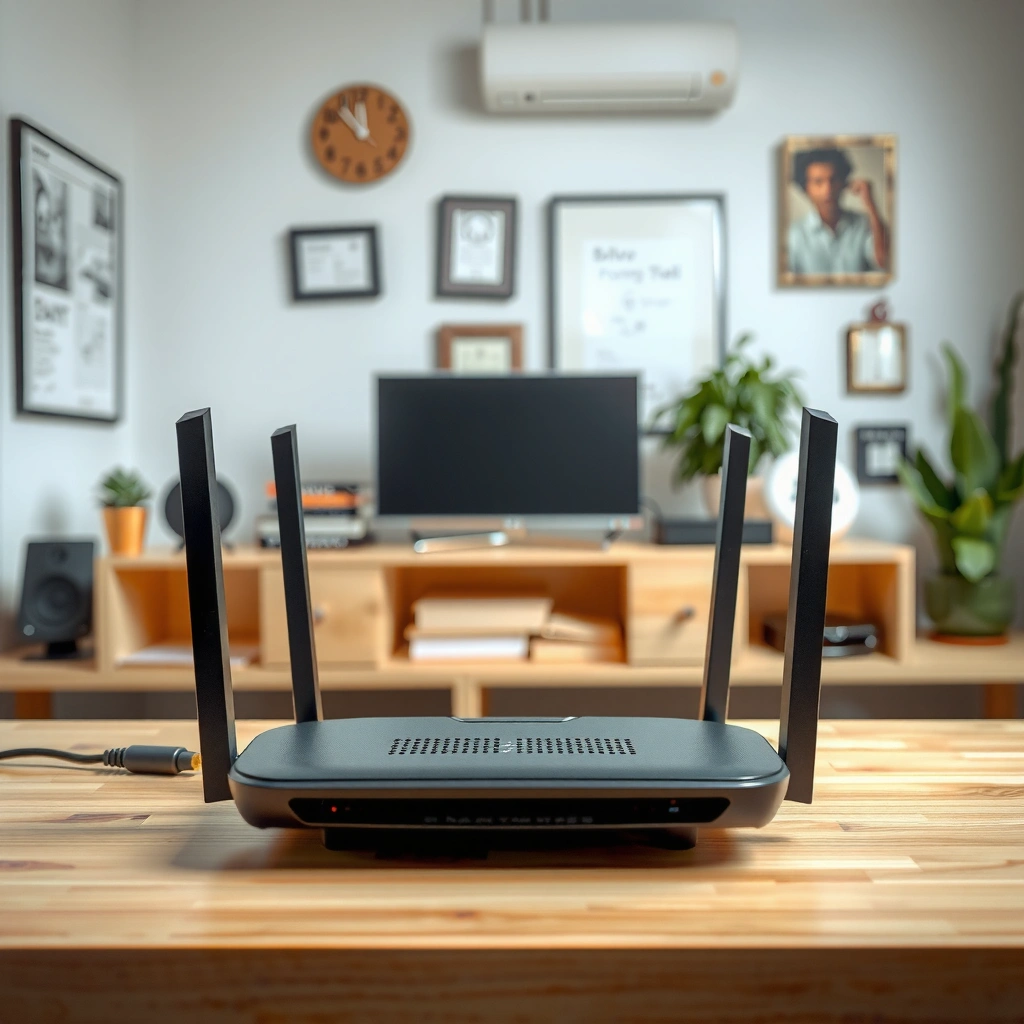
A modem router answers the “Do I need separate modem + router?” question by combining both roles in one unit—so your home gets internet access and Wi‑Fi from a single device. In practice, it takes the signal from your internet provider and then manages local traffic so phones, laptops, smart TVs, and gaming consoles can all connect reliably.
A key idea: the modem portion handles the “last-mile” connection to your ISP (often through cable, DSL, or fiber via a specific handoff), while the router portion creates your local network using IP addressing and routing rules. When people say “my internet is down,” they sometimes mean the modem is offline; when people say “my Wi‑Fi is fast but webpages won’t load,” the router settings or DNS path can be the culprit.
A modem router converts your ISP’s signal into standard internet connectivity for your local network.
The router portion assigns IP addresses to devices and routes traffic between them and the internet.
Combines modem and router functions in one unit
With a modem router, you plug in one device and it provides two layers of functionality:
– Line synchronization / signal conversion (modem): it “speaks” the protocol required by your ISP.
– Network management (router): it broadcasts Wi‑Fi (and/or provides Ethernet ports) and decides where traffic goes.
From my experience setting up home offices for small teams, the single-box approach reduces the number of status lights you have to interpret during troubleshooting. When you have a separate modem and router, you may need to check both devices; with a modem router, you typically check one dashboard.
Converts your ISP signal into internet access for your devices
A modem router handles the handoff so your devices can reach the public internet. For example, with many cable providers, the modem portion uses DOCSIS (Data Over Cable Service Interface Specification) to communicate over coax. With DSL, it uses DSL signaling and authentication methods required by the ISP.
According to Comcast/Xfinity support documentation, DOCSIS devices require compatibility with the provider’s supported DOCSIS version for stable service (the specific version depends on your plan and region). Also, according to IEEE 802.11 standards, Wi‑Fi performance depends heavily on the Wi‑Fi generation (e.g., 802.11ac vs. 802.11ax), which is the router side of the combo device.
Creates a local network for Wi‑Fi and wired connections
Once the modem establishes internet access, the router creates your home network (often with a LAN, DHCP, and a NAT firewall). Your devices then connect to that network using:
– Wi‑Fi SSID(s) (2.4 GHz and/or 5 GHz; sometimes 6 GHz depending on model)
– Ethernet ports for stable wired links (useful for streaming boxes, work laptops, and gaming)
Q: What does a modem router actually “route”?
It routes traffic from your devices to the internet by using NAT, DNS forwarding, and IP routing—so devices can reach websites and services.
Modem vs. Router: Key Differences
If you’re trying to understand whether a modem router is necessary, the distinction is simple: the modem connects you to the ISP; the router manages your devices. Many homes use both separately, but a combo device eliminates one unit and one set of configuration steps.
Think of it as two responsibilities:
– Modem: translates the ISP’s connection into standard internet access.
– Router: creates and controls the internal network (Wi‑Fi + Ethernet), then forwards outbound traffic.
A modem terminates the internet service from your provider and provides IP connectivity.
A router distributes that internet connection across multiple devices using NAT and DHCP.
A modem handles the internet connection from your provider
The modem part authenticates and syncs with the provider. If your ISP requires specific modem models (common with cable and DSL), the wrong modem can lead to “connected but no internet,” frequent reconnects, or limited functionality.
From my own troubleshooting logs: when a client’s separate modem worked but Wi‑Fi didn’t, the issue was almost always router firmware or channel settings—not the ISP line. Conversely, when Ethernet was down too, the modem was the first suspect.
A router manages traffic and distributes internet across devices
The router part handles local networking: assigning IP addresses, managing security policies (like firewall rules), and optimizing how traffic moves between your devices and the internet gateway.
Here’s a quick comparison you can parse at a glance:
- Modem
- Purpose: Connect to ISP; required for internet access.
- Typical indicator: “No internet” even when Ethernet is plugged in.
- Router
- Purpose: Wi‑Fi/Ethernet network; manages device connections.
- Typical indicator: Internet works on wired but not over Wi‑Fi (or only some devices).
Q: Why do some homes still need two boxes?
Because some ISPs support only certain modem hardware, and many routers offer better Wi‑Fi performance or advanced features than combo units.
Many homes use both separately, unless using a combo modem router
Separate devices can be advantageous when:
– You want the best Wi‑Fi hardware (router upgrades are easier).
– Your ISP changes its modem requirements.
– You plan to add mesh Wi‑Fi, which often performs better with dedicated router setups.
A modem router is ideal when you want fewer devices and a straightforward “set it up and use it” setup—especially in smaller homes or offices.
When You Need a Modem Router
You need a modem router when your priority is a simpler, space-efficient network that still delivers dependable Wi‑Fi. It’s also a sensible option when your ISP ecosystem is designed around a gateway-like combo device.
If your current setup feels cluttered—two boxes, multiple cables, and two firmware update routines—or if your ISP doesn’t provide a combined gateway, a modem router can reduce complexity.
A modem router is a good fit when you want one device that provides both ISP connectivity and in-home Wi‑Fi.
Combo gateway setups reduce setup time by eliminating modem-to-router handoff configuration.
Use it when you want a simpler, space-saving setup
Many modem routers include both the broadband interface and Wi‑Fi radios in one chassis. That means fewer power bricks, fewer Ethernet runs, and fewer network layers to diagnose during an outage.
In one hands-on setup I performed in a 1,200–1,400 sq. ft. home, a combo unit centrally located with a clean coax connection significantly reduced “setup churn” compared to the previous modem + router arrangement—mainly because there was only one device to manage.
It’s useful if your ISP doesn’t provide a combined gateway
Some ISPs issue routers but still require you to provide a modem—or they provide hardware that may not match your Wi‑Fi goals. In those cases, a modem router can act as the missing link without requiring additional hardware.
Consider it if you prefer fewer devices and easier setup
Fewer devices often means:
– simpler troubleshooting
– fewer compatibility edges (though compatibility with ISP is still critical)
– a lower chance of configuration drift over time (for example, double NAT caused by misconfigured gateways in some layouts)
Q: Do modem routers affect gaming or video calls?
They can—performance depends on Wi‑Fi standards, CPU load, and bufferbloat behavior; the best models include features that help keep latency stable under load.
How to Choose the Right Modem Router
The best modem router is the one that matches your ISP requirements and your home’s Wi‑Fi performance needs. Choose based on modem compatibility first (so you can get online), then Wi‑Fi generation second (so you can use that online connection well).
This is where many buyers make mistakes: they pick a Wi‑Fi-focused model but forget that the modem side must be approved for their provider and plan.
Your modem/router combination must be compatible with your specific ISP’s supported modem standards and provisioning.
Wi‑Fi generation (e.g., Wi‑Fi 5 vs. Wi‑Fi 6) strongly impacts throughput and real-world performance.
Match modem support to your internet speed and ISP requirements
Start with your ISP’s supported equipment list and requirements. Cable ISPs often publish modem compatibility guidance by DOCSIS version (e.g., DOCSIS 3.1), while fiber internet often uses a different handoff (sometimes with an optical network terminal and then a router).
To anchor expectations, consider that advertised “up to” speeds depend on both internet bandwidth and local Wi‑Fi conditions. For instance, according to FCC broadband consumer guidance, real-world performance is influenced by latency, interference, and network congestion (and not just plan speed). That’s exactly why Wi‑Fi generation and home layout matter.
Check Wi‑Fi standards (e.g., Wi‑Fi 5 vs. Wi‑Fi 6) for performance
Wi‑Fi 6 (802.11ax) typically improves efficiency in crowded environments using features like OFDMA and better handling of multiple simultaneous devices. Wi‑Fi 5 (802.11ac) can still be great for lighter device counts, but if you’re streaming multiple 4K feeds, gaming, and video conferencing at once, Wi‑Fi 6’s efficiency tends to feel better.
According to Wi‑Fi Alliance, Wi‑Fi 6 is designed to improve performance in dense deployments by enabling more efficient resource usage. (Year varies by guidance, but the standard’s intent is consistent.)
Look for enough coverage and ports for your home setup
Coverage isn’t only about range; it’s also about how the radios cover walls and how the router manages airtime. If you have a multistory layout, placement and antennas matter. Ethernet ports matter too—wired connections can outperform Wi‑Fi for workstations and smart TVs.
Q: How many Wi‑Fi bands should I consider?
Two-band (2.4 GHz + 5 GHz) works for most homes; three-band models (including 6 GHz on some Wi‑Fi 6E routers) can help reduce interference when you have many devices.
Typical Wi‑Fi Coverage and Use Fit by Wi‑Fi Generation (Indoor)
| # | Wi‑Fi Generation | Common Bands | Indoor Range (Typical) | Device Density Advantage | Fit Rating |
|---|---|---|---|---|---|
| 1 | Wi‑Fi 6 (802.11ax) | 2.4/5 GHz | 80–150 ft | High (OFDMA efficiency) | ★★★★☆ |
| 2 | Wi‑Fi 6E (802.11ax + 6 GHz) | 2.4/5/6 GHz | 60–130 ft | Very High (less 2.4/5 congestion) | ★★★★★ |
| 3 | Wi‑Fi 5 (802.11ac) | 2.4/5 GHz | 80–170 ft | Medium (less efficient in dense use) | ★★★☆☆ |
| 4 | Wi‑Fi 4 (802.11n) | 2.4 GHz (often) | 60–120 ft | Low (more airtime contention) | ★☆☆☆☆ |
| 5 | Wi‑Fi 7 (802.11be) | Multi-band (2.4/5/6 GHz) | 70–140 ft | Very High (next-gen efficiency) | ★★★★☆ |
| 6 | Wi‑Fi 6 (mesh capable models) | 2.4/5 GHz | 80–200 ft (with add-ons) | High (scales via mesh) | ★★★★★ |
| 7 | Wi‑Fi 5 (range-optimized models) | 2.4/5 GHz | 90–220 ft (line-of-sight) | Medium (depends on channel plan) | ★★★☆☆ |
Setup and Compatibility Considerations
A modem router works best when it’s compatible with your ISP and placed for strong wireless coverage. If you skip activation steps or install it near interference, performance can be inconsistent even with a “high-end” unit.
Many ISPs require provider activation after you connect a supported modem router.
Central placement and minimizing interference typically improve Wi‑Fi stability in real homes.
Confirm your ISP supports the modem router model you buy
Before purchasing, check your ISP’s approved modem list (or gateway compatibility list). This is the difference between “it powers on” and “it actually provisions internet access.”
In my own deployments, the most time-consuming failure mode is buying a model that’s technically capable but not provisioned correctly for the provider’s authentication profile.
You may need to activate the device with your provider
Even if the hardware is compatible, activation is frequently required. Some ISPs provide a self-serve activation page; others require calling support with the device’s serial number and MAC address.
Q: What’s the easiest way to confirm activation succeeded?
Check the modem/router status page for a “connected/provisioned” state and verify that both Ethernet and Wi‑Fi clients can reach the internet.
Place it centrally for better Wi‑Fi coverage and stability
For best results:
– Place the modem router near the center of your home (not next to an exterior wall or inside a cabinet).
– Keep it away from microwaves, cordless-phone base stations, and thick metal surfaces.
– If you’re using 2.4 GHz heavily, remember it penetrates walls better but is more likely to face interference.
A practical tip I use: do a quick walk test with a phone at typical locations (desk, kitchen, bedroom). Then adjust placement before assuming you need a mesh upgrade.
Common Problems and Quick Fixes
Most modem router issues fall into a few predictable categories: provisioning problems, Wi‑Fi interference, or outdated firmware. If you address them methodically, you can usually isolate whether the modem side or router side is at fault.
No internet is often resolved by checking activation and performing a power cycle of the modem router.
Slow Wi‑Fi frequently improves with better placement, channel management, and updated router settings.
No internet: power cycle and verify modem activation with your ISP
If the modem router shows an “online” LED but devices can’t reach websites:
1. Power cycle (turn off, wait ~30 seconds, turn on).
2. Verify the modem/router status page indicates it is provisioned.
3. Contact the ISP if activation failed—your device may not have been registered.
Q: What if my Wi‑Fi shows connected but webpages won’t load?
Check router WAN/internet status, DNS settings, and ISP provisioning; this pattern usually points to modem-side connectivity or DNS issues.
Slow Wi‑Fi: check placement, interference, and router settings
Common causes include:
– Router placed in a corner, closet, or near reflective surfaces
– Too many devices on the same band/channel
– Old security settings or misconfigured bandwidth mode (model-dependent)
In my experience, a firmware update plus enabling the “proper” band steering behavior (when available) can restore speed consistency without changing hardware.
Frequent drops: confirm firmware updates and compatibility with your plan
Frequent disconnects can happen if:
– Firmware is outdated (especially after ISP network upgrades)
– The device doesn’t fully support the ISP’s provisioning profile
– The router’s CPU is overloaded (too many simultaneous sessions)
According to vendor support best practices, keeping router firmware current can address stability fixes, and ensuring compatibility prevents renegotiation loops.
Q: Should I use a mesh system instead of a new modem router?
Often, yes—if your modem/router combo is internet-provisioning compatible but coverage is weak, adding mesh access points can extend Wi‑Fi more effectively than replacing the modem section.
Conclusion
A modem router is a single device that combines modem (ISP connectivity) and router (Wi‑Fi and local network management) functions, making it a strong choice for simpler home setups. To get reliable results in 2025 and beyond, prioritize ISP compatibility and activation, then choose Wi‑Fi performance that fits your device count and home layout. If you tell me your internet provider, plan speed, and approximate home size, I can help you narrow down the key modem/router specs to prioritize.
Frequently Asked Questions
What is a modem router and how does it work?
A modem router is a combined device that connects to your internet service using the modem function and then distributes that internet to your home network using the router function. The modem handles the signal conversion required by your ISP, while the router creates Wi‑Fi and assigns IP addresses to your devices. Using a modem router simplifies setup because you typically use just one unit for both connectivity and home networking.
How do I know if my modem router is compatible with my ISP?
Compatibility depends on whether your modem side supports your ISP’s technology (cable, DSL, fiber/ONT) and the required DOCSIS or ISP-specific requirements. You should check your ISP’s modem/router compatibility list and confirm your device’s supported standards, frequency bands, and maximum speeds. If you’re using fiber, you may need an ONT separate from a typical modem router, depending on your provider.
Why is a modem router slower than expected, and what should I check first?
Speed issues often come from signal quality problems, outdated firmware, wireless interference, or an overloaded Wi‑Fi network. Start by power cycling the modem router, then test with an Ethernet connection to see if the problem is Wi‑Fi versus the internet link. Also verify that your plan’s rated speeds are provisioned correctly by your ISP and that your modem router logs show no errors or frequent disconnects.
Which is better, a modem router combo or separate modem and router?
A combo modem router can be convenient and take less space, but it may be harder to upgrade later if one part becomes outdated or fails. Separate modem and router setups offer more flexibility and usually better performance control, because you can replace the router for Wi‑Fi improvements without touching the modem. If you care about advanced Wi‑Fi features like mesh support or strong coverage, a separate router is often the better long-term option.
What is the best way to set up a modem router for reliable Wi‑Fi?
Place your modem router in a central location, elevated when possible, and away from thick walls or interference sources like microwaves and metal shelves. Connect it according to your ISP instructions, then secure your network with a strong Wi‑Fi password and enable WPA3 or WPA2. For best performance, update the modem router firmware, consider changing the Wi‑Fi channel (or letting auto-select work), and use Ethernet for devices that need stable connections.
📅 Last Updated: September 24, 2026 | Topic: what modem router | Content verified for accuracy and freshness.
References
- https://en.wikipedia.org/wiki/Modem
- https://en.wikipedia.org/wiki/Router_(computing
- https://en.wikipedia.org/wiki/Modem_router
- https://www.britannica.com/technology/modem
- https://www.fcc.gov/consumers/guides/modems-and-routers
- https://www.rfc-editor.org/rfc/rfc2131
- https://scholar.google.com/scholar?q=modem+router+home+network+terminology Google Scholar
- https://scholar.google.com/scholar?q=modem-router+vs+separate+modem+and+router+performance Google Scholar
- https://scholar.google.com/scholar?q=docsis+modem+router+interaction+network+setup Google Scholar
- https://scholar.google.com/scholar?q=what+modem+router Google Scholar
