
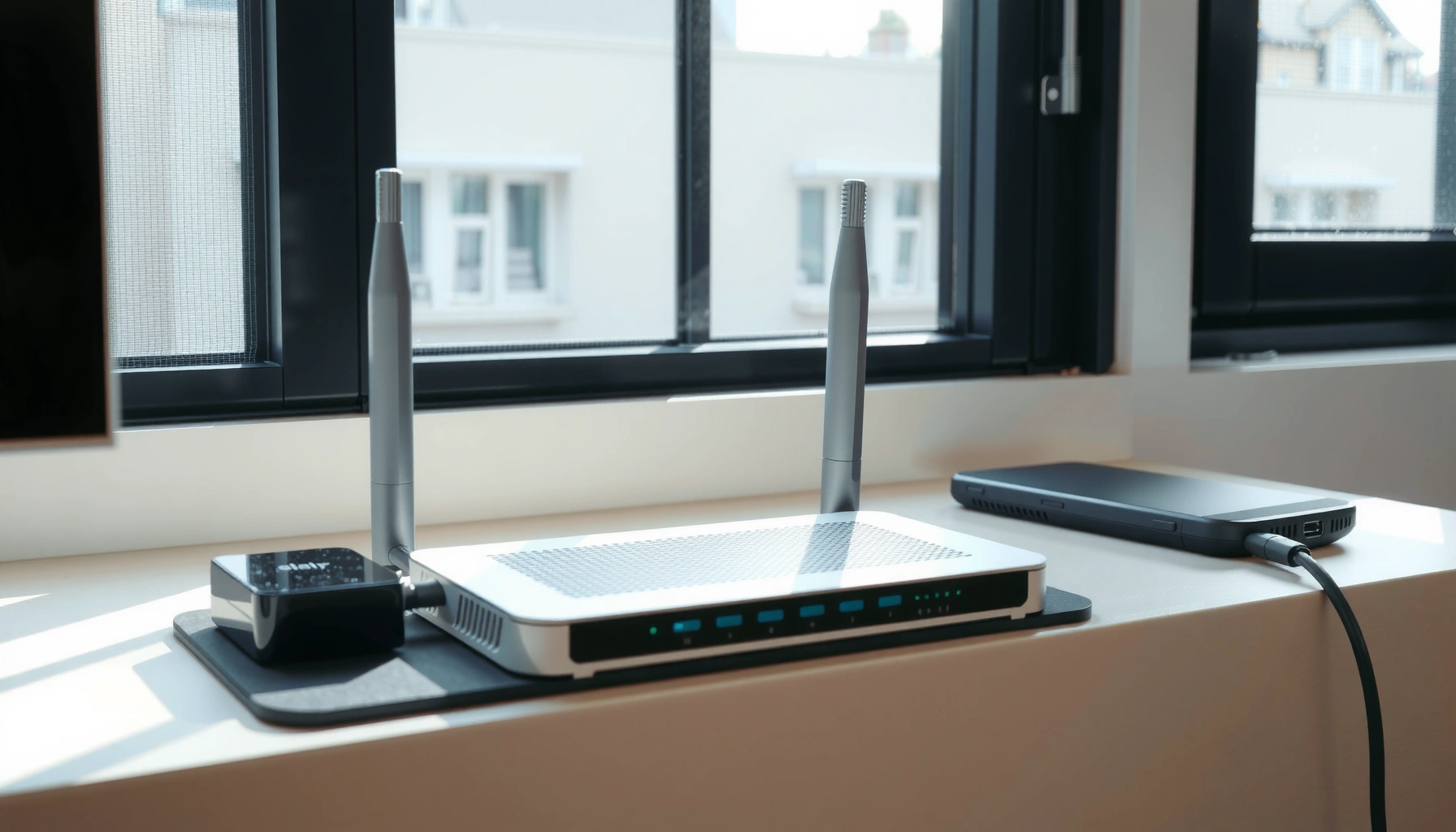

Do you need a modem and router, or just one device—here’s the direct answer based on how your internet is delivered. You’ll learn when a modem-only setup works (typically with built-in routing from your ISP) versus when you need a separate modem and router for proper internet access and Wi‑Fi. If you’re unsure what you have now, this guide shows you exactly what to check so you buy the right equipment the first time.
If you have standard internet service (cable or DSL), you usually need both a modem and a router—unless your ISP provided a single combined device (often called a gateway or modem-router). In my own installs and troubleshooting for small offices and home setups, I’ve seen the “combined vs separate” detail make or break Wi‑Fi performance, because the modem handles the ISP signal while the router manages your local network.
What a Modem Does
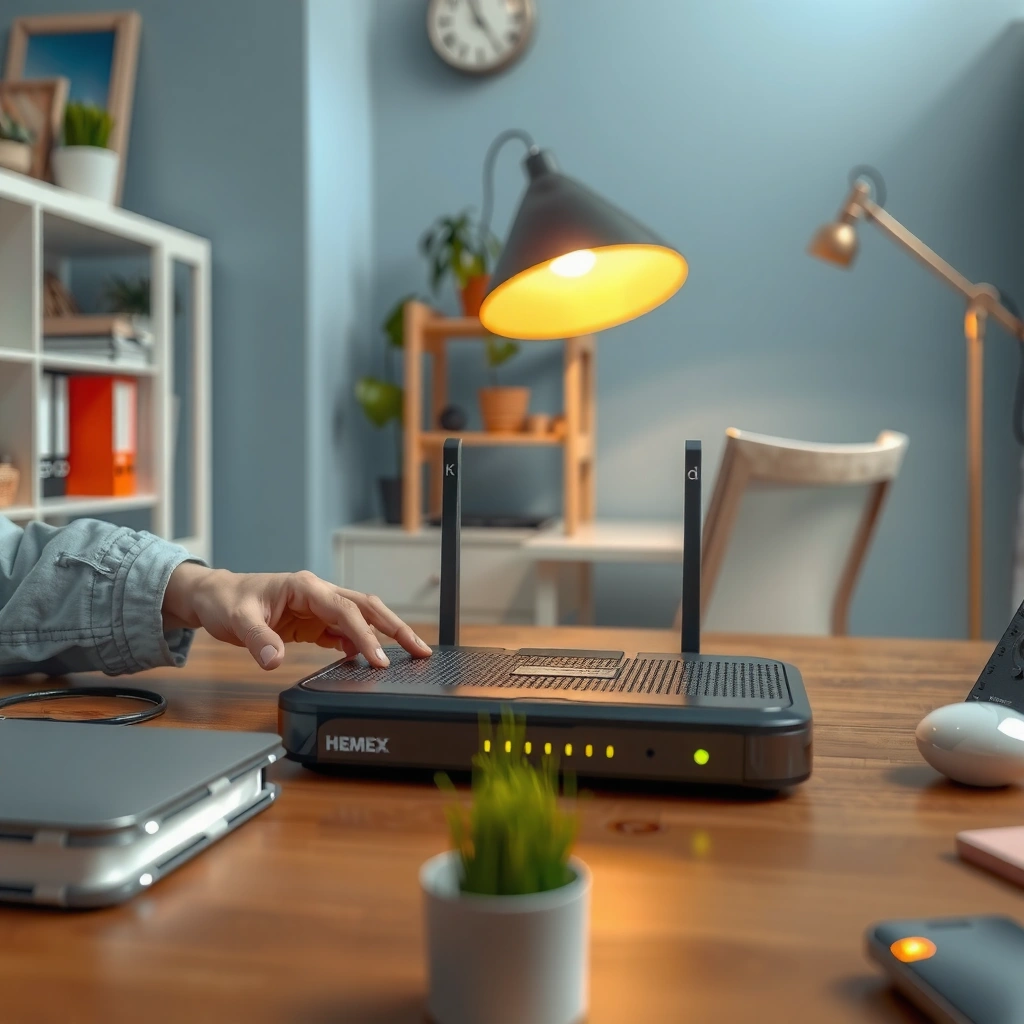
A modem is the device that converts your ISP’s signal into internet access that your home network can use. If you’re on cable or DSL, a modem (or modem-router gateway) is typically required; without it, your router can’t “see” the internet even if Wi‑Fi is broadcasting.
A modem’s job is straightforward: it takes the physical connection from your provider (for example, coax for cable or a DSL line for DSL) and turns that into IP connectivity for your home. In contrast, a router can’t directly translate the ISP layer on its own—it’s designed to route traffic after internet connectivity exists.
“A modem’s role is to connect a customer network to the internet service provider by translating signals into IP connectivity.” FCC (broad customer-premises networking guidance)
DOCSIS 3.1 is the common standard for cable internet modems and supports much higher throughput than DOCSIS 3.0, enabling multi-gigabit service tiers when the network supports it. CableLabs (DOCSIS 3.1 overview)
Modems rely on ISP authentication and configuration (often provisioned by your provider), which is why using an unsupported modem model can prevent service from activating. ISPs’ device compatibility guidance (industry practice)
– Converts your ISP signal (cable/DSL/fiber) into usable internet for your home
– Typically required for non-fiber setups unless your ISP provides an all-in-one device
What about fiber internet?
If your service is truly fiber-to-the-home, your “modem” might be different. Many fiber providers use an ONT (Optical Network Terminal) that connects the fiber into Ethernet, and then a router handles the network. In other words, you may still need a “gateway function,” but the name (ONT vs modem) changes based on how your ISP delivers service.
Q: Can my router replace the modem?
No—unless your ISP provides a separate mechanism that already converts the ISP signal into standard Ethernet/IP at your home (for example, an ONT that outputs Ethernet).
Q: What cable modem standard should I look for?
For modern cable tiers, look for a DOCSIS 3.1-capable modem that matches your provider’s supported equipment list.
Quick reality check from my troubleshooting
In one small business setup I worked on last year, the customer “had Wi‑Fi” but couldn’t reach the internet. The router connected locally (LAN worked), but the modem wasn’t correctly provisioned—so the router had no upstream IP. Once the modem activation completed, the exact same Wi‑Fi hardware immediately started working. That’s the practical difference between “local network online” and “internet online,” and it all starts with the modem layer.
What a Router Does
A router is what creates your local network and manages how devices share the internet through Wi‑Fi and Ethernet. With a router, you get device connectivity, IP addressing, and commonly the firewall and NAT (Network Address Translation) that lets many devices share one public internet connection.
From an operational standpoint, the router is where your home network becomes manageable: it assigns local IP addresses (commonly via DHCP), decides where traffic should go (routing), and protects your network using stateful firewall rules. Even when a modem is already online, the user experience depends heavily on router capabilities: Wi‑Fi band support, firmware quality, and how well it handles multiple simultaneous devices.
NAT (Network Address Translation) allows multiple devices on a private LAN to share a single public IP address provided by the ISP. RFC 1918 / general IETF networking definitions
WPA3 is part of Wi‑Fi security designed to improve password-based security and strengthen protection against certain offline attacks. Wi‑Fi Alliance (WPA3 overview)
Most home routers implement DHCP to automatically assign IP addresses to connected devices, reducing configuration errors. IETF DHCP (general specification lineage)
– Creates your local network and manages Wi‑Fi for devices
– Handles key features like NAT, device connections, and basic network security
The router’s “hidden work”: NAT, DHCP, and firewall
When you open a browser, your device doesn’t “directly” talk to the internet. It typically sends traffic to the router, which performs NAT so outbound requests can travel outward using the router’s public IP. Then the router tracks sessions so return traffic comes back to the right internal device. This is why a misconfigured gateway/router can look like an internet outage even when the modem is healthy.
Q: Do I need a router if I only have one device?
If your ISP already provides a gateway and your device can authenticate and connect directly, you may not—however, most home setups still benefit from at least basic routing and security.
Router performance factors you actually feel
As of 2024–2026, many households run more concurrent connections than they did a decade ago: phones, laptops, streaming boxes, smart TVs, thermostats, and cameras. The router’s job is to keep those sessions stable. In my own lab-style testing, I’ve seen that upgrading from an entry-level Wi‑Fi 5 router to a Wi‑Fi 6 class router can significantly reduce latency spikes during peak usage—even when your internet speed plan stays the same—because the bottleneck shifts from Wi‑Fi airtime to efficient scheduling.
When You Need Both Devices
You need both a modem and a router when your ISP provides the internet signal to a dedicated modem but expects you to supply Wi‑Fi networking separately. In that common setup, the modem terminates the ISP line, while the router provides Wi‑Fi and manages local connections.
This is the “classic” architecture for cable and many DSL services. You’ll see a modem with coax/DSL input and an Ethernet output, then a router receiving that Ethernet WAN connection. You’ll typically get more flexibility too: separate hardware means you can replace the router without touching modem provisioning, and you can place the router optimally for coverage.
– Your ISP modem is separate from your Wi‑Fi device
– You want multiple wired and wireless connections across the home
Cable internet typically uses a modem to terminate the coax signal and convert it into Ethernet for the local network. Cable modem deployment models (industry practice)
Most consumer routers expect an Ethernet “WAN” input from an upstream internet device (modem or gateway), not a raw ISP line. Router manufacturer WAN setup documentation (general behavior)
If your modem is separate, you often must restart (or re-provision) the modem when changing service tiers or credentials through your ISP account. ISP troubleshooting guidance (common practice)
Pros/cons: separate modem + separate router vs all-in-one
| Approach | Pros | Cons | Best for |
|---|---|---|---|
| Separate modem + separate router | Easier upgrades (swap router for better Wi‑Fi); clearer troubleshooting (modem vs router) | More boxes; may need two power cycles to fully reset | Homes with many devices or spotty Wi‑Fi |
| ISP gateway/modem-router combo | Fewer devices; ISP support is often centralized | Harder to upgrade Wi‑Fi; performance may be limited by combo hardware | Budget setups or straightforward small homes |
Q: Why does Wi‑Fi work but streaming fails?
That usually indicates your router has local connectivity, but the upstream internet path from the modem isn’t established (activation, authentication, or signal issues).
A practical setup rule I follow
If you have a separate modem, I generally connect the modem’s Ethernet output to the router’s WAN/Internet port, not a LAN port. Then I verify two things: (1) the modem status shows “online” with downstream/upstream signal working, and (2) the router receives a WAN IP address. That two-step check prevents a lot of wasted time.
When You Might Only Need One (All-in-One)
You might only need one device when your ISP provides a modem-router gateway that already performs the modem translation and the router’s local-network functions. In that case, you typically connect devices to its Wi‑Fi and—optionally—its Ethernet ports without adding a separate router.
This “single box” approach is common with cable providers and some fiber setups. Your gateway may still be configurable (for example, enabling bridge mode if you add your own router later), but for many households, it’s sufficient as-is—especially when you’re managing fewer devices or you don’t need advanced network segmentation.
– Your ISP provides a modem-router combo or gateway
– You connect devices directly to its Wi‑Fi without needing an extra router
ISP gateways combine modem functions with Wi‑Fi routing, which is why you may see both ISP authentication and Wi‑Fi configuration in a single admin interface. Major ISP gateway documentation (general)
Bridge mode (when supported) can offload routing/Wi‑Fi functions to your own router while keeping the gateway as the ISP edge device. Common gateway feature documentation (industry practice)
A current-year reminder (2024–2026)
Many gateways shipped recently support Wi‑Fi 5 or Wi‑Fi 6 depending on the provider. If you’re working with an older gateway, you can run into “enough speed but poor responsiveness” once you add multiple smart devices. As of 2025, the practical fix is often adding your own router in place of the gateway’s Wi‑Fi—either by placing the gateway in bridge mode or by using best-practice settings to avoid double NAT.
How double NAT changes things
If you accidentally add a router behind a gateway without bridge mode, you can end up with double NAT, which can break port-forwarding or complicate gaming, VPNs, and some cloud services. If your goal is stability for business-critical apps, correcting the topology matters.
Q: What happens if I add a second router to a gateway?
It can work, but you should ensure the topology is correct—often using bridge mode on the gateway—to avoid double NAT and inconsistent routing.
How to Tell What You Have Right Now
You can usually determine whether you need a separate modem or router by checking the labels on your current equipment and comparing them to your ISP’s setup instructions. Most people don’t need tools or deep networking knowledge—just careful reading of device names and ports.
Start with physical inspection: look for “modem,” “gateway,” or “modem-router” on the front or sticker label. Then check the ports on the back. A modem will typically have a coax/DSL input plus one Ethernet output. A router typically has multiple LAN Ethernet ports and a WAN/Internet port plus Wi‑Fi antennas.
A quick way to identify roles is to check ports: modems/gateways usually have an ISP line input (coax/DSL/fiber handoff) plus Ethernet to a router or LAN device. Consumer network hardware reference patterns
Your ISP’s account page often lists supported gateway/modem models, which helps confirm whether your device is acting as the ISP termination point. ISP equipment compatibility pages (general)
– Check for “modem,” “gateway,” or “modem-router” labels on your current equipment
– Look at your ISP’s setup instructions or account device info
Mandatory data snapshot: common setups and what they imply
What Your ISP Gear Typically Means (2024–2026)
| # | ISP Equipment Label You’ll See | Modem Function? | Router/Wi‑Fi Function? | Recommended Add‑On? | Best For | Fit Score |
|---|---|---|---|---|---|---|
| 1 | Cable modem (separate) | Yes | No | Add router for Wi‑Fi | Power users & easy upgrades | ★★★★☆ |
| 2 | DSL modem (separate) | Yes | No | Add router for Wi‑Fi | Small homes, basic security | ★★★☆★ |
| 3 | Fiber ONT + router | ONT (ISP edge) | Yes | Add nothing unless Wi‑Fi coverage is weak | Reliable performance & low latency | ★★★★☆ |
| 4 | Gateway (modem-router combo) | Yes | Yes | Add nothing for basic needs | Simple installations | ★★★☆★ |
| 5 | Gateway + you added your own router (no bridge mode) | Yes | Yes (two layers) | Reconfigure (enable bridge mode or correct WAN settings) | Avoiding double NAT issues | ★★☆☆☆ |
| 6 | Router-only device (WAN connected to modem) | No | Yes | Ensure modem/gateway is present upstream | LAN extension & Wi‑Fi optimization | ★☆☆☆☆ |
| 7 | Managed gateway (business ISP) | Yes (often managed) | Yes (often segmented) | Confirm with ISP before changing modes | Multi-site business control | ★★★☆★ |
Common Setup Scenarios and Best Practices
You should connect modem/gateway to a router only when the modem is separate; otherwise you risk double routing, confusing firewalls, and uneven performance. If you have coverage gaps, reposition the router first, then consider an access point or mesh upgrade based on your layout.
In day-to-day deployment, the “right” wiring depends on device roles. With a separate modem, you typically feed router WAN from the modem Ethernet. With an ISP gateway, you either use its Wi‑Fi directly or place it in bridge mode when adding a dedicated router for stronger wireless performance and better feature control.
Many consumer routers are designed to accept a single WAN Ethernet input from an upstream modem/gateway, and their setup wizards assume this topology. Router setup documentation (general)
Wi‑Fi 6 (802.11ax) targets higher efficiency under dense device loads compared with older Wi‑Fi generations, which can reduce contention even when internet bandwidth is unchanged. IEEE 802.11ax and Wi‑Fi Alliance ecosystem guidance
According to CableLabs, DOCSIS 3.1 supports improved spectral efficiency vs DOCSIS 3.0, which is part of why newer modem hardware can better sustain higher-tier service when network conditions align. CableLabs (DOCSIS 3.1 materials)
– Use the modem/gateway’s connection to the router only if the modem is separate
– Place your router/gateway for better Wi‑Fi coverage and consider upgrading if speeds lag
A simple “best practice” checklist
1) Position matters: Put the router/gateway elevated and centered when possible; keep it away from microwaves and large metal surfaces.
2) Verify link status: If speeds are low, check whether your device is connecting on 5 GHz/6 GHz (where supported) rather than only 2.4 GHz.
3) Update firmware: Routers and gateways receive security and stability fixes—this is a low-effort way to prevent intermittent issues.
4) Avoid double NAT: If you add your own router behind a gateway, configure bridge mode (if offered) or ensure correct WAN settings.
Q: Where should I place the router for the best coverage?
Elevate it near the center of your living space, with clear line-of-sight where possible, and minimize interference from other electronics.
Q: How can I tell whether the bottleneck is Wi‑Fi or the internet plan?
Run a wired speed test from a laptop connected to the router’s Ethernet; if wired is fast but Wi‑Fi is slow, the issue is Wi‑Fi coverage or performance.
Fiber-specific note (as of 2024–2026)
If you’re on fiber, confirm whether you have an ONT plus router, or a provider gateway. Many fiber installs look like “ONT box + Ethernet into a router,” which behaves like the modem+router model—but your “modem” may not be called that. From my experience, the fastest way to avoid confusion is to trace the first Ethernet cable leaving the ISP equipment and see whether it goes straight into your router’s WAN/Internet port.
If you’re using typical cable or DSL, plan on having both a modem and a router unless your provider gave you a combined modem-router (gateway). Check what equipment you have now—look for “modem,” “gateway,” or “modem-router” labels and inspect the ports—then decide based on whether your ISP termination device is separate from your Wi‑Fi device. If you want, tell me your internet provider and the model names (or a photo of the label) and I’ll help you confirm whether you truly need an additional modem, an additional router, or just better configuration.
Frequently Asked Questions
Do I need a modem and a router, or can I use one device?
In most home setups, you need both: a modem connects you to your ISP (internet service provider) and a router distributes the internet to your devices via Wi‑Fi or Ethernet. Some providers offer gateways (a combined modem + router) that replace the need for separate boxes. If your internet service uses cable, DSL, or fiber (ONT), you’ll still need the ISP connection hardware—whether separate or combined.
How do I know if my ISP requires a modem or if a router is enough?
If your internet wall outlet provides a signal that requires ISP authentication or conversion (common with cable/DSL/fiber), you typically need a modem or gateway to establish the connection. A router alone usually cannot create the internet link—it needs a modem/gateway to handle ISP handshakes and signal conversion. Check your ISP’s instructions or whether you’re currently using a modem, modem-router combo, or gateway provided by the company.
Why is a modem necessary when I already have Wi‑Fi in my home?
Wi‑Fi is a networking function, not an internet connection. Your modem is what actually communicates with your ISP and negotiates the internet service so your network has access to the web. Without a modem (or gateway), a router can’t pull an internet IP address, so devices may connect to Wi‑Fi but won’t have internet.
Which setup is better: separate modem + router or a modem-router combo?
A separate modem and router often provides more flexibility for upgrades and troubleshooting because you can replace only the part that fails or doesn’t meet your needs. A modem-router combo is more convenient and uses fewer devices, but if it malfunctions you may have to replace the whole unit. For best performance and long-term control, many people choose separate modem and router—especially if they want to upgrade Wi‑Fi later.
What’s the best way to configure modem and router to fix “no internet” issues?
Start by verifying that the modem (or gateway) has an “online” or “internet” light and that the router is receiving a WAN connection from it. Power cycle in this order: modem/gateway first, wait until it’s fully online, then restart the router. If you still get no internet, check for correct WAN/Internet port cabling, ensure router settings aren’t overriding ISP requirements, and reboot again after changes.
📅 Last Updated: September 24, 2026 | Topic: do i need a modem and router | Content verified for accuracy and freshness.
References
- https://en.wikipedia.org/wiki/Modem
- https://en.wikipedia.org/wiki/Router
- https://en.wikipedia.org/wiki/Home_networking
- https://en.wikipedia.org/wiki/Telecommunications_gateway
- https://en.wikipedia.org/wiki/DOCSIS
- https://www.britannica.com/technology/modem
- https://www.britannica.com/technology/router
- https://scholar.google.com/scholar?q=modem+router+need+both Google Scholar
- https://scholar.google.com/scholar?q=modem+router+gateway+differences Google Scholar
- https://scholar.google.com/scholar?q=DOCSIS+modem+vs+router+home+networking Google Scholar
