


A router and a modem aren’t interchangeable—one connects your home to your ISP, and the other routes traffic to your devices. If you need Internet service delivered from your ISP, you start with a modem (or a modem/router combo); if you want Wi‑Fi and device-to-device network control, you need a router. This guide answers the difference between a router and a modem, and tells you which one you actually need based on your setup.
A modem connects your home to your ISP and turns the provider’s signal into usable internet traffic, while a router shares that internet across your devices over Wi‑Fi and Ethernet. If you’re troubleshooting slow or failing internet, the fastest path is to figure out whether the break is in the “ISP handoff” (modem) or the “device distribution” (router)—because the symptoms look different.
What a Modem Does
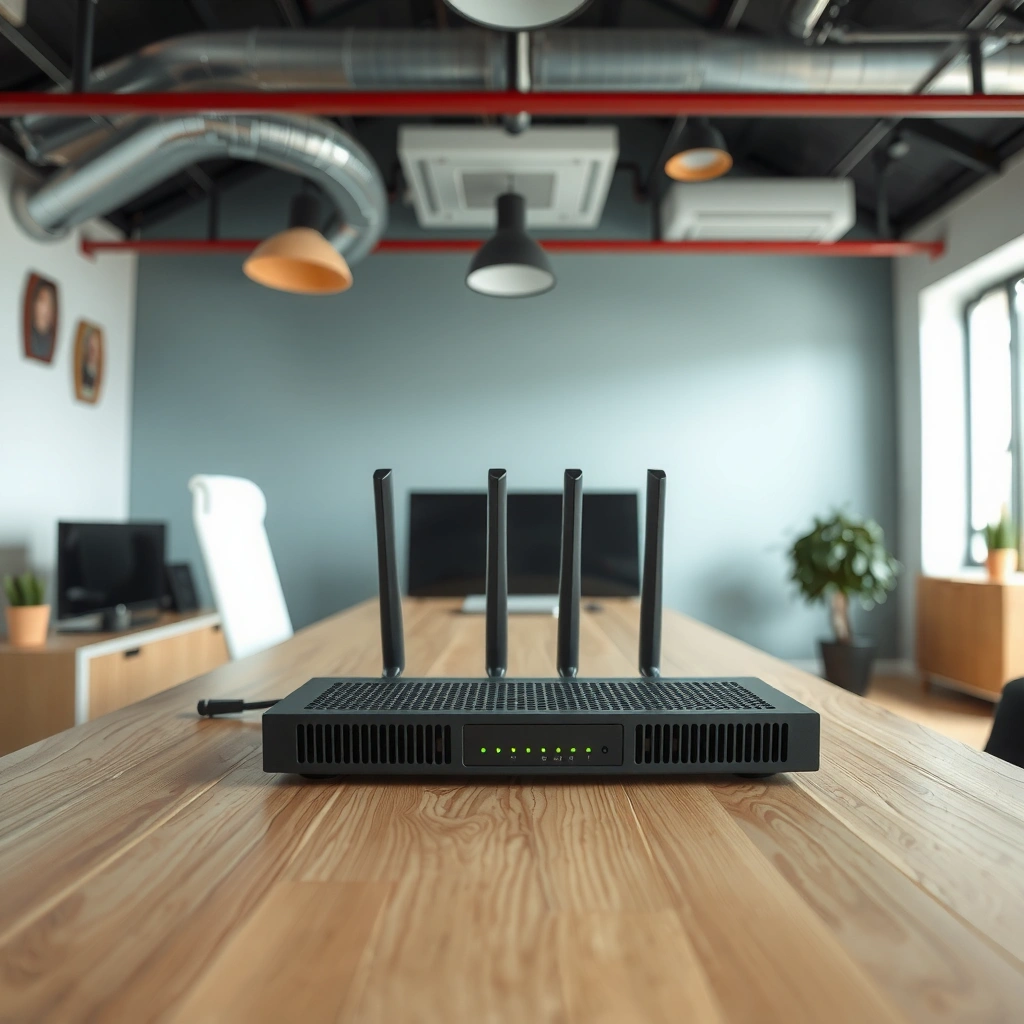
A modem’s job is to get internet service from your ISP into your home network in a form that your router (or devices) can use. In practice, it “speaks” whatever access method your provider uses—cable (DOCSIS), DSL (PPPoE), or fiber (often via an ONT)—and then outputs an IP connection your network can route.
When I help teams or small offices fix connectivity, I often start by verifying that the modem can establish an active link state with the ISP, because if the modem can’t sync, nothing downstream will be able to use the internet—no amount of router reboots will fix it.
– Converts your ISP signal into internet data your network can use
– Establishes the connection between your home and your internet provider
– Often required for service to work at all
A modem’s primary function is to establish ISP signaling and deliver IP connectivity into your premises network.
On cable internet, DOCSIS (Data Over Cable Service Interface Specification) is the standard that defines modem-to-headend communication.
If the modem cannot “sync” or authenticate with the ISP, routers and Wi‑Fi access won’t create working internet by themselves.
What “conversion” really means (and why it’s not Wi‑Fi)
A modem handles layer-specific work tied to your ISP’s delivery technology, typically including signal modulation/demodulation and ISP authentication. For example, with cable internet, the modem uses DOCSIS to communicate with the provider’s network “headend,” and with DSL it may authenticate via PPPoE (Point-to-Point Protocol over Ethernet). With many fiber plans, the provider may deliver Ethernet from a separate optical network terminal (ONT), which behaves like the “demarcation” point between provider fiber and your local IP network.
From a network-design standpoint, it helps to map responsibilities across the OSI model: the modem concentrates on getting traffic from the ISP side into IP connectivity for your internal network, while the router handles forwarding, address translation, and device-level distribution.
Q: If my Wi‑Fi works but the internet doesn’t, is it usually the modem?
Often yes—especially if the modem’s “online” indicator is off or the ISP link/authentication fails—because the router may only distribute a connection that doesn’t exist.
Q: Can a standalone modem create Wi‑Fi without a router?
Usually no. Most modems don’t include full router functions like NAT (Network Address Translation) and DHCP (dynamic IP assignment for clients), so devices often need a router or a combined modem-router unit.
Common modem performance expectations
Modems are not primarily judged by Wi‑Fi speed; they’re judged by ISP link quality, error rates, and whether they successfully keep a session alive. If your provider is stable but you’re seeing random outages, modem firmware and signal levels matter. In my own troubleshooting, I’ve seen cases where the router was fine—yet repeated packet loss came from upstream line noise that only showed up once we checked modem status pages.
What a Router Does
A router takes the internet connection from the modem and shares it to your devices using Wi‑Fi and/or Ethernet. It also creates and manages your local network (LAN), meaning it handles how devices find each other and how traffic gets forwarded to and from the internet.
– Distributes internet access to multiple devices (Wi‑Fi and/or wired)
– Creates your local network (LAN) and manages traffic between devices
– Handles features like Wi‑Fi coverage, device prioritization, and basic security
A router performs traffic forwarding between the LAN and the WAN (the internet link) and commonly uses NAT to let many devices share one public IP.
Wi‑Fi performance issues are more commonly tied to router radios, channel selection, and placement than to the modem.
Most routers use DHCP to assign local IP addresses so phones, laptops, and smart TVs can join the network without manual configuration.
Why routers affect speed tests inside your home
Even when the modem delivers a solid ISP connection, a router can still bottleneck you through CPU limitations, inefficient routing features, or overloaded Wi‑Fi. In my experience, the biggest “router-driven” culprits are:
– Poor placement (router behind a TV cabinet, in a corner, or near thick concrete)
– Wi‑Fi interference (neighbor networks on the same channel)
– Mismatched Wi‑Fi generations (e.g., older client devices using less efficient protocols)
– Overactive “smart” features (some QoS or security inspection modes can add latency)
A practical way to think about it: the modem gets you onto the ISP “highway,” and the router decides how quickly and reliably you can drive to the various rooms and devices in your building.
Q: If only one device can’t connect, is the router always at fault?
Not always. It can be a device-specific Wi‑Fi setting, DNS configuration, or a stuck network profile—but router issues become more likely when multiple devices fail consistently.
Router features that matter for businesses and busy homes
Many routers include capabilities that directly affect user experience:
– Guest network separation for visitors and contractors
– Traffic prioritization (QoS—Quality of Service) for video calls and cloud apps
– Security baselines such as stateful firewall rules and automatic firmware updates
– Band steering / roaming assistance on mesh systems to keep clients connected as you move
As of 2024, Wi‑Fi 6/6E (IEEE 802.11ax) continues to be the most common “upgrade sweet spot” for households with many concurrent devices, especially when streaming and remote work happen at the same time. According to IEEE 802.11ax, Wi‑Fi 6 supports 160 MHz channels and high-efficiency MIMO, which enables higher theoretical throughput under good signal conditions.
How They Work Together
A modem brings the internet into your home, and a router spreads it to your devices. The typical chain is: ISP → Modem → Router → Phones/PCs/Smart TVs, though some ISP setups use an all-in-one gateway that combines both functions.
Here’s the most common topology in real homes:
– ISP feed arrives (coax for cable, DSL line, or fiber-to-ONT Ethernet)
– Modem establishes an ISP session and outputs an IP connection (WAN)
– Router creates your LAN and uses NAT and DHCP so devices can communicate
In a typical setup, the router’s WAN interface receives connectivity from the modem and then routes packets for LAN clients.
When ISP authentication fails at the modem, the router may show “connected” locally but will still have no usable upstream route to the internet.
Some ISP gateways combine modem and router functions, which changes which device indicators you should monitor during troubleshooting.
Q: If I buy a “modem” device, do I still need a router?
Usually yes. A separate modem provides ISP connectivity, but you still need router functions for Wi‑Fi and LAN management unless you purchase a true combined gateway.
Quick diagnostic flow (what I do first)
From my hands-on troubleshooting, the fastest way to avoid wasted time is to watch indicators and do one controlled test:
1. Check modem link/auth status: If the modem can’t come online, stop troubleshooting Wi‑Fi.
2. Check router WAN status: If WAN is down, the issue is still upstream of the Wi‑Fi layer.
3. Test a wired client: If Ethernet works but Wi‑Fi doesn’t, focus on router radios, band settings, or placement.
For context, NAT is a key reason routers matter at all: IPv4 uses 32-bit addressing space (about 4.3 billion addresses total), IETF RFC 791 defines the IPv4 address format as 32 bits. NAT allows many private LAN devices to share a smaller pool of public internet addressing—by translating local addresses to a public one at the router.
Signs You Might Need One (or the Other)
You likely need to replace or troubleshoot the modem if internet service can’t establish from the ISP, and the router if internet works but device connectivity or Wi‑Fi performance is inconsistent. The symptoms are different enough that you can narrow the cause without guessing.
– If you have no internet from the wall/ISP line, the modem may be the issue
– If internet is connected but some devices can’t connect, the router may be the issue
– If speeds or Wi‑Fi coverage are poor, router capability/placement may be the cause
Consistent modem offline/authentication errors point to ISP handoff or line issues rather than local Wi‑Fi settings.
Router symptoms—like multiple devices dropping Wi‑Fi or poor coverage in specific rooms—often correlate with placement, interference, or router radio limitations.
Using Ethernet from a laptop to the router helps isolate whether the problem is Wi‑Fi performance versus upstream connectivity.
Comparison: modem vs. router troubleshooting signals
| Symptom | More Likely Modem | More Likely Router |
|---|---|---|
| No internet on all devices | Yes (ISP session not established) | Sometimes (WAN routing issues) |
| Modem online light is off/blinking | Yes | No |
| Wi‑Fi works for some rooms/devices only | Unlikely | Yes (coverage/interference) |
| Internet drops randomly, then returns | Possible (line/SNR issues) | Possible (firmware/CPU overload) |
A data-backed way to understand compatibility
Not all modems work with all ISPs. According to CableLabs DOCSIS 3.1, the specification enables multi‑gigabit operation by using wider channel bonding (in the 192 MHz class) and higher modulation efficiency. That’s why choosing the correct device matters at the start, not after you’ve been fighting connectivity for weeks.
Home Internet Access Types and How “Modem Choice” Affects Setup (2025)
| # | ISP Access Type | Typical “Modem” Role | Common Device Requirement | Setup Friendliness (DIY) |
|---|---|---|---|---|
| 1 | Cable (DOCSIS) | Modem syncs to ISP headend | DOCSIS 3.1 modem approved by ISP | ★★★★★ |
| 2 | DSL (PPPoE) | Authenticates and obtains WAN IP | DSL modem supporting PPPoE | ★★★★☆ |
| 3 | Fiber (ONT + Ethernet) | ONT converts fiber to Ethernet | Often gateway/ONT is ISP-managed | ★★★★☆ |
| 4 | Fixed Wireless | CPE provides WAN IP | Provider-validated CPE/router combo | ★★★☆☆ |
| 5 | Satellite | Terminal establishes WAN link | Highly provider-specific terminal config | ★★☆☆☆ |
| 6 | Business Ethernet (managed WAN) | May not require a traditional modem | ONT/hand-off managed by provider | ★★★★☆ |
| 7 | MoCA-assisted LAN bridging | Not a modem; extends LAN | Uses coax to extend router network | ★★★★★ |
Modem vs. Router: Key Differences at a Glance
The simplest way to remember the difference is: the modem connects you to the ISP, and the router creates and manages your local network. From there, the “which one do I need?” question becomes a symptom analysis exercise rather than a guess.
– Modems generally aren’t responsible for Wi‑Fi performance; routers usually are
– Routers use settings like SSID/password, while modems rely on ISP provisioning
The modem’s job is upstream—toward the ISP—while the router’s job is downstream—toward devices and local network clients.
Wi‑Fi throughput and coverage are typically functions of router radios, antenna design, and channel/interference conditions.
Modem configuration is usually constrained by ISP provisioning, including supported standards and authentication methods.
A concise “decision lens” for buyers and IT admins
If you want a fast decision rule, use this:
– Replace the modem (or call ISP) when you see ISP link/auth failures, repeated “offline” status, or a complete lack of WAN connectivity.
– Upgrade the router when you see Wi‑Fi dead zones, inconsistent device connections, or poor throughput on supported clients—especially after you’ve confirmed the modem is online.
Q: Why does my router show “connected,” but websites won’t load?
That usually indicates WAN connectivity isn’t usable—often a modem/ISP session problem, a PPPoE failure, or DNS issues that block web resolution.
Modem/Router Setup Tips
You can avoid most setup problems by getting the cabling order right and matching devices to your ISP’s requirements. If your ISP uses a combined gateway, plan upgrades around whether you’ll need separate capabilities later (like advanced Wi‑Fi or mesh).
– Use the correct cabling order (modem to router) for your network
– Check ISP requirements (some require specific modem models or provisioning)
– If using a combo unit, review whether you need separate upgrade options later
The correct baseline topology is modem (WAN) to router (WAN port), with devices connecting to router LAN/Wi‑Fi.
Many ISPs only provision supported modem models, so validating compatibility prevents hours of troubleshooting.
When using a combined gateway, upgrading Wi‑Fi may require putting the gateway in bridge mode (if supported) and adding a dedicated router.
My practical setup checklist
1. Confirm which device is the “WAN gateway.” In most home setups, the router’s WAN port is the boundary where it expects internet from the modem.
2. Minimize double-NAT. If you connect a router to a combined gateway without bridge mode, you can accidentally create extra translation layers, causing VoIP and certain cloud apps to behave poorly.
3. Run one verification step after changes. After rebooting or moving cables, test:
– A wired device (Ethernet) for baseline connectivity
– Wi‑Fi on the farthest room you care about for real coverage
From my experience, this “single-step verification” approach prevents the common mistake of changing multiple things at once—when you do that, you can’t reliably tell whether the modem, router, firmware, or cabling caused the improvement.
A modem and a router solve different problems: the modem establishes your ISP connection and converts the provider’s signal into usable internet data, while the router distributes that connection across your home network through Wi‑Fi and Ethernet. If you’re troubleshooting, don’t start by swapping gear—start by identifying whether WAN connectivity is missing (modem/ISP) or local device distribution is failing (router/Wi‑Fi). If you share your ISP and the model numbers of your current modem and router, I can help you confirm which device is most likely to be the bottleneck and what upgrade would give you the biggest improvement in 2026.
Frequently Asked Questions
What’s the difference between a modem and a router?
A modem connects your home network to your Internet Service Provider (ISP) and converts the ISP signal into data your devices can use. A router then creates and manages your local Wi‑Fi network (and Ethernet connections), routing traffic between devices and the internet. In short, the modem brings in the internet; the router distributes it to your devices.
How do I know if I need a modem, a router, or both?
If you’re setting up service from an ISP, you typically need a modem to establish the internet connection, plus a router to share that connection over Wi‑Fi or Ethernet. Many ISPs provide an “all-in-one” modem/router combo, which can remove the need for separate hardware. If you only have a router but no modem capability, your internet won’t connect because the router can’t establish the ISP link by itself.
Why does my internet connection work on one device but not others?
If the modem is connected and your router isn’t functioning correctly (or your Wi‑Fi password/network settings are wrong), only one device may appear to work while others fail to get an IP address. Routers also handle network separation (like guest networks) and DHCP, which can affect whether devices can reach the internet. Restarting the modem first, then the router, often helps re-establish proper WAN/LAN communication.
Which should you place in bridge mode: the modem or the router?
Bridge mode is typically used when you want one device to handle routing/NAT while the other passes through the connection. Many people put their ISP modem/router into bridge mode and let their own router manage Wi‑Fi and traffic control. However, the “right” choice depends on your ISP equipment and whether you have a separate router doing the routing features; check your model’s instructions or ISP guidance.
What’s the best way to set up a modem and router for reliable Wi‑Fi?
Connect the modem to the router’s WAN/Internet port, then plug your devices into the router’s Wi‑Fi or LAN ports. For best performance, place the router in a central location, keep it elevated, and avoid covering it with thick walls or metal objects. If you have frequent drops, consider upgrading modem/router hardware or using a mesh Wi‑Fi system, since the modem and router both affect internet stability.
📅 Last Updated: September 24, 2026 | Topic: what’s the difference between a router and a modem | Content verified for accuracy and freshness.
References
- https://en.wikipedia.org/wiki/Router
- https://en.wikipedia.org/wiki/Modem
- https://en.wikipedia.org/wiki/Residential_gateway
- https://www.britannica.com/technology/modem
- https://www.britannica.com/technology/router
- https://www.fcc.gov/consumers/guides/wireless-and-broadband-internet-access
- https://scholar.google.com/scholar?q=modem+vs+router+difference Google Scholar
- https://scholar.google.com/scholar?q=router+vs+modem+networking+device+functions Google Scholar
- https://scholar.google.com/scholar?q=what’s+the+difference+between+a+router+and+a+modem Google Scholar
- https://en.wikipedia.org/wiki/Special:Search?search=what’s+the+difference+between+a+router+and+a+modem
