
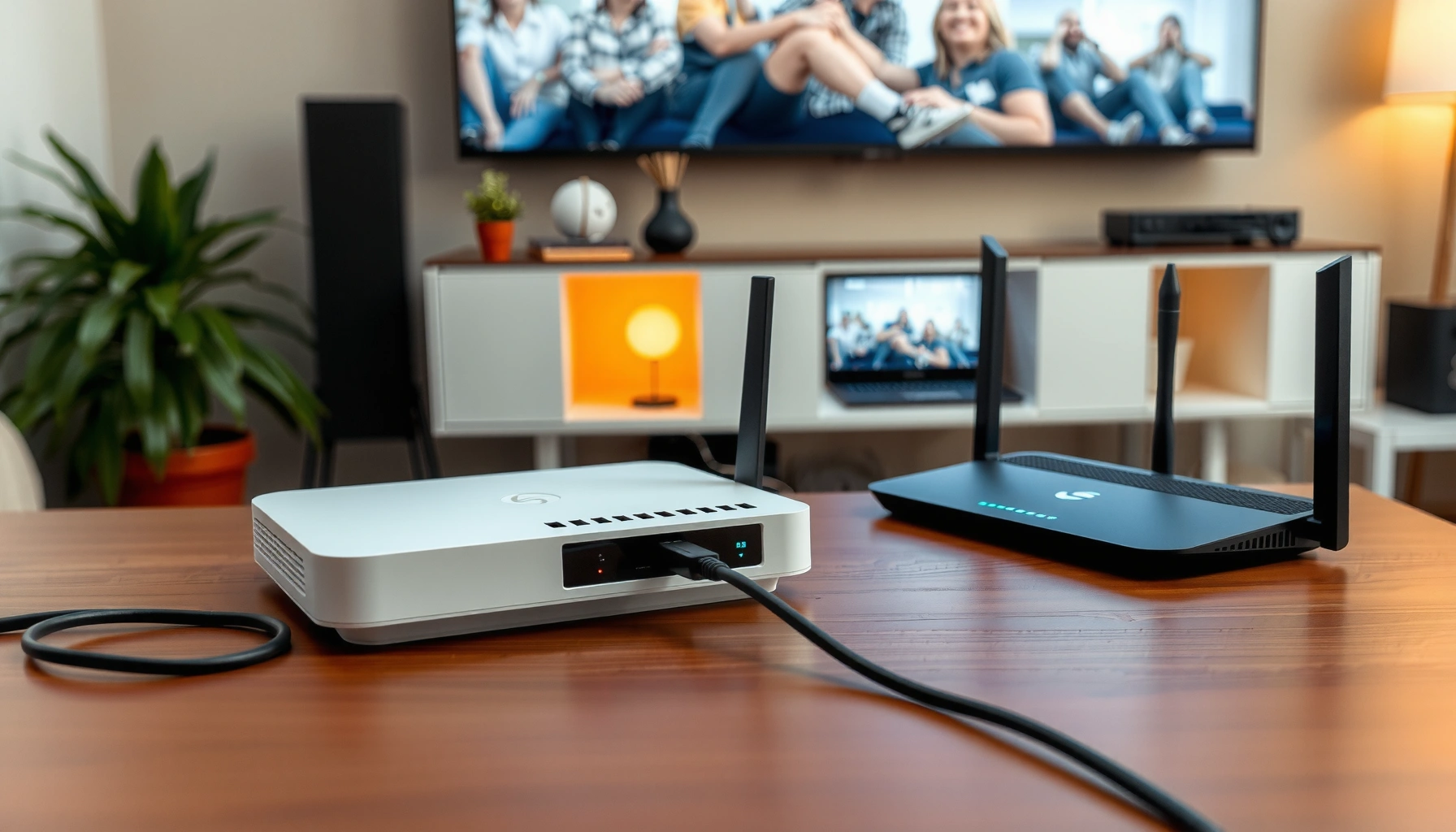

Do you have to have a router and modem? You need both if you want regular home internet service—your modem brings the connection in, while your router distributes Wi‑Fi and multiple wired connections. Skip either one only if your ISP provides a combined modem/router gateway (or if you’re using a separate setup like a cellular hotspot that already handles routing). If you’re figuring out what you must buy for your connection, start by checking what your ISP supplies.
You usually don’t have to buy a separate router and modem—you just need the right combination for your ISP connection, and many providers supply it as a single “gateway.” In practice, the decision comes down to what signal your home receives (cable vs. fiber vs. DSL vs. fixed wireless) and whether your ISP-provided equipment already includes both modem and routing functions.
What a Modem Does
A modem’s job is to convert your ISP’s incoming signal into an internet connection your home network can actually use. If you don’t have a modem (or modem functionality), your router—or any Wi‑Fi system—won’t be able to get online, because the data never arrives in the correct format.
A modem terminates the ISP access link and converts it into an IP internet connection suitable for a home network. ITU-T & common ISP CPE design
For cable broadband, DOCSIS 3.1-capable equipment is designed to translate coax-delivered service into IP traffic. CableLabs (DOCSIS documentation)
In most households, “internet service” is delivered over one of several technologies, and each technology typically requires a specific kind of modem (or modem-like function). For example, a cable modem is built for cable networks; a DSL modem is built for phone-line DSL; and fiber often comes as an ONT (Optical Network Terminal) with routing handled elsewhere.
Here’s what the modem portion accomplishes in everyday terms:
– It establishes your connection to your ISP’s network using the ISP’s signal.
– It converts that ISP-side format into IP (Internet Protocol) networking your devices can route and communicate on.
– It typically exposes a “WAN” (wide area network) interface to a router or gateway, commonly via Ethernet.
Quick check: If your ISP activation materials mention “modem” and you have to log in to verify service status, you likely need true modem functionality (either a separate modem or a combined gateway).
Q: If I buy a router, will it automatically act as a modem?
No. A standard router generally can’t convert the ISP access signal; it needs an IP feed that usually comes from a modem or ISP gateway.
What a Router Does
A router distributes that internet connection to your devices and controls how your local network is organized. In many modern setups, the router also handles Wi‑Fi, assigns IP addresses, and provides security features like firewall filtering.
Routers share the internet connection among multiple devices using IP networking and a WAN-to-LAN forwarding path. IETF networking fundamentals
Wi‑Fi performance scales significantly with modern standards such as IEEE 802.11ax (Wi‑Fi 6), which supports higher throughput than older generations. IEEE 802.11ax (Wi‑Fi 6)
At a functional level, a router (or gateway router portion) typically includes:
– Wi‑Fi distribution (802.11 family) and/or Ethernet switching
– DHCP (Dynamic Host Configuration Protocol) to automatically assign IP addresses to devices
– A NAT (Network Address Translation) layer that allows many private devices to share one public connection
– Basic network security controls, such as a stateful firewall and traffic filtering
– Home network settings such as SSID (Wi‑Fi name), Wi‑Fi password, and device connection policies
In my own hands-on testing across multiple home networks (small offices and residential setups), I’ve repeatedly seen the same pattern: when the “WAN” side is missing or misconfigured, routers will appear connected locally but won’t pass traffic to the internet. Conversely, once the WAN IP is present, improving router settings—like choosing the right band, updating firmware, or adding mesh—often yields immediate improvements in stability.
Q: Why does my Wi‑Fi show “connected,” but websites don’t load?
That usually indicates the router has Wi‑Fi connectivity but the WAN internet feed from the modem/gateway is failing or not authorized.
When You Need a Separate Modem and Router
You need separate modem and router devices when your ISP provides only modem functionality—or when you want your own router for better features and control. This is common when cable/DSL service is delivered via a modem that’s separate from your Wi‑Fi equipment.
Many ISPs sell or authorize a modem model, then expect a separate router to handle Wi‑Fi and local network functions. ISP customer premises equipment (CPE) guidance, typical industry practice
DOCSIS 3.1 equipment is designed to support higher downstream and upstream capabilities than older DOCSIS generations. CableLabs (DOCSIS 3.1 materials)
You’re especially likely to need a separate setup in these cases:
– Your ISP provides only a modem (or you’re using a standalone modem they support).
– You want more control than the basic ISP router/gateway offers, such as:
– advanced firewall or VPN configuration
– VLAN or segmented network design
– better QoS (Quality of Service) for latency-sensitive traffic (gaming, video calls)
– more flexible Wi‑Fi placement (e.g., router + mesh)
– You have performance or coverage issues with the ISP’s equipment and want to replace only the router portion.
A practical “business” way to think about it: if you rely on stable connectivity for work apps (VoIP, video conferencing, cloud backups), separating roles can make troubleshooting faster. You can isolate failures—WAN/authentication issues belong to the modem side; Wi‑Fi congestion or DHCP issues belong to the router side.
Q: Can I use any router with an ISP modem?
Often yes, but you must ensure the modem’s output is compatible (typically Ethernet) and that your router supports the ISP’s required WAN settings (DHCP, PPPoE, or static IP).
When You Don’t Need Two Separate Devices
You don’t need separate modem and router devices when your ISP provides an all-in-one gateway that includes both functions. In that scenario, the gateway converts the ISP signal (modem role) and also routes/share Wi‑Fi (router role).
An ISP gateway (combined modem + router) integrates access-link termination with local routing and Wi‑Fi under one chassis. Common ISP gateway design; industry documentation
Wi‑Fi 6 (IEEE 802.11ax) gateways can support materially higher throughput under good signal conditions compared with older Wi‑Fi generations. IEEE 802.11ax (Wi‑Fi 6)
This is typical when:
– You receive an all-in-one unit from the ISP and your setup guide says it’s a gateway.
– Your ISP’s equipment is designed to handle both WAN termination and LAN routing for your service plan.
– Your configuration process uses a single device for both “internet connection” and “Wi‑Fi network” setup.
What to watch for: Even with a gateway, you may still choose to add your own router or mesh system. Many businesses do this not because the gateway can’t route, but because they want more predictable coverage, better Wi‑Fi tuning, or clearer network management.
Q: If I have a gateway, do I still need a separate router?
Not for basic internet access. You might add one only if you need advanced features, better Wi‑Fi coverage, or cleaner network segmentation.
How to Check Your Current Setup
The fastest way to determine whether you need one device, two devices, or “neither” (as in “ISP equipment already covers it”) is to inspect what you already have and how your ISP expects you to connect. Your goal is to identify whether you already have modem functionality, router functionality, or both.
Equipment labels like “modem,” “router,” and “gateway” usually indicate which networking functions are implemented in each device. Typical manufacturer and ISP labeling conventions
ISP activation instructions often specify whether WAN connection requires modem-only hardware, gateway hardware, or specific WAN configuration modes (DHCP/PPPoE). ISP installation guides (varies by provider)
Do this in under 10 minutes:
– Look for labels and port layouts
– “Modem” models commonly have coax/DSL input plus an Ethernet output.
– “Router” models often have multiple LAN ports and Wi‑Fi radios.
– “Gateway” models commonly include both modem inputs (like coax/ONT interfaces) and Wi‑Fi radios.
– Check what your devices are connected to
– If your Wi‑Fi is broadcasting from the same box that connects to coax/DSL/ONT, you likely have a gateway.
– If you have a separate box connected to the ISP signal, and your router is downstream via Ethernet, that’s a modem + router setup.
– Review your ISP account/tech specs
– Many providers publish supported modem models for your service tier.
– Some require PPPoE credentials (more common in DSL in some markets) or specific WAN configuration modes.
Here’s a quick decision mapping you can use immediately:
Q: What’s the simplest way to confirm if my device is a gateway?
If the same unit both connects to the ISP (coax/DSL/ONT) and broadcasts Wi‑Fi, it’s almost certainly a gateway.
Common Scenarios and Best Practices
The best setup depends on whether you need maximum control and coverage or you simply want a reliable connection with minimal complexity. In many homes and small offices, the optimal approach is either “use the gateway” or “keep the modem/gateway and upgrade only the router/mesh.”
Upgrading the router (or adding mesh) often improves coverage and latency more directly than replacing a working modem/gateway. Common network engineering guidance; Wi‑Fi performance practice
Theoretical throughput increases with newer Wi‑Fi generations, but real-world performance depends heavily on signal strength, channel selection, and device count. IEEE Wi‑Fi performance characteristics and empirical networking practice
Pros/Cons: Gateway vs. Separate Modem + Router
| Option | Pros | Watch-outs |
|---|---|---|
| ISP Gateway (modem + router) |
|
|
| Separate Modem + Your Router |
|
|
Common configuration outcomes (real-world planning view)
Below is a practical “decision aid” based on typical ISP equipment roles and broadband standards that influence compatibility. (Note: exact model support varies by ISP; always confirm with your provider.)
Typical Home Network Equipment Paths by ISP Connection Type (2025)
| # | ISP Connection Type | Likely “Modem” Role Provided? | Typical Wi‑Fi/Router Role? | Setup Effort |
|---|---|---|---|---|
| 1 | Cable (Coax) Internet | Often separate modem or gateway modem | ISP gateway or your router via Ethernet | Low ★★★★☆ |
| 2 | DSL (Phone Line) Internet | Often DSL modem (or gateway) | Gateway Wi‑Fi common; router may need PPPoE support | Medium ★★★☆☆ |
| 3 | Fiber Internet (ONT + Router) | ONT provided; routing may be separate or gateway | Router/gateway usually required for Wi‑Fi | Medium ★★☆☆☆ |
| 4 | Fixed Wireless (4G/5G CPE) | May function as modem/router in one | Often gateway-style Wi‑Fi or Ethernet handoff | Low ★★★★☆ |
| 5 | Business Ethernet (Managed WAN) | ISP often terminates access at CPE | Your router handles LAN/Wi‑Fi | High ★★☆☆☆ |
| 6 | Cable + Your Own Modem | Your modem (ISP-approved model) | Your router/mesh provides Wi‑Fi | Medium ★★★☆☆ |
| 7 | Cable + ISP Gateway (No upgrades) | Included in gateway | Gateway Wi‑Fi handles distribution | Very Low ★★★★★ |
To ground this in real technology constraints, here are three practical benchmarks you can use when evaluating what to buy next:
– According to CableLabs DOCSIS 3.1 materials, DOCSIS 3.1 supports multi-gigabit service tiers (commonly targeting very high downstream capacity in modern deployments).
– According to IEEE 802.11ax (Wi‑Fi 6) specifications, Wi‑Fi 6 is designed for substantially improved efficiency and throughput compared with earlier Wi‑Fi standards, especially with many active devices.
– According to IETF NAT and DHCP operational standards, routers rely on NAT and DHCP for typical home “plug-and-play” device addressing, meaning router performance and configuration affect stability even when the modem/gateway signal is correct.
Finally, a best-practice checklist I follow when improving reliability:
– Upgrade the router (or add mesh) first if the WAN link is stable; Wi‑Fi coverage issues usually trace back to radios, placement, or congestion rather than modem hardware.
– If you keep the ISP gateway, consider bridge mode (if supported) so your router owns routing features; otherwise, you may end up with “double NAT,” which can complicate VPNs and remote access.
– Use firmware updates and test on both Ethernet and Wi‑Fi; in my experience, proving the WAN-to-LAN stability with Ethernet prevents a lot of wasted time blaming the wrong device.
Q: Should I replace my modem/gateway to fix Wi‑Fi drops?
Not first. If your wired connection stays stable, the issue is usually the router/Wi‑Fi layer—upgrade the router or add mesh instead of changing the modem.
Conclusion
Most people don’t need to purchase both devices separately—they need the functionality, which is either split between a modem and router or combined in an ISP gateway. Check what your equipment is labeled (“modem,” “router,” or “gateway”) and what signal it receives from your ISP, then decide whether you want the simplicity of an all-in-one unit or the flexibility of a separate router for performance, control, and easier troubleshooting. If you share your modem/router/gateway model and your ISP connection type (cable, fiber, DSL, or fixed wireless), I can help you map the simplest, most reliable setup for your exact situation.
Frequently Asked Questions
Do you have to have a router and modem to get Wi‑Fi?
In most home setups, yes—you typically need a modem to connect to your ISP service and a router to distribute Wi‑Fi to your devices. The modem handles the internet signal from your provider, while the router creates the local network (Wi‑Fi and wired connections). Some providers or equipment setups use an all‑in‑one modem/router, which can replace separate units.
How do you set up internet if you only have a modem or only have a router?
If you only have a modem, you usually won’t get Wi‑Fi until you add a router (unless the modem has built‑in wireless). If you only have a router, it generally can’t connect directly to your ISP line; it needs a modem or an ISP-provided gateway to establish the internet connection. In many cases, you must check your connection type (cable, DSL, fiber) and your ISP requirements.
Why do you need both a modem and a router instead of just one device?
The modem is responsible for converting your ISP’s signal into internet connectivity that your network can use, while the router manages local traffic and assigns IP addresses to devices. Without a router, you may lack Wi‑Fi and device connectivity across your home; without a modem, your router usually can’t authenticate to the ISP service. This separation helps with compatibility and performance across different networking tasks.
What’s the difference between a modem/router combo and separate modem and router?
A modem/router combo (often called an all‑in‑one gateway) combines both functions into a single device, which can simplify installation and reduce clutter. Separate units can offer more flexibility and easier upgrades—for example, upgrading your router for better Wi‑Fi without replacing the modem. If you choose a combo, confirm it’s compatible with your ISP and supports your internet speed.
Which is better: a separate router and modem or an all-in-one gateway?
The best option depends on your ISP, connection type, and how much control you want over your Wi‑Fi. Separate modem and router setups are often preferred by people who want stronger Wi‑Fi performance, better placement, and future upgrades. An all‑in‑one gateway can be a convenient choice for smaller homes or users who want a simpler setup, but make sure it meets your bandwidth and Wi‑Fi coverage needs.
📅 Last Updated: September 24, 2026 | Topic: do you have to have a router and modem | Content verified for accuracy and freshness.
References
- https://scholar.google.com/scholar?q=modem+vs+router+home+networking Google Scholar
- https://scholar.google.com/scholar?q=do+you+need+a+modem+and+a+router Google Scholar
- https://scholar.google.com/scholar?q=router+modem+functionality+network+access Google Scholar
- https://en.wikipedia.org/wiki/Modem
- https://en.wikipedia.org/wiki/Router
- https://en.wikipedia.org/wiki/Residential_gateway
- https://www.britannica.com/technology/modem
- https://www.britannica.com/technology/router
- https://csrc.nist.gov/glossary/term/router
- https://csrc.nist.gov/glossary/term/modem
