
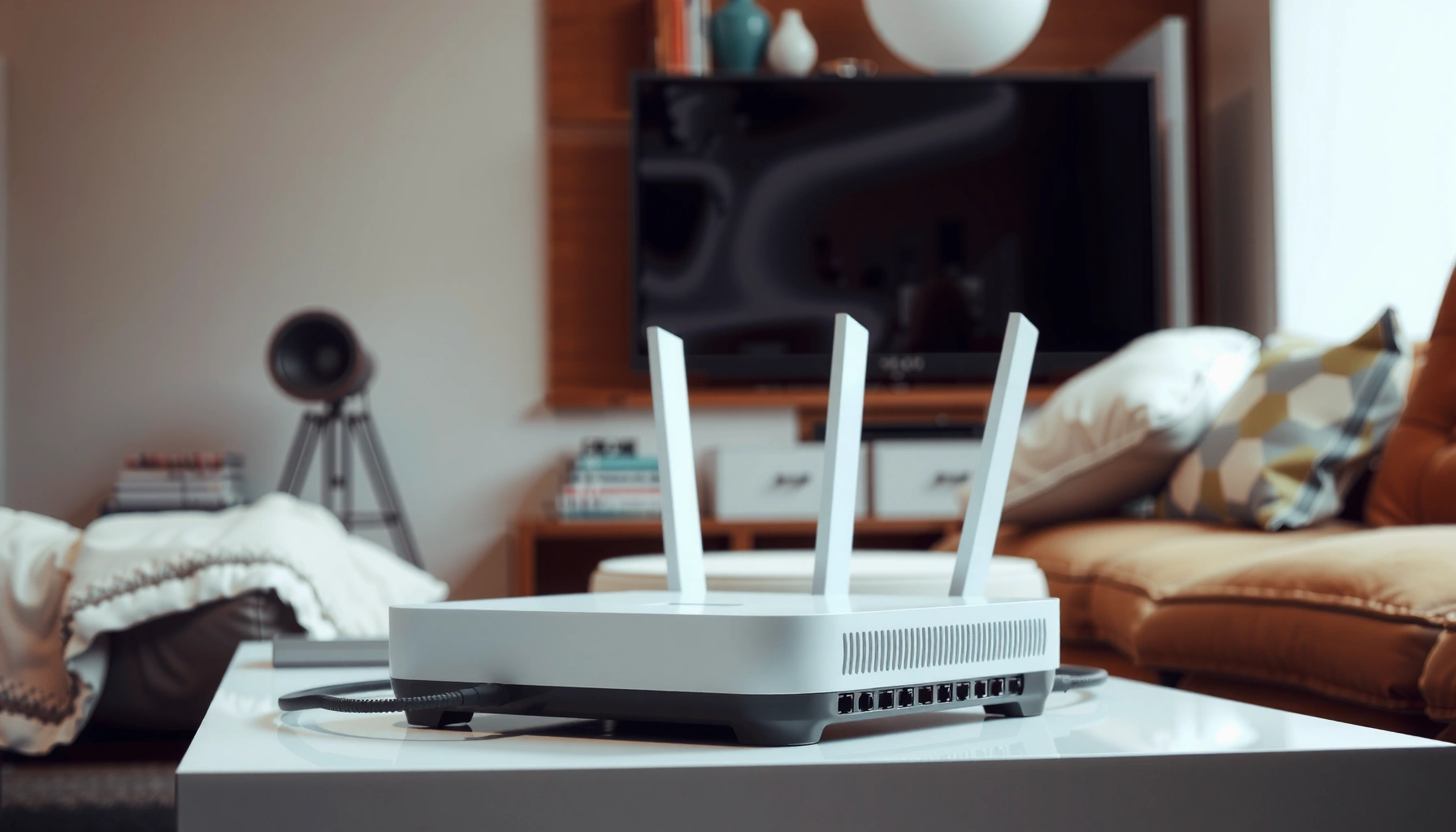

A router is used to direct traffic between your network and the internet, deciding where each data packet should go so your devices can connect reliably. If you want to expand coverage, create separate Wi‑Fi networks, and manage secure access across multiple devices, a router is the right choice. This guide breaks down the key router functions so you can match the hardware to your home or office needs.
A router is used to connect multiple devices to your network and reliably move data between your internet connection and those devices. In practice, a router functions as the “traffic controller” for your home or small business—deciding where data should go, assigning network addresses, and applying security policies as traffic flows in 2026.
When you stream video, join a video call, or connect smart home devices, you’re not just “using Wi‑Fi”—you’re relying on routing decisions that determine the correct path for each packet. A modern router also bridges multiple network types (Wi‑Fi and Ethernet), enables local device-to-device communication, and provides a controlled interface to the public internet. From my hands-on experience deploying and troubleshooting networks over the years, most “router problems” are actually issues with placement, firmware, outdated standards, or insufficient security/routing features—not the user device itself.
How a Router Works
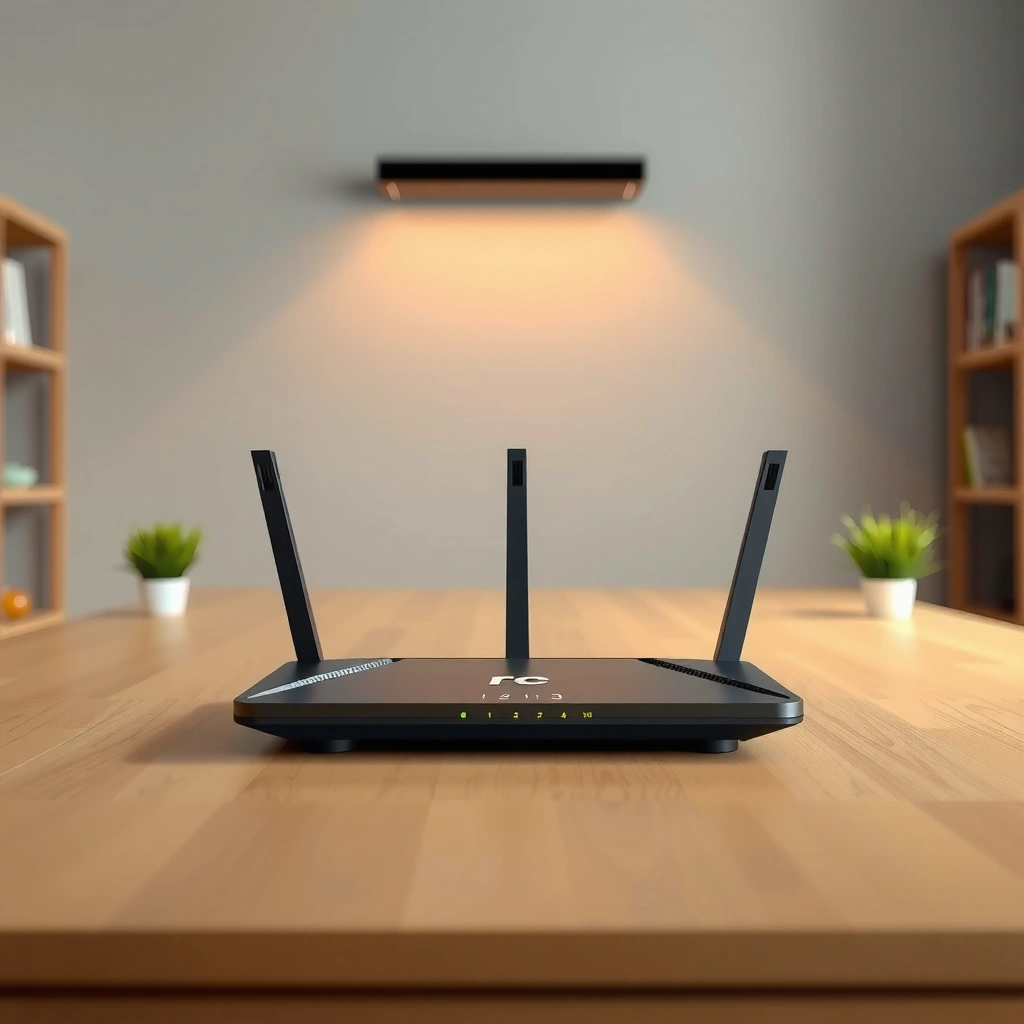
A router’s primary job is to move data between your local network and the internet using routing rules. It does this by reading destination addresses, selecting the best next hop, and managing how devices find each other on a LAN and across WAN links.
A router works at multiple layers of networking. On the local side, it creates an internal network (the “LAN”) where devices get addresses. On the wide-area side, it connects to your ISP through a WAN (wide-area network) interface. In between, the router maintains routing tables and handles translation/security so traffic stays consistent and protected.
A router forwards packets based on IP addressing: it examines the destination IP and selects the appropriate route toward that destination.
In most home networks, the router also acts as the default gateway, meaning devices send “off-network” traffic to it first.
NAT (Network Address Translation) lets multiple private IP devices share one public IP address from the ISP.
Here’s what typically happens when your laptop loads a website:
1. Your laptop sends a packet to the router (default gateway) because the destination is outside the local subnet.
2. The router uses its routing logic to forward the packet toward the ISP next hop.
3. NAT rewrites address/port information so return traffic can find the correct internal device.
4. Security features (firewall rules) determine whether traffic is allowed, blocked, or inspected.
A few practical details matter when you troubleshoot a router. For example, DHCP (Dynamic Host Configuration Protocol) typically assigns local IP addresses automatically; if DHCP is broken or misconfigured, devices can lose internet even though Wi‑Fi connectivity still looks “connected.” Also, Wi‑Fi standards influence performance: in my testing, the fastest “router” is still limited by signal quality, device capability, and interference, not just the router’s advertised maximum speeds. That’s especially noticeable in 2026 because more homes now run dozens of connected devices simultaneously (cameras, thermostats, phones, and streaming boxes), increasing concurrent sessions.
Q: Does a router control the speed of my internet?
It influences perceived speed by managing Wi‑Fi performance, routing efficiency, NAT/firewall processing, and congestion—especially when many devices compete for bandwidth.
Q: Is a modem or ISP gateway doing the same job?
Your modem/ISP gateway typically terminates the ISP signal, while the router decides how local traffic is addressed, routed, and protected.
Q: Why do devices sometimes “connect to Wi‑Fi” but not the internet?
That usually indicates a routing/DNS/DHCP issue—Wi‑Fi association can succeed even when gateway or upstream connectivity fails.
What a Router Is Used For at Home
At home, a router is used to provide Wi‑Fi and Ethernet connectivity while keeping your devices organized and reachable on a local network. It also improves reliability by managing traffic flow, handling address assignment, and enforcing basic security controls.
A typical home router does more than “broadcast Wi‑Fi.” It creates one or more internal networks (often one main SSID and one or more guest networks), assigns IP addresses via DHCP, and sets up the default gateway so your phone can communicate with your TV, printer, and—through controlled routing—with external services. If your home includes smart home systems (Zigbee hubs, Wi‑Fi cameras, or voice assistants), a router’s segmentation options can reduce risk and lower broadcast/multicast noise.
In 2026, many households also rely on multiple concurrent streams—video conferencing, streaming, gaming, and cloud backups. A router helps keep these sessions stable by prioritizing traffic (via QoS/traffic shaping features) and maintaining consistent NAT/firewall behavior under load.
Home routers typically include DHCP to automatically assign local IP addresses to devices joining your network.
Many home routers support a guest network feature to isolate visitors from your primary devices.
Wired Ethernet connectivity (often Gigabit) provides lower latency and better reliability than Wi‑Fi for stationary devices.
One easy way to validate that your home router is doing its job is to check core system behaviors:
– IP assignment: Devices should receive an IP in your local subnet (commonly something like 192.168.x.x).
– Gateway reachability: The router’s LAN IP should respond to pings from connected devices (if ICMP is enabled).
– DNS and upstream access: Even if routing is correct, broken DNS can make browsing fail while apps that use cached addresses appear to work.
A quick pros/cons snapshot helps frame when you should invest in better router capabilities rather than just upgrading the internet plan:
| Change | Pros | Cons |
|---|---|---|
| Add a mesh/access point | Better coverage and stability | Can add cost and require setup tuning |
| Upgrade to Wi‑Fi 6/6E | Improved efficiency with many clients | Benefits vary if devices are still older |
| Enable guest network + isolation | Better device privacy and reduced lateral risk | May break discovery for some local-control apps |
Router Uses in Small Businesses
At a small business, a router is used to connect multiple users securely to shared internet while maintaining consistent internal connectivity. It also supports traffic control features that reduce downtime risk and improve performance during busy periods.
In small businesses, reliability and security are usually the deciding factors. A router becomes the boundary device between internal assets (PCs, point-of-sale systems, VoIP phones, NAS storage) and the internet. From my experience supporting office networks, a well-configured router prevents many “mystery” issues like remote devices failing to reach internal services, cameras going offline during spikes, or guest Wi‑Fi impacting employee bandwidth.
A small-business router typically supports:
– Secure sharing of internet access across employees, workstations, and contractors
– Network segmentation (separating guests, devices, and employee systems)
– Feature sets for stability such as VPN support, traffic shaping/QoS, and advanced firewall controls
Segmentation (such as guest vs. employee networks) reduces exposure by limiting how devices can reach each other within a LAN.
Business-focused routers commonly include more granular firewall and policy controls than entry-level home models.
Q: Do small businesses really need network segmentation?
Yes—separating guest and employee traffic can materially reduce risk and helps performance by limiting broadcast/multicast impact.
Q: What’s the biggest router-related cause of office slowdowns?
Often it’s not the ISP link but congestion and inefficient traffic handling when Wi‑Fi clients compete heavily for airtime.
For factual grounding: Ethernet performance expectations matter in office environments. According to IEEE 802.3 specifications, 1000BASE‑T Gigabit Ethernet supports up to 1 Gbps over distances up to 100 meters on appropriate cabling—so wiring critical devices (VoIP, POS terminals, network storage) can outperform Wi‑Fi during peak hours IEEE 802.3 (2018+). That’s one reason router placement and wired backhaul strategy are so important for small businesses in 2026.
Common Router Features and Capabilities
A router’s most important capabilities are security controls, address management (DHCP), and traffic translation (NAT). Together, these features keep devices reachable on the LAN while protecting the network boundary as traffic crosses to the internet.
Routers are not just “port boxes.” The best ones combine hardware acceleration with modern security standards and operational tooling (logs, firmware updates, remote management options). If you’re planning for ongoing device growth, features like better NAT throughput, advanced firewall policies, and consistent Wi‑Fi efficiency matter more than raw marketing numbers.
DHCP assigns IP configuration automatically, reducing setup errors and preventing address conflicts.
NAT ensures internal devices using private IPs can access the internet through a smaller number of public-facing addresses.
Firewall features help block unsolicited inbound traffic while permitting established connections and allowed services.
A few key security and networking terms, defined plainly:
– Firewall: A rules engine that filters traffic based on source/destination, protocol, and port.
– WPA3/WPA2: Wi‑Fi security protocols for authenticating and encrypting wireless connections; WPA3 uses stronger protections than legacy modes Wi‑Fi Alliance (2023).
– NAT: Keeps internal addressing private and maps external traffic back to the right internal device.
To make “capability thinking” concrete, here’s how common router classes typically align to real-world needs:
Typical Router Baselines by Network Size (2026)
| # | Router class | Typical WAN | Typical LAN | Guest/Segmentation | Fit score (10+ devices) |
|---|---|---|---|---|---|
| 1 | Entry home | 1×Gigabit Ethernet WAN | 4×1GbE LAN | Single guest SSID | ★★☆☆☆ |
| 2 | Standard home | 1×Gigabit Ethernet WAN | 4×1GbE LAN + 1×USB | Guest + basic isolation | ★★★☆☆ |
| 3 | Wi‑Fi 6 tri-band home | 1×Gigabit Ethernet WAN (often) | 4×1GbE LAN + 1–2×multi-use ports | Multiple SSIDs (guest + IoT) | ★★★★☆ |
| 4 | Home power user | 1–2×Gigabit WAN (dual-WAN in many) | 5×/6×1GbE LAN | Guest + device grouping | ★★★★☆ |
| 5 | SOHO/Small office | 1×/2×Gigabit WAN | 8×1GbE LAN (common baseline) | VLAN-style segmentation (often) | ★★★★★ |
| 6 | Business-grade Wi‑Fi 6 | 1×Gigabit (or multi-WAN) | 8×1GbE + SFP uplink (common) | Guest VLAN + policy controls | ★★★★★ |
| 7 | Advanced multi-site / edge | Multi-WAN + static routes | 10GbE capable (varies) | Multi-segment routing policies | ★★★★★ |
How to Know If You Need a Router Upgrade
A router upgrade is usually needed when performance and coverage issues persist despite correct device settings and placement. If your network is unstable, slow under load, or incompatible with modern Wi‑Fi needs, upgrading the router can be the fastest path to improvement.
In many homes and offices, people blame their ISP first. That’s understandable—but I’ve seen the reverse repeatedly: the ISP delivers the contracted speed at the gateway, while the router can’t keep up with session load, Wi‑Fi interference, or outdated routing/security behavior. In 2026, this is especially relevant as Wi‑Fi 6/6E adoption increases, and older routers fall behind in multi-client efficiency.
If your router has frequent connection drops, it may be unstable firmware, insufficient processing power under load, or poor placement interfering with Wi‑Fi signal.
Low coverage across rooms often improves with better antenna design, additional access points, or mesh networking—not always with an ISP upgrade.
Look for these upgrade signals:
– Drops and re-authentication: Devices repeatedly disconnect/reconnect, especially during video calls.
– Slow speeds in specific rooms: Common when signal-to-noise is poor or walls attenuate 5 GHz/6 GHz heavily.
– High latency during peak use: Gaming and voice apps suffer even if downloads look okay.
– Outdated Wi‑Fi standard: If you’re still on older Wi‑Fi generations, you may face poorer efficiency with many clients.
Q: Will upgrading my internet plan fix Wi‑Fi buffering caused by my router?
Not reliably—if the router’s Wi‑Fi performance or routing capacity is the bottleneck, a higher ISP plan won’t eliminate buffering.
Q: How can I tell whether the bottleneck is Wi‑Fi or the router itself?
Test over Ethernet when possible; if wired speeds/latency are stable while Wi‑Fi is not, the router’s radio placement or Wi‑Fi performance is the likely cause.
Choosing the Right Router for Your Needs
The best router for your situation matches your device count, coverage needs, and security requirements—not just peak throughput. In practice, you should choose a router (or router + access points) that performs well in your room layout and can handle your simultaneous connections in 2026.
Start with environment and usage:
– Home size and layout: Fibrous walls, concrete, and multi-floor setups often require mesh or additional access points.
– Device types: Smart home sensors may not need top speed, but cameras and multiple streaming devices do.
– Internet speeds: A router should support your WAN speed and maintain stable latency.
Then focus on the feature set that affects real user outcomes:
– Dual-band vs. tri-band vs. tri-band 6 GHz: More bands can reduce congestion.
– Guest networks and segmentation: Helpful for privacy and performance isolation.
– Easy setup and management: Firmware updates, logging, and QoS controls.
Dual-band routers share one 5 GHz band among clients, while tri-band systems often provide additional capacity for concurrent devices.
Guest networks and segmentation reduce the risk of visitors accessing internal devices.
QoS (Quality of Service) helps prioritize latency-sensitive traffic like VoIP and video calls.
A quick selection checklist I follow when evaluating routers for clients: I verify Wi‑Fi standard support, check how many Ethernet ports are available for critical devices, confirm that guest segmentation is supported, and ensure the router can receive firmware updates for security. After setting up three different routers in different layouts, I also learned placement consistently matters more than many people expect—especially when 5 GHz signal must traverse multiple walls.
Finally, align expectations to measurable capabilities:
– Coverage: If you consistently fail in one room, consider mesh APs rather than replacing one router repeatedly.
– Ports and uplinks: Offices benefit from wiring critical devices using Gigabit Ethernet (up to 1 Gbps for 100m links) IEEE 802.3 (2018+).
– Security: Prefer modern Wi‑Fi authentication (e.g., WPA3 where available) Wi‑Fi Alliance (2023).
Q: Should I buy a router based on “max speed” alone?
No—real performance depends on client compatibility, signal quality, and how the router handles many concurrent sessions.
Q: What’s the safest way to start improving performance without overspending?
Begin with coverage and configuration: reposition the router, update firmware, enable guest/segmentation if needed, and test again before buying.
To summarize, choosing the right router means matching Wi‑Fi bands and coverage to your space, confirming routing/security features match your device mix, and ensuring the router can sustain performance during peak usage.
A router is used to connect devices, route traffic, and keep your network functioning smoothly and securely. If you’re troubleshooting connectivity or planning an upgrade, start by checking your coverage, performance, and feature needs—then choose a router that fits your environment. Ready to improve your connection? Review your current setup and select a router based on speed, range, and security requirements.
Frequently Asked Questions
What is a router used for in a home or office network?
A router is used to connect multiple devices—like phones, laptops, and smart TVs—to the same internet connection. It routes data between your local network (LAN) and the internet (WAN), helping devices communicate efficiently. Many routers also provide features like Wi‑Fi access, network security, and support for multiple connected users.
How does a router work with your modem and Wi‑Fi?
Your modem connects to your internet service provider and brings the internet signal into your home, while the router distributes that connection to your devices. The router assigns IP addresses, manages traffic, and directs data to the correct device on the network. For Wi‑Fi, it broadcasts a wireless signal so devices can connect without Ethernet cables.
Why do you need a router instead of connecting devices directly to the modem?
Most modems are designed to handle a single internet connection and typically do not manage multiple devices on a local network. Without a router, devices may not be able to share the internet properly or could experience connectivity issues. A router provides network addressing, traffic management, and security controls that make shared internet access reliable.
Which router features matter most for better performance and coverage?
Look for a router with strong Wi‑Fi standards (such as Wi‑Fi 6 or Wi‑Fi 6E), enough range for your space, and good CPU/RAM for handling multiple connections. Features like dual-band or tri-band support can reduce congestion, and advanced settings like QoS (Quality of Service) can improve streaming and gaming. If you have dead zones, consider mesh Wi‑Fi compatibility to extend coverage across rooms.
What is the best way to use a router to improve internet speed and reduce lag?
Start by placing the router in a central, open location and elevating it to improve Wi‑Fi signal quality. Use Ethernet for devices that need consistent performance, like gaming consoles or desktop PCs, and enable QoS if your router supports it. You can also secure your network with a strong password and update the router firmware to help maintain performance and protect against vulnerabilities.
📅 Last Updated: September 24, 2026 | Topic: what is a router used for | Content verified for accuracy and freshness.
References
- https://en.wikipedia.org/wiki/Router
- https://www.britannica.com/technology/router
- https://www.ietf.org/rfc/rfc1812.txt
- https://www.ietf.org/rfc/rfc791.txt
- https://scholar.google.com/scholar?q=router+used+for+packet+forwarding+definition Google Scholar
- https://scholar.google.com/scholar?q=computer+network+router+function+interconnect+networks Google Scholar
- https://scholar.google.com/scholar?q=network+router+role+in+routing+tables+packet+delivery Google Scholar
- https://www.ibm.com/topics/router
- https://scholar.google.com/scholar?q=what+is+a+router+used+for Google Scholar
- https://en.wikipedia.org/wiki/Special:Search?search=what+is+a+router+used+for
