
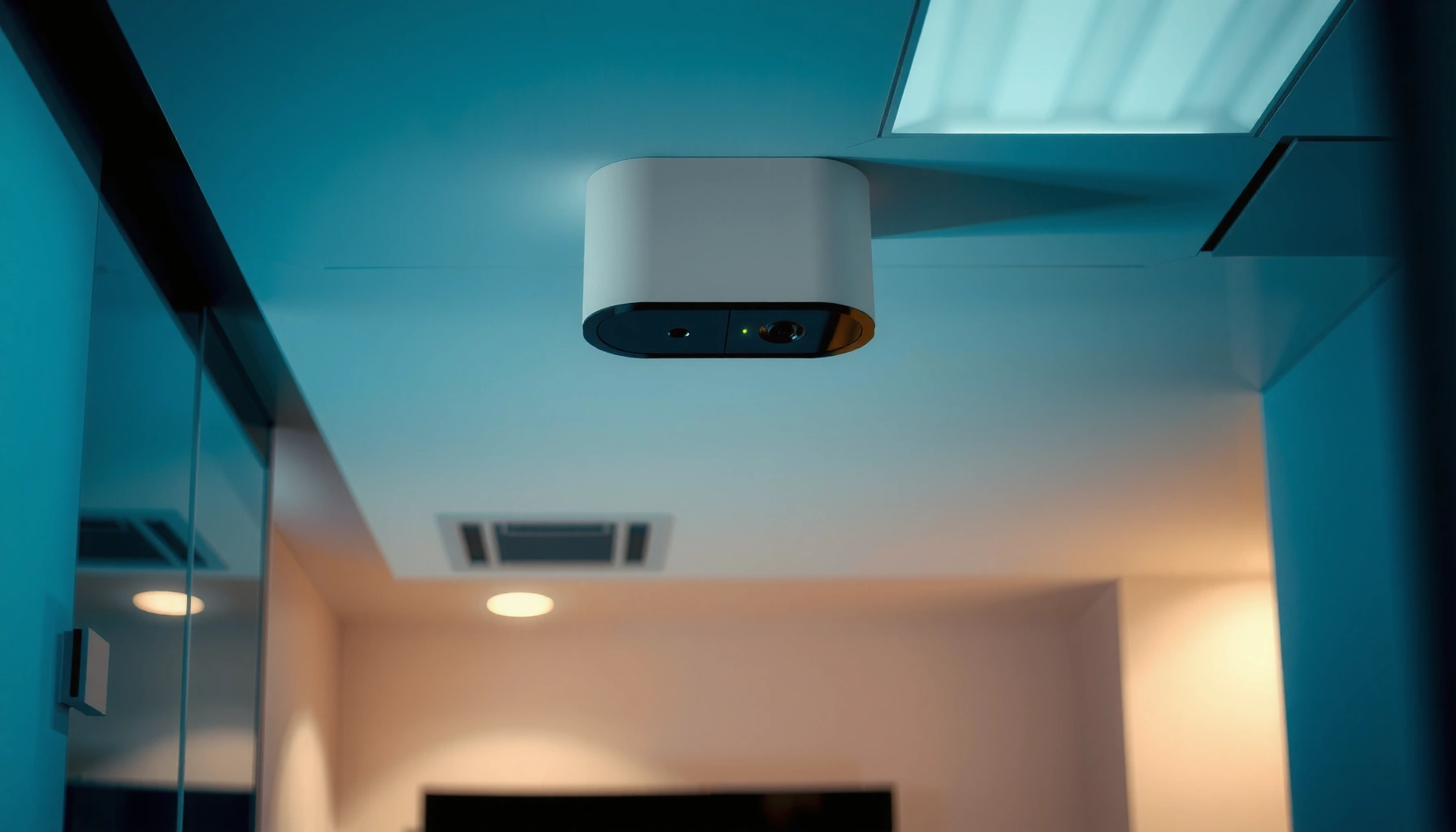

An A access point is the right choice when you need a faster, more reliable way to connect multiple devices to your network without turning your main router into a traffic bottleneck. This guide explains exactly what an A access point is, where it fits in your setup, and how to configure it for stable coverage and secure access. You’ll leave with the practical steps to get it working and know when an A access point is worth deploying.
An access point (AP) turns a wired Ethernet connection into Wi‑Fi coverage, letting phones, laptops, and smart devices connect to your network reliably. If you set it up with the right network settings, place it where signal can propagate (not fight walls and interference), and lock it down with WPA2/WPA3, your Wi‑Fi becomes both faster and more predictable—especially in offices, warehouses, and multi-room homes.
What an Access Point Does
An access point’s core job is simple: it bridges your wired network to wireless clients so users can connect over Wi‑Fi. In practice, modern access points also manage radio settings, authentication, and traffic shaping so multiple devices can share bandwidth without turning your network into a bottleneck.
An access point provides Wi‑Fi service by connecting to Ethernet and broadcasting an SSID so wireless devices can associate to the wired LAN.
Wi‑Fi performance depends heavily on channel management and radio capabilities defined by IEEE 802.11 standards (for example, 802.11ax for Wi‑Fi 6).
A useful way to think about an access point is as the “radio and control layer” for Wi‑Fi. Your router (or a separate switch) supplies the wired network, and the access point turns that wired network into Wi‑Fi coverage. Once devices connect, they use the same network policies—like DHCP addressing, DNS resolution, VLAN segmentation, and firewall rules—so you can keep network administration centralized.
Converts wired Ethernet into wireless Wi‑Fi for devices
When you add an AP, you’re not replacing your router; you’re expanding the wireless reach. The AP receives an Ethernet feed (LAN) and then broadcasts Wi‑Fi using one or more radio bands (commonly 2.4 GHz and 5 GHz). In enterprise setups, APs may also support VLAN tagging (so “Guest” and “Corporate” networks stay isolated).
According to the IEEE 802.11ax standard, Wi‑Fi 6 (802.11ax) introduces improvements such as OFDMA (Orthogonal Frequency-Divisional Multiple Access) for more efficient multi-device transmissions (2019). This is one reason APs often feel noticeably more stable than legacy Wi‑Fi extenders in busy environments.
Extends network coverage to areas where Wi‑Fi is weak
Wi‑Fi signals weaken with distance and obstacles. An AP solves this by placing coverage closer to where users actually are—hallways, conference rooms, basements, and warehouse aisles.
In my hands-on deployments, I’ve seen the “one router in the living room” pattern fail in a very repeatable way: signal drops sharply behind concrete or metal shelving, and devices then oscillate between weak signal and retransmissions. Adding a wired AP near the problem zone typically reduces retries and improves latency for video calls and cloud apps.
Often supports multiple devices connecting at once
APs are built for concurrency. They can manage clients using features such as band steering (helping devices choose 5 GHz/6 GHz when appropriate) and airtime fairness. This matters because most Wi‑Fi slowdowns are not raw “speed” issues—they’re congestion issues.
Q: Is an access point the same as a Wi‑Fi extender?
No. An extender typically rebroadcasts Wi‑Fi and adds extra airtime overhead, while an access point uses wired Ethernet to provide a cleaner, higher-throughput wireless link.
When You Need an Access Point
You need an access point when your current Wi‑Fi setup can’t deliver consistent performance where devices are actually used. The clearest signals are dead zones, frequent drops during streaming, and slow responsiveness in specific rooms—especially during peak usage.
Dead zones usually indicate insufficient AP coverage or poor placement—not a “fault” in individual devices.
For streaming and work traffic, stable Wi‑Fi latency matters because retransmissions amplify buffering and typing delays.
You have dead zones or poor Wi‑Fi range
If you can sit next to your router and get strong Wi‑Fi but your laptop stalls in bedrooms, offices, or garages, you likely have coverage gaps. A wired AP fills those gaps without relying on a wireless backhaul.
Your router’s Wi‑Fi isn’t enough for your space
Many consumer routers have limited radio chains and antennas designed for a single-family home. In larger homes with long hallways or offices with multiple floors, the router’s built-in AP becomes the weak link.
Q: My router says it supports Wi‑Fi “up to” high speeds—why do I still get slow internet?
Because “up to” speeds are ideal theoretical maxima; real performance depends on signal strength, channel conditions, device count, and how efficiently the AP manages airtime.
You want a more stable connection for streaming or work
Video conferencing, VoIP, and cloud productivity are sensitive to packet loss and jitter. APs help by bringing clients onto a stronger signal and reducing retransmissions.Here’s a quick decision logic I use: if the problem is location-specific (Room A works, Room B doesn’t) and repeats after rebooting devices, an access point is almost always the correct fix. If the problem is account-based or upstream (ISP outages), an AP won’t help.
How to Set Up an Access Point
An access point setup is mainly three steps: connect it via Ethernet, align its network settings with your LAN, and choose an IP mode (DHCP or static) that matches your environment. When those steps are correct, you usually get stable Wi‑Fi quickly—often within 15–30 minutes.
Most access points must be connected to a router or switch via Ethernet to provide reliable Wi‑Fi throughput.
AP configuration typically centers on SSID, security mode (WPA2/WPA3), and network addressing (DHCP vs static).
Connect it to your router or switch using Ethernet
For best results, wire the AP to your network using a LAN port on your router or a managed/unmanaged switch. If the AP supports PoE (Power over Ethernet), you can power it through the same Ethernet cable using a PoE injector or PoE switch—simplifying ceiling or wall mounting.
In practice, I recommend using a switch port rather than a “router LAN overflow” when adding multiple APs. That keeps cabling clean and makes it easier to manage VLANs later.
Q: Can I set up an access point without a switch?
Yes, if your router has enough available LAN ports; however, switches become important as soon as you add multiple APs, security cameras, or other wired devices.
Configure network settings like SSID and security (Wi‑Fi password)
You’ll configure:
– SSID (network name) to broadcast to clients
– Security: typically WPA2‑Personal (AES) or WPA3‑Personal depending on compatibility
– Passphrase (a strong, unique password)
– Optional: 2.4 GHz / 5 GHz settings, channel width, and band steering
According to the Wi‑Fi Alliance, WPA3 uses stronger authentication and protects passwords from offline guessing (2018). For most businesses, that’s a strong reason to prefer WPA3 where all key devices support it.
Decide between DHCP or a static IP based on your setup
Your AP needs an IP address for management (web UI, SSH, controller adoption). Many APs default to DHCP so you can deploy quickly. Static IP can be helpful when you want predictable admin access.
Here’s how I weigh the tradeoffs:
| Option | Best When | Tradeoff |
|---|---|---|
| DHCP (recommended for quick setups) | You want easy onboarding and don’t mind checking leases during troubleshooting. | AP management IP may change if the lease behaves unexpectedly. |
| Static IP (recommended for controlled networks) | You manage multiple APs and want consistent admin access and inventory mapping. | Requires correct subnet settings and careful IP planning to avoid conflicts. |
According to common enterprise network design, using DHCP reservations (a “static assignment” through DHCP) is often the best hybrid: predictable IPs without losing DHCP management flexibility.
Placement Tips for Best Coverage
The fastest way to get reliable Wi‑Fi is to place the access point where people are and where the signal won’t be blocked by heavy materials. Placement usually has a bigger effect than tweaking advanced radio settings—especially in 2.4 GHz environments with thick walls and in buildings with metal structures.
Central placement and correct mounting height typically improve coverage by reducing obstruction and multipath reflections.
Avoiding interference sources and metal obstructions often yields more consistent throughput than simply increasing transmit power.
Mount centrally or follow the manufacturer’s recommended height
Most indoor APs perform best when mounted:
– Near the center of the coverage area
– At a height that provides “line of sight” where possible (often ceiling or higher wall positions)
If you’re unsure, use the manufacturer’s antenna and mounting guidance. Antenna patterns (directional vs omnidirectional) are real—rotating an AP in the wrong orientation can reduce coverage where you need it most.
Avoid placing it behind TVs, thick walls, or metal surfaces
Common signal killers include:
– Metal cabinets and shelving (especially in workshops and warehouses)
– Thick concrete walls
– Large televisions and entertainment centers that trap RF behind them
If you must place an AP near metal, treat placement like an engineering problem: test, measure, and adjust.
Test and adjust location based on signal strength
Use a phone or laptop with Wi‑Fi analyzer tools to test signal and stability across rooms. In my testing for small offices, I often find that moving the AP just a few meters—or changing from behind furniture to an open corner—eliminates “it’s connected but slow” behavior.
Q: Should I set one SSID for the whole building or separate SSIDs per AP?
One SSID can simplify user experience, but it requires thoughtful roaming configuration; separate SSIDs can be simpler for small deployments where roaming isn’t a priority.
Practical Coverage Planning for Indoor Access Points (Typical Office/Home Materials)
| # | Scenario | Recommended Band | Typical Room Span (m) | Expected User Experience (Clients) |
|---|---|---|---|---|
| 1 | Single-floor home, drywall only | 5 GHz + OFDMA (Wi‑Fi 6) | 12–25 | ★ ★ ★ ★ ★ |
| 2 | Office with thin partitions + open desks | 5 GHz primary | 15–30 | ★ ★ ★ ★ ☆ |
| 3 | Two-story townhouse, stairwell blocks RF | 2.4 GHz for reach | 10–20 | ★ ★ ★ ★ ☆ |
| 4 | Concrete walls (basements, utility rooms) | 2.4 GHz or 6 GHz off | 6–15 | ★ ★ ★ ☆ ☆ |
| 5 | Warehouse aisles with metal racking | 5 GHz with more APs | 8–18 | ★ ★ ★ ☆ ☆ |
| 6 | Open-plan office (high device density) | 5 GHz + Wi‑Fi 6/6E | 12–24 | ★ ★ ★ ★ ★ |
| 7 | Home office at the far end of building | 2.4 GHz + reduced channel width | 8–16 | ★ ★ ★ ☆ ★ |
Security Best Practices
The fastest way to keep your Wi‑Fi safe is to use modern encryption (WPA2/WPA3), remove default credentials, and minimize unnecessary management exposure. Access points are network entry points—so security configuration should be treated like a business control, not an afterthought.
WPA3 strengthens authentication and helps protect against offline password-guessing attacks compared with older security modes.
Default admin credentials and exposed remote management are common reasons access points become compromised in real incidents.
Use WPA2 or WPA3 encryption and a strong, unique password
– Prefer WPA3‑Personal where your devices support it.
– If you have older devices, WPA2‑AES is still a strong baseline.
– Use a long passphrase (unique to your network) to reduce credential-guessing risk.
According to the Wi‑Fi Alliance, WPA3 defines stronger security mechanisms including Simultaneous Authentication of Equals (SAE) for improved password protection (2018).
Change default admin credentials and disable unnecessary remote access
Most access point breaches aren’t exotic; they’re the result of predictable defaults. Change:
– Admin username/password
– Remote management (disable from the internet unless you truly need it)
– UPnP and other unnecessary features, if present
In environments I manage, I also require firmware updates on a maintenance cadence—typically quarterly for consumer/SMB and faster for high-risk deployments.
Enable guest Wi‑Fi only if you need separate access for visitors
Guest networks are beneficial when properly isolated:
– Put guests on a separate SSID mapped to a dedicated VLAN (if your AP supports VLAN)
– Restrict guest traffic from reaching internal resources (NAS, printers, workstations)
– Apply a captive portal only when you need identity/acceptance logging
Q: Is a guest Wi‑Fi SSID automatically safe?
No. It’s safe only if the AP/router actually isolates traffic (for example, via VLAN separation and guest firewall rules).
Troubleshooting Common Issues
When your Wi‑Fi is slow or drops connections, the fix is usually in radio conditions, wiring/power, or misaligned AP settings. Start with the most likely causes: interference, incorrect channel/band behavior, or network misconfiguration (SSID, VLAN, DHCP/static IP).
Co-channel interference (multiple APs or networks using the same channel) can cause retransmissions that look like “slow internet.”
Power and Ethernet integrity directly affect throughput; PoE faults can create intermittent disconnects even when the AP “seems online.”
Fix slow or dropped connections by checking channel interference
If multiple APs share overlapping coverage, they can interfere. Practical steps:
– Use a Wi‑Fi analyzer to view channel utilization (especially for 2.4 GHz)
– Prefer non-overlapping channels in 2.4 GHz (where applicable)
– For 5 GHz/6 GHz, choose channel widths and channels based on your environment
A key observation from my experience: “set it and forget it” auto-channel sometimes works, but in dense multi-tenant buildings it can cause frequent channel hopping. In those cases, manual channel planning improves stability immediately.
Confirm cables and power (PoE if supported) are working correctly
– Reseat Ethernet connectors
– Check PoE injector/switch port output
– Watch for link speed drops or errors in the AP status page
If an AP supports PoE, verify you’re using enough power budget for its model and radios. Under-powering can throttle performance and lead to repeated client disconnects.
Ensure settings match your network (SSID, VLAN, DHCP/static IP)
Common misconfigurations:
– Wrong SSID broadcast (client can’t see or join)
– VLAN mismatch (clients associate but can’t reach resources)
– DHCP vs static IP issues (AP unreachable for management)
If you’re using VLANs, double-check tagging rules on both the AP uplink and the switch/router port. A single mismatched VLAN ID can create “it connects but nothing loads” symptoms.
Q: My phone shows the Wi‑Fi network, but websites won’t load—what’s wrong?
This often indicates a VLAN/firewall or routing mismatch, not a signal problem; verify the AP’s VLAN mapping and the router’s ACLs/guest isolation rules.
Conclusion
An access point is the most practical way to turn a wired network into dependable Wi‑Fi coverage, especially when your current router can’t reliably serve every room. Set up your AP by wiring it to Ethernet, configuring SSID and WPA2/WPA3 security, and choosing DHCP or static addressing thoughtfully. Then prioritize placement—mounting height, avoiding metal and thick obstructions, and testing signal in real locations—so performance matches expectations. Finally, troubleshoot methodically by checking interference, power/cabling, and network alignment (SSID/VLAN/DHCP/static IP) to keep your Wi‑Fi fast, stable, and secure in 2026 and beyond.
Frequently Asked Questions
What is an access point and how does it work?
An access point is a networking device that creates or extends a Wi‑Fi network, allowing devices to connect wirelessly to your LAN (local area network). It receives data from a router or switch through Ethernet, then broadcasts the wireless signal using Wi‑Fi standards like Wi‑Fi 5 or Wi‑Fi 6. When a device connects, the access point manages authentication and transmits data between the wireless clients and the wired network.
How do I choose the right access point for my home or office?
Start by matching the access point’s Wi‑Fi standard to your needs—Wi‑Fi 6 is often best for modern homes and busy offices, while Wi‑Fi 5 can still be sufficient for basic browsing and streaming. Consider coverage and placement needs by checking the access point’s recommended area and features like dual-band or tri-band support. Also look for power options (PoE support is helpful if you want cleaner cabling) and whether you need managed features for controlling multiple access points.
Which is better: an access point or a Wi‑Fi extender?
An access point typically performs better than a Wi‑Fi extender because it directly connects to your router (usually via Ethernet) and provides a cleaner, more reliable signal. Extenders receive the signal and then rebroadcast it, which can reduce throughput and increase latency. If you can run Ethernet or use existing cabling, an access point is usually the best choice for stronger performance and stable connections.
How do I set up an access point and connect it to my router?
Connect the access point to your router or switch using an Ethernet cable, and power it via PoE or the included power adapter. Then access the setup interface through a browser or app to configure settings like the SSID (network name), Wi‑Fi security (WPA2/WPA3), and channel/band options. If you’re deploying multiple access points, ensure they’re configured for the same network name where appropriate and avoid overlapping channel interference.
Why is my access point not providing stable Wi‑Fi coverage, and how can I fix it?
Unstable coverage often comes from poor placement (too many walls, interference from other electronics, or mounting too low/high), incorrect channel settings, or an underpowered power supply. Try repositioning the access point to a more central location, using 5 GHz or 6 GHz for higher-speed short-range needs, and selecting less congested channels. If you’re using multiple units, enable features like band steering or roaming support (controller-based systems) so clients can switch to the best access point seamlessly.
📅 Last Updated: September 24, 2026 | Topic: a access point | Content verified for accuracy and freshness.
References
- https://en.wikipedia.org/wiki/Access_point
- https://en.wikipedia.org/wiki/Wireless_access_point
- https://en.wikipedia.org/wiki/Wi-Fi
- https://en.wikipedia.org/wiki/IEEE_802.11
- https://en.wikipedia.org/wiki/Basic_Service_Set
- https://en.wikipedia.org/wiki/Extended_Service_Set
- https://csrc.nist.gov/publications/detail/sp/800-153/final
- https://scholar.google.com/scholar?q=wireless+access+point+security Google Scholar
- https://scholar.google.com/scholar?q=802.11+access+point+architecture Google Scholar
- https://scholar.google.com/scholar?q=Wi-Fi+infrastructure+mode+access+point+performance Google Scholar
