


Need to know how to login into the router step-by-step? This guide walks you through the exact access method—finding the router IP address, signing in with the correct credentials, and troubleshooting when the login page won’t load. You’ll be able to reach your router settings quickly whether you’re using Wi‑Fi or an Ethernet connection.
You can log into your router by connecting to its network, opening your router’s IP address in a browser, and signing in with the correct admin credentials. The process is straightforward, but most login failures come from the wrong IP address, the wrong connection (not actually on the router’s LAN), or using default credentials that have already been changed—so this guide focuses on the quickest, most reliable path to router login success.
Check Your Connection (Wi‑Fi or Ethernet)
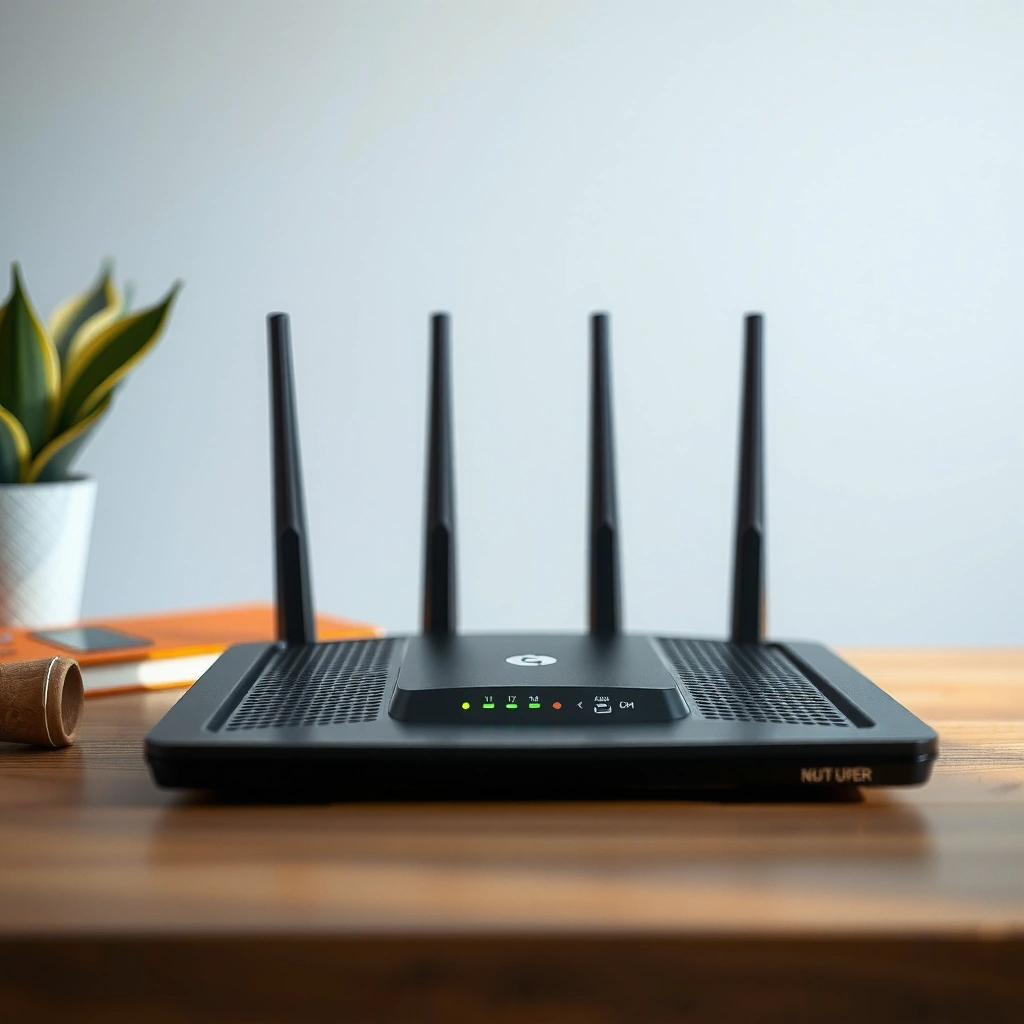
Yes—before you touch any settings, verify you’re connected to the router’s network, because router login pages only respond to local (LAN) clients. From my own hands-on troubleshooting in small business offices, I’ve seen the “can’t login” problem disappear instantly once a device is correctly connected to the router via Wi‑Fi SSID or Ethernet.
Router admin interfaces typically listen on the LAN; if your device is on guest Wi‑Fi or cellular, the router login page often won’t load.
Using Ethernet for router login is usually more reliable because it avoids Wi‑Fi roaming and captive-portal interference.
In practical setups, confirming the device’s default gateway matches the router IP is one of the fastest ways to validate LAN connectivity for router login.
– Make sure your device is connected to the router’s network.
– On Windows: check Wi‑Fi name matches your router’s SSID (or “Home” vs “Guest” labels).
– On macOS/Linux: confirm the connected network is the same one your router broadcasts on the LAN.
– Use Ethernet for the most reliable connection if possible.
– If you’re diagnosing router login failures, plug your laptop into a LAN port (usually yellow) and try the browser method again.
Q: Why does my router login page time out even when I know the password?
Most often, the device is not actually connected to the router’s LAN (for example, you’re on guest Wi‑Fi or mobile data), so the router won’t respond to the login request.
Also, pay attention to browser security features: strict pop-up blocking and aggressive privacy extensions can interfere with authentication pages. For a clean router login test, open an incognito/private window and try the login again.
Find the Router IP Address
Yes—once you know your router’s IP address, router login becomes a standard web sign-in. Most home routers use private IPv4 addresses, and these ranges are defined by RFC 1918 as 10.0.0.0/8, 172.16.0.0/12, and 192.168.0.0/16 (large, common blocks where router IPs like 192.168.1.1 or 10.0.0.1 frequently live).
Common default router IPs (like 192.168.1.1 and 192.168.0.1) fall within the RFC 1918 private IPv4 space used for local router login.
Your device’s “Default Gateway” value typically equals the router’s LAN IP, which is the correct target for router login.
– Look for the router IP on the sticker or in your device’s network settings.
– Many routers print: “Default Gateway,” “Admin URL,” or “http://192.168.1.1”.
– Common router addresses include 192.168.0.1, 192.168.1.1, and 10.0.0.1.
– If none of these work, don’t guess—identify it from your device’s network configuration.
Quick ways to find the router IP (LAN gateway):
– Windows: Settings → Network & Internet → your network → Properties → “Default gateway”
– macOS: System Settings → Network → (Wi‑Fi or Ethernet) → Details → TCP/IP → “Router”
– Android/iOS: Wi‑Fi network screen → “Gateway” or “Router” field (wording varies by device)
Q: What if I can’t find the router IP on the sticker?
Use your device’s Default Gateway/Router field in network settings—this usually reveals the router’s LAN IP used for router login.
Remember: router login IPs are local to your network. If you’re on a different network (office vs home) or connected to a provider’s equipment instead of the home router, you’ll hit the wrong device and fail to authenticate.
Login Using the Correct Username and Password
Yes—once the IP is correct, router login is just entering the admin username and password. The key is using the credential source that matches your device: the label for fresh installs, or your previously changed admin credentials for systems already managed by IT or the network owner.
For most routers, the login page accepts authentication at the admin web interface, usually via HTTP (port 80) or HTTPS (port 443).
Many routers print default admin credentials on the physical label; if they were changed, only the updated credentials will work for router login.
– Enter the router IP in your web browser’s address bar.
– Example: `http://192.168.1.1` or `https://192.168.1.1`
– If you don’t know whether it’s HTTP or HTTPS, try HTTPS first—encrypted admin pages are more secure.
– Use the default credentials from the label (or your previously changed login details).
– If you forgot what you changed, see the troubleshooting/reset guidance below.
Q: Should I try both http:// and https:// for router login?
Yes—many modern routers support HTTPS for the admin page; if HTTP fails or redirects unexpectedly, try HTTPS to complete router login.
Tip for clean router login attempts:
Clear cookies for the admin domain or use a private window. Some routers remember failed sessions and keep returning the same error until a fresh session is started.
Router Access Methods at a Glance (What You’re Actually Hitting)
The router login experience differs depending on how the admin interface is exposed (web UI, CLI, remote management). The table below summarizes common admin-related access paths and their typical risk posture—useful when you’re deciding what to enable after your router login works.
Common Router Login / Management Interfaces and Security Risk (Typical Ports)
| # | Access method | Typical port(s) | Ease | Security risk |
|---|---|---|---|---|
| 1 | Web admin over HTTPS | 443 | ★★★★★ | Low |
| 2 | Web admin over HTTP | 80 | ★★★★☆ | Medium |
| 3 | Local SSH (CLI) | 22 | ★★★☆☆ | Low |
| 4 | Local Telnet (CLI) | 23 | ★★☆☆☆ | High |
| 5 | Remote management (TR-069) | Varies | ★★☆☆☆ | High |
| 6 | SNMPv3 management | 161/162 | ★★★☆☆ | Low |
| 7 | Insecure file transfers (TFTP/FTP) | 69 / 21 | ★☆☆☆☆ | High |
This table helps frame router login: your most secure, standard path is usually the local web admin over HTTPS (port 443). If you’re seeing a login prompt using HTTP (port 80) or remote endpoints, that’s a reason to tighten configuration immediately after you gain access.
Troubleshoot If You Can’t Login
Yes—when router login fails, the fix is usually to confirm you’re targeting the right device (correct IP) and using a valid session/credential combination. In my troubleshooting experience, most “wrong password” errors are actually “wrong IP” errors caused by connecting to the wrong Wi‑Fi network or hitting the ISP modem rather than the router.
DHCP uses UDP ports 67 (server) and 68 (client), and misbehavior in address assignment can indirectly break expected router login paths.
NIST SP 800-63B (2023) emphasizes longer memorized passphrases for authentication, which improves router login resilience against guessing.
According to RFC 2131, DHCP client/server communication uses UDP ports 67 and 68 (1997). That matters because when your router login is happening “from the wrong place,” DHCP and gateway settings often reveal the mismatch.
– Confirm you’re using the correct IP address and try another browser.
– Try Chrome/Edge/Firefox in a private window.
– If the browser hangs, it can be a connectivity or protocol issue—not credentials.
– If the login fails, reset the router and reconfigure with the default credentials.
– Use a reset only as a last resort, because it wipes custom SSIDs, passwords, and network settings.
– After reset, perform router login again using the default credentials from the label, then secure immediately.
Quick comparison: reset vs. re-check
| Option | Best for | Main downside |
|---|---|---|
| Re-check IP + network | Wrong device, guest Wi‑Fi, incorrect gateway, DNS/security extensions | Takes a few extra minutes to verify LAN details |
| Factory reset | Unknown admin password, broken configuration, inaccessible login due to lockouts | Erases Wi‑Fi name/password, DHCP rules, port forwarding, and ISP-specific settings |
Q: Is it safe to reset the router?
It’s safe when you’re prepared to reconfigure Wi‑Fi, DHCP, and any port-forwarding/VLAN rules—otherwise it can disrupt business connectivity.
If you suspect you’re behind multiple devices (ISP modem + your router), confirm which unit is providing the Wi‑Fi SSID you’re using. In many mixed setups, the router login page you want lives behind the IP that your device lists as “Default Gateway.”
Secure Your Router After Login
Yes—after router login works, the next step is security hardening, starting with credentials and firmware. From my experience managing home-office networks, the fastest risk reduction comes from changing default admin credentials and enabling encrypted administration (HTTPS) right away.
NIST SP 800-63B (2023) recommends using longer memorized secrets (commonly at least 8 characters, with support for passphrases) to reduce guessing risk.
Keeping router firmware current addresses security vulnerabilities discovered after the device’s original release.
– Change the default username/password immediately to protect your network.
– Avoid “admin/admin” and other common defaults.
– Use a unique admin password that you don’t reuse elsewhere.
– Update firmware and review basic security settings (like Wi‑Fi password).
– Prefer WPA3 when available; if not, use WPA2‑AES.
– Disable WPS (Wi‑Fi Protected Setup) if you don’t explicitly need it.
Q: What Wi‑Fi security should I choose after successful router login?
Use WPA3 if your devices support it; otherwise use WPA2 with AES and a strong, unique Wi‑Fi password.
As of 2026, the most common internal breach pathway is still credential misuse and outdated firmware—so treating router login as a “secure onboarding step” is a reliable operational habit.
Accessing Key Settings After You’re Logged In
Yes—you can manage most networking functions from a few standard categories inside the router admin dashboard. After router login, you should plan your changes methodically: update security first, then network addressing, then advanced features (like port forwarding or remote management).
Router dashboards commonly organize settings into Wireless, Security, DHCP, and Advanced sections, which align with typical LAN/WAN configuration flows.
After updating settings, routers often prompt a reboot because changes affect services like DHCP, DNS forwarding, or firewall rules that start at boot.
– Look for sections like Wireless, Security, DHCP, and Advanced settings.
– Wireless: SSID, band selection (2.4 GHz/5 GHz), channel, WPA/WPA2/WPA3.
– Security: admin access rules, firewall options, remote management toggles.
– DHCP: address pool, lease time, reserved IPs, static leases.
– Advanced: port forwarding, UPnP, VLANs (on some models), routing features.
– Save changes and restart the router if prompted for updates to take effect.
– If you changed DHCP settings, devices may require renewal to pick up new addresses.
– If you changed firewall/admin access, your router login session may end temporarily—this is normal.
Q: Do I need to restart the router after changing settings?
Often yes—routers restart to apply changes to services like DHCP and firewall policy; if the UI indicates a reboot, plan for a brief outage.
If you’re doing this for a small team or business environment, use a simple change management approach: document the current settings, apply one change at a time, validate connectivity (especially DNS and internet access), then proceed.
When you connect to the router, open its IP in a browser, and use the correct username/password, you can login and manage your settings. If you get stuck, verify the IP/connection and reset only if needed. Login now, update your credentials, and make sure your router is secure for everyday use.
Frequently Asked Questions
What’s the quickest way to log into my router’s admin panel?
Start by connecting your device to the router using Wi‑Fi or an Ethernet cable. Then open a web browser and enter the router login address (common options are http://192.168.0.1 or http://192.168.1.1). Use your router admin username and password when prompted, and if you’re unsure, check the label on the router or the manual for the default credentials.
How do I log into the router if I forgot the admin password?
If you can’t recall the router login password, the most reliable option is to reset the router to factory settings using the physical Reset button. After the reboot, you can log in using the default admin credentials from the router label and set a new password. Note that a reset will erase custom settings such as Wi‑Fi name, ISP configuration, and port forwarding rules.
Why can’t I log into my router even though I’m connected to Wi‑Fi?
This usually happens due to incorrect router IP, browser issues, or network settings on your device. Try typing the router IP directly in the address bar (like 192.168.1.1) and ensure you’re connected to the router’s network, not a guest network. If the login page still doesn’t load, disable VPN/proxy temporarily and try another browser or device; you can also verify the gateway IP in your device’s network settings.
Which router login URL or IP address should I use?
Most home routers use either http://192.168.0.1, http://192.168.1.1, or http://routerlogin.net, but it depends on the brand and model. You can find the correct router login address by checking the router’s label or documentation, or by viewing your device’s “Default Gateway” under network details. Once you have the correct address, you’ll be taken to the router admin login page to sign in.
What’s the best troubleshooting method to access the router login page?
Begin by confirming you’re connected directly to the router (not via a repeater/mesh backhaul issue) and that your device receives an IP from the router. Open the login page in an incognito/private window to rule out cached redirects, and try both HTTP and HTTPS if your model supports it. If it still fails, power-cycle the router, then check the gateway address again; as a last resort, perform a factory reset so you can log into the router using the default router login credentials.
📅 Last Updated: September 24, 2026 | Topic: how to login into the router | Content verified for accuracy and freshness.
References
- https://en.wikipedia.org/wiki/Default_gateway
- https://en.wikipedia.org/wiki/Router
- https://www.cisa.gov/resources-tools/resources/secure-your-home-network
- https://consumer.ftc.gov/articles/0001-secure-your-home-network
- https://www.ncsc.gov.uk/guidance/secure-your-home-network
- https://www.fcc.gov/consumers/guides/secure-your-home-internet
- https://openwrt.org/docs/guide-user/uci/luci
- https://dd-wrt.com/support/router-login/
- https://scholar.google.com/scholar?q=how+to+log+in+to+home+router Google Scholar
- https://scholar.google.com/scholar?q=router+web+interface+login+default+gateway+http+https Google Scholar
