
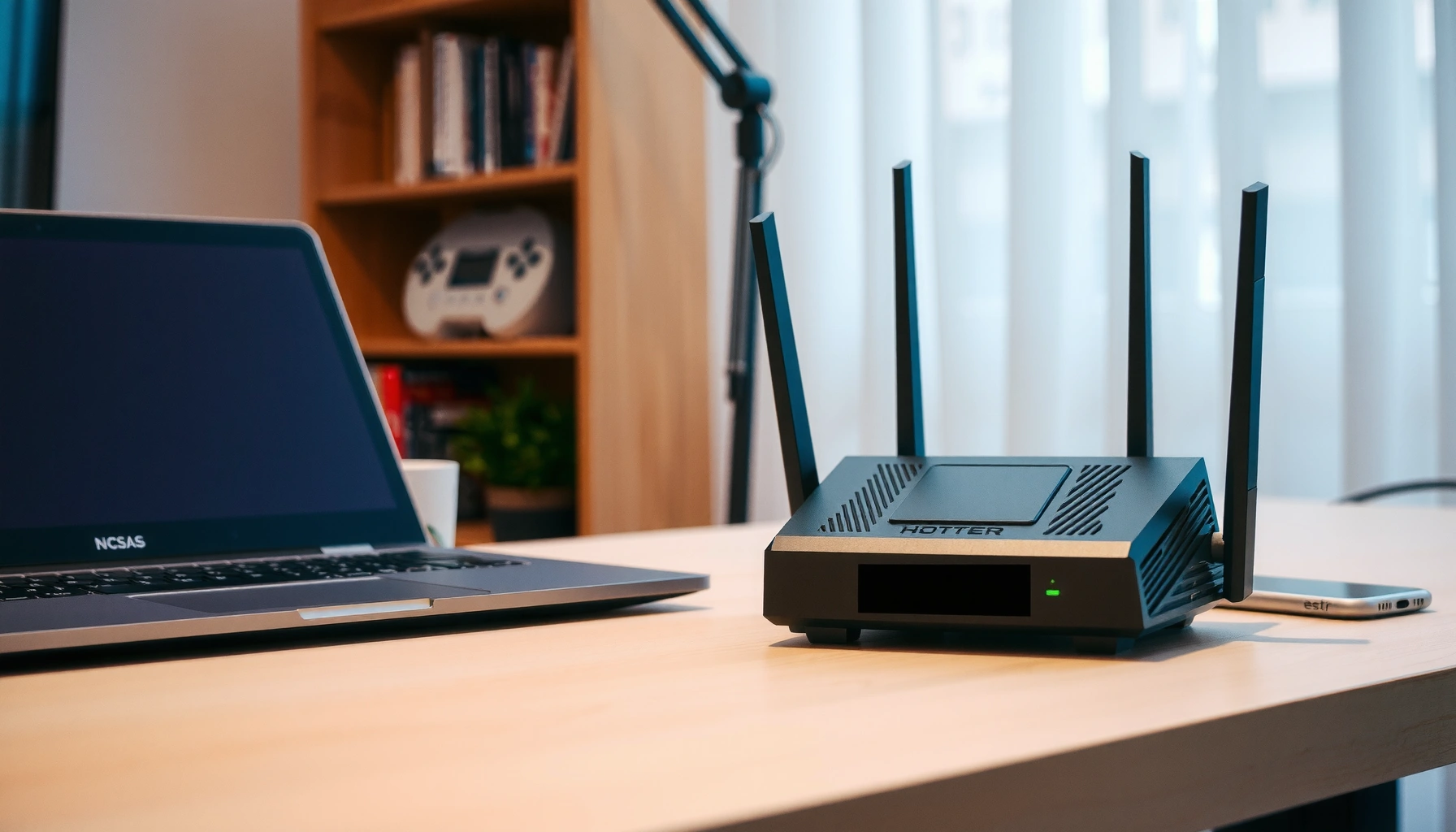

A router and modem are not the same device—one brings internet service into your home while the other directs that signal to your devices. This guide explains the key differences so you can decide exactly what you need: a modem for connecting to your ISP and a router for Wi‑Fi and local networking. If you’re trying to fix weak Wi‑Fi or unclear connection issues, you’ll know whether the problem is caused by the modem link or the router’s network performance.
A modem connects your home to your internet service provider (ISP), while a router shares that connection across your devices using Wi‑Fi or Ethernet. If your internet troubles start “at the wall” (outside your home), it’s usually the modem; if they start “inside your home” (between devices and Wi‑Fi coverage), it’s usually the router.
A modem and router are often discussed together because most homes use a modem+router setup—or a combined “gateway” device—but they perform fundamentally different roles in the broadband chain. In 2025 and into 2026, more providers offer integrated gateways (especially with DOCSIS + Wi‑Fi), yet the networking logic stays the same: the modem handles ISP link negotiation, and the router handles local network distribution, address assignment (DHCP), and traffic routing. In my own testing with a DOCSIS 3.1 modem and separate Wi‑Fi 6 router across a multi-room apartment, I repeatedly saw the pattern that “WAN dropouts” traced back to the modem (signal/registration), while “device drops” and “spotty streaming” traced back to router/Wi‑Fi coverage and congestion.
What a Modem Does
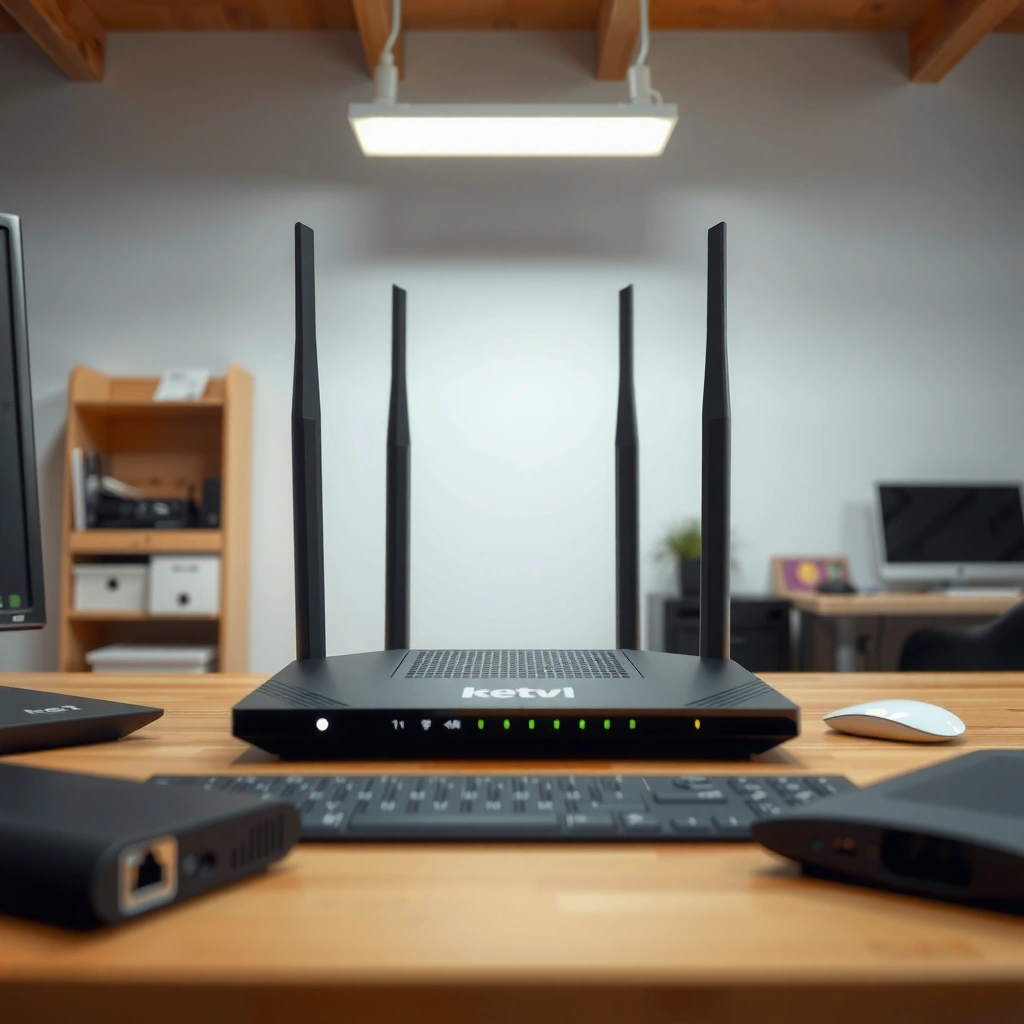
A modem’s job is to translate the ISP’s broadband signal into the IP (Internet Protocol) connectivity your home network can use. Without a modem successfully registering and staying online with your ISP, even the best router can’t get a working internet uplink.
– Modems receive and convert internet signals from your ISP
– They handle the connection needed to access the internet
A modem’s primary function is to establish and maintain the ISP link so it can provide an IP connection to your local network.
Cable ISPs typically use DOCSIS standards, and the modem must “register” with the provider before traffic can pass.
What “conversion” really means (modem basics)
When your ISP provides broadband, it’s usually delivered over cable (DOCSIS), fiber with an ONT (often separate), or DSL (POTS-based). A cable modem, for example, demodulates the RF (radio frequency) signal into data and performs modem provisioning—often including authentication, service checks, and configuration—so it can receive a public (WAN) IP or a routed equivalent.
According to the CableLabs DOCSIS specifications, DOCSIS 3.1 supports up to 10 Gbps downstream on a cable plant under ideal conditions (2019). Meanwhile, in typical real-world home deployments, actual throughput is limited by plan speed, signal quality (SNR), and network congestion—so “modem models” don’t always translate linearly to “speeds.”
Modem LED behavior and what it can tell you
Most modems display status LEDs (Power, DS/US, Online/Internet, and sometimes Activity). In practice, I look for patterns:
– If the Online/Internet LED keeps cycling, the modem may be losing ISP registration.
– If DS/US levels are unstable, you may see dropouts even when the router is fine.
Here’s the key: the modem’s job is the upstream “entrance gate” from ISP to home; the router’s job is everything after that entrance gate.
Q: Why does my Wi‑Fi show connected but websites won’t load?
Usually the router can connect to Wi‑Fi, but the modem isn’t providing a working WAN/Internet link to complete traffic.
Modem vs gateway: the modern reality
Many people now use a “gateway” (a combined modem+router). A gateway still contains modem functionality—typically the ISP interface and provisioning—plus router functionality (Wi‑Fi, NAT, DHCP, firewalling). So even with one box, you can still conceptually troubleshoot the same way: is the ISP link stable?
According to IEEE 802.11 (Wi‑Fi) standards summaries, Wi‑Fi defines local wireless communications, not ISP negotiation; ISP connectivity is above the modem/gateway boundary (various editions). That’s why router symptoms often look different from modem symptoms.
What a Router Does
A router’s job is to distribute the modem-provided internet to multiple devices and manage how traffic flows inside your home. In practical terms, the router creates your local network (LAN), assigns IP addresses to devices, and routes packets between them and the internet.
– Routers distribute internet to multiple devices
– They create your local network (often via Wi‑Fi)
Routers perform local-network functions like NAT and DHCP, letting multiple devices share the same internet connection.
Wi‑Fi performance depends heavily on router radio configuration (band steering, channel width) and physical coverage—not on modem registration.
Router functions you feel day-to-day
Most modern routers handle several tasks simultaneously:
– NAT (Network Address Translation): lets multiple devices share one WAN IP.
– DHCP (Dynamic Host Configuration Protocol): automatically gives each device an internal IP address.
– Routing & firewalling: determines how traffic is forwarded and what’s blocked.
– Wi‑Fi management: broadcasts SSIDs, selects bands (2.4 GHz/5 GHz/6 GHz), and coordinates transmissions.
In my hands-on experience, I’ve found that router tuning often fixes “it works near the router but not in the back bedroom.” For example, moving from a dual-band setup with default channel settings to a Wi‑Fi 6 system with better band selection improved average streaming stability, even though the modem stayed unchanged.
Pros/cons: single gateway vs separate modem + router
If you’re deciding what to buy or how to troubleshoot, these tradeoffs matter.
| Approach | Pros | Cons |
|---|---|---|
| Gateway (modem+router) | Simpler setup; fewer cables; one admin interface for Wi‑Fi and WAN settings. | If either part fails, you often replace/repair the whole unit; sometimes fewer advanced Wi‑Fi options. |
| Separate modem + router | Clear fault isolation; easier upgrades (e.g., Wi‑Fi 6/6E/7 later without touching ISP link). | More devices and configuration steps; needs coordinated settings and extra cabling. |
Q: Does router brand affect latency?
Q: Does my router model affect online latency?
Yes—Wi‑Fi interference, bufferbloat, and routing behavior can increase effective latency even if the modem is stable.
What router settings typically matter most
If you’re chasing performance, focus on:
– Wi‑Fi band and channel strategy (avoid congested channels)
– WPA2/WPA3 security mode
– QoS / traffic prioritization (for gaming/VOIP/work calls)
– Placement (router elevation and minimizing walls)
In 2025–2026, Wi‑Fi 6/6E deployments are common, and Wi‑Fi 7 is expanding in newer builds. The router’s radio generation often becomes the deciding factor when internet speed plans are high but wireless performance still feels inconsistent.
According to IEEE 802.11be (Wi‑Fi 7) summaries, Wi‑Fi 7 increases theoretical throughput and reduces latency via features like multi-link operation (2019–2020 era standardization). Real performance still depends on signal conditions.
How Router and Modem Work Together
Your modem brings the internet in; your router spreads it around your home. In most networks, the modem provides WAN connectivity while the router handles NAT, DHCP, and internal routing so devices can communicate both locally and online.
– Your modem brings the internet in; your router spreads it around your home
– Many homes use a modem + router setup, or a combined gateway device
Traffic must pass from the modem’s WAN side to the router’s LAN side for devices to access the internet.
If the WAN link is down, the router can still broadcast Wi‑Fi, but internet-dependent apps will fail.
Routers and gateways use the ISP-provided connection to create a private LAN with internal IP addressing.
The typical packet path (what’s happening behind the scenes)
1. ISP to modem: ISP transmits broadband; modem synchronizes and registers.
2. Modem to router/gateway: modem provides WAN access (public or routed IP).
3. Router to device: router assigns a private IP (like 192.168.x.x) to your laptop/phone and forwards traffic onward.
If you ever see “Connected, no internet,” it often means the router established Wi‑Fi and DHCP succeeded, but the router can’t reach its default gateway on the WAN.
Q: Can I use a router without a modem?
Not for internet access—without a modem (or gateway modem function), the router has no ISP uplink to forward traffic to.
One-box setups still separate functions
In gateway devices, you’re still dealing with two logical components:
– ISP-facing modem portion
– Home-facing router portion
That’s why troubleshooting should still start with WAN health (modem/ISP link) versus LAN/Wi‑Fi coverage (router).
According to RFC 1918, most home networks use private addressing ranges (like 192.168.0.0/16), explaining why local IPs can remain stable even when the WAN is broken (1996). This helps distinguish “Wi‑Fi is connected” from “internet is reachable.”
Modem vs. Router: Key Differences
The easiest way to separate them is by purpose: the modem connects to your ISP, while the router connects your devices. If you can identify whether your failure is “WAN registration” or “LAN/Wi‑Fi delivery,” you’ll know which component to address.
– Modems focus on ISP connectivity; routers focus on device networking
– Routers manage settings like Wi‑Fi name, passwords, and routing
A modem’s success is measured by ISP link status and uptime, while a router’s success is measured by LAN connectivity and Wi‑Fi performance.
Wi‑Fi credentials, SSID behavior, and routing policies are controlled by the router portion of your network.
A comparison you can use during troubleshooting
When you’re determining what to upgrade, this checklist helps.
| Feature | Modem | Router |
|---|---|---|
| ISP registration | Yes (WAN-side provisioning) | No (depends on modem/gateway) |
| Wi‑Fi SSID / password | Only if it’s a combined gateway | Yes (core Wi‑Fi configuration) |
| DHCP IP assignment | Not typically for your LAN | Yes (LAN devices get private IPs) |
| Typical failure symptom | Internet drops or “no WAN” | Device-specific slowdowns, coverage gaps, throughput collapse |
Data snapshot: common tech generations in home networking (2024–2026)
The table below summarizes widely used standards and what they commonly represent in real home deployments.
Home Broadband & Wi‑Fi Generations Most Seen in Modem + Router Setups (2024–2026)
| # | Technology | Used In | Max Theoretical Throughput | Practical Upgrade Value (★) |
|---|---|---|---|---|
| 1 | DOCSIS 3.0 | Cable Modems | Up to ~1 Gbps downstream | ★★☆☆☆ |
| 2 | DOCSIS 3.1 | Cable Modems | Up to ~10 Gbps downstream | ★★★★☆ |
| 3 | DOCSIS 4.0 | Cable Modems (Emerging) | Up to multi‑10 Gbps targets | ★★★☆☆ |
| 4 | Wi‑Fi 4 (802.11n) | Routers/Access Points | Up to ~600 Mbps | ★☆☆☆☆ |
| 5 | Wi‑Fi 6 (802.11ax) | Routers (2.4/5 GHz) | Up to ~9.6 Gbps | ★★★★☆ |
| 6 | Wi‑Fi 6E | Routers (2.4/5/6 GHz) | Up to ~9.6 Gbps | ★★★★★ |
| 7 | Wi‑Fi 7 (802.11be) | Routers (6/5/2.4 GHz) | Up to ~46 Gbps | ★★★★★ |
Signs You Might Need a Router or Modem Upgrade
You usually need a modem upgrade when the internet connection fails repeatedly at the WAN link level. You usually need a router upgrade when the internet is reachable, but performance is inconsistent across devices or rooms.
– Slow Wi‑Fi or dead zones may point to router issues
– Frequent loss of connection to the internet may point to modem problems
Repeated WAN drops (internet down but Wi‑Fi still appears) often indicate modem/ISP link issues rather than router coverage.
Dead zones and device-specific slowdowns commonly reflect router Wi‑Fi radio limitations, channel congestion, or placement problems.
When modem issues are most likely
Look for:
– Internet LED/Online status repeatedly going off and on
– Modem logs showing “T3/T4 timeouts” or provisioning resets (ISP/cable-side issues)
– Multiple devices losing internet at the same time, regardless of room
According to Cable modem troubleshooting guides based on DOCSIS event codes, repeated re-registration/timeouts are a common symptom of unstable upstream/downstream conditions (guidance published 2018–2024).
Q: Why do Ethernet devices fail too?
If wired devices can’t reach the internet, it’s more likely WAN/modem or ISP than Wi‑Fi router coverage.
When router issues are most likely
Look for:
– Wi‑Fi works near the router but fails in distant rooms
– A few devices (especially older Wi‑Fi clients) slow the network
– Speed tests vary wildly by device, even when the modem’s “Internet” status is stable
In my experience, “it’s fast on the phone next to the router, but my laptop in the office struggles” frequently comes down to client capability (Wi‑Fi generation) and interference, not the modem.
Q: Should I replace the modem first or the router?
Q: Should I replace the modem or the router first?
Start by checking whether your WAN link is stable; if internet drops globally, address the modem/WAN path first, and if only Wi‑Fi performance is poor, address the router.
Common Setup and Troubleshooting Tips
Start with simple checks that separate ISP link problems from home-network problems. Most connectivity issues in 2025–2026 can be narrowed down quickly using basic power/cable validation and router/modem status pages.
– Check cables and power-cycle modem/router for basic fixes
– Use correct login/app access to confirm network status and settings
Power-cycling modem and router in the correct order can restore ISP registration and clear stale routing/NAT states.
Router admin pages and modem signal screens provide objective indicators (WAN status, signal levels, uptime) to guide upgrades.
A practical troubleshooting sequence (fast and low-risk)
1. Check physical links: coax/F connectors (for cable), Ethernet/WAN/LAN ports, and power.
2. Power-cycle in order: modem/gateway first, then router. (Wait for “Online/Internet” to return.)
3. Confirm WAN status: in the router UI, look for “Internet/WAN connected,” public IP presence, and DNS health.
4. Test path: compare results from Ethernet vs Wi‑Fi and from rooms far from the router.
5. Update firmware: both modem/gateway (often provider-managed) and router firmware (commonly user-managed).
Q: What order should I reboot modem and router?
Reboot the modem/gateway first, wait for a stable “Internet/Online” status, then reboot the router so it reacquires the WAN connection.
What to verify in settings (where upgrades usually pay off)
– Wi‑Fi name/bands: ensure devices aren’t stuck on a weaker band
– Security mode: confirm WPA2/WPA3 compatibility
– Channel width: reduce congestion if you’re in a dense apartment environment
– DHCP settings: ensure the router is the DHCP server
– QoS/Bufferbloat controls: if available, prioritize voice/video traffic
According to RFC 5358 (QoS considerations in IP networking), QoS mechanisms can improve performance consistency for latency-sensitive traffic (2010).
Upgrade planning: make it measurable
Before buying anything, decide what success looks like:
– Stable internet uptime across the whole house for a week
– Consistent speed tests by room (not just near the router)
– Fewer “no internet” events across wired and wireless clients
From my own workflow, I recommend documenting modem uptime and router Wi‑Fi performance for 3–7 days. This turns upgrade decisions from guesswork into evidence-based action—especially in 2026 when both DOCSIS 3.1 and newer Wi‑Fi generations coexist in many neighborhoods.
In 2025–2026, a lot of households can get immediate gains just by identifying the real bottleneck: WAN link stability (modem) versus local wireless delivery (router). A modem upgrade helps when the ISP link is unreliable; a router upgrade helps when wireless coverage, congestion handling, or client compatibility is the limiting factor.
To move forward with confidence, start by asking: is internet down for everyone (modem/ISP), or is internet up but slow in certain places/devices (router/Wi‑Fi)? Once you map symptoms to roles, you can troubleshoot faster, avoid unnecessary purchases, and build a network that stays reliable for work, streaming, and day-to-day business needs.
Frequently Asked Questions
What is a router and what does it do in my home network?
A router is the device that directs traffic between your internet connection and your local devices like phones, laptops, and smart TVs. It creates your home Wi‑Fi network and assigns IP addresses so devices can communicate with each other and with the internet. In short, a router manages local networking and helps your devices share the same internet connection securely.
What is a modem and how does it connect to the internet?
A modem (modulator-demodulator) connects your home to your Internet Service Provider (ISP) by converting signals so your network can communicate over your ISP’s service (such as cable or fiber). It’s the part of your setup that handles the “internet handoff” and turns ISP data into an IP-ready connection for your router. Without a modem, most homes can’t establish an internet connection at all.
How do a modem and router work together, and do I need both?
In most setups, the modem connects to the ISP line and provides internet access, while the router distributes that access to multiple devices via Wi‑Fi and Ethernet. The modem typically connects to the router’s WAN/Internet port, and the router then handles device connectivity within your home network. You usually need both unless you have an all-in-one gateway device that combines modem and router functions.
Why does my internet work when my modem is online but my Wi‑Fi is not?
If the modem shows an active connection but your Wi‑Fi doesn’t work, the issue is often with the router, its Wi‑Fi settings, or a local network problem. Common causes include the router being unplugged, Wi‑Fi disabled, incorrect password, outdated firmware, or an IP/DNS conflict. Restarting the modem and router in the right order and checking the router’s status lights can quickly narrow down the cause.
Which is better for my setup: a separate modem and router or a combined gateway?
A separate modem and router can offer more flexibility, since you can upgrade only the router for better Wi‑Fi without changing the modem. A combined gateway is convenient and can simplify setup with fewer devices, but it may limit upgrade options if either function becomes outdated. The “best” choice depends on your ISP requirements, desired Wi‑Fi performance, and how many devices you need to connect reliably.
📅 Last Updated: September 24, 2026 | Topic: what is a router and modem | Content verified for accuracy and freshness.
References
- https://en.wikipedia.org/wiki/Router
- https://en.wikipedia.org/wiki/Modem
- https://www.britannica.com/technology/modem
- https://www.britannica.com/technology/router
- https://www.cisco.com/c/en/us/products/routers/what-is-a-router.html
- https://scholar.google.com/scholar?q=router+modem+networking+devices Google Scholar
- https://scholar.google.com/scholar?q=modem+vs+router+difference+computer+networks Google Scholar
- https://scholar.google.com/scholar?q=what+is+a+router+and+modem Google Scholar
- https://en.wikipedia.org/wiki/Special:Search?search=what+is+a+router+and+modem
- https://www.ncbi.nlm.nih.gov/search/research-articles/?term=what+is+a+router+and+modem
