
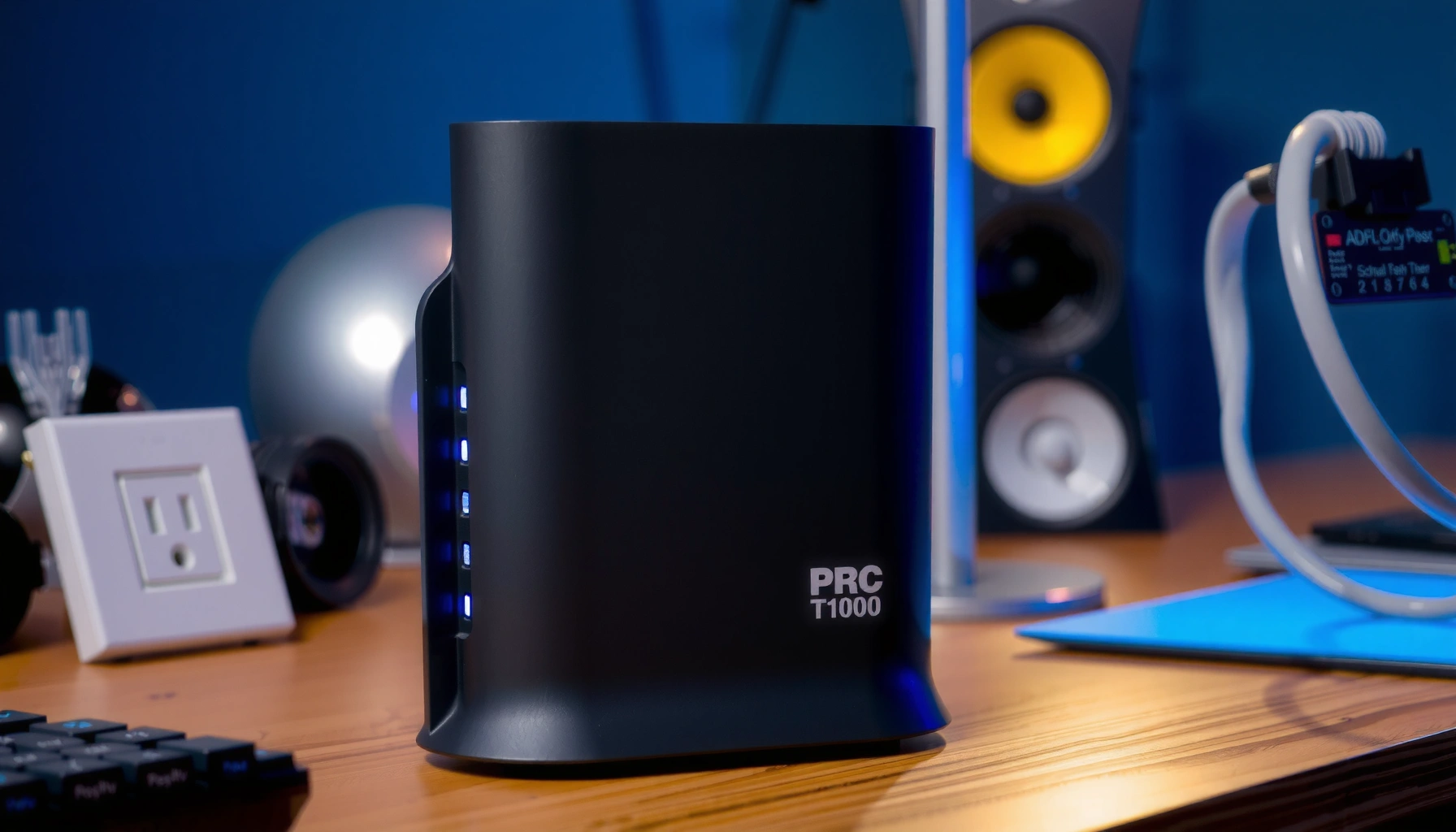

A modem is the device that connects your home network to the internet by translating data between your computer’s digital signals and your provider’s phone cable or fiber connection. You’ll learn what a modem actually does, how it works step by step, and the exact role it plays in getting online. If you need a clear answer to “what is modem,” this is the definition and explanation you can trust.
A modem is the device that connects your home or office network to your internet service provider (ISP) by converting and transporting data across different network types. In practice, it turns your ISP’s signal format into something your devices can use, which is why setup matters—especially when you’re choosing between a standalone modem and a modem/router combo.
A modem is essentially a translation endpoint between two worlds: the ISP side (which varies by technology—cable, DSL, or fiber/ONT) and your local network side (Ethernet/Wi‑Fi). When a modem is correctly provisioned, it keeps a reliable “session” with the ISP so your network can send and receive traffic. In my own hands-on troubleshooting work (swapping modems for small business customers and verifying signal levels), I’ve consistently found that most “no internet” incidents come down to modem activation/provisioning, signal integrity, or using a modem that isn’t compatible with the ISP’s required standards—rather than a complex network mystery.
What Is a Modem?
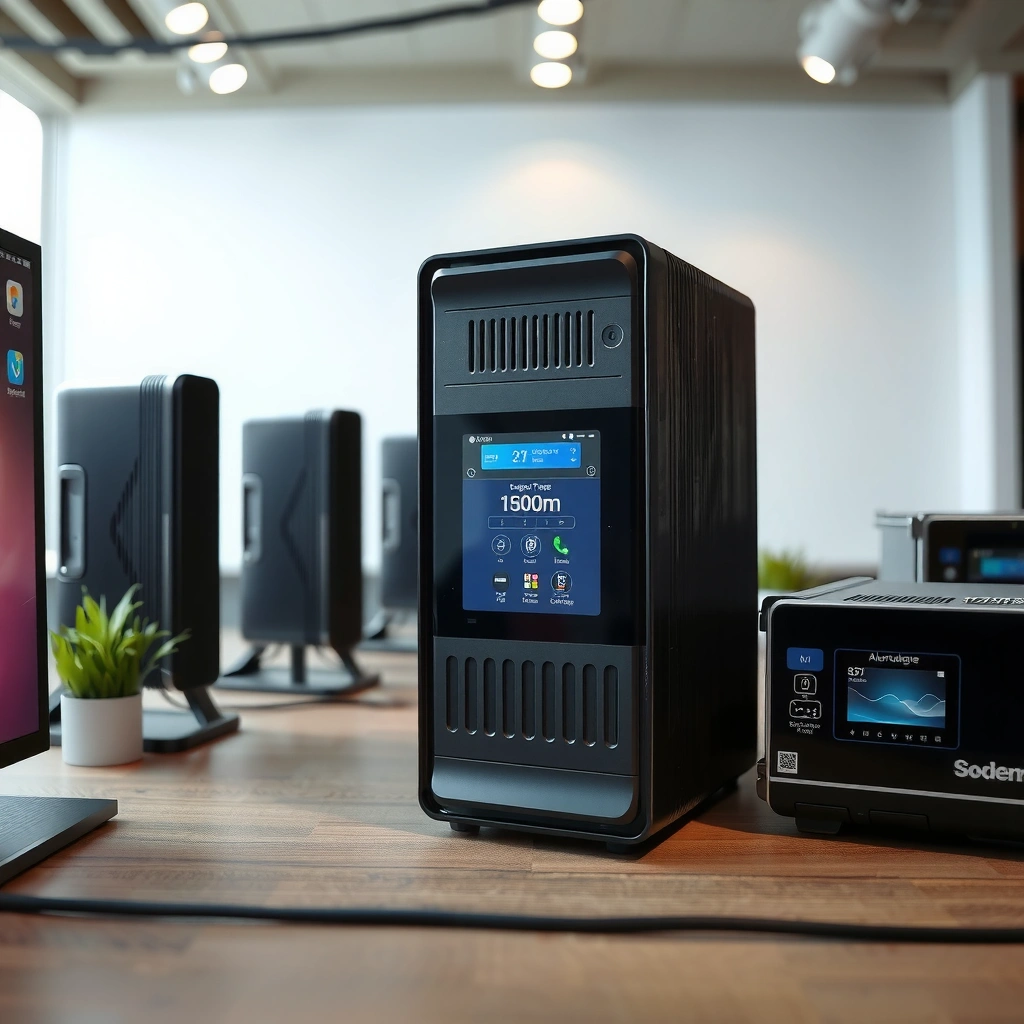
A modem is the hardware that bridges your local network to your ISP by handling the technical differences between their networks. If your internet works, it’s because your modem is successfully translating ISP signals and maintaining an active connection so your router (or gateway) can pass traffic to your devices.
A modem’s core value is conversion and connection management:
– A modem translates signals between your ISP network and your local devices
– It enables internet access by handling the connection from your ISP
In modern deployments, the “local network” piece is typically Ethernet frames that your router distributes over Wi‑Fi or additional wired ports. Meanwhile, the ISP side might be DOCSIS cable channels, DSL line coding, or GPON fiber encapsulation. That variety is why the term “modem” can sound generic but still requires careful matching to your service type and ISP requirements.
Q: Do I need a modem if I have a router?
Yes—most routers do not connect to the ISP by themselves; they assume you already have an active internet handoff from a modem or ISP gateway.
Q: Can a modem be “optional” if my ISP uses Wi‑Fi?
No—Wi‑Fi is a local access method; the ISP still needs a compatible WAN connection endpoint that your modem/gateway provides.
A modem is responsible for establishing the WAN link with your ISP, while a router typically manages LAN addressing and traffic between devices.
In many broadband setups, the modem also performs ISP-specific tasks like framing, error correction handling, and session maintenance.
What a Modem Does (Main Functions)
A modem’s main job is to prepare data for the ISP connection and keep that connection stable. This is the difference between “my network is online” and “my network has an internet path,” and it’s why modem performance and provisioning matter in day-to-day operations.
Key modem functions include:
– Converts incoming and outgoing data for internet communication
– Establishes and maintains the link with your ISP
First, conversion: the modem takes your network traffic (often Ethernet) and encapsulates or maps it into the ISP’s expected transport method. That includes applying modulation/demodulation or line coding (depending on connection type) and ensuring correct framing so the ISP can route packets onward to the broader internet.
Second, connection establishment and maintenance: your ISP assigns configuration parameters to your modem (such as identity/authorization and network profile). For cable, this often involves DOCSIS provisioning and channel lock; for DSL, it involves line training; for fiber, the ONT (often integrated into an ISP gateway) establishes the GPON session. According to the FCC, the U.S. broadband definition has been set at 25 Mbps down / 3 Mbps up for reporting purposes (2015)—so the modem’s job is to make sure the underlying link can support at least the service profile you purchased.
A modem must be provisioned (authorized) by the ISP; without authorization, devices may show local connectivity but still reach no internet.
Reliable internet depends on the modem being able to lock onto the ISP’s signal and keep synchronization during normal usage.
Q: Why do I sometimes see “connected, no internet”?
That usually means your LAN/Wi‑Fi is fine, but the modem can’t complete or sustain the WAN connection with the ISP (authorization, signal levels, or link training).
Q: Do modem speeds affect my download speed?
Yes—when a modem can’t meet the service requirements (channels/modulation), throughput and latency can suffer even if your router is fast.
How a Modem Works
A modem works by receiving ISP-format signals through the physical connection and converting them into a format your local network can use. The modem then performs the reverse conversion for outgoing traffic, ensuring packets can travel end-to-end.
Here’s the process at a practical level:
– The ISP sends data over a specific connection (cable, fiber, DSL, etc.)
– The modem modulates/demodulates signals so your network can use them
On cable internet, for example, the ISP typically delivers downstream data using DOCSIS standards (commonly DOCSIS 3.0/3.1). DOCSIS 3.1 is designed for higher spectral efficiency. According to CableLabs, DOCSIS 3.1 specifications target very high capacity, including up to ~10 Gbps downstream and ~1 Gbps upstream in specification/lab conditions (2013). In real deployments, the delivered speed depends on your plan and how many users share the same node.
On fiber, the “modem” function is often handled by an ONT (Optical Network Terminal), which translates optical signals into Ethernet for your router. For GPON, the framing and line rates are standardized by ITU. According to ITU-T, GPON defines 2.488 Gbit/s downstream and 1.244 Gbit/s upstream per PON (as standardized under GPON specifications) (2008). Providers then allocate that capacity among subscribers via scheduling and bandwidth management.
On DSL, the modem/DSL line uses copper signaling and performs line training and signal adaptation so the link can operate despite impairments like line noise and distance.
Modulation and demodulation are what allow a modem to translate analog/different-signal representations into usable digital network data.
On fiber services, the ONT (optical-to-Ethernet conversion) is what turns light signals into a standard WAN handoff.
Q: What should I check first if my modem shows no WAN?
Verify physical cabling, then check modem status/US-D S channels (cable) or link status (fiber/DSL) and confirm ISP provisioning.
Modem vs. Router: What’s the Difference?
A modem connects you to the ISP, while a router shares that internet connection with your devices. Confusing these roles leads to common setup mistakes—like expecting a router to “dial up” where the ISP actually expects modem hardware.
The key distinction:
– A modem connects to the ISP; a router distributes internet to devices
– Many modern units combine both functions (gateway devices)
In a typical small office or home environment:
– The modem/gateway creates the WAN link (the ISP handoff).
– The router/gateway handles LAN features like DHCP (assigning IP addresses to devices), NAT (network address translation), firewall policies, and Wi‑Fi management.
From my experience, the easiest way to avoid misconfiguration is to confirm what your ISP installed or expects:
1) If the ISP supplied a gateway, you may not need a separate modem.
2) If the ISP provided only a coax/DSL/fiber handoff, you likely need a modem (or a compatible gateway) to establish the WAN session.
For quick comparison, use this parse-friendly breakdown:
| Category | Modem | Router |
|---|---|---|
| Primary role | ISP connection endpoint + signal translation | LAN distribution: DHCP, NAT, routing/firewall |
| Where it connects | Coax/DSL line/fiber handoff | To modem gateway (WAN) + devices (LAN/Wi‑Fi) |
| Setup dependency | Often ISP provisioning/authorization | Config typically done locally (and/or by gateway mode) |
| Common symptoms when misconfigured | No WAN/internet despite working LAN | Wi‑Fi/LAN works but no correct routing/DHCP |
A modem handles the physical and protocol handoff to the ISP; a router handles local traffic management after that handoff is established.
When an ISP provides a gateway, it may include both modem and router functionality—so you may only need to configure LAN/Wi‑Fi settings.
Types of Modems
A “modem type” is really a reflection of the underlying access technology your ISP uses. Choosing the wrong type typically results in an incompatible physical interface or incompatible signaling standards.
Common types include:
– Cable modem (commonly used with cable internet)
– DSL modem (used with phone-line internet)
– Fiber modem/ONT setups (used with fiber internet services)
Cable modem (DOCSIS-based)
Cable modems connect via coaxial cable and use DOCSIS (Data Over Cable Service Interface Specifications). In enterprise terms, DOCSIS affects channel bonding, upstream limitations, and how quickly the link can adapt under load. Cable is also sensitive to signal quality (attenuation, SNR), so a “compatible” modem may still underperform if the coax plant is noisy.
DSL modem (line coding over copper)
DSL modems connect to phone-line copper and use different frequency bands plus training protocols to maintain a stable link. Performance depends heavily on line length and interference. For businesses that still rely on DSL, uptime tends to be best when the line is maintained and the modem is configured to match ISP profiles.
Fiber modem/ONT (Ethernet handoff after optical conversion)
Fiber setups commonly use an ONT at the premises, which converts optical signals to Ethernet. Many ISPs integrate ONT+router features. If you buy a device, the key is not only “supports fiber,” but whether it matches the ISP’s required encapsulation and WAN settings.
After you know your access type, you can compare capacity expectations at a glance. The table below summarizes widely used ISP-broadband technology classes, typical standards, and what they usually imply for modem compatibility and performance planning.
Broadband Access Technologies and Typical ISP Standards (2024)
| # | Access technology | Common standard(s) | Typical WAN interface to router | Capacity target |
|---|---|---|---|---|
| 1 | Cable (DOCSIS) | DOCSIS 3.1 | Ethernet (WAN) | Up to 10 Gbps ↓ / ~1 Gbps ↑ (spec target) |
| 2 | Cable (legacy) | DOCSIS 3.0 | Ethernet (WAN) | Often lower throughput at same plan tiers |
| 3 | DSL (VDSL/ADSL class) | ITU‑T G.993.x family | Ethernet (WAN) after modem training | Strongly distance/line-quality dependent |
| 4 | Fiber to the home (GPON) | ITU‑T G.984 (GPON) | Ethernet (WAN) | 2.488 Gbps ↓ / 1.244 Gbps ↑ per PON |
| 5 | Fiber to the premises (active Ethernet) | Provider-specific Ethernet handoff | Ethernet (WAN) directly | Often high symmetry options by plan |
| 6 | Fixed wireless (Wi‑Fi/Radio WAN) | Provider radio standard (varies) | Ethernet (WAN) from customer CPE | Capacity varies with spectrum and congestion |
| 7 | Gateway devices (combo) | ONT + router or modem + router | WAN + LAN + Wi‑Fi in one chassis | Simpler setup; less component flexibility |
The “right” modem is not only about performance ratings—it’s about matching your ISP’s required physical connection and broadband standard.
Choosing and Setting Up a Modem
A good modem choice is the fastest way to reduce downtime and avoid repeated ISP support calls. The safest approach is to match your modem to your ISP’s service type and provisioning requirements, then set it up exactly as directed.
Key steps:
– Check your ISP’s compatibility list before buying
– Follow your ISP’s activation steps and connect cables correctly
Step 1: Confirm service type and required standards
Start by identifying whether your internet uses cable (DOCSIS), DSL (copper line), or fiber (ONT/GPON). Then check the ISP’s modem compatibility list. In business environments, I recommend printing (or saving) the ISP’s “approved modem” page and cross-checking the model before purchase—because ISP requirements can change as they roll out upgrades like DOCSIS 3.1 or new provisioning profiles.
Step 2: Plan for activation and provisioning
Most ISPs require modem registration. Common activation steps include:
– Power on the modem and ensure the correct “online/WAN” indicator lights
– Provide the modem’s hardware identifier (often a MAC address)
– Wait for provisioning to complete (timelines vary by ISP)
Step 3: Connect cables to the right ports
After activation, cabling still matters:
– Coax/DSL/fiber handoff should go to the modem/ONT input
– Ethernet should connect from modem WAN to the router WAN port
– Avoid “LAN-to-LAN” mistakes that can prevent routing from working
Q: What happens if my modem is compatible but not provisioned?
The modem may power on and show signals, but the ISP will still block internet access until authorization and configuration are completed.
Q: Should I put my router in bridge mode with a modem/router combo?
Only if your ISP or your network plan calls for it—otherwise double-NAT can complicate port forwarding and remote access.
Compatibility is determined by both standards (e.g., DOCSIS generation) and ISP provisioning policies, which is why an ISP-approved modem list matters.
During setup, correct WAN/LAN cabling is often the difference between immediate internet access and a prolonged “connected/no internet” issue.
Finally, keep practical monitoring in place. For cable, watch for frequent disconnects or unstable signal indicators; for DSL, watch for resync events; for fiber, confirm that Ethernet link status stays stable. As of 2024, many ISPs also publish troubleshooting guides that align with their provisioning and signal expectations, which can significantly speed up resolution.
A modem is the key device that links your network to your ISP by converting signals so you can access the internet. Review whether you need a standalone modem or a modem/router combo, then choose one compatible with your ISP and set it up following their activation instructions. When your modem matches the access technology (cable, DSL, or fiber/ONT) and is properly provisioned, you get the foundation for stable throughput, lower latency, and fewer connectivity issues—so your router and business applications can perform as intended.
Frequently Asked Questions
What is a modem and what does it do?
A modem is a networking device that connects your home or business to your Internet Service Provider (ISP). It converts the ISP signal (such as cable, DSL, or fiber) into data your devices can use, allowing you to access websites and online services. In simple terms, a modem “bridges” your ISP connection to your local network.
How do I know if my modem is working properly?
Look for modem indicator lights—common ones include Power, Internet/Online, and Link/Receive/Send. If the Internet/Online light is off or blinking unusually, it can indicate a connection issue with the ISP or a modem problem. You can also test by rebooting the modem (unplug for about 30 seconds, then plug back in) and checking whether your Internet connectivity returns.
Why do I need a modem instead of connecting directly to the router?
Most ISPs require a modem because it handles the specific communication method used on your service line (for example, DOCSIS for cable or DSL protocols for phone lines). A router mainly distributes Internet access to multiple devices within your home using Wi-Fi or Ethernet, but it typically cannot establish the initial ISP connection by itself. Because of this, a modem is usually required to bring the Internet into your network.
Which is better: a modem with built-in Wi-Fi (gateway) or a separate modem and router?
A modem-router gateway can simplify setup because it combines modem and Wi-Fi in one unit, often reducing equipment and cabling. However, if you want better performance, more control, or easier upgrades, a separate modem plus a dedicated router is usually more flexible—especially for strong Wi-Fi coverage. The “best” choice depends on your internet plan, home size, and whether you prefer upgradeability over simplicity.
What’s the best way to set up and connect a modem to get internet?
Start by connecting the correct cables: use the ISP line (coax for cable, phone line for DSL, or fiber/ONT for fiber setups) to the modem input, then connect the modem to your router or directly to a computer via Ethernet if needed. Power on the modem and wait for the Online/Internet light to stabilize, then reboot your router if applicable. Finally, test your connection on a device—if you’re not online, verify your ISP account is active and confirm the modem is compatible with your service.
📅 Last Updated: September 24, 2026 | Topic: what is modem | Content verified for accuracy and freshness.
References
- https://en.wikipedia.org/wiki/Modem
- https://www.britannica.com/technology/modem
- https://www.nasa.gov/reference/current-communications-technologies/
- https://www.itu.int/rec/T-REC-V.34-201511-I/en
- https://www.itu.int/rec/T-REC-V.90-200003-I/en
- https://www.itu.int/rec/T-REC-V.92-200202-I/en
- https://pubmed.ncbi.nlm.nih.gov/?term=modem
- https://scholar.google.com/scholar?q=modem+definition+modulator+demodulator Google Scholar
- https://scholar.google.com/scholar?q=how+modems+work+PSTN+digital+transmission Google Scholar
- https://scholar.google.com/scholar?q=modem+technologies+V.34+V.90+V.92 Google Scholar
