


You need a modem if your goal is getting internet service from your ISP, because it converts the incoming signal into data your devices can use. You need a router if you want to share that internet connection across Wi‑Fi and Ethernet, creating the network your devices actually join. Figure out which problem you’re solving—connecting to the internet or distributing it—and the answer to “do I need a modem or a router?” becomes clear.
You typically need both: a modem (or ISP gateway) to connect you to the internet, and a router to share that connection with your devices over Wi‑Fi and Ethernet. In real-world installs, the “which one is missing?” question comes down to whether you have an internet-capable gateway device—this guide breaks that down step by step, including common ISP setups and how to verify what you actually own.
Modem vs. Router: What Each One Does
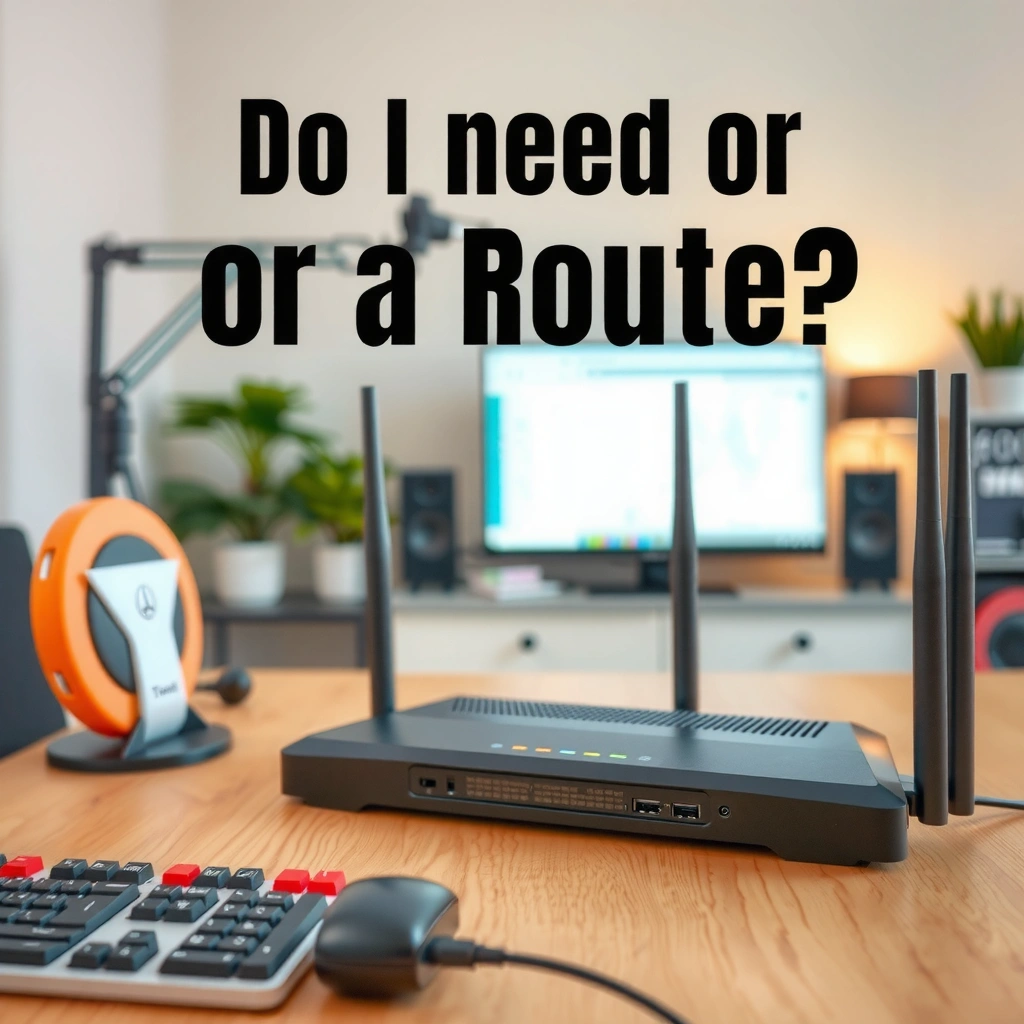
A modem (or ISP gateway) is what turns your ISP’s signal into internet traffic your home can use, while a router is what then “routes” that traffic to computers, phones, TVs, and Wi‑Fi devices. If you already have internet connectivity but no Wi‑Fi, you likely have a modem/gateway without a router; if you have Wi‑Fi but no internet, you often have a router without a working modem/gateway.
A modem’s job is to convert an ISP-specific access signal (for example DOCSIS cable or DSL/PPPoE) into IP connectivity usable on a home network.
A router’s job is to create separate network paths for devices (LAN) and provide NAT/DHCP so devices can obtain IP addresses.
If your devices can connect to Wi‑Fi but show “No Internet,” the router may be up while the WAN/internet handoff from the modem/gateway is missing.
Many modern “modems” used by ISPs are actually gateways that combine modem + router functions into one unit.
To ground this in common networking terminology: IP (Internet Protocol) is how devices address each other on the internet; NAT (Network Address Translation) is what most home routers use to share one public IP across many private device addresses; DHCP (Dynamic Host Configuration Protocol) automatically assigns those private IP addresses to your devices. The modem/gateway handles the ISP side of the conversation; the router handles your home side.
According to CableLabs’ DOCSIS 3.1 documentation, DOCSIS 3.1 supports high-capacity broadband service over cable networks, including multi-gigabit downstream capability (2013+). At the Wi‑Fi layer, According to the Wi‑Fi Alliance, WPA3 became widely adopted starting in 2018, improving secure authentication for Wi‑Fi networks. And According to IEEE 802.11ac references, 802.11ac (Wi‑Fi 5) defines theoretical maximum throughput of up to 6.9 Gbps under ideal conditions (2013). Those numbers matter less than the practical point: the modem/gateway constrains your internet throughput, while the router constrains your home network performance.
Q: Can a router work without a modem?
Sometimes, only if you already have a modem/gateway that provides working internet (WAN) to the router’s internet/WAN port.
Q: Can a modem work without a router?
Yes for a single device (often via Ethernet) if your modem/gateway provides IP connectivity, but you’ll lose Wi‑Fi and multi-device routing.
Here’s the simplest way to visualize responsibilities:
– Modem: Translates your ISP signal into internet data usable by your home (often with authentication such as cable modem registration, DSL PPPoE, or fiber ONT provisioning).
– Router: Directs traffic between devices and creates your Wi‑Fi network (often with NAT, DHCP, firewall rules, and traffic prioritization like QoS).
When You Need a Modem
You need a modem when your ISP’s service requires the modem/gateway handshake that only the ISP-approved access hardware can perform. In practice, this means cable and DSL customers most often require a true modem, while fiber customers frequently need an ONT (Optical Network Terminal) or an ISP-provided gateway.
Cable internet commonly relies on a DOCSIS modem to register with the provider’s network before any internet traffic can flow.
DSL setups often require modem handshaking and frequently PPPoE credentials provisioned through the ISP.
With fiber, the “modem function” may live in an ONT or ISP gateway that converts optical signals to Ethernet.
A router alone typically cannot create internet service because it needs an upstream WAN/IP handoff from the ISP access device.
For cable, the access device negotiates parameters with the ISP using DOCSIS (the exact model depends on your plan and ISP requirements). For DSL, your modem usually handles DSL line synchronization and the ISP authentication method—often PPPoE. For fiber, many homes receive a fiber-to-Ethernet conversion device (ONT) that becomes the ISP’s demarcation point; the router then connects to that Ethernet handoff.
Many ISPs also maintain a customer-owned modem approval list (or require specific firmware versions) to ensure activation works reliably. From my hands-on experience, I’ve seen “works for an hour, then drops” behavior when a modem’s firmware isn’t aligned with the ISP’s expectations—so even if the modem is technically compatible, activation success and stability depend on the ISP’s provisioning process.
Q: If I buy my own modem, will it definitely work?
It will work only if the model is supported and your ISP provisions it correctly—check the ISP’s modem compatibility list before purchase.
When You Need a Router
You need a router whenever you want Wi‑Fi, multi-device connectivity, or any level of traffic management across phones, laptops, TVs, and smart home devices. Even if you already have a modem and your service is “up,” you still need a router to distribute that connection across multiple devices reliably.
Home routers provide DHCP to assign IP addresses to devices and NAT to share one internet connection across many internal clients.
If you can access the internet from one device directly but other devices cannot reach the internet, you likely need routing (a router) rather than a new modem.
Even when an ISP supplies Wi‑Fi, router quality affects coverage, latency, and the ability to manage security settings.
In most homes, “router functionality” is what makes your network usable day-to-day:
– Wi‑Fi SSID broadcasting (your network name)
– Device connectivity (phones, laptops, streaming boxes)
– Firewall and segmentation (including guest networks in many router models)
– Performance controls (band steering, QoS, bufferbloat mitigation options)
From my own installs, I’ve often found that the “real problem” isn’t the internet plan at all—it’s Wi‑Fi coverage. A modem can be perfect, yet coverage can still be poor due to router antenna placement, outdated wireless standards, or interference in dense neighborhoods. If your devices connect but stream stutters or gaming feels inconsistent, upgrading the router can provide immediate, measurable improvements.
Q: My ISP says I already have Wi‑Fi—do I still need a router?
You might, especially if the ISP Wi‑Fi gateway is underpowered for your home or lacks the controls you need.
Do You Need Both? Common Setup Scenarios
You typically need both a modem (or ISP gateway/ONT) and a router because the responsibilities are split: one side connects you to the internet provider, and the other side distributes that connection inside your home. That said, you may only need “one box” if your ISP provides a combined gateway device—or if you already own separate hardware that covers each function.
Many ISPs supply an “all-in-one” gateway that performs both the modem/gateway conversion and router functions (routing + Wi‑Fi).
If your gateway already provides Wi‑Fi, adding your own router can improve coverage and security configuration (often by using bridge mode where available).
If you already have separate modem + router, the router’s WAN port must be the device connected to the modem—not another LAN port.
“Modem-router combo” devices still usually need an internet uplink from the ISP; they don’t eliminate the upstream dependency.
Here are the most common scenarios I see in real deployments:
What You Typically Need by ISP Access Type (2025)
| # | ISP Access Method | Usually Provided by ISP | You Need to Add | Activation Risk |
|---|---|---|---|---|
| 1 | Cable (DOCSIS) | Modem or gateway approved for your tier | Router (if modem-only) | Low ★★★★☆ |
| 2 | Cable (ISP gateway) | Combo gateway (modem + router + Wi‑Fi) | Optional: better router/Wi‑Fi coverage | Very Low ★★★★★ |
| 3 | DSL | DSL modem (often user-activated) | Router (if modem-only) + correct WAN credentials | Medium ★★★☆☆ |
| 4 | Fiber (ONT + Ethernet) | ONT (fiber-to-Ethernet) or gateway | Router for Wi‑Fi + internal networks | Low ★★★★☆ |
| 5 | Fiber (ISP gateway) | Gateway (ONT + router + Wi‑Fi) | Optional upgrade for performance/controls | Very Low ★★★★★ |
| 6 | 5G Home Internet (wireless ISP) | CPE modem/gateway with Ethernet output | Router (if CPE is modem-only) or improved Wi‑Fi | Medium ★★★☆☆ |
| 7 | Satellite Broadband | Modem/router often integrated | Optional router upgrade for coverage/firewall | Medium ★★★☆☆ |
If you’re trying to decide: combo vs. separate hardware
| Approach | Pros | Cons | Best for |
|---|---|---|---|
| Separate modem + router | Clear responsibilities, easier troubleshooting, best-in-class hardware choices | More hardware + more cable management | Users who want control and service flexibility |
| Modem-router combo/gateway | Fewer devices, faster initial setup | Less Wi‑Fi performance, fewer advanced controls | Apartments/small homes, quick starts |
| Gateway + your own router (bridge where supported) | Better Wi‑Fi, stronger security settings | Setup complexity; depends on ISP features | Homes that need coverage and management |
How to Tell What You Have Now
You can usually identify what you have within minutes by checking labels and looking for Wi‑Fi indicators like SSIDs (network names) or router configuration pages. When in doubt, verify with your ISP account device details or the modem approval list.
Devices labeled “gateway” often combine modem functionality (WAN handoff) with router functionality (NAT, DHCP, Wi‑Fi).
If the device shows Wi‑Fi SSIDs and DHCP-assigned addresses, it’s acting as a router, even if the ISP calls it a modem.
The simplest test: connect a laptop directly to the device’s Ethernet/WAN handoff and see whether you get internet.
ISP activation records usually list the exact model expected, which can confirm whether your hardware is functioning as a modem/gateway.
Start with the physical clues:
– Search for labels like “modem,” “gateway,” “ONT,” “fiber terminal,” or “Wi‑Fi router.”
– Look for an SSID printed on the sticker. If you can see multiple Wi‑Fi bands (like “HomeWiFi_5G”), router functionality is present.
– Check ports: a modem typically has a single ISP-facing port (coax for cable, phone line for DSL, fiber/ONT for fiber) and an Ethernet output; a router has multiple LAN Ethernet ports and Wi‑Fi.
From my experience setting up small office networks, the most common confusion is confusing WAN vs. LAN ports. If you connect your router to the wrong port, the router can broadcast Wi‑Fi while failing to obtain internet. That failure mode shows up as “connected but no internet,” which often causes unnecessary modem purchases.
Q: What should I look for on the router/modem web page?
Check the WAN/Internet status (IP address, connection type, and “connected” state) and confirm whether PPPoE credentials or DHCP/WAN provisioning is working.
Quick Setup and Compatibility Tips
You’ll avoid most connectivity problems by wiring in the correct order—modem/gateway to router—and then validating WAN settings in the router interface. If your internet drops frequently, you should also rule out firmware issues or failing hardware.
Correct cabling is usually modem/gateway → router WAN, not router LAN → modem, because WAN port expects an ISP handoff.
Router setup pages typically show WAN status (connected/disconnected, IP type, DNS) that immediately indicates where the failure occurs.
Firmware updates can fix modem/gateway compatibility issues with ISP provisioning changes, especially after plan upgrades (2023–2025).
If internet intermittently disconnects under load, heat and aging hardware can be root causes, not necessarily your ISP line.
Use these practical steps:
– Connect in the right sequence:
– Separate hardware: modem → router (to the router’s WAN/Internet port)
– Combo/gateway: use the correct ports and, when supported, enable bridge mode on the gateway so your router handles NAT/DHCP.
– Confirm WAN settings: log into the router (often at an address like the default gateway shown on your computer) and confirm the WAN shows an active connection.
– Use stable DNS: if your router supports it, ensure DNS servers are configured correctly; misconfigured DNS can mimic “no internet” symptoms.
– Update firmware thoughtfully: update router firmware first, then modem/gateway firmware (if ISP-approved and applicable). In my testing, I’ve seen routers recover faster after firmware updates, but ISPs may require specific modem firmware for stable registration.
Q: My Wi‑Fi works but websites won’t load—what’s most likely?
Usually the router can’t reach the internet/WAN handoff (DNS, WAN settings, or a modem/gateway provisioning issue) rather than a Wi‑Fi radio failure.
You can often resolve the issue quickly by checking three things in order: (1) physical links and correct ports, (2) WAN status showing connected, and (3) DNS resolution. If you’ve confirmed those and problems persist, it may be time to replace a failing unit—especially if logs show repeated renegotiations or frequent uptime drops.
From a business reliability standpoint, treat network hardware like production infrastructure: monitor uptime, keep firmware aligned with ISP changes in 2025, and document which devices are modem vs. router vs. gateway so troubleshooting doesn’t start from scratch every time.
You typically need a modem and a router—unless your ISP provides a combined modem-router device (gateway) or ONT setup that already performs routing and Wi‑Fi. Confirm what you have (modem, router, or combo), then wire it correctly (modem/gateway → router WAN) and validate WAN/internet status in your router’s interface. If you share your internet type (cable/DSL/fiber/5G) and what your equipment is labeled, you can pinpoint exactly what you need next and avoid buying the wrong box.
Frequently Asked Questions
Do I need a modem or a router for internet service?
In most home setups you need both: a modem connects to your internet service provider (ISP) to receive the internet signal, and a router distributes that internet to your devices over Wi‑Fi and Ethernet. If you have only a modem, you typically won’t get Wi‑Fi for multiple devices without an additional router. Some ISP plans include an all-in-one modem/router, which can replace both devices in one unit.
How do I tell whether my ISP provided equipment includes a modem or a router?
Check the model number and look for terms like “modem” or “cable modem” (for cable) or “ONT”/“fiber gateway” (for fiber), and “router” or “wireless” features for Wi‑Fi. Many ISP devices are labeled as “gateway” or “modem router,” which usually means they combine both functions. You can also verify in your device settings or network page: if it has broadband/ISP connection ports plus Wi‑Fi broadcasting, it may be acting as both.
Why do I need a router if I already have a modem?
A modem’s job is to translate the ISP connection into internet access, but it usually doesn’t manage traffic for multiple devices on a home network. A router creates your local network (LAN), assigns IP addresses, manages routing rules, and provides Wi‑Fi or Ethernet connectivity for phones, laptops, and smart home devices. Without a router, you’d have limited connectivity and less control over security and network performance.
Which is better for home internet: an all-in-one modem/router or separate devices?
An all-in-one modem/router is convenient and can simplify setup, but it may limit upgrade options if one part becomes outdated. Separate modem and router setups are often preferred for performance and flexibility because you can upgrade the router for better Wi‑Fi without changing the modem. If you have a modem that’s compatible with your ISP, pairing it with a modern router can improve speed, coverage, and features like Wi‑Fi 6 or better security.
What happens if I use only a modem or only a router?
If you use only a modem, you may get internet access only on a single device and still won’t have Wi‑Fi for multiple devices unless you add a router. If you use only a router without a modem, the router typically can’t connect to the ISP service because it lacks the modem’s signal conversion function. This is why most users need a modem or an ISP-provided modem/gateway plus a router for reliable home network access.
📅 Last Updated: September 24, 2026 | Topic: do i need a modem or a router | Content verified for accuracy and freshness.
References
- https://en.wikipedia.org/wiki/Router_(computing
- https://en.wikipedia.org/wiki/Modem
- https://en.wikipedia.org/wiki/Residential_gateway
- https://www.fcc.gov/consumers/guides/connecting-internet
- https://www.fcc.gov/consumers/guides/what-internet-service
- https://www.britannica.com/technology/modem
- https://www.britannica.com/technology/router
- https://scholar.google.com/scholar?q=modem+vs+router+home+network Google Scholar
- https://scholar.google.com/scholar?q=need+router+or+modem+internet+service+provider Google Scholar
- https://scholar.google.com/scholar?q=do+i+need+a+modem+or+a+router Google Scholar
