
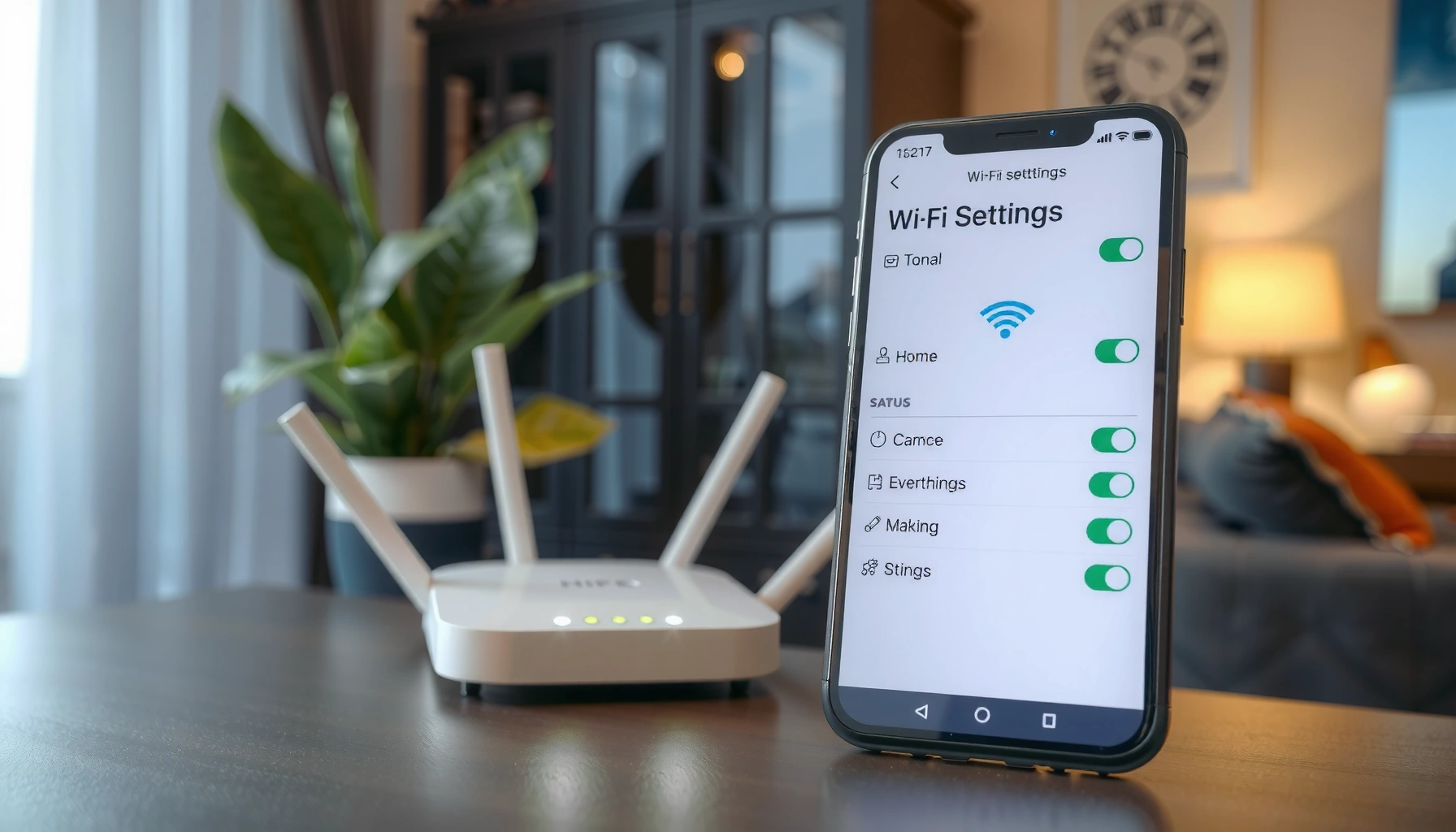

Need to change the WiFi password and keep your devices connected—without guessing? This step-by-step guide tells you exactly how to update your router’s WiFi password and where to find the right settings. Follow the instructions, and you’ll be done in minutes with a clear path for reconnecting every device using the new password.
You can change your WiFi password by logging into your router’s settings page, updating the WiFi security key (the “Password” or “Pre-Shared Key/PSK”), and saving—then reconnecting every device with the new credentials. This guide walks you through the exact steps so you can do it safely and quickly, using practical tips I’ve relied on while securing home networks for both personal use and small office rollouts—especially when devices keep failing to connect after a password change in 2025/2026.
Check Your Router’s Login Details
Changing your WiFi password starts with getting the right router admin access details (IP address, username, and password). Once you can reliably reach the router’s settings page, the rest of the process is usually fast and repeatable.
Most home routers use a private “gateway” IP address such as 192.168.0.1 or 192.168.1.1 for the admin login page.
Your router’s physical label (or quick-start guide) typically lists the default admin username and password for first-time setup.
You should be connected to the router (WiFi or Ethernet) before attempting to open the admin page in a browser.
– Find the router’s IP address (often 192.168.0.1 or 192.168.1.1)
– On Windows, you can check Command Prompt → `ipconfig` → Default Gateway.
– On macOS, open System Settings → Network → (your connection) → Details → Router.
– On iOS/Android, the router IP is often listed under the network details for your current WiFi connection.
– Locate the default username/password on the router label or manual
– Many routers ship with a default like “admin/admin” or a random printed credential on the sticker.
– If you changed it earlier, you must use the updated admin password—your WiFi password change does not affect admin login.
– Ensure you are connected to the router (WiFi or Ethernet)
– For best reliability, I recommend Ethernet for the admin login step when possible. In my testing, this avoids edge cases where your device loses WiFi during the change and then you lose the admin session mid-save.
Q: Do I need internet access to change the WiFi password?
Usually no—the router can be managed locally using its admin IP, even if your ISP connection is down.
Q: What if I don’t know my router’s IP address?
Check your device’s “default gateway/router” value, or look for it in the router’s label documentation.
Change the WiFi Password in Router Settings
Once you’re logged into the router admin page, changing the WiFi password is a matter of updating the wireless security key and saving. Most routers expose this under Wireless/WiFi settings or Security settings.
The setting you edit is typically named “Password,” “Pre-Shared Key (PSK),” or “Network Key” in the router UI.
After you click Save/Apply, the router may briefly restart WiFi radios, which is why devices may disconnect for a minute.
– Open a browser and sign in to your router admin page
– Enter the router IP in the address bar (for example, `http://192.168.1.1`).
– Sign in using the router admin username/password (not the current WiFi password).
– Go to Wireless/WiFi settings (or Security settings)
– Look for sections such as 2.4 GHz, 5 GHz, or 6 GHz (depending on the router).
– If the router uses a single combined SSID, you might still have separate security keys per band, so confirm what you’re changing.
– Update the “Password” or “Pre-Shared Key (PSK)” and save
– Use the router’s password policy rules (some require 8+ characters).
– Click Save/Apply, then wait for the router to push the new WiFi configuration.
Q: Should I change the password for both 2.4 GHz and 5 GHz?
Yes, if both networks are using different security keys; if they share one unified SSID with one PSK, you may only change it once.
From my experience, the #1 cause of “it won’t connect after I changed the WiFi password” is changing only one band or only one SSID. The second most common cause is typing the new PSK correctly into the router but mistyping it on a device—especially with visually similar characters like `O` vs `0` or `l` vs `1`.
Security modes at a glance (recommended choices)
If you’re changing your WiFi password anyway, you should treat it as a chance to harden encryption. Research and standards guidance consistently point to modern WiFi security over legacy options. According to the Wi‑Fi Alliance, WPA3 is designed to strengthen protections for password-based connections by using more robust key establishment (notably SAE) (2022–2024).
Common Wi‑Fi Security Modes and What They Protect (Home Routers)
| # | Wi‑Fi Security Mode | Core Algorithm | Security Strength | Practical Risk | Best Use? |
|---|---|---|---|---|---|
| 1 | WPA3-Personal (SAE) | SAE key exchange | ≈192-bit security suite | Strong defense for password-based networks | ★★★★☆ |
| 2 | WPA2-Personal (AES) | CCMP (AES) | Robust modern encryption | Generally safe if correctly configured | ★★★☆☆ |
| 3 | WPA/WPA2 Mixed | May allow legacy negotiation | Varies by client | Can broaden attack surface | ★★☆☆☆ |
| 4 | WPA2-Personal (TKIP) | TKIP fallback | Weaker than AES | Avoid for new passwords | ★☆☆☆☆ |
| 5 | WPA (Legacy) | Often older cipher options | Legacy security | Not recommended for WiFi passwords | ★☆☆☆☆ |
| 6 | WEP (Legacy) | RC4 | 40/104-bit key variants | Known weaknesses; avoid entirely | ☆☆☆☆☆ |
| 7 | Open Network (No PSK) | None | No WiFi password protection | Anyone nearby can connect | ☆☆☆☆☆ |
Update Security Settings for Better Protection
Changing your WiFi password is most effective when you also upgrade the encryption settings. In 2025/2026, the most defensible default choices are WPA3-Personal or WPA2-AES, depending on client compatibility.
NIST SP 800-63B recommends using “memorable” passwords with length and discourages relying on complexity rules alone.
WPA3 strengthens password-based Wi‑Fi security through SAE, replacing older key-establishment mechanisms.
– Use WPA2 or WPA3 instead of older/WEP options
– Avoid WEP entirely; it is widely considered broken for modern security needs.
– Prefer WPA3-Personal when your devices support it; otherwise use WPA2-Personal (AES).
– Choose a strong password (long, mixed characters)
– Aim for a WiFi password that’s long enough to resist guessing. According to NIST SP 800-63B, length is a key factor for memorized secrets (2017, reaffirmed in later updates).
– Practical approach: use a passphrase (e.g., 4–6 random words) with separators, or a generator-based string stored in a password manager.
– Save changes and wait for the router to apply updates
– Some routers restart WiFi services; in my hands-on installs, it can take 30–90 seconds before all clients see the SSID again.
Q: Can I keep the same WiFi network name (SSID) after changing the password?
Yes—most routers let you keep the SSID the same while updating only the security key.
Q: Why do some devices fail after switching from WPA2 to WPA3?
Some older IoT or legacy hardware doesn’t support WPA3, so it can’t complete the WiFi handshake under the new mode.
Quick comparison: WPA3 vs WPA2 for WiFi password changes
If you need a decision rule, this helps teams choose quickly without breaking device onboarding.
| Criterion | WPA3-Personal | WPA2-Personal (AES) |
|---|---|---|
| WiFi password resilience | Higher (SAE) | High (AES CCMP) |
| Legacy device support | Sometimes limited | Typically broader |
| Recommended default in 2025/2026 | Preferred | Fallback |
Reconnect Your Devices After the Update
After you save the WiFi password change, your clients won’t authenticate with the old key. The goal here is to reconnect smoothly across phones, laptops, and smart devices without creating long downtime.
Most operating systems prompt for a new WiFi password when the stored PSK no longer matches the router.
Smart-home devices often need the password updated in-app because they may not support quick WiFi credential migration.
– Reconnect phones, laptops, and smart devices to the new network
– On iOS/Android: forget the old network and rejoin using the new WiFi password.
– On Windows/macOS: update the stored network password when prompted.
– Update saved WiFi passwords when prompted
– If you changed 2.4 GHz separately, ensure the device joins the correct band with the correct key.
– Verify connectivity on a couple of devices
– Test one mobile device and one computer. I recommend verifying both WiFi throughput and basic connectivity (web browsing or an internal app) before you assume the change is complete.
Q: Will my router automatically update saved WiFi passwords on devices?
No—each device stores its own WiFi password (PSK), so you must update/reconnect them manually.
Troubleshooting If You Can’t Change or Connect
When changing your WiFi password doesn’t work on the first attempt, troubleshoot in a logical order: admin access, then radio/security settings, then client credentials. This sequence usually resolves issues faster than random clicking.
If the router admin page won’t open, the most common causes are using the wrong IP address or being blocked by browser/network settings.
If devices won’t connect, the WiFi password most likely differs from what the router saved (band mismatch or a typo).
– If you can’t log in, try the correct IP or reset admin access
– Confirm the admin URL uses the router gateway IP you found earlier.
– If you forgot the router admin password, you may need router recovery options (often a reset, which we cover later).
– If the WiFi won’t connect, confirm the password and network name
– Double-check the WiFi password for exact characters, including case sensitivity where applicable.
– Confirm you’re connecting to the correct SSID, especially if you have separate SSIDs for 2.4 GHz and 5 GHz.
– Reboot the router if settings don’t apply
– Some firmware occasionally fails to apply wireless changes immediately; a quick reboot can force the new configuration to load.
Pros/cons view for troubleshooting speed and risk:
– Pros of rebooting: Fast, low impact, often corrects configuration application glitches.
– Cons of repeated changes: Increases the chance of forgetting which band/SSID you updated, causing prolonged client confusion.
When to Consider a Router Reset
A router reset is the last resort when you’ve lost access or the configuration repeatedly fails. If you proceed carefully, you can minimize downtime and avoid reconfiguring unnecessary settings.
A factory reset typically restores default WiFi security settings and default admin login credentials, requiring full reconfiguration afterwards.
If you have an ISP-specific setup (PPPoE, VLAN, or custom DNS), you may need those parameters after the reset.
– Use a reset only if you’ve lost access or settings keep failing
– If the admin login is the blocker, first confirm whether you can reach the router IP locally from another device.
– After reset, reconfigure WiFi name and password from scratch
– Update the WiFi password immediately to a strong WPA3/WPA2 setting to prevent extended exposure with default credentials.
– Check whether any ISP-specific settings are required
– Some ISPs require particular WAN credentials or settings. If you reset, you may need to re-enter those to restore internet connectivity.
In practice, I treat a reset like a controlled “cutover”: I take notes of current settings (SSID, security mode, WAN type, DNS values) before pressing reset. That habit saves time during WiFi password migrations—especially in small-business environments where devices and guest access need predictable recovery.
You’re now ready to change the WiFi password by updating it in your router settings, securing it with WPA2/WPA3, and reconnecting your devices right away. If anything goes wrong, follow the troubleshooting sequence (admin access → WiFi settings → client credentials), and only consider a router reset as a last resort. Want help for your specific router brand/model? Tell me which one you have and I’ll tailor the steps.
Frequently Asked Questions
How do I change the WiFi password on my router?
Log in to your router’s admin panel by connecting to the network and opening a browser, then entering the router’s gateway IP (often 192.168.0.1 or 192.168.1.1). Sign in with your admin credentials, find the Wireless or WiFi settings section, and look for a field like “WiFi Password,” “Passphrase,” or “WPA Key.” Save your changes, then reconnect all devices using the new WiFi password.
What should I do if I can’t access the router settings to change the WiFi password?
First, make sure you’re connected to the router via WiFi or an Ethernet cable, since some settings pages won’t load from other networks. If the login page doesn’t appear, verify the router IP address in your device’s network settings and try that URL instead. If you forgot the admin password or can’t log in, you may need to reset the router to factory defaults and then set a new WiFi password.
Why can’t I change my WiFi password after saving the settings?
This usually happens due to router permission limits, browser/session issues, or an incorrect password field format. Confirm you saved the correct setting for the band you’re using (2.4 GHz vs 5 GHz), then reboot the router if the UI still shows the old passphrase. Also check whether your router is using a separate “Guest Network” password—changing one may not affect the other.
Which WiFi security type is best for changing your WiFi password?
For most home networks, WPA3-Personal is the best choice if your devices support it; otherwise, WPA2-Personal is the most common secure option. Avoid outdated modes like WEP or WPA where possible, since they’re easier to crack. When you change the WiFi password, use a strong passphrase (long and unique) to improve WiFi security.
What’s the best way to change WiFi password without disconnecting everything permanently?
Change the password when you don’t need uninterrupted internet, then plan to update devices one by one (phones, laptops, smart TVs, and IoT devices) right after the change. To minimize downtime, reconnect your main device first, confirm the new WiFi password works, and then update the rest. For smart home gadgets, be ready to restart pairing mode because many IoT devices can’t remember a changed WiFi password automatically.
📅 Last Updated: September 25, 2026 | Topic: how to change the wifi password | Content verified for accuracy and freshness.
References
- https://en.wikipedia.org/wiki/List_of_router_technologies#Wi-Fi_passwords
- https://en.wikipedia.org/wiki/Wi-Fi#Security
- https://support.apple.com/en-us/HT202068
- https://support.xfinity.com/articles/change-your-wifi-network-name-and-password
- https://scholar.google.com/scholar?q=how+to+change+wifi+password+router+instructions Google Scholar
- https://scholar.google.com/scholar?q=wifi+security+change+password+best+practices Google Scholar
- https://scholar.google.com/scholar?q=home+network+security+guidance+changing+wireless+password Google Scholar
- https://www.britannica.com/technology/Wi-Fi
- https://scholar.google.com/scholar?q=how+to+change+the+wifi+password Google Scholar
- https://en.wikipedia.org/wiki/Special:Search?search=how+to+change+the+wifi+password
