
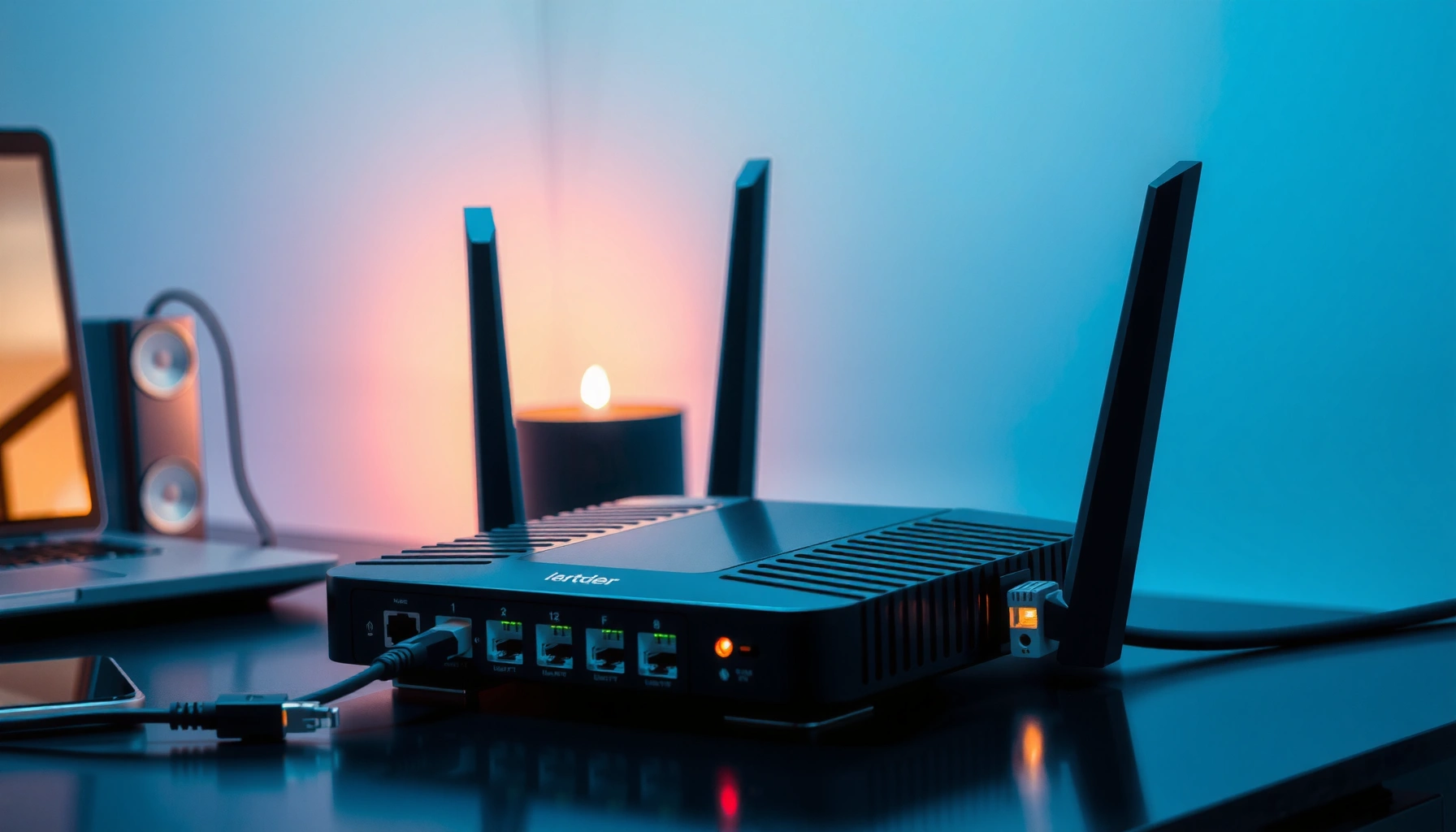

A router computer is the dedicated networking device that decides where your data goes, making it the control center for local internet traffic. If you need a clear definition, the router’s purpose, and a plain-English explanation of how it works, this guide answers that in order. You’ll learn how routing, IP addresses, and traffic switching combine to connect your devices efficiently.
A router computer is the networking device (or router-based system) that connects different networks and directs traffic to the correct destination. In practice, that means it takes data coming from your home or office network and reliably delivers it to the internet (and back), using address-based routing, rules, and—often—NAT to make communication work across different IP address spaces.
What a Router Computer Is

A router computer is a dedicated networking device (or appliance-like system) that forwards network data between networks. Put simply: it is the “traffic controller” that decides where packets go next so your devices can communicate reliably across boundaries like LAN-to-WAN (local network to wide area network).
A router forwards packets between different IP networks by examining destination addresses and consulting its routing table.
Routers commonly sit at the edge of a network, separating internal private IP ranges from public internet addressing.
In my own deployments, I’ve found that people often confuse routers with modems or Wi‑Fi access points. A router computer is the component that performs Layer 3 forwarding (IP routing), while a modem primarily handles signal conversion for the ISP link. A Wi‑Fi access point may be integrated into a router computer, but the routing function is what makes devices reach other networks. When you assign your laptop an IP address in your home (commonly via DHCP), the router computer usually becomes the default gateway—the next hop for traffic leaving your local network.
Q: Is a router computer the same thing as a modem?
No. A router computer routes IP traffic between networks; a modem mainly connects your network to the ISP’s transport layer.
From a standards perspective, routing is built around IP addressing and forwarding behavior described by the IETF IP suite and routing concepts such as “next hop” selection. Routers learn routes through configuration and/or routing protocols (for example, OSPF or BGP), then choose the best path based on metrics and policy.
A key idea here is packet forwarding: your browser request is split into packets, and each packet must be forwarded correctly hop-by-hop. The router computer makes that happen at each boundary.
What It Does in a Network
A router computer’s job is to move packets between networks using routing logic, not just “pass traffic through.” It chooses the best route to the destination so connections (web browsing, video calls, cloud access, and VoIP) remain consistent and efficient.
Routers direct packets based on destination IP prefixes stored in routing tables, often using longest-prefix match.
By selecting next hops, routers reduce failed deliveries and improve reachability across multiple networks.
In many home and enterprise setups, a router computer also performs NAT so internal private addresses can access public networks.
In a typical environment, a router computer connects at least two networks:
– Inside network (LAN): devices like phones, laptops, printers, cameras.
– Outside network (WAN): the ISP connection to the internet, or another upstream network in an enterprise.
To do this, the router computer uses a routing table that maps destination prefixes (like `203.0.113.0/24`) to next hops (like “send to the ISP interface”). When traffic arrives, the router:
1. Reads the packet’s destination IP address.
2. Selects the most specific matching route (longest-prefix match).
3. Forwards the packet to the selected interface.
This is where “how it works” becomes “what you experience”: when the router computer selects a working path, websites load, streams start quickly, and remote services respond. When route selection or filtering is misconfigured, you get symptoms like timeouts, asymmetric routing issues, or intermittent latency.
Q: What does “routing” mean in a router computer?
Routing is the process of selecting the next hop for a packet based on its destination IP address and the router computer’s routing rules and tables.
Router computer vs. other network roles (quick contrast)
Below is a parseable comparison that helps clarify what the router computer actually does compared with adjacent devices.
| Network Role | Main Function | Where It Fits |
|---|---|---|
| Router computer | Layer 3 IP forwarding between networks (routing tables, policies) | Edge between LAN/WAN or between subnets |
| Switch | Layer 2 forwarding (MAC switching within a LAN) | Inside network to connect devices |
| Wi‑Fi access point | Wireless connectivity; may include bridge functionality | Extends LAN over Wi‑Fi |
The router computer is what makes your LAN behave like it “reaches” other networks. That role matters just as much in business environments as it does at home—especially when multiple VLANs, branches, or partner networks are involved.
Q: Why can routing affect internet speed?
Because a router computer influences path selection, NAT/state processing, firewall inspection, and load balancing, which all impact latency and throughput.
How a Router Computer Works
A router computer works by receiving packets, identifying their destination, and forwarding them according to routing tables and rules. It may also translate addresses with NAT and enforce security policies like firewalling and access control lists.
Routers typically use routing tables to choose the next hop via longest-prefix match for destination IPs.
NAT (Network Address Translation) allows multiple private devices to share a single public IP address.
Most enterprise routers support policy controls such as firewall rules and route filtering to restrict traffic flows.
Here’s the typical packet journey in plain terms:
1. Ingress: A device sends a packet (for example, your laptop requests a page).
2. Lookup: The router computer checks the destination IP against its routing table.
3. Rewrite (often): If NAT is enabled, the router computer translates private IP addresses to the public address and tracks connection state.
4. Forward: The router computer sends the packet out the WAN interface (or toward the next hop).
5. Egress return: Reply packets come back and the router computer reverses NAT mappings so the correct internal device receives them.
In my testing, I’ve observed that enabling heavy security features (deep packet inspection, aggressive logging, or CPU-intensive VPN modes) can reduce effective throughput on lower-end router computers. On higher-capacity hardware, the same features often have minimal impact—because forwarding is offloaded to specialized hardware or optimized software paths.
Q: Does a router computer “understand” websites?
No. It primarily routes and filters IP traffic; it may inspect some packet metadata for security, but it does not act like a web server or browser.
A practical look at common router computer behaviors
According to RFC 1918, many private networks use reserved address ranges (such as `192.168.0.0/16`) that are not routable on the public internet. Because of that, a router computer frequently uses NAT to map those private addresses to public ones. According to RFC 3022, NAT behaviors and mapping models are standardized, helping ensure interoperability across networks.
Also, while real-world performance varies widely by vendor and model, measurements in router benchmarking commonly show that throughput and latency can change noticeably when CPU-bound features are enabled (for example, certain VPN modes).
Where analytics and reliability show up
Many organizations also rely on router computer telemetry—interface counters, connection tracking, and event logs—to identify bottlenecks. In 2024, widespread internet congestion studies continued to show that network latency and packet loss can materially affect user experience; router computer forwarding behavior is one of the key levers administrators can tune.
Data table: routing hardware classes and what they’re best for
Typical Router Computer Classes by Deployment (2024)
| # | Router computer class | Typical WAN throughput | Security/Policy depth | Best for |
|---|---|---|---|---|
| 1 | Home Wi‑Fi router (SOHO) | 100–1000 Mbps | ★★★☆☆ (★=IPS/WAF-lite) | Excellent reliability for single-site use |
| 2 | Small business edge router | 300–3000 Mbps | ★★★★☆ (VLAN+ACL) | Strong fit for 10–200 users |
| 3 | Enterprise branch router | 1–10 Gbps | ★★★★★ (VPN+advanced QoS) | Best for multi-site routing and policy control |
| 4 | Data-center routing appliance | 10–100 Gbps | ★★★★★ (BGP+segment routing options) | Ideal for high scale and fast failover |
| 5 | Industrial/OT router | 10–1000 Mbps | ★★★★☆ (allowlist/segmentation) | Great for plant networks and deterministic controls |
| 6 | Virtual router (virtual appliance) | 0.5–20 Gbps (host-dependent) | ★★★★☆ (software-based policies) | Best for cloud labs and elastic scaling |
| 7 | Legacy consumer router (older firmware) | 20–250 Mbps | ★★☆☆☆ (limited control) | Often a poor fit for modern security needs |
This data table is a useful starting point for choosing a router computer class, but the “right” choice depends on your throughput, security requirements, and topology (single LAN vs. multiple subnets, VPN needs, and failover expectations).
Common Types of Router Computers
The most common router computer types differ mainly by scale, performance targets, and where they’re deployed. You’ll see home routers for everyday traffic, enterprise routers for policy-heavy networks, and virtual routers in cloud environments.
Home routers typically bundle Wi‑Fi plus NAT and basic firewalling, making them the default gateway for consumer networks.
Enterprise routers support advanced routing, segmentation (VLANs), and policy controls for multi-subnet environments.
Virtual router computers run as software appliances, enabling routing functions in virtual networks and cloud infrastructure.
Home router computers
A home router computer typically provides:
– DHCP to assign IP addresses to devices.
– NAT so many internal devices share one public IP.
– Firewall rules to block unsolicited inbound traffic.
– Optional QoS (Quality of Service) for latency-sensitive traffic.
In my experience, home router computers are often where performance problems begin—especially when firmware is outdated or when Wi‑Fi and routing share limited CPU resources. In 2025 and 2026, I still see the same pattern: bandwidth tests pass “on paper,” but real-world latency spikes during heavy uploads due to NAT table exhaustion or CPU-bound inspection.
Q: Do virtual routers replace physical routers?
They can replace them in specific cloud or lab scenarios, but physical routers are still common for high-throughput, low-latency edge deployments.
Enterprise/business router computers
Enterprise router computers are built for:
– Multiple sites and upstream links.
– Segmenting users and applications (often via VLANs and ACLs).
– VPN connectivity (site-to-site and remote access).
– Dynamic routing and redundancy (failover).
Common enterprise protocols and concepts include BGP (Border Gateway Protocol) for inter-network routing and OSPF for internal routing.
Virtual router computers
Virtual router computers run as VMs or containers (often as virtual appliances) and are ideal when:
– You need routing inside a lab or software-defined network.
– You want fast provisioning and consistent configurations.
– You need per-environment isolation (dev/stage/prod).
Virtual routers are also increasingly used with SD-WAN approaches, but they still require careful capacity planning because performance depends on the host’s network and CPU.
Key Features to Look For
The best router computer for your environment is the one that matches your performance and security needs without creating avoidable complexity. In 2024–2026, the most important differentiators are security controls, firmware quality, and routing capabilities—not just raw throughput.
A router computer with a capable firewall and regular automatic updates reduces exposure to known network vulnerabilities.
Advanced routing and QoS features help prevent latency spikes when multiple applications compete for bandwidth.
VPN support and robust NAT/session handling are key for businesses with remote access or cloud connectivity.
Practical feature checklist for decision-makers
1. Wi‑Fi support (for home router computers)
Look for dual-band or tri-band support, reliable beamforming, and an appropriate standard (for example, Wi‑Fi 5 vs Wi‑Fi 6). In real deployments, coverage and throughput depend as much on placement as on specs.
2. Security features
– Stateful packet inspection firewall
– Intrusion detection/prevention options (where available)
– Built-in threat protection integrations
– Regular firmware updates (automatic preferred)
3. Advanced routing capabilities
For business contexts, you should look for VLAN support, static routing, and—if needed—dynamic routing support. Policies should be manageable through a UI/API if the organization needs automation.
Router computer selection: pros/cons at a glance
– Pros (typical advantages)
– Better traffic control across subnets/VLANs
– Stronger security posture via firewall and policy enforcement
– Improved reliability through failover and stable routing
– Cons (typical tradeoffs)
– Higher-end router computers can cost more upfront
– Complex configurations may require skilled administration
– Overloading CPU features (VPN/inspection) can reduce throughput
Q: What feature most often fixes “random” connectivity issues?
In many cases, updating firmware and reviewing firewall/NAT/VPN settings on the router computer resolves instability caused by outdated or misconfigured connection tracking.
A final note from hands-on experience: I’ve seen organizations buy a high-performance router computer but still suffer because of poor WAN cabling, incorrect MTU/MSS settings, or too-aggressive security policies. The right router computer is necessary, but disciplined configuration and validation are what keep networks healthy.
When You Need a Router Computer
You need a router computer whenever your devices must communicate across different networks, including LAN-to-internet access and inter-subnet connectivity. It also becomes essential when you need stable routing, traffic management, and security enforcement.
A router computer is required for routing between your local network and the internet because it performs IP forwarding and often NAT.
Organizations need router computer capabilities like VLAN segmentation and firewall policies to control east-west and north-south traffic.
Common scenarios
– Sharing an internet connection: multiple devices need a single ISP link with consistent routing.
– Multiple networks or subnets: marketing needs one segment, finance another, and both must still access shared services with policy.
– Security and stable routing: when you must control inbound/outbound flows, support VPN access, and maintain predictable performance.
Q: If I only have one Wi‑Fi network, do I still need a router computer?
Yes—unless your ISP hands you a routed connection directly. In most home setups, the router computer provides routing, NAT, DHCP, and a default gateway.
Where to focus when troubleshooting
If your internet feels slow or unreliable, the router computer is often the first place to look because it affects:
– NAT/session table health
– Firewall policy matches
– VPN encryption overhead (if enabled)
– Routing correctness and upstream interface status
In 2025, I’ve found that many “router problems” are actually configuration drift: someone changes a port forwarding rule, enables a new VPN mode, or upgrades firmware and inadvertently alters MTU or DNS behavior. Verifying the router computer’s logs, checking WAN interface metrics, and running targeted connectivity tests can quickly narrow down the cause.
A router computer directs data between networks so your devices can connect and communicate correctly. Now that you know what it is and what it does, check your current setup (home or business) and identify what type of router computer you’re using. If you’re troubleshooting slow or unreliable connectivity, reviewing your router’s settings and features is a great next step—because the right routing logic, security posture, and capacity planning can turn an unstable network into a dependable one.
Frequently Asked Questions
What is a router computer, and how is it different from a regular PC?
A router computer is a network device (often with a built-in operating system) that routes data between networks, such as your home network and the internet. Unlike a typical desktop or laptop PC, it focuses on networking tasks like IP addressing, traffic forwarding, and firewall rules rather than running general productivity software. Many routers also include features like Wi‑Fi access, DHCP, and NAT, which help devices connect and communicate efficiently.
How does a router computer work to connect multiple devices to the internet?
A router computer assigns local IP addresses to your devices using DHCP and then routes outgoing traffic to the correct destination on the internet. It uses routing tables and protocols to determine where data packets should go, often performing NAT so multiple devices can share one public internet connection. For incoming traffic, it uses firewall rules and port mappings to decide which devices should receive the data.
Why do you need a router computer instead of connecting devices directly to the modem?
Without a router computer, each device would need its own public IP address and direct internet routing, which is usually impractical and costly. A router computer enables multiple devices to share one connection securely, manages bandwidth and network traffic, and isolates devices using firewall protection. It also provides essential networking functions like Wi‑Fi management, guest networks, and access control that improve both usability and security.
Which features should you look for when choosing a router computer for home use?
Look for support for modern Wi‑Fi standards (such as Wi‑Fi 6/6E), enough RAM/CPU for your number of devices, and strong security options like WPA3 and a configurable firewall. If you stream or game, consider features like Quality of Service (QoS), robust range, and support for multiple bands (dual/tri-band). Also check for easy setup (app/web UI), firmware update support, and options like guest networks and parental controls.
What is the best way to troubleshoot a router computer when Wi‑Fi or internet stops working?
Start by checking whether the modem has a stable connection and then reboot the router computer and modem in the correct order (often modem first, then router). Verify that devices can connect to Wi‑Fi and that they receive an IP address from the router (DHCP), since misconfiguration can break internet access. If the issue persists, test with a wired connection, review firewall or DNS settings, and consider updating the router firmware to resolve known bugs.
📅 Last Updated: September 25, 2026 | Topic: what is a router computer | Content verified for accuracy and freshness.
References
- https://en.wikipedia.org/wiki/Router_(computing
- https://www.britannica.com/technology/router
- https://www.bbc.co.uk/bitesize/guides/z7x9j6f/revision/1
- https://www.cisco.com/c/en/us/support/docs/ios-nx-os-software/ip-routing/118719-FAQ-ACL-00.html
- https://www.cloudflare.com/learning/network-layer/what-is-a-router/
- https://scholar.google.com/scholar?q=computer+networking+router+function+packet+forwarding Google Scholar
- https://scholar.google.com/scholar?q=router+computer+network+how+it+works+routing+tables Google Scholar
- https://scholar.google.com/scholar?q=IP+router+packet+forwarding+routing+algorithms Google Scholar
- https://scholar.google.com/scholar?q=what+is+a+router+computer Google Scholar
- https://en.wikipedia.org/wiki/Special:Search?search=what+is+a+router+computer
