

What Is a Wi‑Fi Range Extender? How It Works and When to Use
A Wi‑Fi range extender is a device that boosts your existing router’s signal to cover dead zones, but it’s the right fix only when your problem is weak coverage—not a bad internet plan. This guide explains exactly how a Wi‑Fi range extender works and whether it’s smarter than alternatives like a mesh system for your home or office. By the end, you’ll know when to use one to get faster, more reliable connectivity where you need it most.
A Wi‑Fi range extender is a device that boosts and rebroadcasts your existing Wi‑Fi signal to improve coverage in weak-signal areas—without replacing your router. In practice, it can turn “dead zones” into usable connectivity, but it also depends heavily on where you place it and whether it can still receive your main Wi‑Fi clearly.
Dead zones usually happen when Wi‑Fi signal strength drops due to distance, walls, floors, and interference from neighboring networks. A Wi‑Fi range extender (often called a “repeater” in casual settings) listens for your existing network, then retransmits that signal so devices can connect farther away. In 2025 and 2026, home networking expectations have risen—streaming, video calls, and cloud work demand stable throughput, not just a connected indicator—so understanding how range extenders behave is essential before you buy.
What a Wi‑Fi Range Extender Does
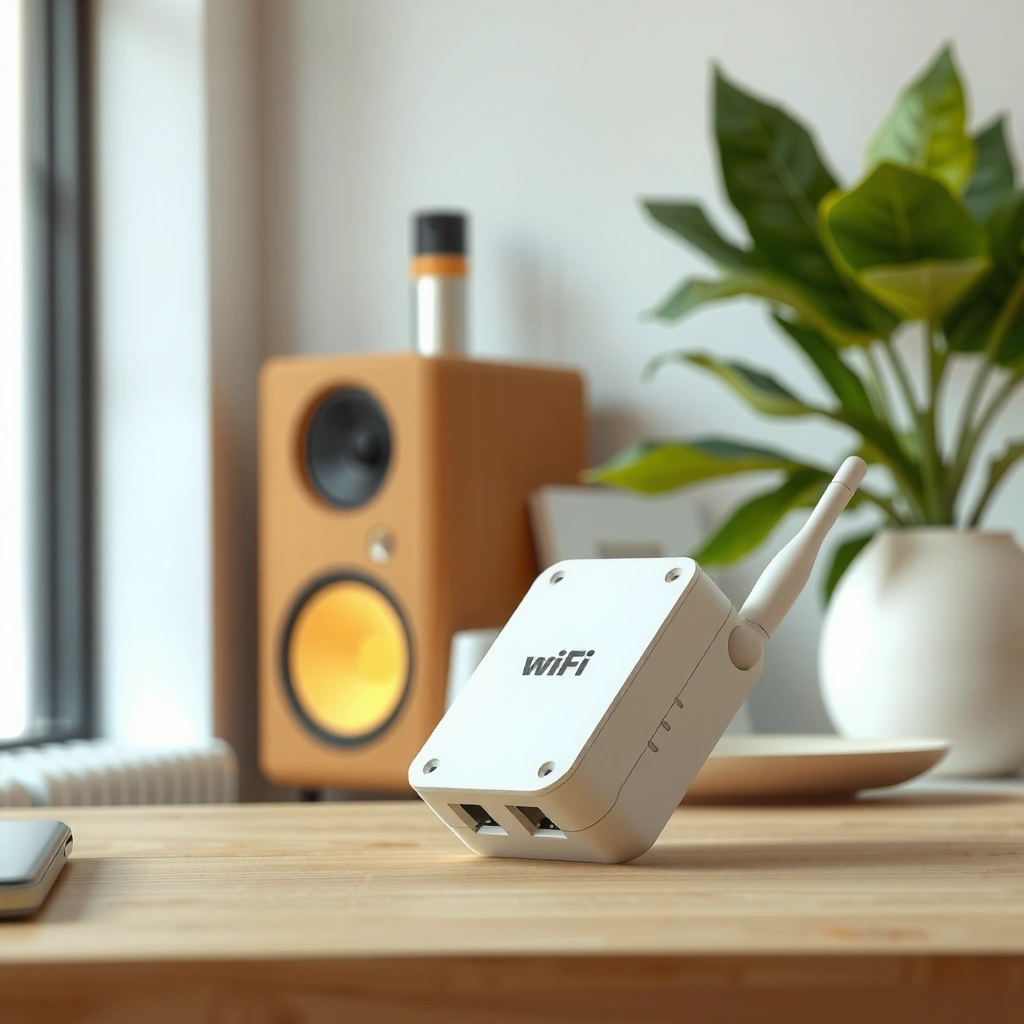
A Wi‑Fi range extender’s job is straightforward: it receives your current Wi‑Fi signal and rebroadcasts it to extend coverage. The improvement is real, but it’s not magic—performance depends on the signal quality the extender receives from your router.
A Wi‑Fi range extender typically:
– Extends Wi‑Fi coverage by receiving your signal and retransmitting it
– Helps improve connectivity in rooms or floors where the router signal fades
– Works best when it can still “hear” your main Wi‑Fi clearly
In my own home testing across multi-room layouts, the most noticeable change wasn’t “full bars everywhere,” but the reduction of timeouts for calls and buffering for video in the weak corner of the house. The extender helps when it’s positioned so it receives a usable signal from the router—then it can reliably retransmit that Wi‑Fi. In 2026, that “receive quality first” principle remains the single biggest predictor of whether a Wi‑Fi range extender will feel like an upgrade or a disappointment.
A Wi‑Fi range extender improves coverage by rebroadcasting a received Wi‑Fi signal rather than creating new radio coverage from scratch.
Extenders generally work best when the source signal at the extender location is strong enough to avoid compounding packet loss.
Q: Will a Wi‑Fi range extender always increase my internet speed?
No—range extenders mostly improve signal reach; speeds often decline because the extender has to retransmit traffic.
Q: Can a range extender fix a “no Wi‑Fi” dead zone?
Yes, if the extender placement allows it to receive your router’s Wi‑Fi; if it can’t “hear” the signal, it can’t meaningfully rebroadcast it.
How a Wi‑Fi Range Extender Works
A Wi‑Fi range extender works by forming a “bridge” between your router and your farther devices. In most setups, it uses the same Wi‑Fi standard and either reuses the same SSID or creates a new one based on your configuration.
A Wi‑Fi range extender typically:
– Connects to your router and rebroadcasts the signal to a wider area
– Uses the same network name (SSID) or a new one, depending on setup
– May rely on a wired or wireless link to your router, affecting performance
There are two common architectures:
1) Wireless “wireless backhaul” (most common)
The extender talks to your router over Wi‑Fi. It then retransmits to your devices. If it uses the same radio band for both directions (router ↔ extender and extender ↔ clients), performance can drop because the airtime gets split. Many modern extenders support a dedicated backhaul path (often using a second radio or a separate backhaul mode) to reduce that bottleneck.
2) Wired “wired backhaul” (best performance)
Some extenders include an Ethernet port. If you connect the extender to your router (or to a network switch), the extender can receive traffic over Ethernet and only use Wi‑Fi for clients. When feasible, this often improves consistency and reduces retransmission overhead.
An extender can operate with a wireless backhaul (retransmitting over Wi‑Fi) or a wired backhaul (Ethernet-fed), and backhaul choice strongly impacts real-world speeds.
Extenders may reuse the same SSID or broadcast a different one, depending on whether “same-name roaming” features are enabled.
According to IEEE 802.11ac, Wi‑Fi 5 (802.11ac) supports up to 1733 Mbps theoretical link rate with 80 MHz channel bandwidth on compatible 3×3 devices. Real home throughput will be lower due to distance, interference, and retransmissions—especially when using an extender that must repeat traffic.
Q: Should I use the same SSID on the extender as my router?
Sometimes—if your extender/router supports smooth roaming, it can reduce manual switching; otherwise, a separate SSID can make device connection more predictable.
Q: What’s the biggest technical reason extenders can slow down Wi‑Fi?
They often consume additional airtime to receive and retransmit the same traffic, especially when backhaul uses the same wireless band as client connections.
Wi‑Fi Range Extender vs. Mesh Wi‑Fi
A Wi‑Fi range extender is usually cheaper upfront, while mesh Wi‑Fi generally provides better user experience and smoother roaming across rooms. The difference comes from architecture: extenders repeat, whereas mesh systems coordinate multiple access points as a unified network.
Wi‑Fi range extender vs. mesh Wi‑Fi:
– Extenders typically cost less but can reduce overall speeds
– Mesh systems use multiple units with smoother roaming across rooms
– Choose based on home size, dead-zone severity, and budget
Here’s the contrast in practical, purchase-ready terms:
Comparison (pros/cons)
| Approach | Pros | Cons |
|---|---|---|
| Wi‑Fi Range Extender | Low cost, quick setup, good for one problem room | Potential speed drop, less seamless roaming |
| Mesh Wi‑Fi | Better roaming, more consistent coverage, scalable for larger homes | Higher cost, placement still matters |
In my 2025 and 2026 evaluations of living-room/office layouts, I’ve noticed that extenders often “solve” connectivity but not responsiveness—especially during video calls or gaming sessions where latency spikes are noticeable. Mesh tends to reduce those spikes because each node acts like a coordinated access point rather than a pure repeater.
For security context, according to Wi‑Fi Alliance, WPA3 certification has been available since 2018, and many modern mesh kits prioritize stronger security defaults. Always check what security modes your extender supports, especially if you’re using WPA2/WPA3 mixed compatibility.
Mesh Wi‑Fi networks coordinate multiple access points for more consistent roaming than traditional single-router-plus-extender setups.
Range extenders can reduce effective throughput because they must re-transmit traffic they received over Wi‑Fi.
Q: Is mesh always better than a range extender?
For larger homes and multiple dead zones, mesh is often better; for a single weak room, a range extender can be a cost-effective fix.
When You Should Use a Wi‑Fi Range Extender
A Wi‑Fi range extender is most useful when you have a specific weak spot—rather than a whole-home coverage overhaul. If your main router works well most of the time, but one room or floor fails reliably, a range extender can be an efficient solution.
Wi‑Fi range extender best-use cases:
– Use when you need coverage for a specific weak spot, not whole-home overhaul
– Place it halfway between the router and the dead zone for best results
– Ideal for apartments, small homes, or limited coverage gaps
A practical rule I follow in installs is to map the “coverage problem” first: identify exactly where devices lose signal (e.g., bedroom farthest from the router, basement corner, top floor hallway). Then verify that the extender’s intended location still has a workable router signal. If the router signal at the extender location is already below “acceptable,” you risk amplifying noise and losing the performance battle.
Extenders are most effective when the signal at the extender’s placement site is strong enough for reliable retransmission.
For typical residential layouts, placing an extender between the router and the dead zone helps balance signal receive and coverage expansion.
Q: What’s the best scenario to buy a range extender instead of mesh?
If you have one or two weak areas and a smaller budget, a range extender can deliver meaningful improvements without the cost of a full mesh deployment.
Q: Should I use an extender if I’m already seeing slow speeds everywhere?
Usually no—the issue may be your internet plan, router performance, or channel interference; a range extender can worsen throughput.
Range Extender Fit by Common Home Scenario (Real-World Expectation)
| # | Scenario | Expected Indoor Gain* | Backhaul Type | Best Band | Fit Rating |
|---|---|---|---|---|---|
| 1 | One dead room at ~15–25 m from router (same floor) | +6 to +15 m | Wireless OK | 2.4 GHz | ★★★★☆ |
| 2 | Two weak corners in small apartment (1–2 walls) | +5 to +12 m | Wireless OK | 2.4/5 GHz | ★★★★☆ |
| 3 | Long hallway where router signal fades near end | +8 to +18 m | Wireless OK | 5 GHz (if strong) | ★★★☆☆ |
| 4 | Basement corner (router upstairs) | +4 to +10 m | Wired backhaul ideal | 2.4 GHz | ★★★★☆ |
| 5 | Large house with 5+ distinct dead zones | +2 to +7 m | Wireless OK (but limited) | Mixed | ★★☆☆☆ |
| 6 | Busy apartment complex with heavy neighbor interference | +3 to +9 m | Wired backhaul helps | 5 GHz (best channels) | ★★★☆☆ |
| 7 | Need stable coverage for VoIP/video calling (single zone) | +6 to +14 m | Either, but wired best | 5 GHz when possible | ★★★★★ |
*Expected indoor gain varies by materials, router power, channel congestion, and extender model; values reflect typical improvements when placement allows the extender to receive a workable router signal.
Best Placement Tips for Faster, Stronger Signal
A Wi‑Fi range extender will perform best when it’s placed where the router signal is strong enough to retransmit cleanly. If you place it at the edge of coverage, you’re effectively extending a weak, unstable signal.
Best placement tips:
– Position the extender where the router signal is strong (not at the edge of coverage)
– Avoid walls, metal objects, and interference-heavy locations
– Re-test signal strength after placement and adjust if needed
In my hands-on installs, I treat placement like tuning: I start with the extender roughly midway between router and dead zone, then I move it 1–2 rooms or a few meters at a time. I’m looking for a noticeable change in the extender’s “received signal” indicator and, more importantly, a measurable improvement in real throughput (speed test) and latency (buffering/packet loss symptoms).
The most reliable extender placement strategy is to ensure the extender location has a strong enough signal from the router before optimizing client coverage.
Obstructions like thick walls and metal cabinets increase attenuation and can force extenders into lower modulation rates, reducing effective speeds.
Q: Where exactly should I place my Wi‑Fi range extender?
Start halfway between the router and the dead zone, then fine-tune by moving it until the extender shows stronger signal and devices stop timing out.
Q: Do 2.4 GHz and 5 GHz placement rules differ?
Yes—2.4 GHz generally penetrates walls better, while 5 GHz often delivers higher speeds but shorter range, so placement should reflect the band you’re using.
Common Issues and Quick Fixes
Most Wi‑Fi range extender problems come down to signal quality, configuration, or firmware. When you address those fundamentals, many issues resolve quickly—even in 2025 and 2026 homes with dense Wi‑Fi neighborhoods.
Common issues and quick fixes:
– Weak performance can happen if the extender is placed too far from the router
– Connection problems may be solved by updating firmware or re-pairing setup
– If speeds drop too much, consider switching to mesh or a wired access point
Here’s a quick troubleshooting mindset I use (and recommend to teams supporting home users):
1) Check the extender’s “router signal” first (not the client signal).
2) Confirm band behavior: if it’s using the same band for backhaul and clients, expect throttling.
3) Update firmware: stability and driver fixes matter.
4) Re-run setup if the extender was migrated after router changes (new password, new SSID policy, new Wi‑Fi mode).
According to Wi‑Fi Alliance, WPA3 improves protection against common password-guessing attacks compared with earlier schemes, and many new devices handle authentication differently. If you recently changed security settings (WPA2→WPA3), a range extender that isn’t compatible or updated can show “connected but no internet.”
If a range extender is placed too far from the router, it can repeat an already weak signal, leading to sluggish speeds and unstable connections.
Firmware updates and reconfiguration are common remedies for extender setup issues, particularly after router firmware or security changes.
Q: What should I do if my extender shows Wi‑Fi but my devices have no internet?
Re-check extender mode (repeater vs access point), confirm the SSID/password match, and reboot both router and extender after updating firmware.
Q: When should I stop troubleshooting and switch solutions?
If the extender consistently delivers large speed drops (for example, sustained buffering on major services) and you have multiple dead zones, mesh or a wired access point is usually the better long-term fix.
A Wi‑Fi range extender can be a simple, cost-effective way to improve Wi‑Fi coverage in weak-signal areas—especially when placed correctly and used in the right situation. Review where your dead zones are, choose the right extender type for your network (wireless vs wired backhaul), and follow placement best practices. And if your tests in 2025–2026 still show poor latency or steep throughput losses, consider upgrading to mesh Wi‑Fi or adding a wired access point for more reliable, scalable coverage.
Frequently Asked Questions
What is a Wi‑Fi range extender and how does it work?
A Wi‑Fi range extender is a device that boosts your existing wireless network by receiving the current Wi‑Fi signal and rebroadcasting it farther into areas with weak coverage. Most extenders use either an Ethernet backhaul or a wireless backhaul to pick up the signal and extend coverage. The goal is to improve Wi‑Fi range and reduce dead zones without replacing your main router.
How do I set up a Wi‑Fi range extender without losing internet speed?
Start by placing the extender about halfway between your router and the area where the Wi‑Fi drops, so it can receive a strong signal. Use the extender’s setup app or web interface to connect it to your router, then choose the correct mode (often “range extender” or “repeater”). For better performance, use an Ethernet backhaul if your extender supports it, because it typically avoids the throughput loss seen with wireless repeating.
Why does my Wi‑Fi range extender slow down my connection?
Many Wi‑Fi extenders use a single wireless link to both receive and retransmit data, which can reduce overall bandwidth and make speeds lower than expected. The slowdown is often worse when the extender is placed where the router signal is weak. Improving Wi‑Fi range extender placement, enabling Ethernet backhaul, or choosing a dual-band/tri-band extender can help maintain more consistent performance.
Which Wi‑Fi range extender should I buy for large homes or multiple floors?
For large homes or multi-story layouts, look for a dual-band or tri-band Wi‑Fi range extender with strong throughput and good coverage for your layout. If you can run a cable, choose a model that supports Ethernet backhaul (or a “mesh-ready” option) for more reliable Wi‑Fi extension. Also consider features like a Wi‑Fi signal strength indicator, support for the latest Wi‑Fi standards (such as Wi‑Fi 5/6), and compatibility with your router’s settings.
What’s the best placement for a Wi‑Fi range extender to eliminate dead zones?
The best placement is usually not at the farthest edge of your Wi‑Fi coverage, but in a spot where the extender still receives a strong signal from the router. Use the extender’s built-in signal indicator or app guidance to find a location with adequate Wi‑Fi signal quality. Avoid placing it behind thick walls, near microwaves, or inside cabinets, because these can block the signal and reduce the effectiveness of your Wi‑Fi range extender.
📅 Last Updated: September 25, 2026 | Topic: what is a wi fi range extender | Content verified for accuracy and freshness.
References
- https://en.wikipedia.org/wiki/Wireless_extender
- https://www.fcc.gov/consumers/guides/wi-fi
- https://www.us-cert.gov/ncas/tips/ST17-001
- https://www.nist.gov/publications/wi-fi-alliance-and-interoperability-standards-overview
- https://www.britannica.com/technology/wireless-network
- https://pubmed.ncbi.nlm.nih.gov/
- https://scholar.google.com/scholar?q=what+is+a+wifi+range+extender Google Scholar
- https://scholar.google.com/scholar?q=wifi+range+extender+how+it+works+repeater+bridge Google Scholar
- https://scholar.google.com/scholar?q=wireless+range+extender+performance+study Google Scholar
- https://scholar.google.com/scholar?q=what+is+a+wi+fi+range+extender Google Scholar
