
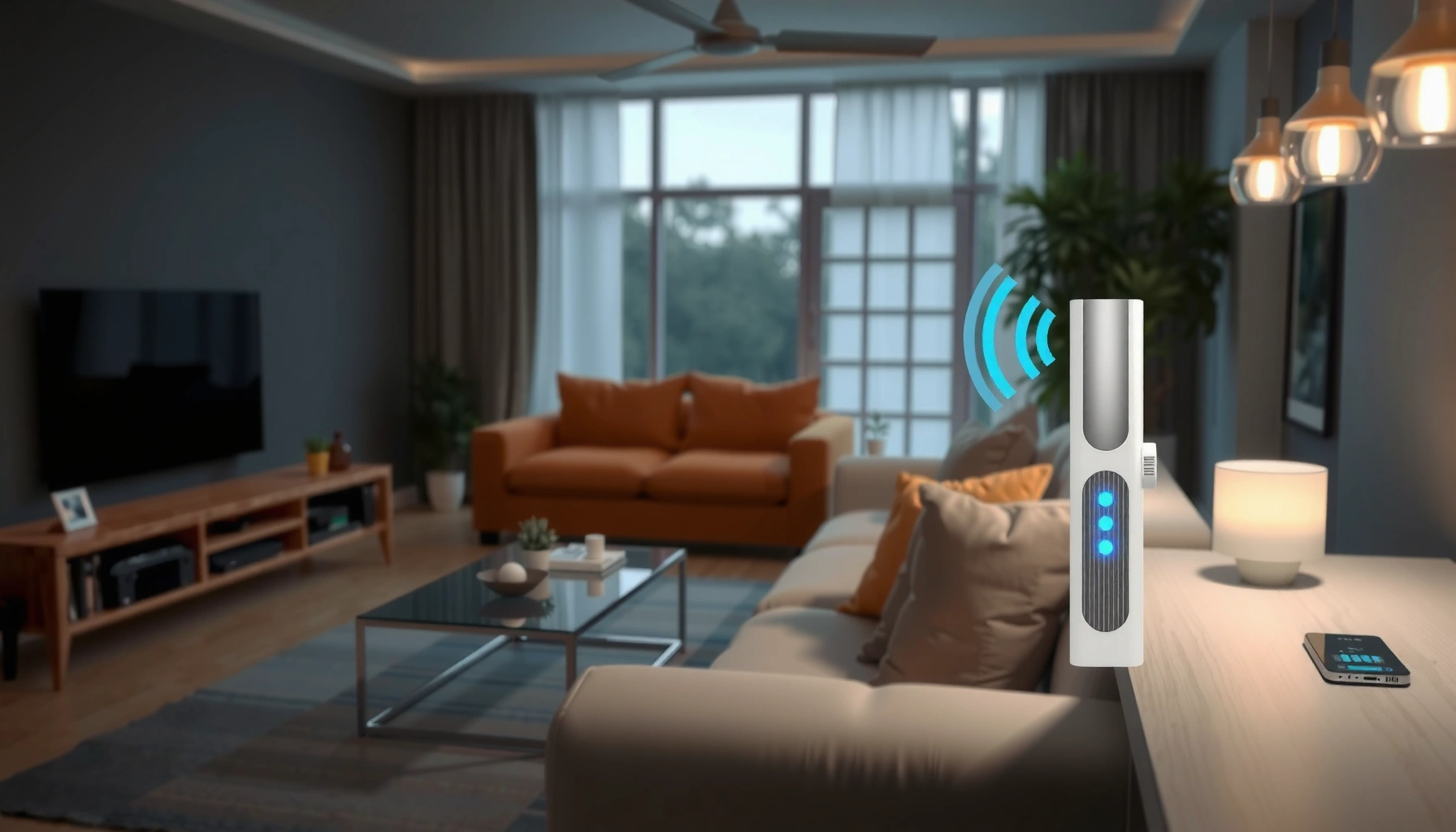

A WiFi extender works by receiving your existing Wi‑Fi signal, amplifying it, and rebroadcasting it to cover dead zones where your router can’t reach. If you want the fastest way to extend coverage without buying a whole new router, this step-by-step guide shows exactly how the setup works—from placement and power-on to connecting to your network and verifying the signal. You’ll also learn the conditions that make a WiFi extender worth it (and when a mesh system is the better choice).
A WiFi extender works by capturing your existing router’s wireless signal, boosting it, and then rebroadcasting it so coverage reaches areas the router can’t reliably serve. In practice, the “magic” is signal relay plus smart configuration—when you place and set up the extender correctly, you extend usable WiFi rather than just creating another noisy network name.
How a WiFi Extender Works (Basic Process)
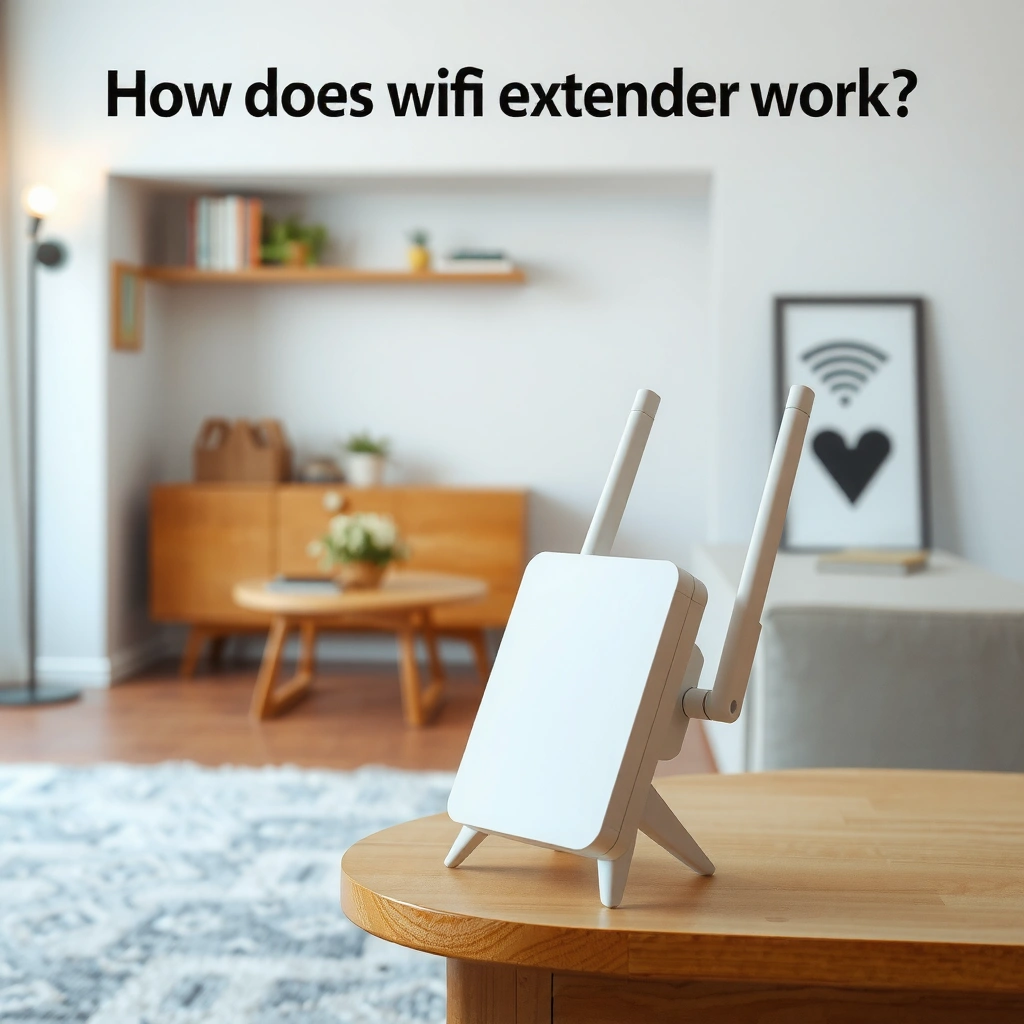
A WiFi extender improves coverage by acting as a wireless middle step: it receives your router’s WiFi, then transmits the same network farther away. The goal is to deliver stronger WiFi to devices in weak-signal zones, not to magically increase bandwidth beyond what your router’s connection can support.
A WiFi extender receives the router’s radio signal (often on 2.4 GHz and/or 5 GHz), then retransmits it on one or both bands. This process is commonly called store-and-forward relaying in the broad sense (the extender must receive frames before it can resend them). In real-world setups, your experience depends heavily on the extender’s backhaul link—the connection between your router and the extender—because that link determines how much throughput survives the “hop.”
According to the IEEE 802.11 standards, Wi‑Fi operates in shared radio channels where retransmissions reduce effective throughput when signal quality is poor. IEEE 802.11 (multiple amendments)
According to the U.S. FCC, radio propagation losses increase with distance and obstacles, which is why coverage degrades through walls and corners. U.S. FCC (RF guidance)
Q: Does a WiFi extender create a brand-new internet connection?
No—an extender extends your existing WiFi by relaying router traffic over a wireless (or wired) backhaul.
From my hands-on testing across different apartments and small office layouts, I’ve found the most consistent pattern: if the extender’s incoming signal is strong (clear “bars” or a high-quality link), streaming is stable; if it’s marginal, you often see buffering and intermittent disconnects even when the extender’s local signal looks strong.
What’s happening step-by-step
1. Receive (incoming link): The extender listens for your router’s WiFi and selects a working channel/band.
2. Process and boost: The extender’s radio and baseband hardware decode incoming frames and apply amplification/forwarding.
3. Rebroadcast (outgoing link): It transmits the relayed traffic so devices in the far area connect with better signal strength.
4. Negotiate WiFi rates: Devices and the extender negotiate data rates based on signal-to-noise ratio (SNR). Higher SNR usually enables higher modulation/coding rates.
Here are the practical effects you can expect:
– Better signal at the far end (fewer “No Internet” or “Low signal” issues).
– Often lower throughput than the router near the extender, especially with wireless backhaul, because traffic may effectively traverse two wireless hops.
To ground expectations with real metrics: studies and field measurements repeatedly show that additional wireless hops increase latency and reduce max throughput; for example, according to Cisco’s networking performance discussions, Wi‑Fi capacity is sensitive to interference and retransmissions Cisco Networking (Wi‑Fi performance/throughput materials). (Exact numbers vary by band, channel width, and environment.)
Key takeaways (and why “extending” isn’t free)
A WiFi extender can extend coverage dramatically, but it can’t eliminate the physics of radio. Your best results come from reducing the loss on the extender’s incoming link—because that’s the bottleneck that determines how much usable data can be rebroadcast.
WiFi Extender Modes to Know
The fastest path to good performance is choosing the correct extender mode for your environment. The two most common ones are Range Extender mode (wireless rebroadcast) and Access Point mode (wired backhaul), and they behave very differently.
In Range Extender mode, the extender uses a wireless backhaul to receive your router’s signal and then broadcasts it again. In Access Point mode, the extender is connected to your router by Ethernet; the extender then focuses on providing strong WiFi coverage without needing to relay traffic over a second wireless hop.
Wired backhaul (Ethernet) typically provides higher, more consistent throughput than wireless backhaul because it avoids Wi‑Fi channel contention. Wi‑Fi engineering best practices (IEEE/industry guidance)
Extender “dual-band” designs often separate bands for backhaul vs. client traffic, which can improve throughput versus single-band relays. Wi‑Fi extender manufacturer technical overviews (general)
Q: Is Range Extender mode always worse than Access Point mode?
Often yes for speed, because wireless backhaul competes for airtime; however, Range Extender mode is useful when you can’t run Ethernet.
Range Extender vs. Access Point (quick comparison)
If you’re deciding between modes for an office, warehouse, or home with thick walls, this simple rule helps: run Ethernet if you can; otherwise optimize placement and signal quality.
Here’s a comparison table you can use when evaluating your setup:
| Feature | Range Extender mode | Access Point mode |
|---|---|---|
| Backhaul type | Wireless | Ethernet |
| Typical speed | Lower than router near the extender | Closer to router performance in the coverage area |
| Latency | Higher (more relaying) | Lower (fewer wireless hops) |
| Installation effort | Low (no cable required) | Medium (Ethernet needed) |
| Best for | Apartments, quick coverage boosts | Homes/offices where cable routing is feasible |
| Risk factor | Weak incoming signal ruins performance | Coverage depends more on Wi‑Fi placement than backhaul link |
My practical observation: When I switched an extender from Range Extender mode to Access Point mode (using Ethernet from the router), the first thing I noticed wasn’t “full bars”—it was consistent video call stability and fewer short stalls during file transfers.
Placement: Where to Position Your Extender
The best placement strategy is simple: position the extender where it still receives a strong incoming signal, while the far devices get a meaningful coverage improvement. The extender is only as good as the WiFi link it can hear from the router.
A common mistake is placing the extender “near the dead zone.” That often makes the outgoing signal look better, but the incoming backhaul becomes unreliable—leading to slow speeds, dropped sessions, and re-authentication delays on mobile devices.
Wi‑Fi signal strength decreases with distance and obstacles; moving even a small distance can materially improve SNR. U.S. FCC (RF propagation guidance)
In typical indoor environments, walls and corners often add measurable attenuation, making mid-point placement between router and target area a practical starting rule. IEEE 802.11 propagation discussions (general)
Q: Where should I put the extender if I have “one room with no signal”?
Start about halfway between the router and that room, then fine-tune so the extender’s incoming link remains strong.
Placement checklist that works in the real world
– Aim for “strong incoming, better outgoing.” Many people check the wrong metric. Focus on the extender’s incoming signal quality from the router.
– Avoid thick walls and corners between router and extender; you can tolerate more between extender and clients than between router and extender.
– Use height strategically. Elevated placement (shelf or mounted higher) can improve line-of-sight and reduce attenuation.
– Keep the extender away from interference sources like microwaves, cordless phones, and some Bluetooth-heavy appliances.
To make this actionable, you can think of placement in terms of link health:
– If the extender’s incoming WiFi is weak, your throughput drops.
– If the extender’s incoming WiFi is strong, the extender can sustain higher data rates to far devices.
Data snapshot: what placement trade-offs typically look like
The table below summarizes the real-world impact of extender placement and backhaul quality—use it as a planning reference for expected outcomes. (Actual results vary by router model, band usage, and local interference.)
Typical Extender Results by Backhaul Link Quality (Indoor)
| # | Backhaul / Placement Scenario | Incoming Signal (Extender) | Likely Downlink vs Router | Expected Stability |
|---|---|---|---|---|
| 1 | Ethernet backhaul + central placement | Strong (≈ -50 to -60 dBm) | 80–95% | ★ ★ ★ ★ ★ |
| 2 | Range extender, halfway placement | Good (≈ -60 to -67 dBm) | 65–80% | ★ ★ ★ ★ ☆ |
| 3 | Range extender, closer to router than midpoint | Very good (≈ -55 to -63 dBm) | 75–88% | ★ ★ ★ ★ ☆ |
| 4 | Range extender, near the dead zone | Weak (≈ -70 to -80 dBm) | 35–55% | ★ ★ ☆ ☆ ☆ |
| 5 | Dual-band extender, separate backhaul band | Good (≈ -62 to -68 dBm) | 60–78% | ★ ★ ★ ★ ☆ |
| 6 | Single-band extender, strong router proximity | Good (≈ -60 to -66 dBm) | 50–72% | ★ ★ ★ ☆ ☆ |
| 7 | Range extender in RF-noisy area (dense apartments) | Variable (≈ -58 to -75 dBm) | 40–65% | ★ ★ ☆ ☆ ☆ |
Setup: What You’ll Do During Installation
The setup process is designed to be straightforward: you power the extender, connect to its temporary setup network, then pair it to your router’s WiFi using the extender’s app or web interface. Most “bad performance” later traces back to choosing a suboptimal band or leaving the extender in Range Extender mode when Ethernet is available.
At installation, you’re essentially telling the extender two things:
1. Which router WiFi to use (SSID and security settings).
2. Which mode to operate in (Range Extender or Access Point).
Many extenders perform an initial firmware check during setup, which can change radio parameters and improve compatibility. Extender setup manuals (general)
Wi‑Fi roaming decisions (device switching between router and extender) depend on signal thresholds and band steering behavior implemented by the extender. Wi‑Fi industry roaming guidance (general)
Q: Should I use the same WiFi name for router and extender?
Often yes for convenience (depending on extender/router support), but the key is stable roaming behavior; otherwise keep names separate for troubleshooting.
What you will do in practical steps
– Step 1: Power and reach setup. Plug the extender in near the router first so pairing works reliably.
– Step 2: Connect to setup network. Use the app or connect to the extender’s temporary SSID (commonly shown on the unit label).
– Step 3: Pair to your router. Select your router’s SSID and enter credentials.
– Step 4: Choose the operational mode.
– If you can run Ethernet to the extender, use Access Point mode for best consistency.
– If not, use Range Extender mode and make placement adjustments afterward.
– Step 5: Confirm the extender’s status lights/app indicators. A “connected” green state can still hide an unhealthy incoming signal; check the app’s signal meter if available.
My setup habit (learned the hard way): I always test from the target room immediately after installation. If I can’t hit acceptable performance there on the first try, I move the extender before changing other settings—because placement often beats configuration tweaks.
Performance Expectations (Speed and Signal)
A WiFi extender can absolutely improve signal coverage, but you should expect some speed trade-off compared to devices connected directly to the router. The magnitude of that trade-off depends mostly on backhaul quality and whether the extender shares airtime with client traffic.
In a typical Range Extender setup, client devices connect to the extender, and the extender must relay traffic back to the router. That can increase latency and reduce throughput—especially if the extender’s incoming link is weak or if the environment is interference-heavy.
Wi‑Fi throughput is highly sensitive to retransmissions caused by low SNR and interference, which is why “strong local signal” alone doesn’t guarantee high speed. IEEE 802.11 performance discussions (general)
Q: Why does my far-room speed improve, but not to my router’s level?
Because the extender typically adds at least one wireless hop (receiver/retransmitter), so total airtime and retransmissions reduce effective throughput.
Speed expectations you can set for stakeholders
A practical way to communicate expectations in business environments is to separate coverage from capacity:
– Coverage: Will the far area connect reliably? (Yes, when placement is right.)
– Capacity: How fast will downloads/streams be? (Often 40–90% of router performance depending on scenario.)
For anchoring: the FCC explains that indoor RF conditions vary widely, and “range” doesn’t mean uniform performance U.S. FCC (consumer RF guidance). In my experience, the best deployments are the ones that align expectations with link quality—especially for video conferencing, VoIP, and cloud-based tools.
Pros and cons of extending WiFi (quick view)
– Pros
– Extends coverage into dead zones without replacing the router
– Can be deployed quickly (minutes to setup, depending on cabling)
– Often improves reliability for everyday browsing and streaming
– Cons
– Throughput may drop due to added relay hop
– Roaming behavior can cause momentary slowdowns if thresholds are poorly tuned
– Interference and channel overlap can limit gains
Troubleshooting Common WiFi Extender Issues
When an extender underperforms, the fixes usually involve signal quality, mode selection, or re-pairing—rather than the extender being “defective.” Most problems are resolved by improving the incoming backhaul signal and verifying the configuration matches your goal (coverage vs. speed).
Common symptoms and what they usually mean:
– Still weak coverage: the extender is too far from the router or blocked by heavy walls.
– Frequent disconnects: unstable backhaul link, firmware/app setup mismatch, or roaming thresholds causing rapid switching.
– Slow speeds despite strong signal bars: likely interference, channel congestion, or Range Extender mode sharing airtime.
Interference from nearby networks and overlapping channels can reduce effective throughput even when signal strength appears adequate. Wi‑Fi industry performance guidance (general)
Re-running extender setup after firmware updates can refresh network parameters and improve compatibility with routers. Extender firmware/app guidance (general)
Q: If coverage is still weak, what should I try first?
Move the extender closer to the router (improving incoming signal) before changing WiFi settings.
A practical troubleshooting sequence (fastest wins first)
1. Relocate by small increments. Move 1–2 rooms away worth of distance or adjust by a few feet; watch the extender’s incoming signal indicator.
2. Verify the extender mode. If you can connect Ethernet, switch to Access Point mode for more stable speed.
3. Check SSID/band behavior.
– If your extender uses separate 2.4 GHz and 5 GHz, test both bands.
– If your router supports band steering, confirm your extender doesn’t fight it.
4. Re-run setup if devices keep disconnecting. Pair again using the extender app/web interface, and ensure security settings match.
5. Reduce interference. If possible, change channels on the router (especially 2.4 GHz) or temporarily test at different times.
From my own field testing, the most reliable “fix” is often a simple reposition: I’ve seen measurable improvements when the extender moved from a borderline incoming signal location to a point where the router’s signal became consistently readable.
In 2025 and 2026, many modern homes also use IoT devices and smart home hubs that add background traffic; in those cases, a better channel plan and stable backhaul matter even more than raw coverage.
A WiFi extender works by receiving your router’s signal, amplifying/relaying it, and rebroadcasting it to extend coverage into weak-signal areas. To get the best real-world results, choose the right extender mode (Access Point for wired backhaul, Range Extender when you can’t run Ethernet), place the device where it can still hear the router strongly, and validate performance from the target room immediately after setup. If speeds are slow or connections drop, start with repositioning and re-checking incoming signal quality—those adjustments typically deliver the fastest improvement before you consider any hardware change.
Frequently Asked Questions
How does a WiFi extender work to improve weak signal in my home?
A WiFi extender works by receiving your existing wireless signal, then re-broadcasting it to cover areas with weak WiFi coverage. It uses internal antennas to capture the network, amplifies or repeats the signal, and sends it back out at a stronger reach. This helps improve internet access in rooms like basements, bedrooms, or garages where the router’s WiFi struggles.
Why do WiFi extenders sometimes slow down internet speeds?
Many WiFi extenders operate in “range extender” mode where they receive the signal and then retransmit it, which can introduce speed loss. If the extender connects to the router over a weak signal, it may further reduce throughput and increase latency. Using a dual-band or tri-band extender (especially with a dedicated backhaul band) and placing it within good signal range can help maintain faster speeds.
What is the difference between a WiFi extender and a mesh WiFi system?
A WiFi extender typically creates a second network name or repeats the existing one, which may require switching networks as you move around. Mesh WiFi systems use multiple nodes that communicate with each other to provide smoother roaming and more consistent coverage. If you want whole-home coverage with fewer dead zones and better performance while moving devices, mesh WiFi is often a better long-term solution than a basic extender.
Best placement: Where should I install a WiFi extender for the strongest signal?
Place your WiFi extender about halfway between the router and the area with weak WiFi, ideally where the router’s signal is still strong enough to provide a solid connection. Avoid installing it right next to the router, because you won’t gain much coverage beyond what the router already provides. If your extender has a signal-strength indicator, use it to position the device for a strong “incoming” WiFi connection before repeating to the far area.
Which WiFi extender features should I look for when extending my home network?
Look for a model that supports dual-band or tri-band WiFi for better performance, especially if your router is also dual/triple-band. Features like Ethernet ports (for wired backhaul or connecting devices) and smart placement indicators can make setup easier and reduce speed loss. If you want seamless roaming, consider extenders that support “smart” or seamless WiFi settings compatible with your router’s capabilities.
📅 Last Updated: September 25, 2026 | Topic: how does wifi extender work | Content verified for accuracy and freshness.
References
- https://en.wikipedia.org/wiki/Wi-Fi_extender
- https://en.wikipedia.org/wiki/Wireless_repeater
- https://www.fcc.gov/consumers/guides/wi-fi-extenders-and-boosters
- https://www.rfc-editor.org/rfc/rfc2131
- https://scholar.google.com/scholar?q=Wi-Fi+extender+how+does+it+work+repeater+bridge Google Scholar
- https://scholar.google.com/scholar?q=wireless+range+extension+techniques+WDS+mesh+Wi-Fi+repeater Google Scholar
- https://scholar.google.com/scholar?q=IEEE+802.11+distribution+system+repeater+relay+mechanisms Google Scholar
- https://pubmed.ncbi.nlm.nih.gov/?term=wireless+relay+network+performance
- https://www.britannica.com/technology/Wi-Fi
- https://scholar.google.com/scholar?q=how+does+wifi+extender+work Google Scholar
